

Before you create a campaign
Prepare the following:- A reviewed, published workflow
- An audience source with current customer data
- Approved phone numbers for every required channel
- The correct team time zone and desired contact window
- Exclusion lists and any additional recurrence rules
The wizard changes according to the workflow, audience type, service areas, CRM integration, and enabled products. Optional Availabilities or Phone Numbers & Tags steps appear only when they apply.
Create a campaign
- Select New Campaign.
- On Workflow, choose the published workflow that should contact the audience. Review its preview before continuing.
- On Audience, choose an available source, such as a saved Avoca filter, CRM audience, spreadsheet import, or existing audience.
- Leave Remove Excluded Audience enabled unless you have a specific, approved reason not to apply the team’s exclusion list.
- Configure the audience criteria and review the preview count and sample members.
- If prompted, configure availability and select the phone number, CRM campaign, and tags for each service area.
- On Schedule, enter the campaign name and choose a one-time or recurring schedule.
- Set the start time, contact window, audience limit, and recurrence exclusions shown for your campaign type.
- Review the campaign summary, including the final audience count, workflow, schedule, phone numbers, and alerts.
- Select Create Campaign.
Choose a job type for Job Board campaigns
When your team uses Job Board for outbound availability and has outbound text-booking protection enabled, Schedule includes Job Board Job Type. The same field appears when editing a campaign. Avoca can enable Job Board availability for your team’s outbound campaigns separately from your inbound capacity source. Having the Job Board page visible does not by itself enable outbound booking through it. If the campaign field is missing, ask your Avoca team to confirm that both outbound Job Board availability and text-booking protection are enabled.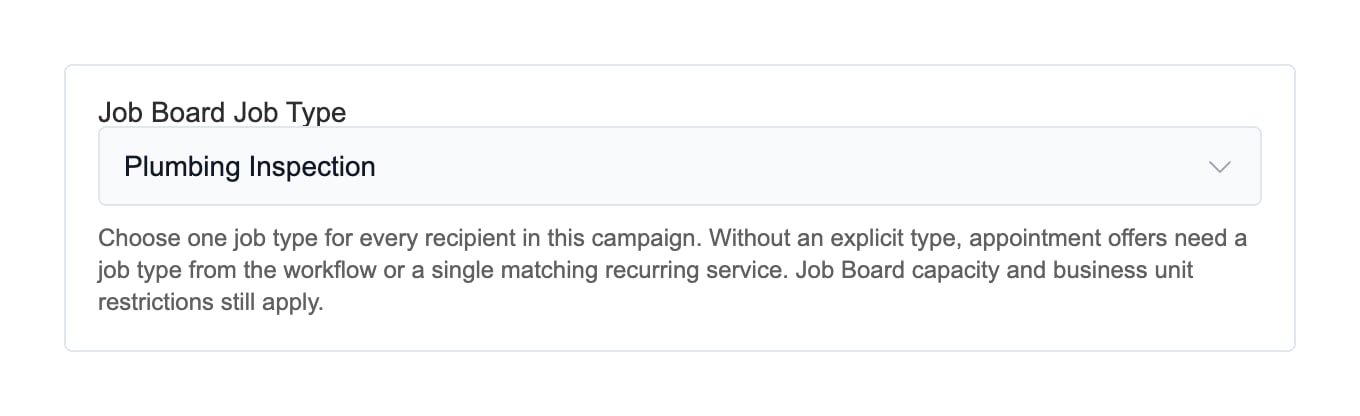
- Keep the type compatible with the campaign’s business units, service areas, and Job Board categories.
- If no business unit is configured, Avoca uses the selected job type’s ServiceTitan business unit when there is exactly one match after applying any enabled campaign booking restriction. The customer’s recurring service does not need to match that business unit. If there is no match or more than one, configure a compatible campaign business unit before sending appointment offers; Avoca will not guess. Existing business-unit selections remain in effect.
- Use workflow or recurring service clears the campaign selection. Without a workflow job type or a single matching recurring-service job type, maintenance appointment offers remain blocked.
- A workflow’s existing job-type setting takes precedence. Saving a conflicting campaign type is rejected; use a workflow with no job type or the same single type.
- Changing the type does not bypass Job Board capacity, booking limits, scheduling buffers, or campaign exclusions. Business-unit availability previews do not guarantee availability for the selected job type; appointment offers are checked when each message is sent.
Resolve a conflicting workflow job type
If saving reports that the workflow has a different job type setting, open the campaign’s workflow under Outbound → Workflows. In Workflow Settings, select the same Job Type as the campaign and save the workflow, then retry the campaign update. If the workflow already shows the intended type, saving it again can repair an outdated single-type setting. Workflow changes affect every campaign using that workflow. If those campaigns need different job types, set the workflow’s Job Type to None and configure each campaign’s job type. When creating a new campaign, you can also choose a separate workflow. An existing campaign’s workflow cannot be changed through the campaign editor. Some existing workflows have multiple job types configured. Saving the same displayed selection, including None, preserves that configuration. If the conflict persists, contact support to review the existing workflow. Avoid temporarily saving a different type just to clear the error, since other campaigns may use the workflow. Saving this setting does not resend messages that already failed. Review the affected audience and campaign status before retrying.Restrict which business units text conversations can book into
When the campaign has the feature available, the availability step includes Restrict which business units can be booked into. This optional campaign-wide allowlist applies to appointments created from the campaign’s text conversations.- Leave it empty to allow any otherwise eligible business unit.
- Select one or more business units to hard-limit booking to those units.
- Treat it separately from the business units selected above for offering availabilities by service area.
Manage a campaign
The Campaigns table shows status, start and next-run times, workflow, audience, and completed call and text counts. Available actions include:- View the campaign configuration
- Edit supported settings for active, scheduled, or paused campaigns
- Pause or Resume outreach
- Extend audience for supported recurring audiences
- Export campaign data as a CSV file
Read campaign revenue analytics
Open the Outbound analytics view, select the campaigns and date range, and review the Revenue section:- AI Booked Revenue: realized revenue from completed ServiceTitan jobs booked by Avoca AI through outbound calls or native conversations, excluding manually booked jobs
- Holistic Revenue: AI Booked Revenue plus completed jobs booked externally or manually in ServiceTitan
Read text campaign analytics
In Historical Analytics, Conversations Replied is the number of text conversations where the customer sent at least one message back. It is a conversation count, not a message count or percentage. Use it alongside:- Conversations: text conversations initiated for the selected campaign and date range
- Messages Received: all inbound customer messages, including multiple replies in one conversation
- Text Reply Rate: the percentage form of reply engagement
Review an automatically paused direct-mail member
For direct-mail workflows, Avoca checks each recipient’s mailing address immediately before submission. A piece is skipped and that audience member is paused automatically when current address evidence says the address is undeliverable, vacant, or below the configured deliverability-confidence minimum.- Select the campaign’s audience name.
- Expand the paused member’s execution timeline.
- Find the direct-mail step marked Skipped and review the displayed reason.
- Correct the source address or audience when the information is wrong.
- Use Resume & send anyway only after confirming the address and accepting the deliverability risk.
Verify the launch
- Open Outbound → Overview and select the campaign.
- Confirm that the expected audience count appears.
- Review Current Status for waiting and scheduled work.
- Check early calls and conversations before increasing the audience.
- Compare bookings and reply rates only after enough contacts have completed.