

Look up a metric
1
Open Metrics
Go to Analytics → Metrics. The page is grouped into sections: Calls, Call Flows, Speed-to-Lead and Custom. Select a section to open or close it.
2
Read the card
Each metric has its own card with a plain-language description, a Format (a number or a percentage) and a Formula. For a rate, the formula shows the top number over the bottom number. Select a name in the formula to jump to that metric.
3
See the calls behind it
Select View calls to open the matching calls in a new tab. On a rate, the button says View denominator calls and shows every call the rate is measured against.
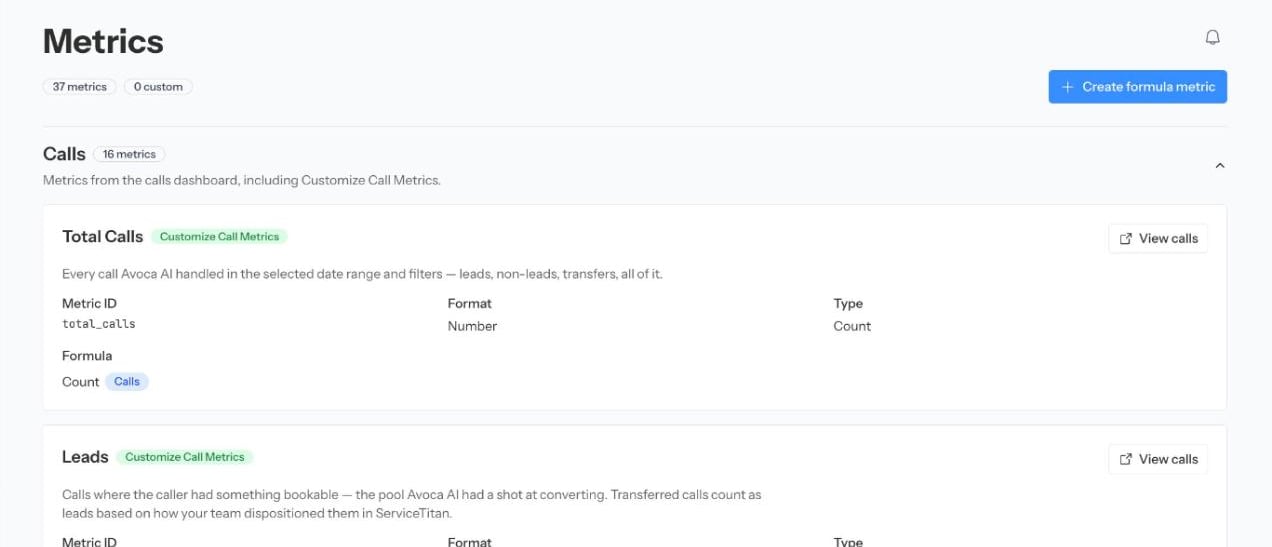
Every metric has a description, a formula and a View calls button.
Some rates show Drilldown unavailable. Those numbers use groups of calls that the Calls page can’t filter exactly. Use the description and formula to understand them.
Know which calls a number includes
Before you compare two numbers, check which group of calls each one uses:Booking metrics
Several metrics are called a booking rate, and each one asks a different question.
“Contained” looks only at the calls Avoca kept. “Fully Recovered” adds bookings that happened after the call. Don’t compare two of these without saying which one you mean.
Transfer and containment metrics
A handoff to another Avoca agent, such as a survey or Spanish-language agent, isn’t a transfer to your team. The call still counts as contained.
Call count metrics
The Calls section also lists these counts:Call Flows metrics
The Call Flows section is about every inbound call to your business, including calls nobody answered.
There are also Business Hours and After Hours versions of the inbound, abandoned and answered counts, and of the answer rate. Each one covers only calls that started during business hours or after hours.
Speed-to-Lead metrics
If you use Outbound or Speed-to-Lead, you will also see a Speed-to-Lead section.Create your own rate
You can build a rate of your own by dividing one metric by another. Your new metric appears in the Custom section.1
Start a new metric
On Analytics → Metrics, select Create formula metric.
2
Name it
Enter a Name. A Description is optional.
3
Pick the two metrics
Choose a Numerator (the top number) and a Denominator (the bottom number). Both must come from the same group: Calls with Calls, or Call Flows with Call Flows.
4
Choose a format and save
Pick Percentage, Number or Currency, then select Create metric.
Compare two reports
Before you decide two numbers disagree, make sure these match:- Team
- Date range
- Inbound, outbound or all calls
- Service areas
- Assistants
- Call reasons
- Transfer filters
- Whether silent and spam calls are included
- Whether recovered bookings are included
More options
When does a call count as booked?
When does a call count as booked?
A call counts as booked when your assistant offers a specific new appointment day, time or window and the customer agrees to it afterward. These don’t count:
- The customer stays silent or the call ends before they agree.
- Your assistant only says it will find the first available technician.
- The customer is confirming an appointment they already had.
- The customer says no or asks to think about it.
Add more metrics to your Calls page
Add more metrics to your Calls page
On your Calls page, select Customize metrics to choose which metric cards you see. Other metrics you can add include Silent/Spam Calls, Unbooked Calls, Emergency Calls Handled, Recovered Calls, Average Call Duration, Average Booked Call Duration and Repeat Calls (7d).
A number looks wrong
A number looks wrong
- Clear any filters left over from earlier.
- Check the metric’s description and formula on Analytics → Metrics.
- Select View calls and look at a few of the calls behind the number.
- Remember that recent calls may still be processing.
- If it still looks wrong, contact Support with the metric name, the page address, your date range and a few example calls.
I don't see Metrics, Custom Analytics or Speed-to-Lead
I don't see Metrics, Custom Analytics or Speed-to-Lead
- Metrics is available to team admins.
- The Speed-to-Lead section shows only if your team uses Outbound or Speed-to-Lead.
- Creating and listing your own metrics also depends on Custom Analytics being turned on for your team.