

You need the Invite members permission to send invitations. The Coach product must also be enabled for the team before invited members can open it.
Choose the right access pattern
Start with the least-privileged role that covers the person’s work. An administrator can customize individual permissions before sending the invitation or after the person joins.
An Admin is not required merely to review team performance. Give a Member additional settings or editing permissions only when their work requires them.
Understand the default Coach permissions
Avoca’s starting role defaults are shown below. Enterprise defaults, team defaults, and individual overrides can change a member’s effective permissions.
An authorized administrator can configure shared defaults or customize an individual member. See Set enterprise and team role defaults for inheritance order, existing customizations, and resetting a member’s overrides.
Prepare the invitations
Before inviting anyone, collect:- Each person’s work email address
- The role they should receive
- Any Coach permissions that should differ from the role default
- The correct ServiceTitan agent for anyone who will use View Own Coach Performance
Send invitations
- Open Settings → Business Info → Members.
- On Team Members, enter the person’s work email.
- Select Admin, Member, or Agent.
- For a ServiceTitan agent, select the matching agent record.
- Review or customize permissions when needed.
- Add more invitation rows if you are onboarding several people.
- Select Send invites.

Invite several teammates at once, choose a role, map ServiceTitan agents, and customize permissions when needed.
Track pending invitations
Open the Invited tab to review outstanding invitations. From this tab, an authorized administrator can:- Resend an invitation
- Revoke an invitation
- Confirm the selected role and ServiceTitan agent
- See when the invitation was created and when it expires
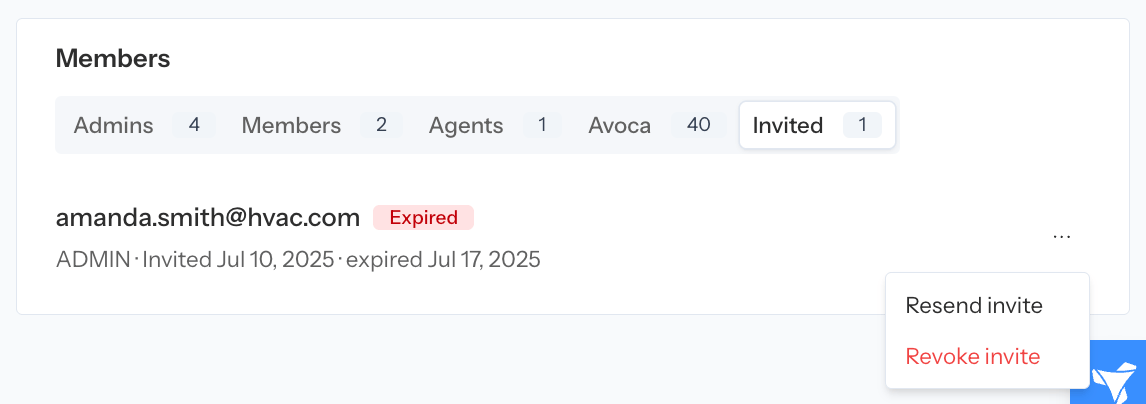
The Invited tab shows outstanding invitations and their resend or revoke actions.
Map an agent to ServiceTitan
View Own Coach Performance uses the member’s ServiceTitan agent ID to find the correct Coach scorecard. Set the mapping while sending the invitation, or update the member after they join. If an agent sees no performance data:- Confirm the member has View Coach and View Own Coach Performance.
- Confirm the member is mapped to the correct ServiceTitan agent.
- Confirm calls exist for that agent in the selected date range.
- Check whether the calls are attributed to Unassigned or a different ServiceTitan agent.
Verify access after the person joins
Ask the new member to sign in and open Products → Coach. Verify the result against their job:
Continue with Coach overview, Analyze agent performance, or Configure and analyze rubrics.