

Confirm prerequisites
- The Housecall Pro account must support API Key Management.
- The person completing setup needs Housecall Pro admin access.
- Generate the credential only through Housecall Pro’s supported API Key Management experience.
- Identify which employees can run jobs and which job types Avoca should book.
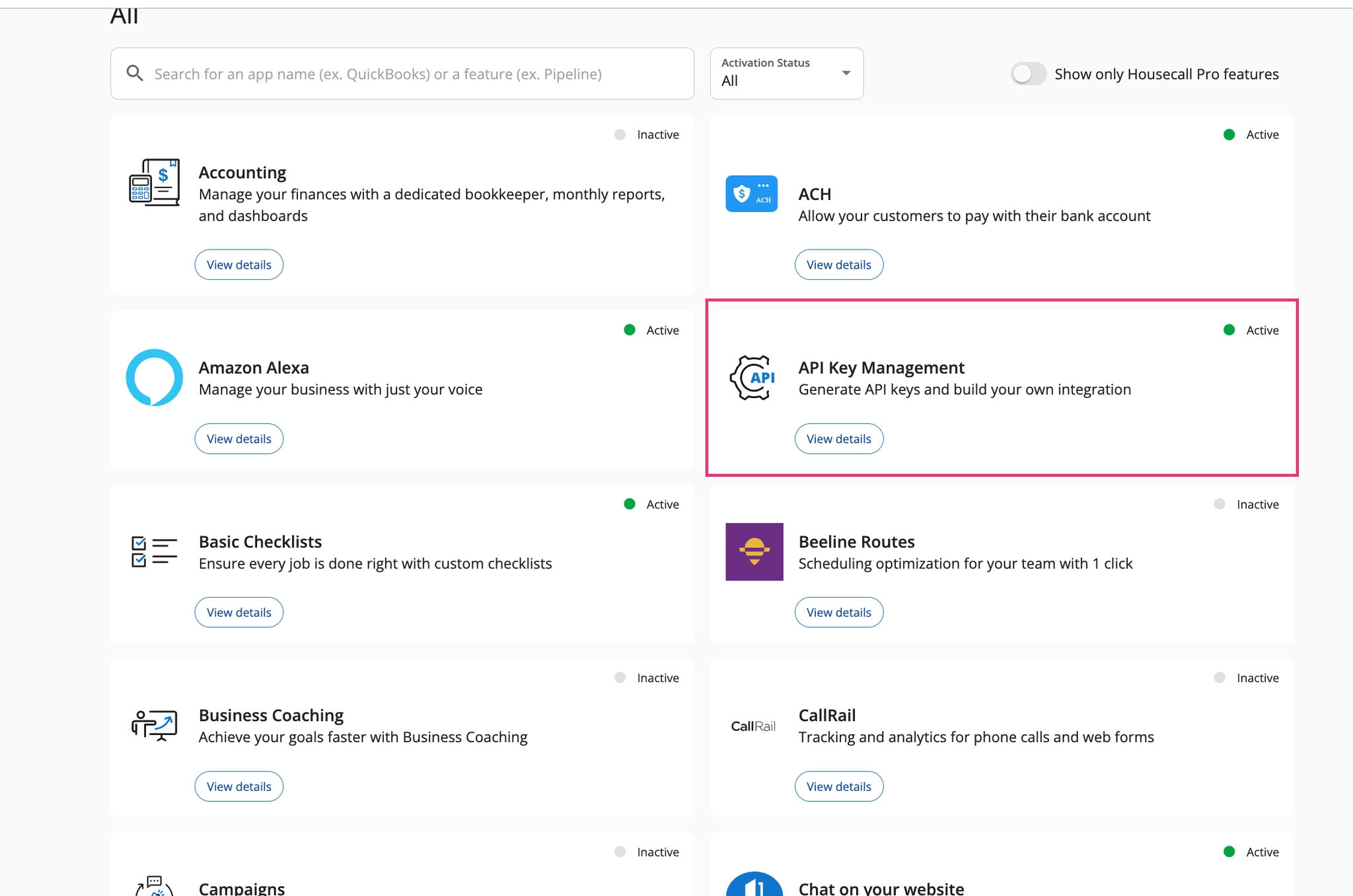
Find API Key Management
In Housecall Pro, open the app menu and choose Go to App store.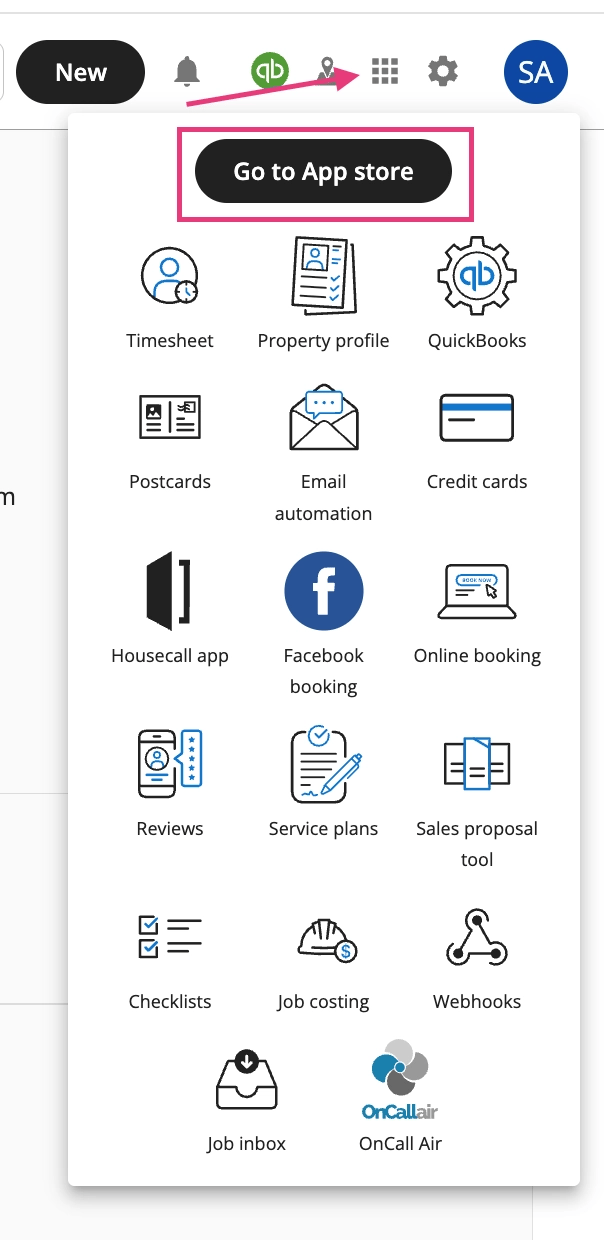
Configure job types
Housecall Pro combines work classification differently from ServiceTitan. In Avoca, an HCP job type is the primary unit selected in Booking Windows.- Review the job types the business actually uses.
- Create a small, clear set such as Service, Estimate, and Maintenance when all technicians perform the same work.
- Split job types by trade only when technician eligibility or booking behavior differs.
- Create a more specific type when only a limited technician group can perform the work.
- Avoid importing or recreating unused historical job types.
Choose the booking record type
In Basic Configuration, leave Always Book Estimate and Always Book Job off when the assistant should decide between an HCP estimate and job from each caller’s request.- Turn on Always Book Estimate to create every booking as an estimate, including requests for a repair or service call.
- Turn on Always Book Job to create every booking as a job, including callers who only want an estimate.
Map technicians
- Fetch technicians from Housecall Pro.
- Confirm which technicians are active and eligible for Avoca bookings.
- Map each technician to the job types they can perform.
- Review fallback or assignment behavior with your implementation contact.
- Keep non-job events and technician schedules current in Housecall Pro.
Configure Booking Windows
Open Business Info → Booking Windows.- Select the HCP job type for each booking configuration.
- Define the arrival windows and normal or emergency behavior.
- Review lead hours and the maximum booking horizon.
- Confirm whether the window uses capacity-backed or manual availability.
- Test one available and one unavailable request.
Cancellation, rescheduling, and assignment
The available cancellation, rescheduling, and technician-assignment behavior depends on whether the appointment is an HCP job or estimate, plus the team’s Responder and integration configuration.- Reschedule an HCP job: Avoca moves the job to the confirmed schedule and follows the configured technician-assignment behavior.
- Cancel an HCP job: HCP’s public API does not support a true cancellation. Avoca removes the schedule and assigned employees when possible. The job remains in HCP as a dormant record for a dispatcher to finish cancelling in the HCP interface.
- Reschedule an HCP estimate: Avoca updates the estimate option’s schedule and adds a note with the previous and new times. Estimates that are already in progress or in a terminal status cannot be rescheduled.
- Cancel an HCP estimate: HCP’s public API does not provide a supported cancel or unschedule action for estimate options. Avoca records the request on the estimate when possible and sends a high-priority manual-action alert. A dispatcher must complete the cancellation in HCP.
Validate end to end
- Confirm the Housecall Pro card is connected.
- Confirm the intended job type and technician eligibility.
- Review the matching service in the Knowledge Base and Booking Windows.
- Run an approved test booking.
- Verify the customer, address, HCP job-or-estimate record type, job type, schedule, technician behavior, and notes in Housecall Pro.
- Test rescheduling or cancellation only when the behavior is enabled. Include a job and an estimate when both record types are used.
- Review the Avoca call and CRM result together.
Troubleshoot
Preserve the Avoca call ID and the Housecall Pro job or estimate ID when contacting Support.