

Configure the board
Open Settings and configure Display first:- Turn on Enable Job Board when it is ready for use.
- Choose how many days to display and which weekdays are included.
- Set warning and success thresholds used by the board’s status colors.
- Add the default weather ZIP when weather should appear.
- Enter a clear name.
- Choose whether progress is measured as a job count or in hours based on job-type duration.
- Define which jobs count by including or excluding business units, job types, job tags, or technicians.
- Set the base goal for today.
- Set the future-day dropoff percentage, if the goal should decrease farther into the displayed range.
- Save the page.
When Job Board controls availability
This behavior applies only when Avoca has configured the team to use Job Board as its availability source. Avoca matches the proposed booking against each subcategory’s business-unit, job-type, and job-tag filters. Every matching subcategory is a constraint: a narrower full bucket can close a slot even when a broader bucket still appears open. Job Board availability defaults to 80% of each matching goal. Teams with Job Board text-booking protection enabled can change Booking limit (%) under Job Board → Settings → Booking capacity. Enter a whole percentage from 1 to 100 and select Save. If this control is unavailable, the limit remains 80%.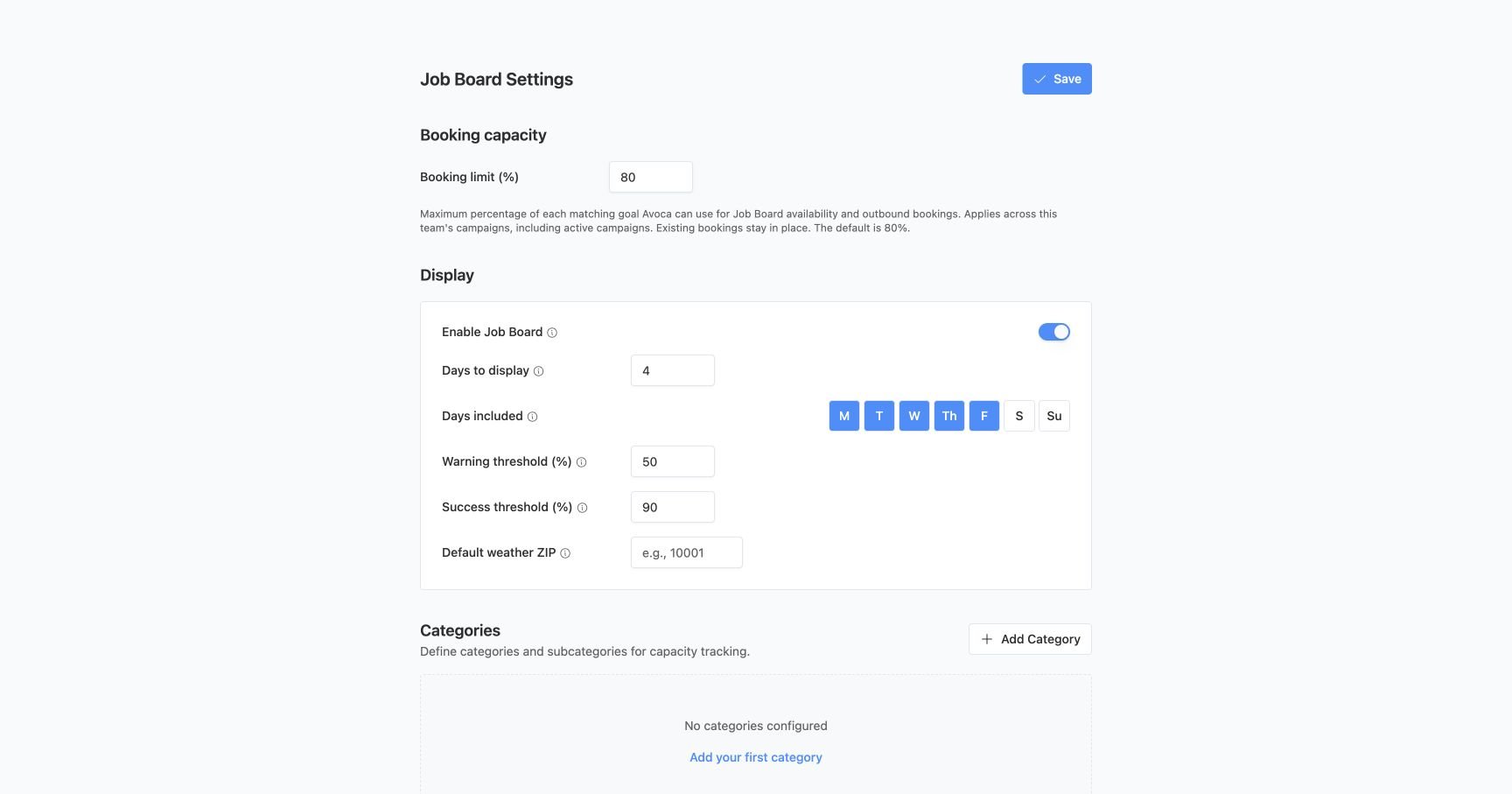
Requests for later dates
For outbound campaigns with Job Board text-booking protection enabled, customers can request a date or month beyond the initial offers. Avoca checks up to two weeks starting from that preference and offers only available slots in that range. A date missing from an earlier offer does not mean it is full. The lookup uses the board’s included weekdays, category filters, goals, future-day dropoff, manual adjustments, current CRM jobs, and pending booking reservations. Dropoff is still calculated from today, so a nonzero dropoff can close dates farther out. Scheduling buffers, minimum dates, holidays, and arrival windows still apply. Avoca refreshes the selected day’s capacity before reserving a booking. If capacity cannot be checked, it cannot confirm that booking. This optional behavior does not enable preferred-date searching for other availability sources or inbound Responder, and it does not extend the board’s routine background refresh.Use separate campaign tracks
Ask your Avoca team to enable Job Board offer and booking protection for outbound texts before relying on the board to control campaigns. For tracks such as systems under 10 years old and systems 10 years or older:- Select the intended ServiceTitan job type in Job Board Job Type on the campaign’s Schedule step or edit form. This field is available when the team uses Job Board for outbound availability and outbound text-booking protection is enabled. The effective selection must contain one job type for that track; an existing workflow job-type setting must match it. A campaign name or audience age filter alone does not set the booking job type.
- Confirm the selected business units and service areas can book that job type. If a campaign also restricts which business units it can book into, keep those selections compatible.
- Match the Job Board subcategories to those job types and any required job tags. Check broader overlapping categories too: every matching category must have room.
- Review scheduling buffers, minimum dates, holidays, and arrival windows. An open Job Board bucket does not override those settings.
- Test both tracks before starting the campaign. When the younger-system bucket is full and the older-system bucket is open, the younger track should offer a later open date and the older track should offer its earliest allowed date. Also test with both buckets full.
Enablement is a separate rollout step. Publishing a workflow or enabling the Job Board display alone does not activate outbound text-booking protection. Existing buffers still apply, so removing a temporary delay requires a separate scheduling-settings change.
Offer dates to new leads
For Speed-to-Lead text workflows with Job Board offer and booking protection enabled, a saved opener can include appointment variables. If no job type is configured on the campaign or workflow, Avoca uses the lead’s request details to identify an eligible service and business unit, then checks the matching Job Board availability. Different service requests can receive different dates within the same campaign. Avoca saves the resolved service and business unit on the audience member and reuses them for later appointment texts. Dates refresh against current availability; the service does not change with each follow-up. The service must map to exactly one enabled business unit in the lead’s service area after campaign restrictions apply. A booking-window mapping limited to specific job types counts only for those types, so a business unit mapped only for estimates does not make repair requests ambiguous, and each offer uses the windows of a mapping that serves its job type. Missing or ambiguous mappings keep the generic first-contact message. The saved service carries into the text conversation for booking. An explicitly configured job type takes precedence over the lead’s request; Avoca does not infer a new type outside an explicit multi-type selection. Initial offers use campaign tags and standard booking tags. Emergency handling and additional booking details are evaluated during the customer conversation. If the request details are missing, the service cannot be resolved, the lookup fails, or no dates are available, Avoca sends a generic first-contact message without appointment options. This replaces the saved appointment opener for that send. Receiving this message alone does not establish that the board is full or that an appointment lookup failed. Before launching, test representative requests for each service and check the first text, follow-up wording, and booking outcome. Review the lead’s request details and the campaign’s job-type and business-unit settings if the opener does not include the expected dates.Use the Board
On Board, select a start date and filter to the categories you need. The page refreshes during the day. Select a progress value to inspect the jobs that contribute to it. Authorized users can make a manual goal adjustment. Use an adjustment for a real one-off operating change, not to hide a bad category filter or missing CRM record. The TV action can create or manage a display link for a wallboard. Treat that link as operational access: share it only with the intended audience and replace it if it is exposed.If the counts are wrong, review the subcategory filters, CRM job and technician data, date, included weekdays, and whether the board is enabled before changing the goal. If a booking is blocked while the board still shows room, also check for a narrower matching subcategory and whether the new job would cross the booking limit (80% by default).