

The tiles you see depend on your team’s enabled products and your permissions. A saved URL does not bypass those requirements.
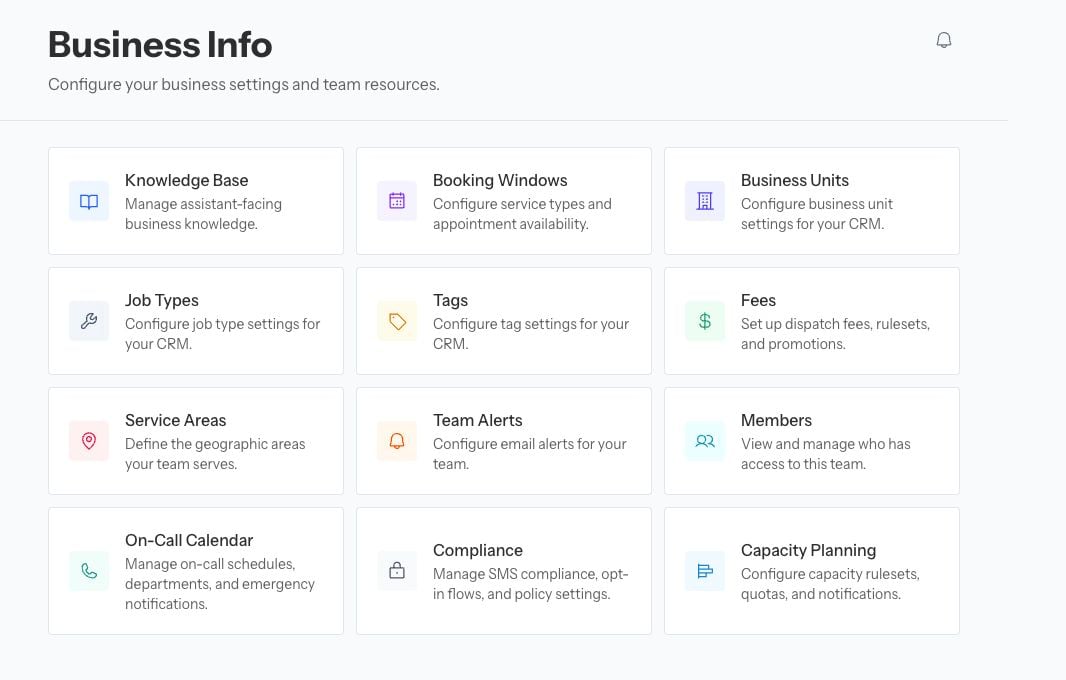
Business Info is organized into settings tiles; availability varies by team.
Choose the right source of truth
The CRM remains the source of truth for its catalog and customer records. The Business Info pages control how Avoca interprets or uses those records. If a job type, business unit, tag, or technician is missing, correct or sync the CRM record before creating a duplicate in Avoca.
Make a safe change
- Confirm the team name in the dashboard.
- Open the relevant Business Info tile.
- Record the current setting before changing live booking, routing, fee, or notification behavior.
- Save the smallest required change.
- Test the affected scenario in the appropriate Avoca testing surface.
- Check the resulting call, message, booking, or alert.