

- Recovery Analytics for the missed-opportunity queue and outcome metrics
- Recovery Items for the follow-up task workflow
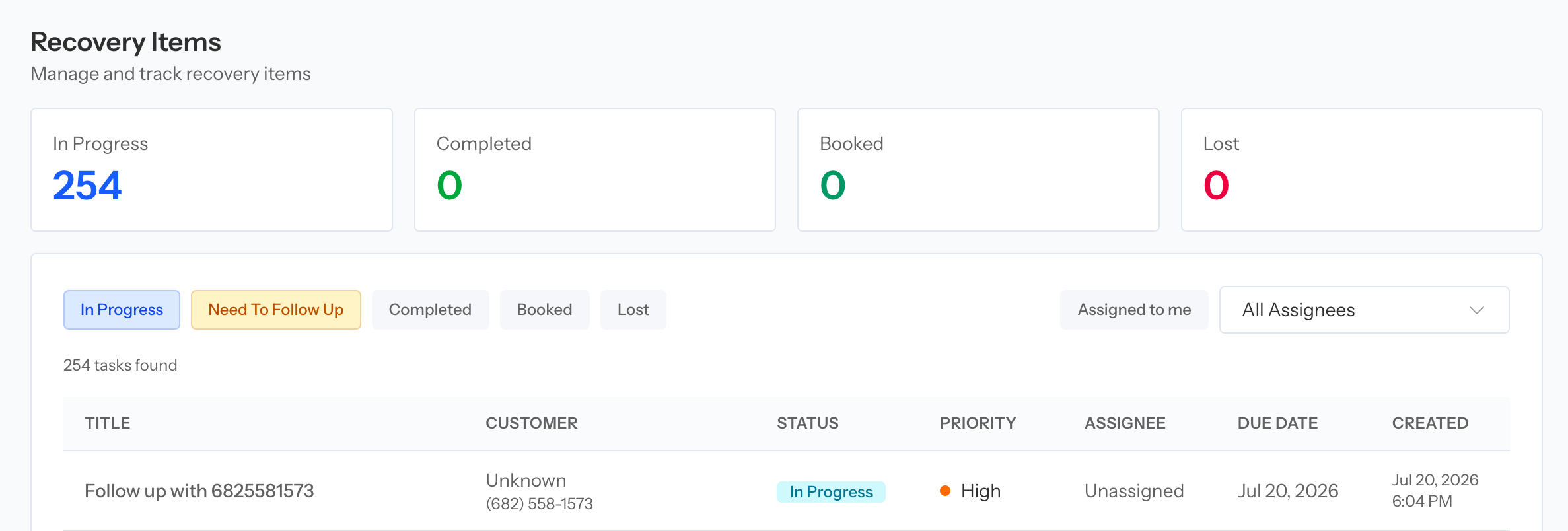
Recovery Items turns missed opportunities into assigned, trackable follow-up work.
A recovery task is internal work. Creating or updating a task does not call or message the customer automatically.
Read Recovery Analytics
The summary cards show:- To Recover: total missed opportunities minus recovered opportunities
- Recovered: recovered opportunities out of total missed
- Recovery Rate: recovered opportunities divided by missed opportunities
- Attempt Rate: missed opportunities with at least one follow-up attempt
- Avg First Contact: average time from the missed call to the first outbound attempt
Objections Breakdown
The breakdown groups missed opportunities by the recorded objection. Use it to identify recurring causes, then inspect the individual opportunities before changing a script or policy. An objection label is a classification. Confirm it against the call when the operational decision matters.Work the Recovery Queue

Open Recovery from Coach when the feature is enabled for the team.
- Priority
- Customer
- Issue and call summary
- Objection
- Age
- Attempt count
- Call agent
- Task assignee or assigned team
- Task status
- Recovered job and revenue when available
Queue filters
- Unassigned Agent: opportunities without an attributed call agent
- Unassigned Team: opportunities without a recovery-team assignment
- Show Recovered: includes opportunities already matched to a recovered job
Create a recovery task
Select the plus button on an opportunity that does not already have a task. You can also create a task from the Recovery Tasks card in Call Review.- Confirm or edit the title.
- Add an optional description with the expected follow-up.
- Set Urgent, High, Medium, or Low priority.
- Select the relevant recovery tags.
- Set a due date.
- Select Create Task.
Manage Recovery Items
The top cards summarize task counts for:- In Progress
- Completed
- Booked
- Lost
- In Progress
- Need To Follow Up
- Completed
- Booked
- Lost
- Assigned to me
- Any assignee or unassigned
- Assigned recovery team, where team assignment is enabled
- Date range
Update a task
The edit dialog can include:- Title
- Description
- Status
- Priority
- Due date
- Assignee
- Assigned team for supported teams
- Outcome notes for terminal statuses
- Lost reason when the status is Lost
Choose the correct status
- In Progress: work has started and no additional waiting state is needed
- Need To Follow Up: another customer contact is required
- Completed: the operational work is closed without recording a booked or lost result
- Booked: the recovery was successful
- Lost: the recovery was unsuccessful
Recommended recovery workflow
- Filter the queue to unassigned or high-priority opportunities.
- Review the issue, objection, summary, and earlier missed calls.
- Create one task with a clear owner and due date.
- Use the team’s approved outbound workflow to contact the customer.
- Set Need To Follow Up when another attempt is required.
- Close the task with the correct terminal status and factual outcome notes.
- Verify the booked job in ServiceTitan when the result is a recovery.
Protect reporting quality
- Keep assignments and due dates current.
- Do not create another task merely because ownership changed.
- Use Lost only after the team’s follow-up policy has been completed.
- Avoid unnecessary sensitive customer data in descriptions or outcome notes.
- Compare metrics with the same call-date range.
- Allow time for ServiceTitan job and revenue data to sync.