

Rubric editing requires Coach Settings access. Call-level grading controls can have separate permissions.
Understand rubric structure
Each rubric has:- Title: the name shown in settings and reports
- Direction: Inbound or Outbound
- Active state: whether Coach can use the rubric for new evaluations
- Selection criteria: a plain-language description of when the rubric should apply
- Sections: categories that organize related behaviors
- Criteria: the individual goals Coach grades as Yes, No, or N/A
- Points: the contribution of each criterion to the overall score
Create a rubric
- Open Coach → Settings → Rubrics.
- Select New rubric.
- Choose a blank inbound or outbound rubric, or start from a template.
- Enter a distinct title.
- Confirm the direction.
- Describe when Coach should select the rubric.
- Add sections and criteria.
- Assign criterion points.
- Turn on Active when the rubric is ready.
- Select Done, then save the page-wide changes.
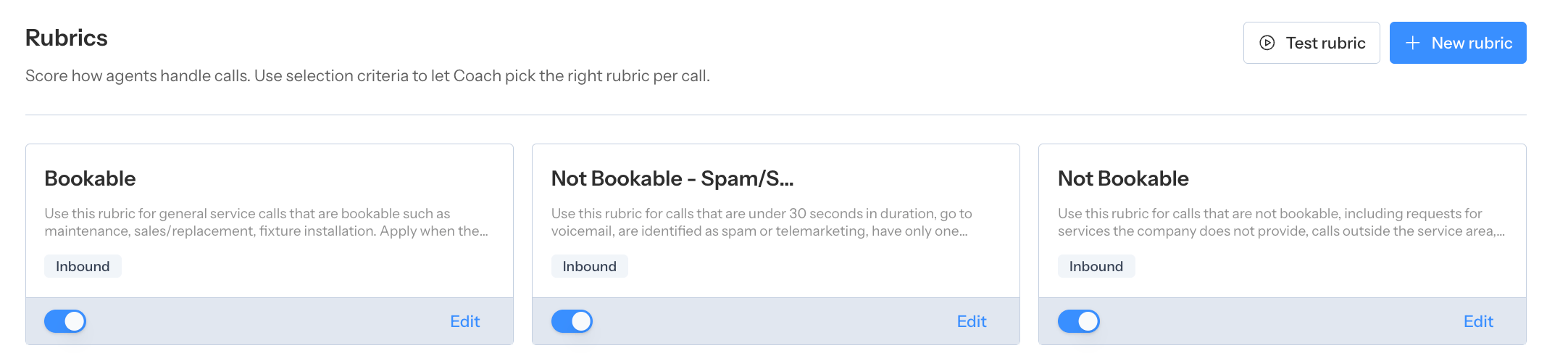
Rubrics settings lists each scorecard, its selection criteria, active state, and edit controls.
- Bookable Inbound
- Not-bookable Inbound
- Bookable Outbound
- Not-bookable Outbound
Write effective criteria
Each criterion should describe one observable behavior. Prefer:- “Confirmed the customer’s service address”
- “Explained the next step and expected arrival window”
- “Acknowledged the pricing objection before offering an alternative”
- State what the agent should do.
- Include the condition when it matters.
- Avoid subjective words such as “good” or “professional” without defining the observable behavior.
- Keep policy exceptions in the selection criteria or a separate rubric.
Set points
The editor shows the total across all criteria. Configure an intentional total of 100 points so the score is easy to interpret. New criteria start with a small nonzero point value. Older or imported rubrics without meaningful weights can be normalized, but explicitly assigning points is safer and makes the rubric’s priorities clear.Manage multiple rubrics
Use separate rubrics when the expected behavior is materially different, such as:- Inbound booking calls
- Outbound follow-up calls
- A specialized service line
- A distinct call purpose with different compliance steps
- Set the correct direction.
- Write mutually understandable selection criteria.
- Keep only production-ready rubrics active.
- Give similar rubrics distinct selection language.
- Inbound starter: Bookable Inbound and Not-bookable Inbound
- Inbound and outbound: separate bookable and not-bookable rubrics for both directions
- Advanced: an additional intent- or service-specific rubric only when its selection criteria cleanly separate it from the general rubrics
Test in the Rubric Playground
Select Test rubric from the Rubrics page. You choose calls one of two ways:- Filter calls: build a cohort from a date range plus any Coach call filter — agent, booked status, call direction, tags, and the rest. Opens with 10 random calls from the last 30 days already loaded.
- Enter call IDs: paste up to 25 Coach call IDs instead, when you want specific calls.
- Confirm the selected rubric.
- Read the selection reasoning.
- Review the criterion answers and evidence.
- Compare the result with the recording — select Open on a call to view its transcript in a new tab.
- Refine ambiguous selection criteria or grading criteria.
- Re-run the test before saving a broad production change.
Add the objection-handling playbook
The Rubrics settings page includes an Objection handling playbook. Record the approved strategies Coach should reference when a call contains an objection. Keep the playbook:- Specific to the team’s current policy
- Organized around recognizable objection types
- Written as coaching guidance, not unsupported promises
- Updated when pricing, financing, scheduling, or escalation policy changes
Analyze team-wide Rubric Performance
From Top Failed Rubric Items on the Overview, select See all or open Rubric Performance. The page groups every available rubric item by category and shows:- Current success rate
- Change from the prior period
- Direction and rubric filters
- Coach Suggestion and suggested script
- Recent calls with the issue
- A daily success-rate trend
- A link to every call where the item was missed
Analyze one agent’s rubric performance
Open an agent from Agent Performance, then select View score breakdowns by all categories. The agent-level view uses the same category, criterion, success-rate, and prior-period structure, but scopes the calls to that agent. It can be exported as a PDF report. See Analyze agent performance.Correct one call without changing the rubric
Open the call’s Coaching tab to review its rubric result.- Unlock the rubric.
- Change the applicable criterion answers.
- Update reasoning if needed.
- Save the override.
Manage rubric changes safely
- Test selection and grading before activation.
- Change one concept at a time when possible.
- Record when a material rubric change goes live.
- Expect Average Score to shift when criteria or points change.
- Compare pre-change and post-change periods cautiously.
- Do not use a call-level override to compensate for a consistently ambiguous master rubric.
- Save or discard pending changes before leaving the settings page.