

Documentation Index
Fetch the complete documentation index at: https://help.avoca.ai/llms.txt
Use this file to discover all available pages before exploring further.
End to End Campaign Deployment
Overview
To get started, navigate to Configure > Campaigns and click the New Campaign button in the top right corner. Campaigns are built across five sections: Workflow, Audience, Availabilities, Phone Numbers & Tags, and Schedule. Each is described below.Section 1: Workflow
Selecting/Creating a Workflow
- Either select a published workflow, or click Create a new workflow at the bottom of the screen.
- Name the workflow and select a workflow type.
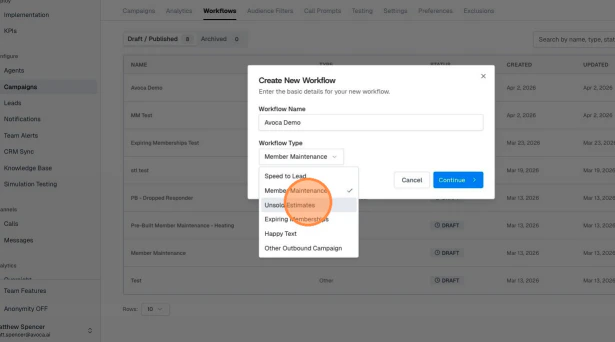
- Tip: You can select “Member Maintenance” for non-member maintenance campaigns and edit the preset copy.
- Tip: Select “Other Outbound Campaign” only if you want a fully custom campaign that doesn’t match any provided options.
- Choose how to build the workflow: Use Preset, Clone Existing, or Start from Scratch.
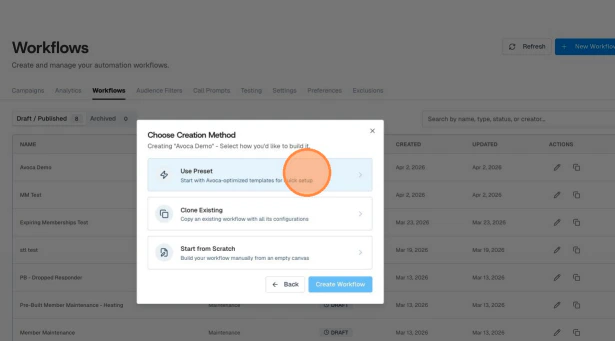
- Use Preset — Recommended. Uses one of Avoca’s battle-tested, best-practice workflows.
- Clone Existing — Use this to modify one of your already-published workflows.
- Start from Scratch — Only use this if you have a very specific workflow in mind and want a blank canvas.
- If using a preset, select a Service Category and an intensity level, then click Create from Preset in the bottom right corner of the pop-up.
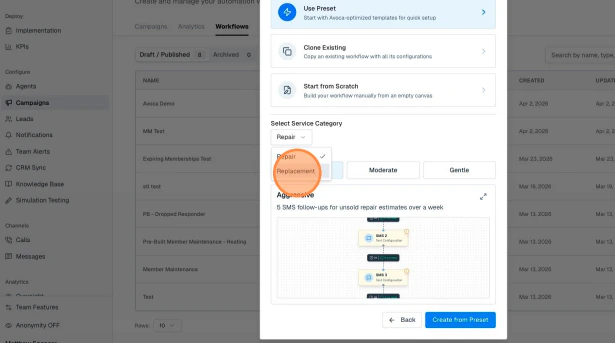
- Review each node’s language, sequence, and the delays between nodes. Each node represents a distinct message in the workflow. Double-click any message to read its copy.
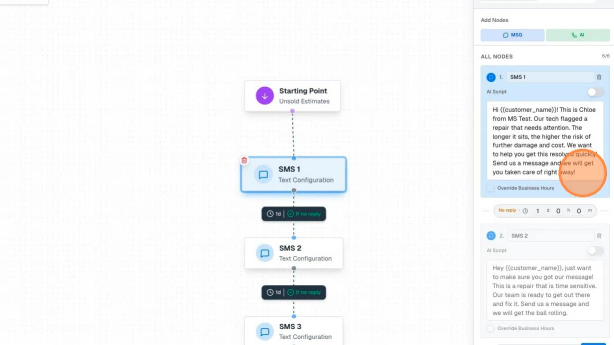
- Text in double curly brackets (e.g.,
{{customer_name}}) represents a dynamic variable. These variables currently only work with ServiceTitan as your CRM. - Appointment date variables pull availability from the business unit you’ll select in the Availabilities section.
- Text in double curly brackets (e.g.,
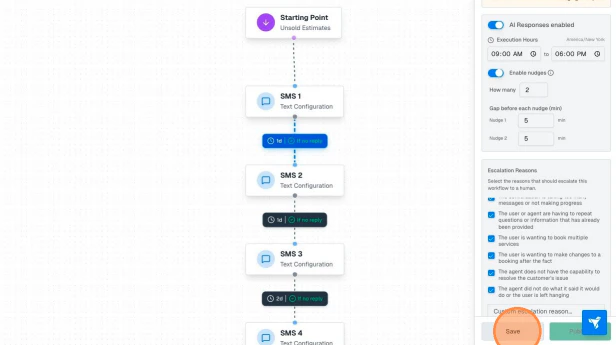
- Switch from Node view to Workflow view in the right configuration panel and review the following settings:
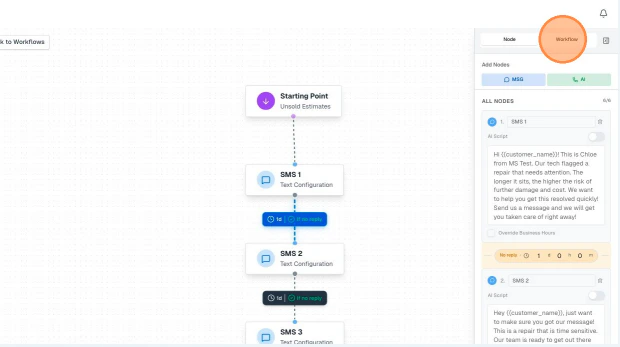
- Execution Hours — The window during which messages are sent. Best practice is to align these with your business hours to avoid texting customers late at night.
- Nudges — Automated follow-up messages sent if a customer replies but then stops responding. Configure the number of nudges and the delay between each.
- Escalation Logic — Define which situations should escalate the conversation to a human agent. Preset workflows include recommended escalation logic.
- ServiceTitan Notes — Choose whether Avoca should write notes to a ServiceTitan job, a customer profile, or neither.
- Click Save, then Publish to activate the workflow.
Section 2: Audience
Creating an Audience
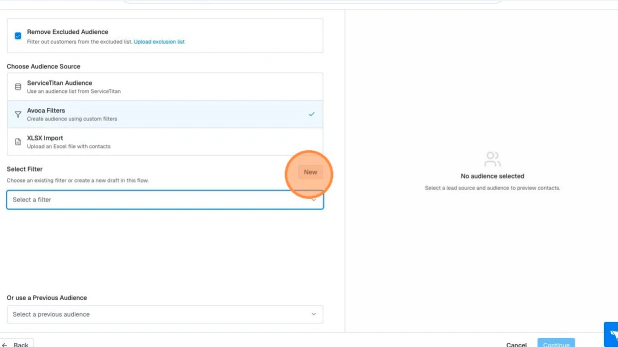
- Under the Audience tab, choose an Audience Source. We recommend selecting Avoca Audience Filters and creating an audience (if one is not created already)
- To create a new filter select the New button next to Select Filter
- Name the audience and select a service area.
- Name the audience and select a service area.
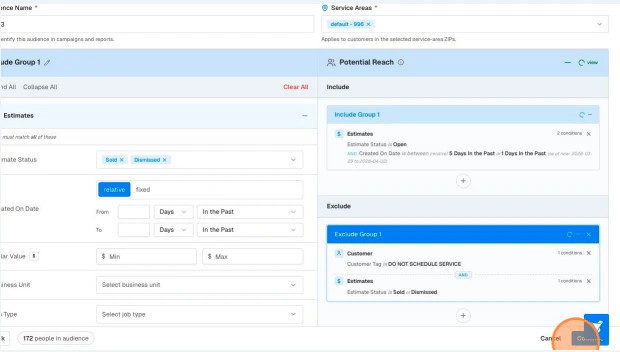
- Select Inclusion Group filters based on your workflow type and campaign objectives. You can add as many inclusion groups as needed.
- Select Exclusion Group filters based on your workflow type and campaign objectives. You can add as many exclusion groups as needed.
- Tip: Always exclude customer and location tags such as “Do Not Service,” “Do Not Contact,” “Do Not Text,” “Do Not Call,” and “Opted Out.”
- Click Save in the top right corner when finished.
Section 3: Availabilities
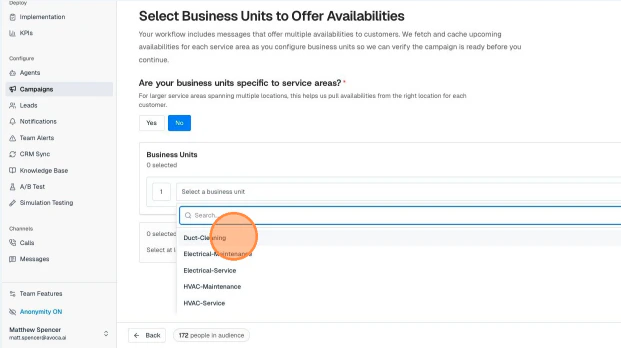
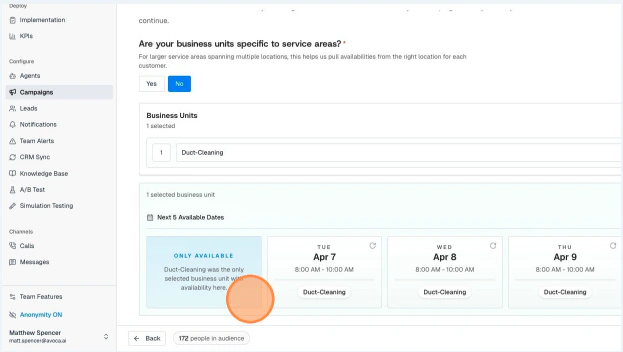
This section only appears if appointment date variables exist in the selected workflow. If not, it will be skipped automatically.- Select the Business Units from which you want to offer availabilities.
- Answer whether your business units are tied to service areas.
- Yes — Ensure at least one business unit is tied to each service area.
- No — Ensure at least one business unit is added. (Most companies should select “No.”)
- General recommendation: Select as few business units as possible to be more precise when fetching availabilities.
- Note: If no availabilities exist for a selected service area or business unit, that portion of your audience will be filtered out.
Section 4: Phone Numbers & Tags
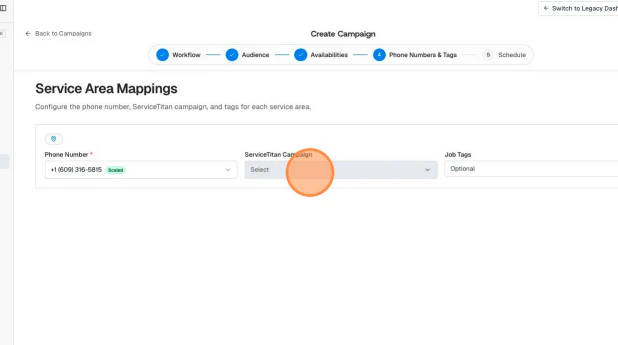
- Map phone numbers to each service area. Click Apply All to do this quickly.
- Optionally, map ServiceTitan Campaigns and Job Tags to each service area.
Section 5: Schedule
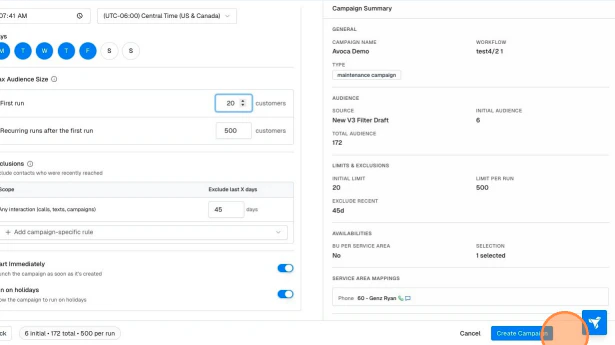
- Add a campaign name.
- Choose whether to launch the campaign immediately or schedule it for a future date.
- Select whether the campaign should run on holidays.
- Choose between a one-time or multi-run campaign.
- Set a maximum audience size.
- For multi-run campaigns, you can configure separate audience size limits for the first run and all subsequent runs.
- General recommendation: Set a smaller audience size for the first run so you can quickly identify and resolve any issues before scaling up.
- To exclude audiences already contacted through another Avoca campaign, select that campaign under Campaign Exclusions.
- Click Create Campaign to finalize.
Notification Messages
Overview
Notification messages are automated texts sent to customers in response to specific job-related events. Unlike outbound campaigns, which are proactively sent to a defined audience, notifications are triggered automatically based on activity in your system — ensuring customers are always kept in the loop without any manual effort from your team.Available Notification Types
Job Scheduled
Automatically sends a confirmation message to the customer as soon as a job is scheduled. This gives customers immediate peace of mind that their appointment has been booked and the details are confirmed.Job Rescheduled
Automatically sends a confirmation message to the customer as soon as a job is rescheduled. This keeps customers informed of any changes to their appointment without requiring your team to make a manual follow-up call or send a message.Job Canceled
Automatically sends a confirmation message to the customer as soon as a job is canceled. This ensures customers are promptly notified of the cancellation and reduces the chance of confusion or a missed appointment.Appointment Reminder
Automatically sends a reminder message to the customer ahead of their upcoming appointment. The timing of this reminder is fully configurable, allowing you to choose how far in advance the message is sent based on what works best for your business.Best Practices: Member Maintenance Campaigns
Overview
Member maintenance campaigns are designed to re-engage existing members who are due for a prepaid maintenance visit or tune-up. Since these visits are already included in the customer’s membership, the goal is simply to get them scheduled — fulfilling your membership promise while giving technicians the opportunity to inspect systems and surface any repair or replacement needs. Workflow presets are available for the following trade verticals:- Heating (furnace)
- Cooling (A/C)
- Plumbing (water heater)
- Electrical
- Other trade verticals
Is This the Right Campaign Type for You?
Member maintenance campaigns are a great fit if either of the following applies to your business:- You want to proactively reach out to members to book their maintenance appointments.
- The maintenance or tune-up visit is already prepaid or included as part of your membership offering.
How It Works
When a member maintenance campaign is active, Avoca’s messaging agent will reach out to eligible members and work to get their maintenance appointment booked. Because these are existing customers, the agent will typically focus on scheduling rather than collecting additional customer or job information. Important: If a customer is already active in a workflow and a job is booked through any other channel — such as an inbound call or your Responder — the workflow will automatically stop for that customer. This prevents duplicate outreach and ensures a smooth customer experience.Building Your Audience
Member maintenance campaigns target your existing member base. ServiceTitan manages membership data in two different ways, so the right audience setup will depend on which schema your account uses:- Membership (Names, Types, Tags) — Use the Membership section in Avoca’s Audience Filters.
- Recurring Services — Use the Recurring Service Events section in Avoca’s Audience Filters.
Tips for Success
- Launch seasonal campaigns early. For heating and cooling maintenance, send campaigns before peak season to ensure your members are scheduled before demand spikes.
- Use exclusion filters. Always exclude contacts tagged as “Do Not Contact,” “Opted Out,” or similar to stay compliant and maintain a positive customer experience.
- Start with a smaller audience on your first run. This allows you to review performance and catch any issues before rolling the campaign out at full scale.
Best Practices: Non-Member Maintenance Campaigns
Overview
Non-member maintenance campaigns — sometimes called promotional campaigns — are designed to re-engage existing customers who are not members by offering them a promotion to book a maintenance visit. Like member maintenance campaigns, these create an opportunity for technicians to inspect systems and identify any repairs or replacements, while also helping you build deeper relationships with customers who haven’t yet committed to a membership. Workflow presets are available for the following trade verticals:- Heating (furnace)
- Cooling (A/C)
- Plumbing (water heater)
- Electrical
- Other trade verticals
Is This the Right Campaign Type for You?
Non-member maintenance campaigns are a great fit if any of the following applies to your business:- You want to reach out to your broader customer base, not just members.
- You want to offer a promotion to incentivize customers to book a maintenance job.
- You want to target customers based on when their last job was completed, scheduled, or canceled.
How It Works
When a non-member maintenance campaign is active, Avoca’s messaging agent will reach out to eligible customers and work to get their maintenance appointment booked. Because these are existing customers, the agent will typically focus on scheduling rather than collecting additional customer or job information. Important: If a customer is already active in a workflow and a job is booked through any other channel — such as an inbound call or your Responder — the workflow will automatically stop for that customer. This prevents duplicate outreach and ensures a smooth customer experience.Building Your Audience
Non-member maintenance campaigns target existing non-member customers. Use the Customer and/or Job sections in Avoca’s Audience Filters to define your audience. A few things to keep in mind when building your audience:- Exclude active members. Since these campaigns are designed for non-members, always add an exclusion filter for customers with an active membership to avoid overlap with your member maintenance campaigns.
- Use job history filters. The Job section allows you to target customers based on when their last job was completed, scheduled, or canceled — making it easy to reach customers who may be overdue for a visit.
Tips for Success
- Lead with a compelling promotion. Unlike member maintenance campaigns where the visit is already prepaid, non-member campaigns benefit from a clear incentive. Make sure your workflow messaging highlights any promotional offer prominently.
- Launch seasonal campaigns early. For heating and cooling maintenance, send campaigns before peak season to capture demand before your schedule fills up.
- Use exclusion filters. Always exclude contacts tagged as “Do Not Contact,” “Opted Out,” or similar to stay compliant and maintain a positive customer experience.
- Start with a smaller audience on your first run. This allows you to review performance and catch any issues before rolling the campaign out at full scale.
Best Practices: Unsold Estimates Campaigns
Overview
Unsold estimates campaigns — also known as open estimates or rehash campaigns — are designed to follow up with existing customers who recently had a technician visit and received an estimate for a repair or replacement. Since these are often high-ticket opportunities, even a modest conversion rate can have a meaningful impact on revenue. Workflow presets are available for both:- Repair estimates
- Replacement estimates
Is This the Right Campaign Type for You?
Unsold estimates campaigns are a great fit if either of the following applies to your business:- You want to follow up with customers who recently had a technician visit and received an estimate.
- You have a backlog of open or unsold estimates you’d like to convert into booked jobs.
How It Works
When an unsold estimates campaign is active, Avoca’s messaging agent will reach out to customers with open estimates and re-engage their interest. Unlike maintenance campaigns, the agent will not attempt to book the job directly. Instead, as soon as a customer responds or shows interest, the conversation will be escalated to your team to take over. This is intentional, for a couple of reasons:- Installation and replacement jobs are revenue-sensitive. You may need to reserve time for your top technicians rather than filling the slot automatically.
- Parts availability matters. Repairs and installations following an estimate often require ordering parts first, meaning the job can’t be scheduled until those parts arrive.
Building Your Audience
Use the Estimates section in Avoca’s Audience Filters to define your audience for this campaign type.- Include customers with open estimates.
- Exclude customers with sold or dismissed estimates.
Tips for Success
- Act quickly on escalations. Since the agent’s job is to generate interest rather than book directly, your team should be prepared to respond promptly when a conversation is escalated. Speed matters when a customer is ready to move forward on a high-ticket job.
- Target recent estimates first. Customers are more likely to convert when the technician visit is still fresh. Consider using job date filters to prioritize estimates from the last 30 to 90 days.
- Use exclusion filters. Always exclude contacts tagged as “Do Not Contact,” “Opted Out,” or similar to stay compliant and maintain a positive customer experience.
- Start with a smaller audience on your first run. This allows you to review performance and catch any issues before rolling the campaign out at full scale.
Best Practices: Expiring Membership Campaigns
Overview
Expiring membership campaigns are designed to proactively reach out to current members whose plans are coming up for renewal. The goal is to re-engage these customers before their membership lapses, giving your team the opportunity to renew or upgrade their plan and retain them as long-term members.Is This the Right Campaign Type for You?
Expiring membership campaigns are a great fit if the following applies to your business:- You want to proactively contact members whose plans are expiring soon to encourage renewal or an upgrade.
How It Works
When an expiring membership campaign is active, Avoca’s messaging agent will reach out to members approaching their membership expiration date and re-engage their interest. The agent will not renew, upgrade, cancel, or modify any membership directly. Instead, as soon as a customer responds or shows interest, the conversation will be escalated to your team to take over. This is intentional — membership renewals and upgrades often involve payment processing, which requires a member of your team to handle directly. Important: If a customer is active in a workflow and their membership is renewed or modified through any other channel — such as an inbound call — the workflow will automatically stop for that customer.Building Your Audience
Use the Membership section in Avoca’s Audience Filters to define your audience for this campaign type. Filter for members whose plan expiration date is approaching to ensure your outreach is timely and relevant. You can also layer in additional filters from the Customer section to further refine your audience — for example, targeting members in a specific service area or tier.Tips for Success
- Time your outreach carefully. Reach out early enough that members have time to act before their plan expires, but not so far in advance that the renewal feels premature. A window of 30 to 60 days before expiration is a good starting point.
- Prepare your team for escalations. Since the agent’s role is to generate interest rather than complete the renewal, your team should be ready to respond promptly when a conversation is escalated. A slow response risks losing the member.
- Use exclusion filters. Always exclude contacts tagged as “Do Not Contact,” “Opted Out,” or similar to stay compliant and maintain a positive customer experience.
- Start with a smaller audience on your first run. This allows you to review performance and catch any issues before rolling the campaign out at full scale.
Best Practices: Happy Campaigns
Overview
Happy campaigns — also known as survey or Google review campaigns — are designed to follow up with customers after a recent appointment to check in on their experience. These campaigns serve multiple purposes: resolving any lingering post-appointment issues before they escalate, and capturing positive sentiment in the form of Google reviews to help grow your online reputation.Is This the Right Campaign Type for You?
Happy campaigns are a great fit if any of the following applies to your business:- You want to proactively check in with customers after a recent appointment to gauge their experience.
- You want to identify and resolve post-appointment issues before they turn into negative reviews or complaints.
- You want to increase the volume of positive Google reviews for your business.
How It Works
When a happy campaign is active, Avoca’s messaging agent will reach out to customers following a recent appointment and prompt them to share how their experience went. The agent’s response will then adapt based on what the customer says:- If the customer is unhappy or frustrated, the agent will work to capture more detail about the issue and, where appropriate, escalate the conversation to your team so it can be resolved promptly.
- If the customer is happy, the agent will invite them to share their experience by leaving a Google review.
Building Your Audience
Use the Jobs and/or Customer sections in Avoca’s Audience Filters to define your audience. A common approach is to target customers whose appointments were completed within a recent time window — for example, jobs completed in the last 1 to 7 days — to ensure the outreach feels timely and relevant. You can layer in additional filters to further refine your audience — for example, targeting specific job types, service areas, or business units.Tips for Success
- Reach out while the experience is fresh. The sooner you follow up after an appointment, the more likely a customer is to engage. Aim to trigger outreach within 24 to 48 hours of job completion.
- Prepare your team for escalations. When an unhappy customer is escalated, your team should be ready to respond quickly. A fast, empathetic response can turn a negative experience into a loyal customer.
- Use exclusion filters. Always exclude contacts tagged as “Do Not Contact,” “Opted Out,” or similar to stay compliant and maintain a positive customer experience.
- Start with a smaller audience on your first run. This allows you to review performance and catch any issues before rolling the campaign out at full scale.