

Overview
Set up your holidays to ensure that your Avoca bot does not overbook your team on these days.For ServiceTitan customers using ACP/AdCap: If you’ve already marked holiday dates with 0 capacity in ServiceTitan, Avoca won’t book any jobs. The Holidays feature provides an additional guardrail and gives you more control over booking behavior.
How to Access the Holidays Feature
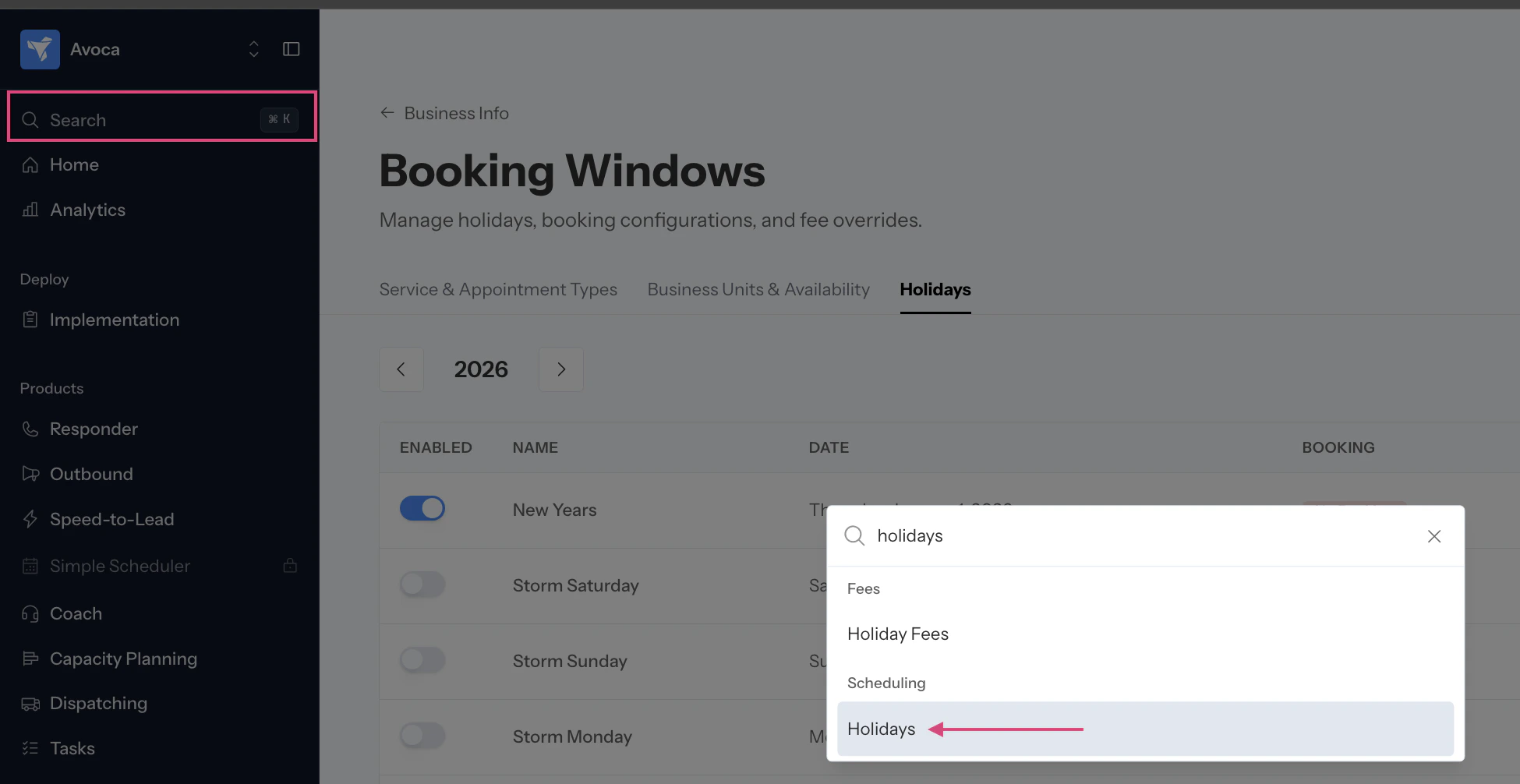
Navigate to Settings > Business Into > Booking Windows > Holidays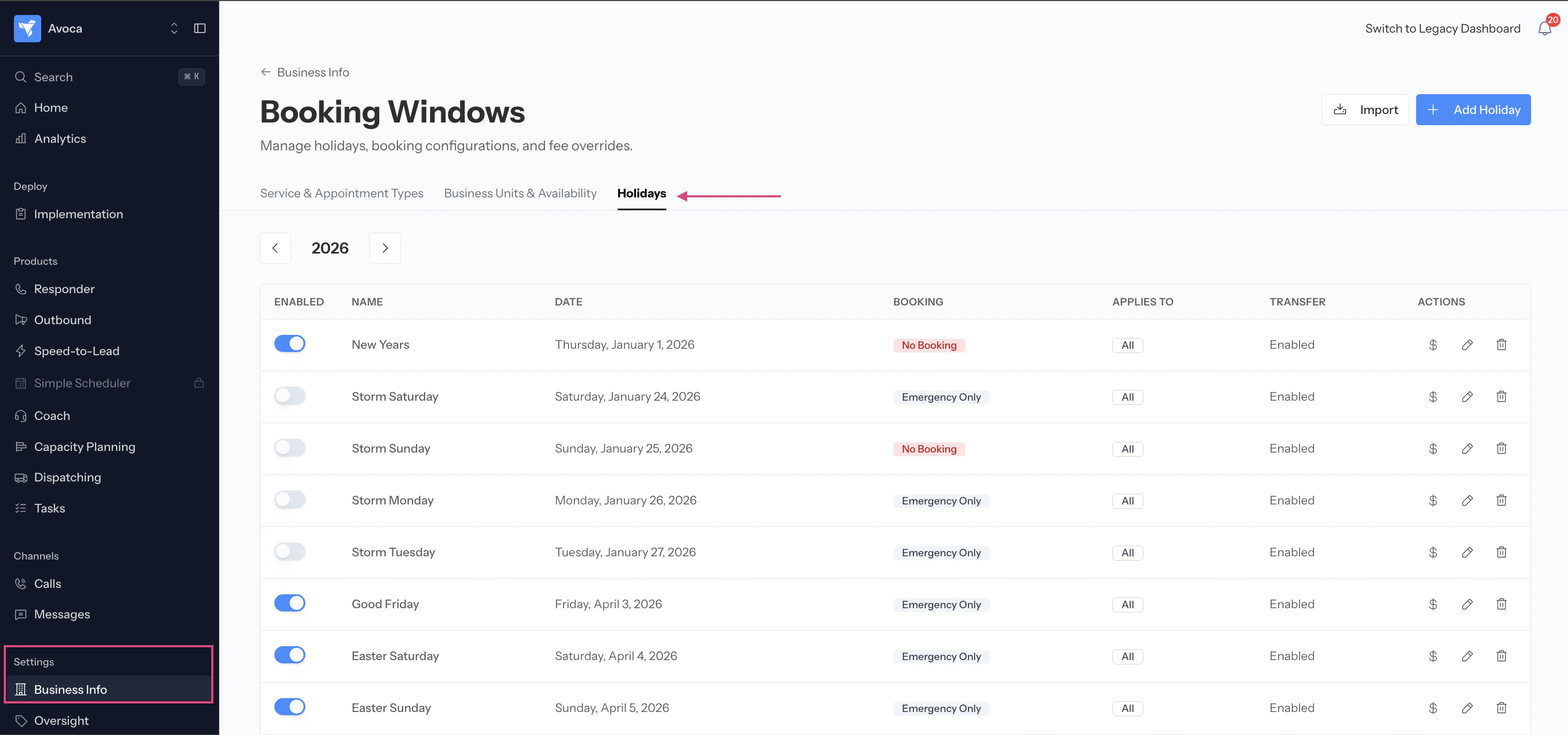
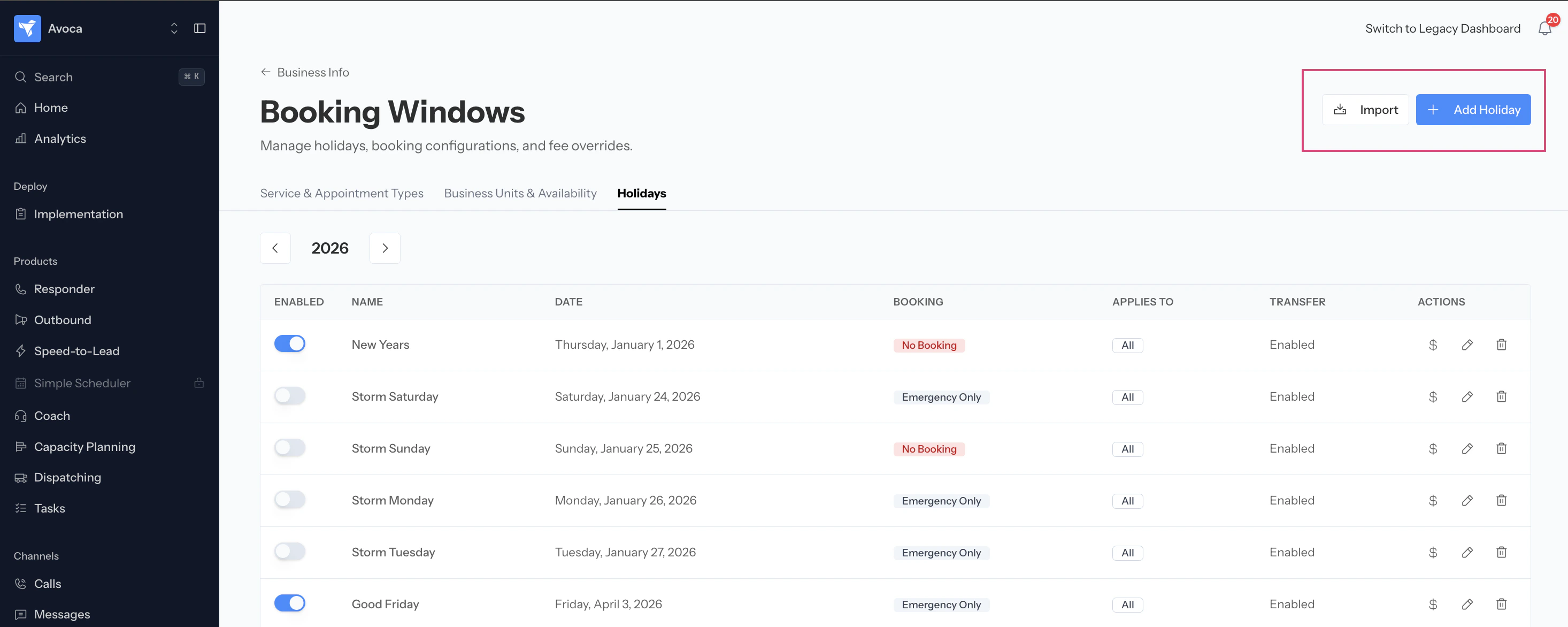
Adding a Holiday Manually
Use this option when you want to add company-specific holidays or custom closure dates.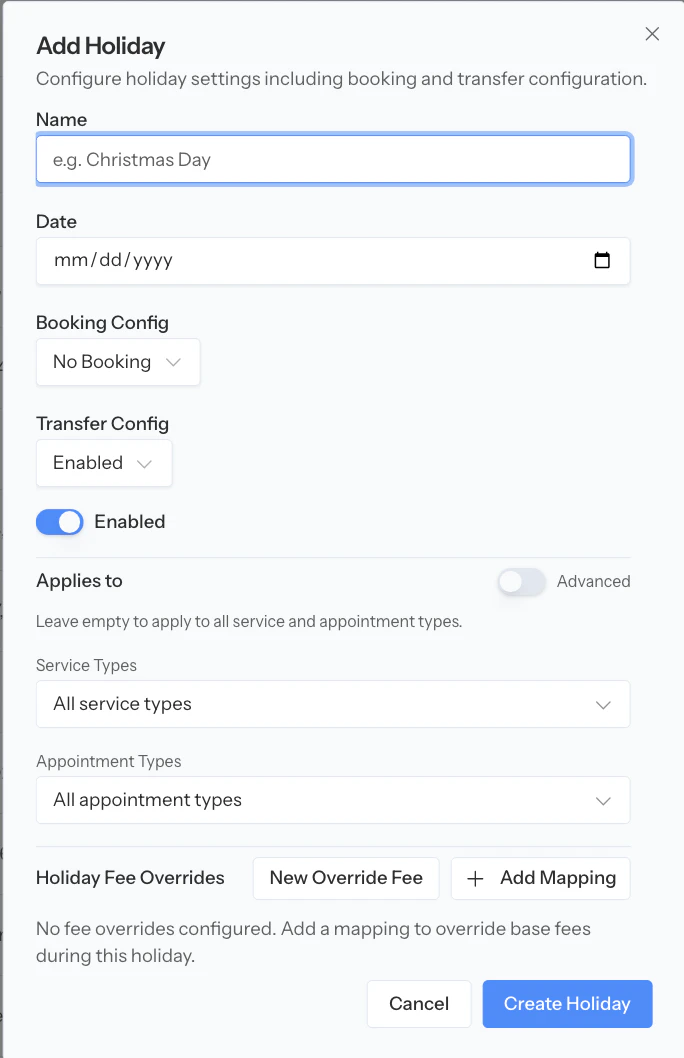
Select the date: Currently, you can only select single days. If you have multiple consecutive holiday days, create a separate entry for each day.
Choose booking behavior
- Not book at all: Avoca will not schedule any appointments on this day
- Book all jobs: Avoca will book appointments normally
- Only book emergencies: Avoca will only book jobs marked as emergencies
Configure transfer behavior (This only matters if Avoca is transferring calls back to your team.)
- Enable transfers: Avoca will transfer calls as usual based on your transfer settings
- Disable transfers: Avoca will not transfer calls to your office on this holiday
Set up Advanced Rules (optional) 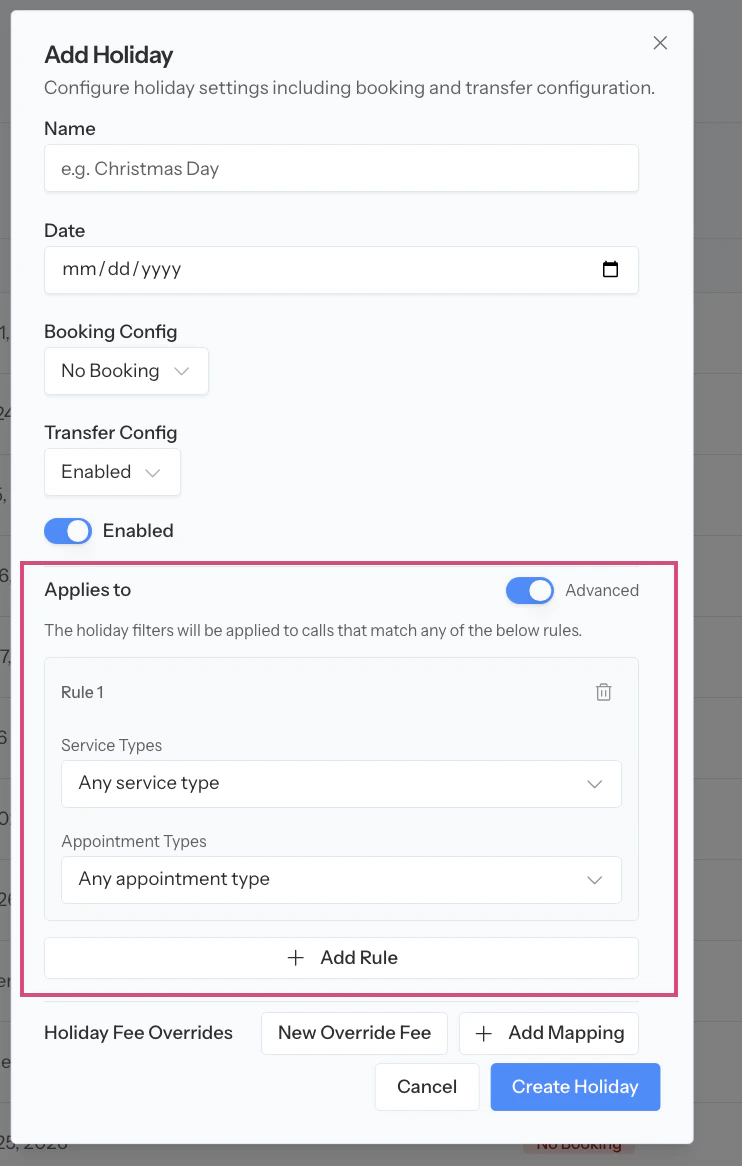
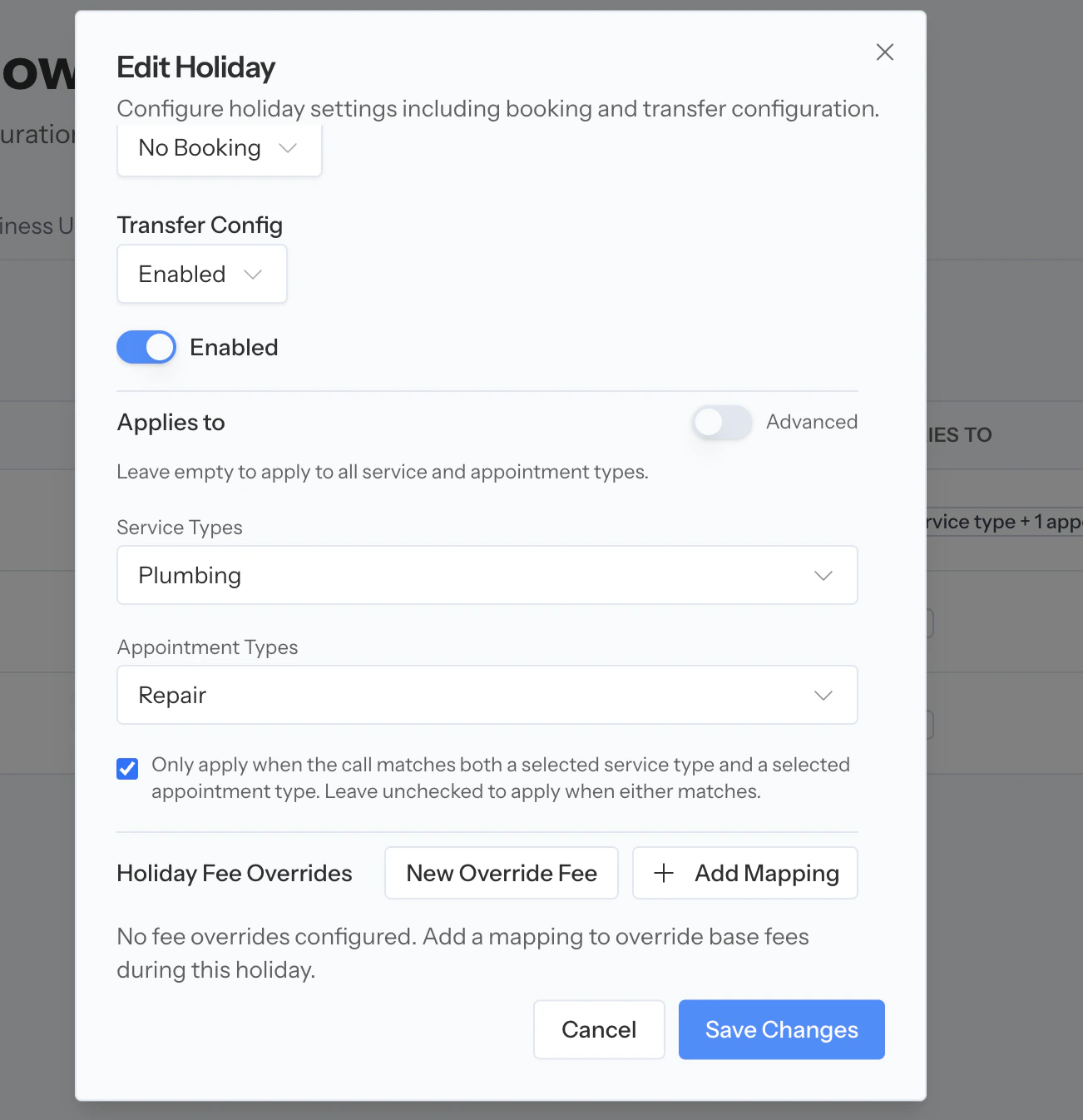
- The basic mode only lets you set up one combination of service and appointment types.
- Enable the “Advanced” toggle
- Each rule has two filters:
- Service Types — what kind of work the customer is calling about (Plumbing, HVAC, Pest Control, etc.)
- Appointment Types — what kind of visit they want (Estimate, Emergency, Tune-up, etc.)
- Each rule has two filters:
- Create the rule based on what Service or Appointment type you want to apply for the Holiday
- In the example below, we are specifically blocking Plumbing Repairs from getting booked
Configure holiday fees (optional) – If you charge different fees on holidays:
- By default, holidays will use your standard base fees
- To set a special holiday fee, select it from the dropdown menu
- If you select “No Holiday Fee,” your base fees will apply
- Note: The holiday fee will replace (not add to) your base fee for that day
Importing Public Holidays
Use this option to quickly add standard federal or public holidays for the year. Steps:Select the year you want to import (e.g., 2025, 2026). This will pull up a list of all the holidays for the year you’ve selected.
Select the holidays you want to add from the lista. The name of the holiday will automatically be added. You can still edit the name if you have a company-specific internal name for the holiday.b. Choose booking behavior
- Not book at all: Avoca will not schedule any appointments on this day
- Book all jobs: Avoca will book appointments normally
- Only book emergencies: Avoca will only book jobs marked as emergencies
- Enable transfers: Avoca will transfer calls as usual based on your transfer settings
- Disable transfers: Avoca will not transfer calls to your office on this holiday
Configuring Holiday Fees
If your business charges different fees on holidays (e.g., emergency rates, premium rates, or holiday surcharges), you can configure these fees to apply automatically when Avoca books appointments on those days.How Holiday Fees Work
- When you assign a holiday fee to a specific holiday, that fee replaces your standard base fee for that day (it is not added on top of the base fee)
- If you don’t assign a holiday fee, Avoca will use your standard base fees
- The holiday fee applies to all appointments booked on that holiday, based on the fee rules you’ve configured
Setting Up Holiday Fees
Before you can assign holiday fees to specific holidays, you need to create the fees first: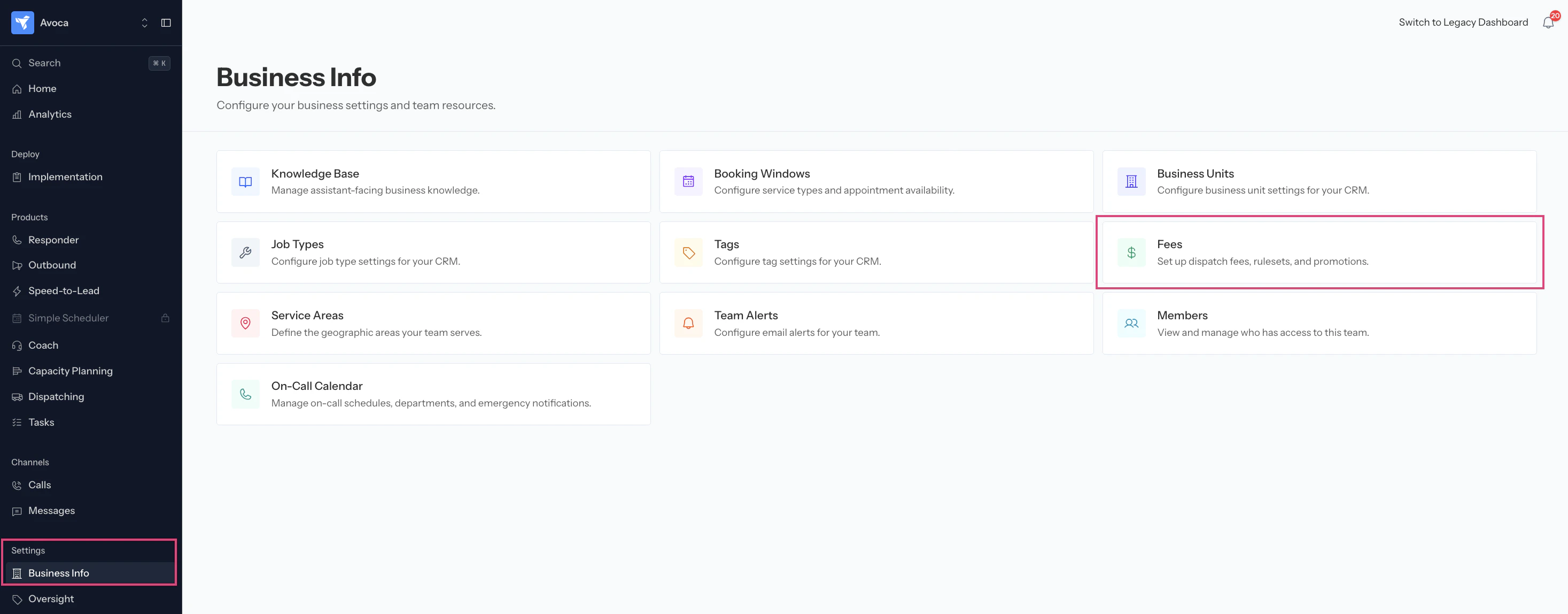
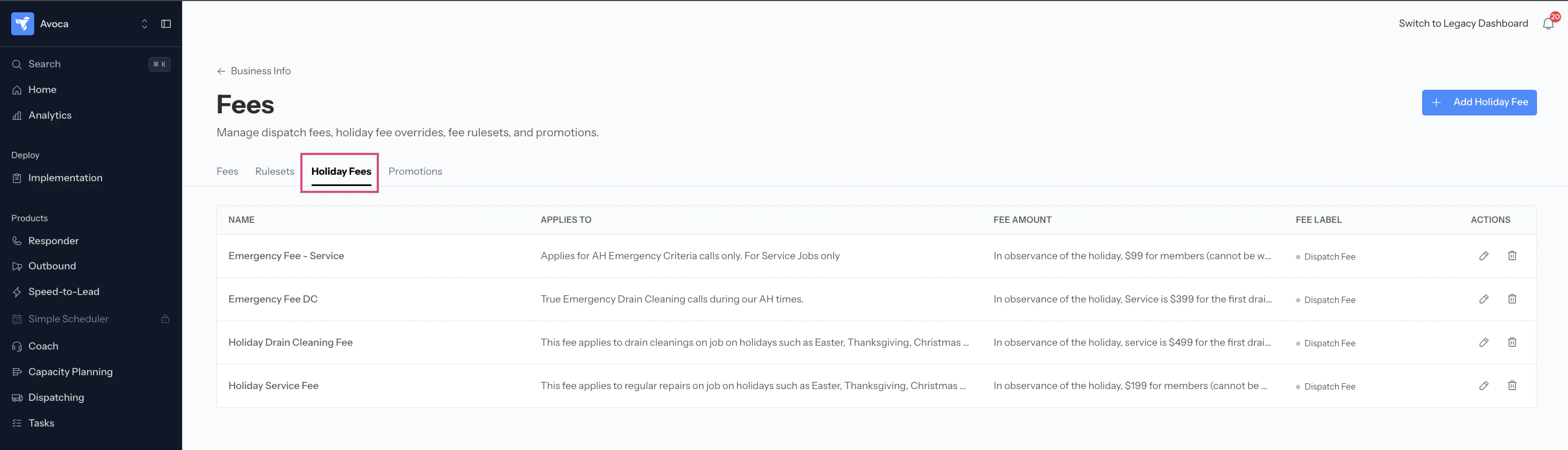
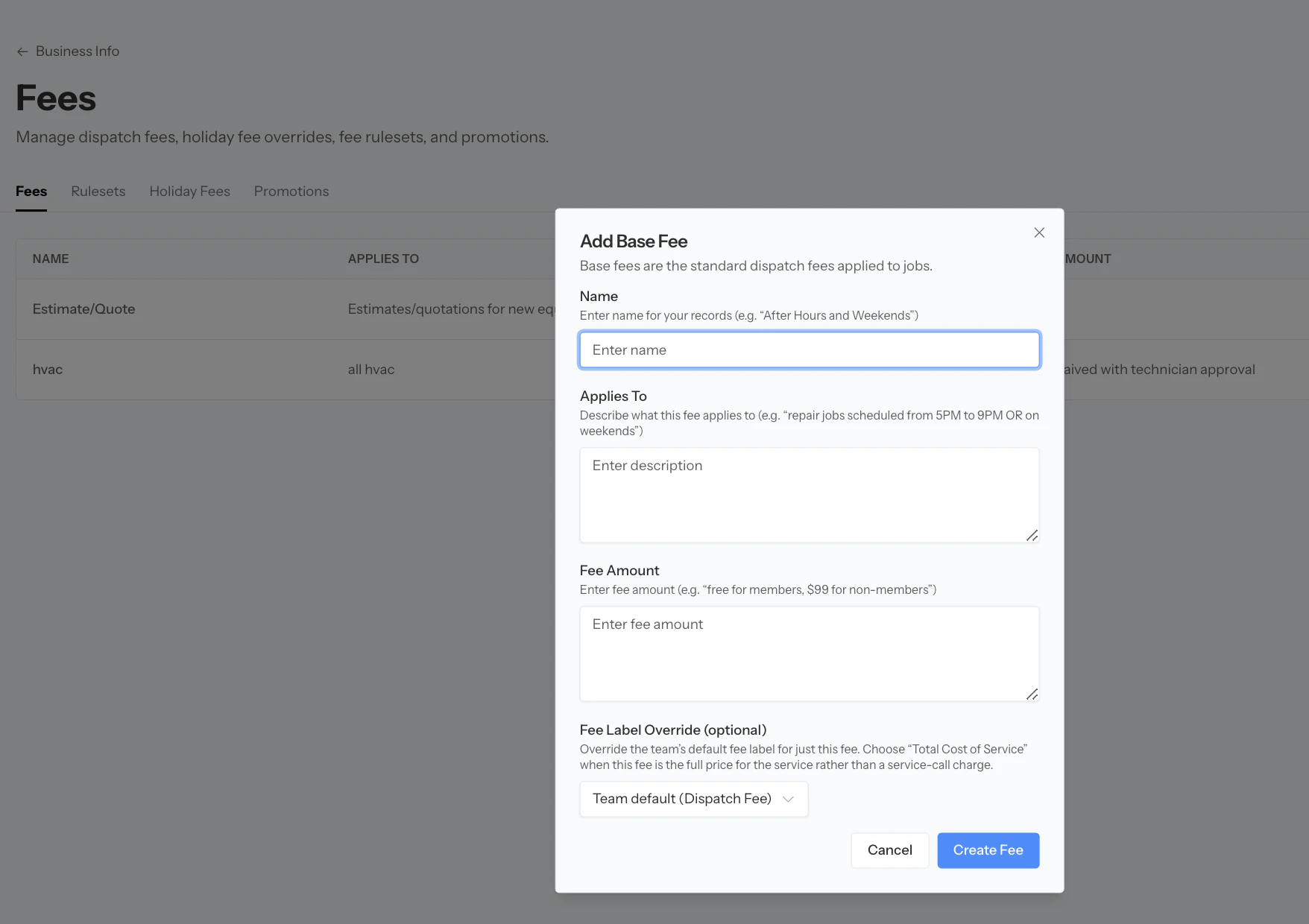
Create your holiday fees (e.g., “Holiday Emergency Fee -
$300,” “Holiday After Hours - $250”)a. Multiple fee structures: If you have different fees for different scenarios (e.g., regular hours vs. after hours), you can create separate holiday fees for each and Avoca will apply the correct one based on your fee rules- Give the fee a name
- Amount
- Describe when this fee applies
- Avoca should call the fee when referencing the fee
Edit the Holiday you want to add a fee for, and select whether you want to allow Emergency Bookings or Regular bookings.
- If you select No Bookings, it won’t allow you to add any fees.
You’ll see a list of all the existing Base Fees 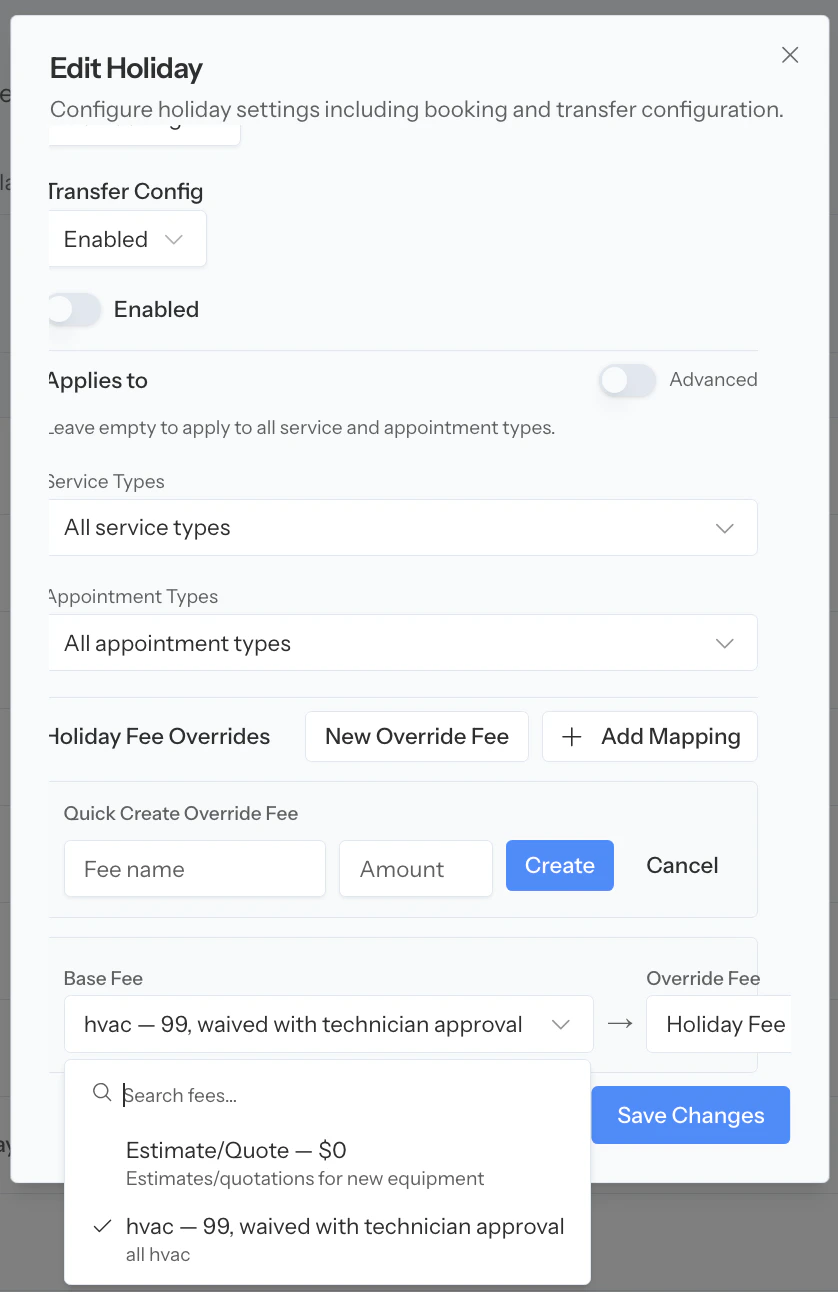
- Select the standard base see that would apply to this job
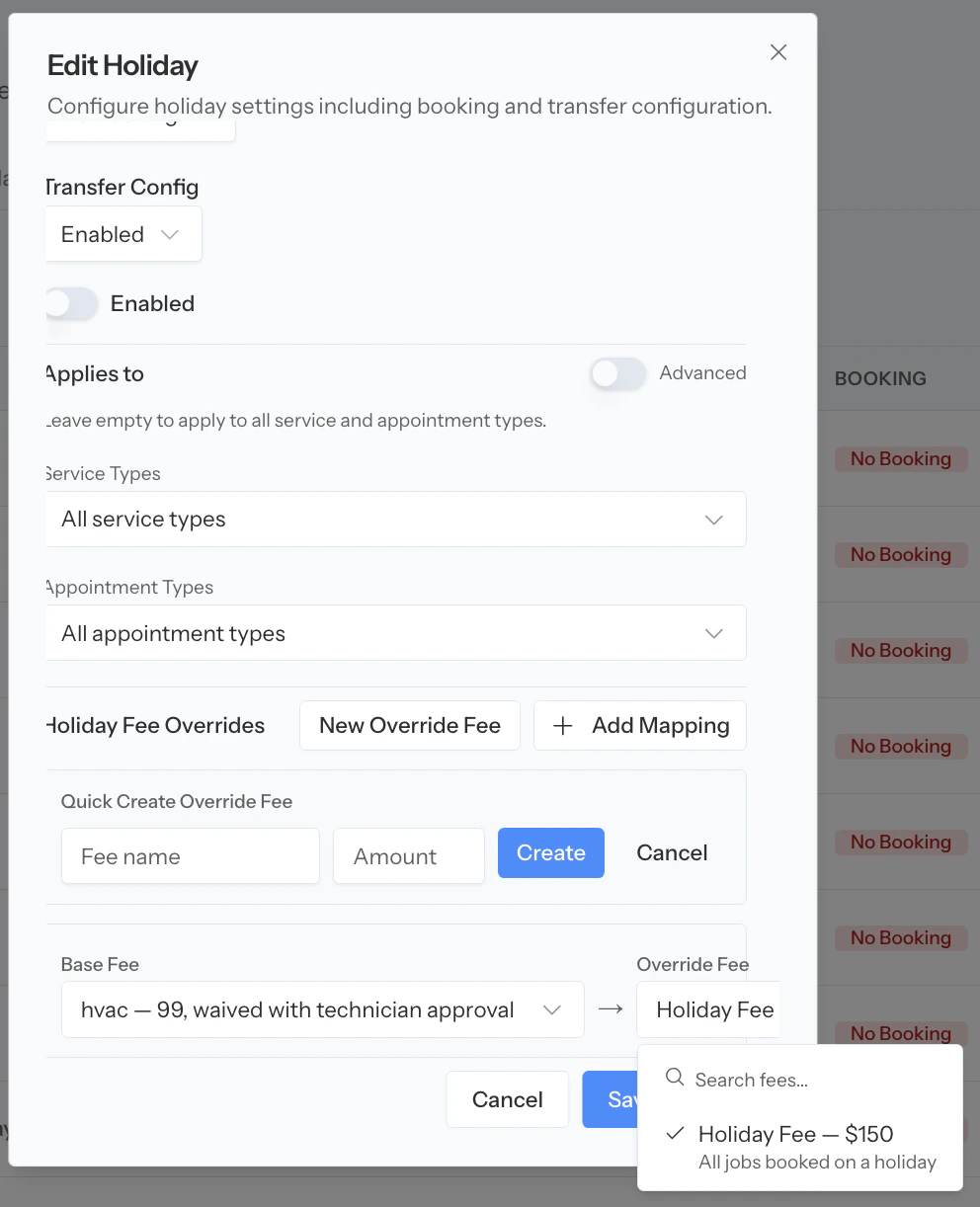
Examples
Scenario 1: Closed for the holiday, no bookings
Scenario 1: Closed for the holiday, no bookings
- Booking behavior: “Not book at all”
- Holiday fee: Not needed (no bookings will be made)
Scenario 3: Open with regular pricing
Scenario 3: Open with regular pricing
- Booking behavior: “Book all jobs”
- Holiday fee: “No Holiday Fee” (uses standard base fees)
- Result: All jobs can be booked with normal pricing
Scenario 4: Open with holiday surcharge
Scenario 4: Open with holiday surcharge
- Booking behavior: “Book all jobs”
- Holiday fee: “Holiday Service Fee - $200”
- Result: All jobs can be booked, and the holiday fee replaces the base fee
Managing Your Holidays
Once you’ve added holidays, they’ll appear in a dashboard where you can view and manage all your configured holidays.
Enabling and Disabling Holidays
- Enabled holidays (default) – When a holiday is enabled, your Avoca bot will respect the booking configurations you’ve set up
- Disabled holidays – When disabled, Avoca will ignore the holiday and book appointments normally