Overview (Call Reasons V2)
Call Reasons V2 is the current call-reason system. It is self-servable and definition-first: Avoca classifies based on the customer’s call reason definitions first, and can optionally associate “related” Avoca reasons for consistency.[1]
This guide covers:
- Enabling Call Reasons V2
- Syncing ServiceTitan (ST) call reasons into Avoca
- Adding definitions
- Setting call type filters
- (Optional) mapping “related” Avoca call reasons
Before you start
Requirements
- ServiceTitan call reasons are created and active in ServiceTitan → Settings → Operations → Call Reasons.[2]
Best practice
If you are migrating from the legacy system, do this during low call volume. As soon as you save Call Reasons V2, Avoca switches off the old call reason mapping system. You will need to contact your Customer Success Manager to enable Call Reasons V2[1]
Step 1: Ask your Customer Success Manager to enable Call Reasons V2
Call Reasons V2 must be enabled for your account by your Avoca Customer Success Manager.[1]
Step 2: Open the Call Reasons V2 UI
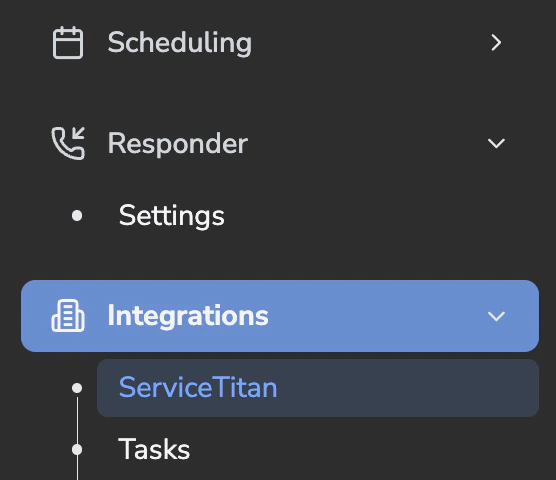
Once it is enabled, you will see the Call Reasons V2 UI in the dashboard under Settings → Integrations → ServiceTitan → Call Reasons.
Step 3: Sync ServiceTitan call reasons into Avoca
- In the Call Reasons V2 UI, click Sync / Get Unsynced Reasons from ServiceTitan (wording may vary).
- Confirm the imported reasons match what is active in ServiceTitan.
Step 4: Add call reason definitions
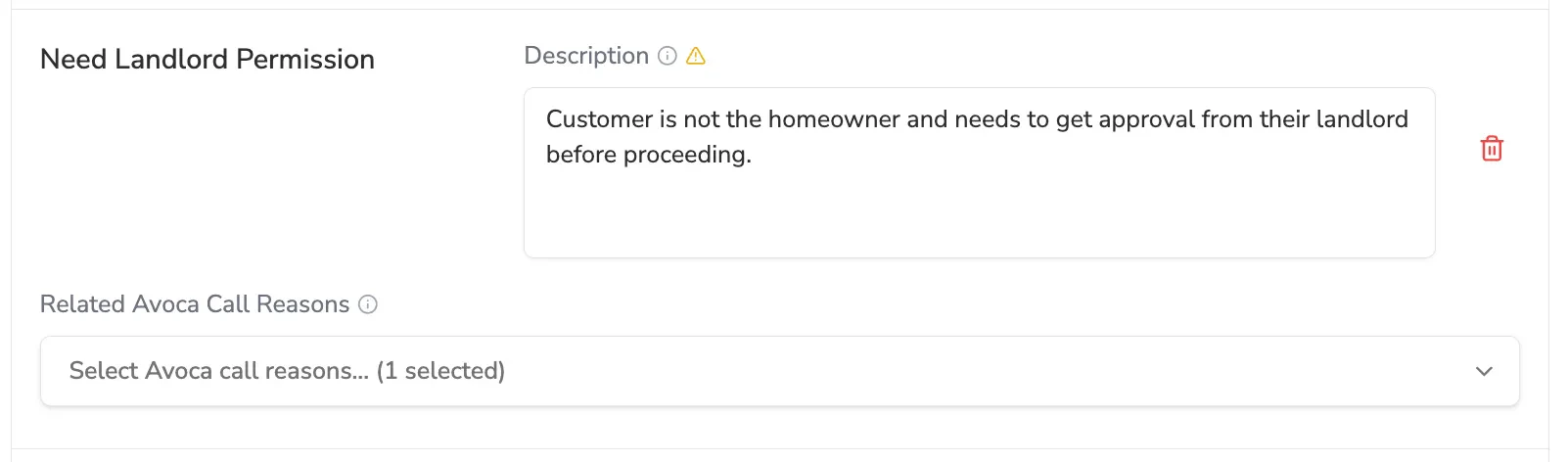
- For each imported call reason, add a clear definition/description.
- Write these like you are training a new CSR.
- Include a simple example of when to use it.
Why this matters
Call Reasons V2 classifies based on the company’s definitions first.[1]
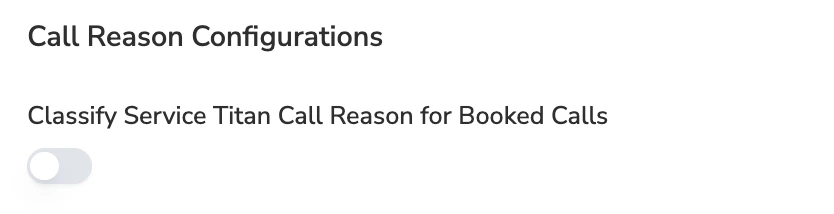
A) Classify ServiceTitan Call Reason for “Booked” calls (usually OFF)
-
There is a toggle to enable or disable classifying ST call reasons for Booked calls.
B) Call Type Filters
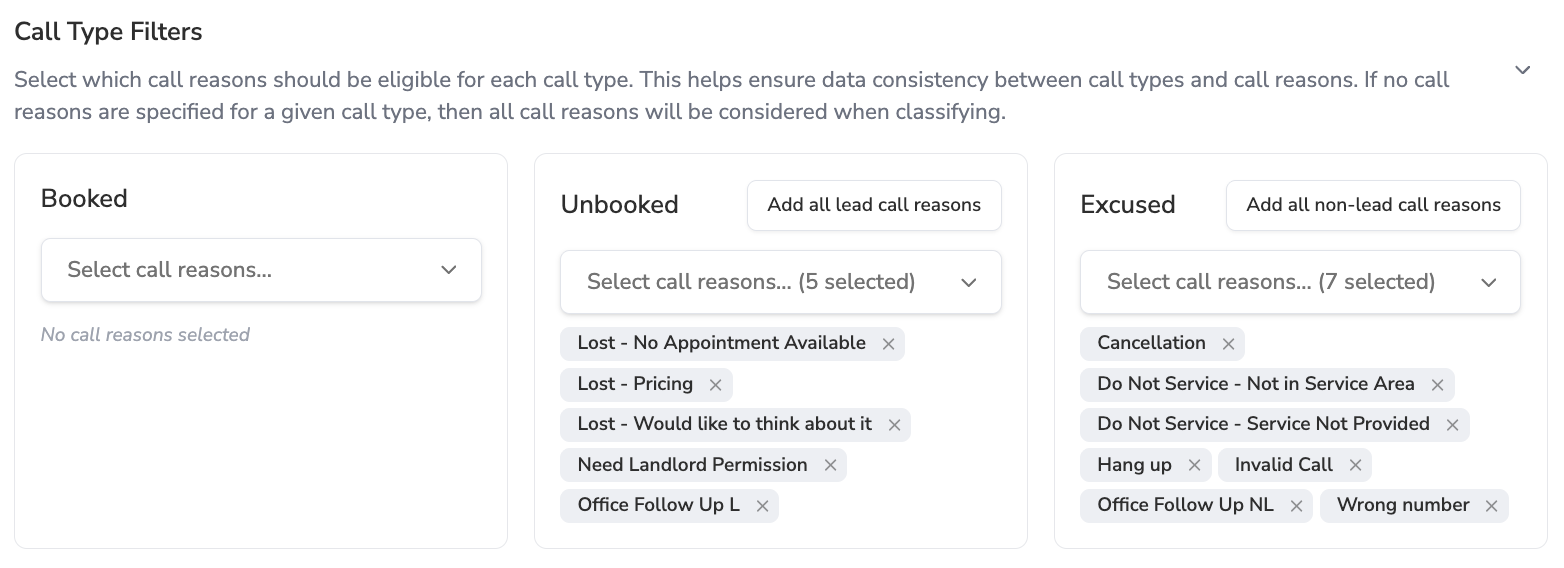
Use call type filters to prevent mismatches (for example, Unbooked calls ending up with “Excused” reasons).
Use the “Add All Call Reasons” buttons to quickly add:
-
“Lead” call reasons to Unbooked
-
“Non-lead” call reasons to Excused
This step is required for consistency across Avoca reporting and workflows.
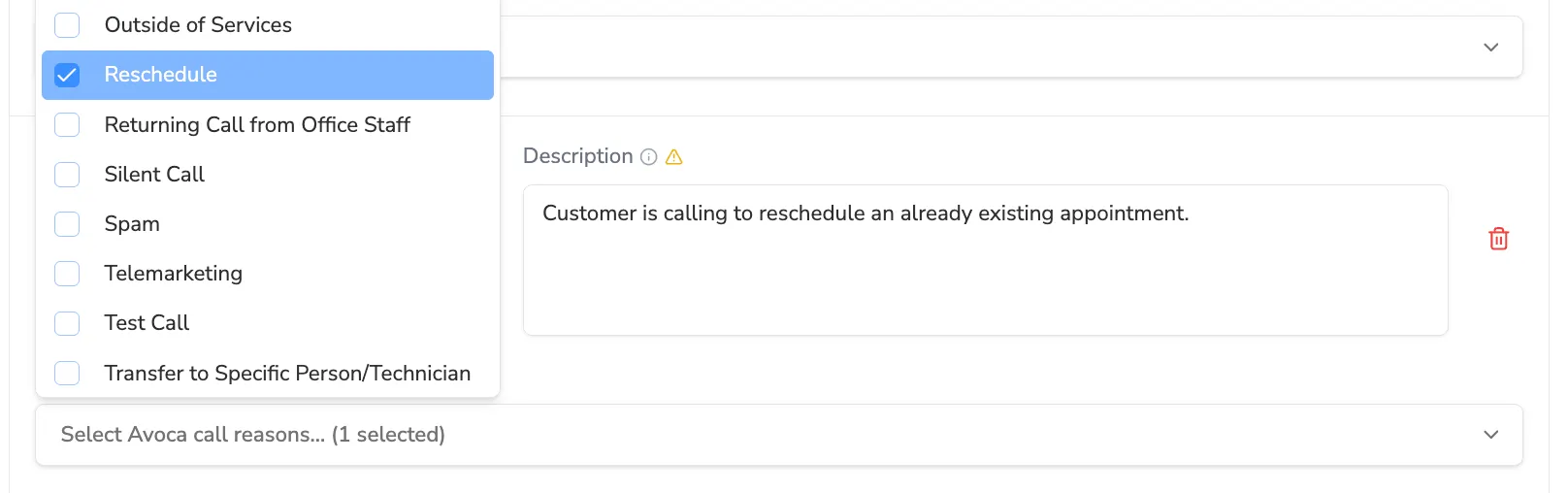
In Call Reasons V2, you can associate “related” Avoca call reasons to each of the customer’s ServiceTitan call reasons. This preserves Avoca-side consistency without changing how the system selects the customer’s primary call reason.[1]
Troubleshooting
The synced call reasons look wrong or incomplete
- Confirm the call reasons are active in ServiceTitan first.[2]
Last modified on May 29, 2026