

Team Member Roles & Permissions Guide
Overview
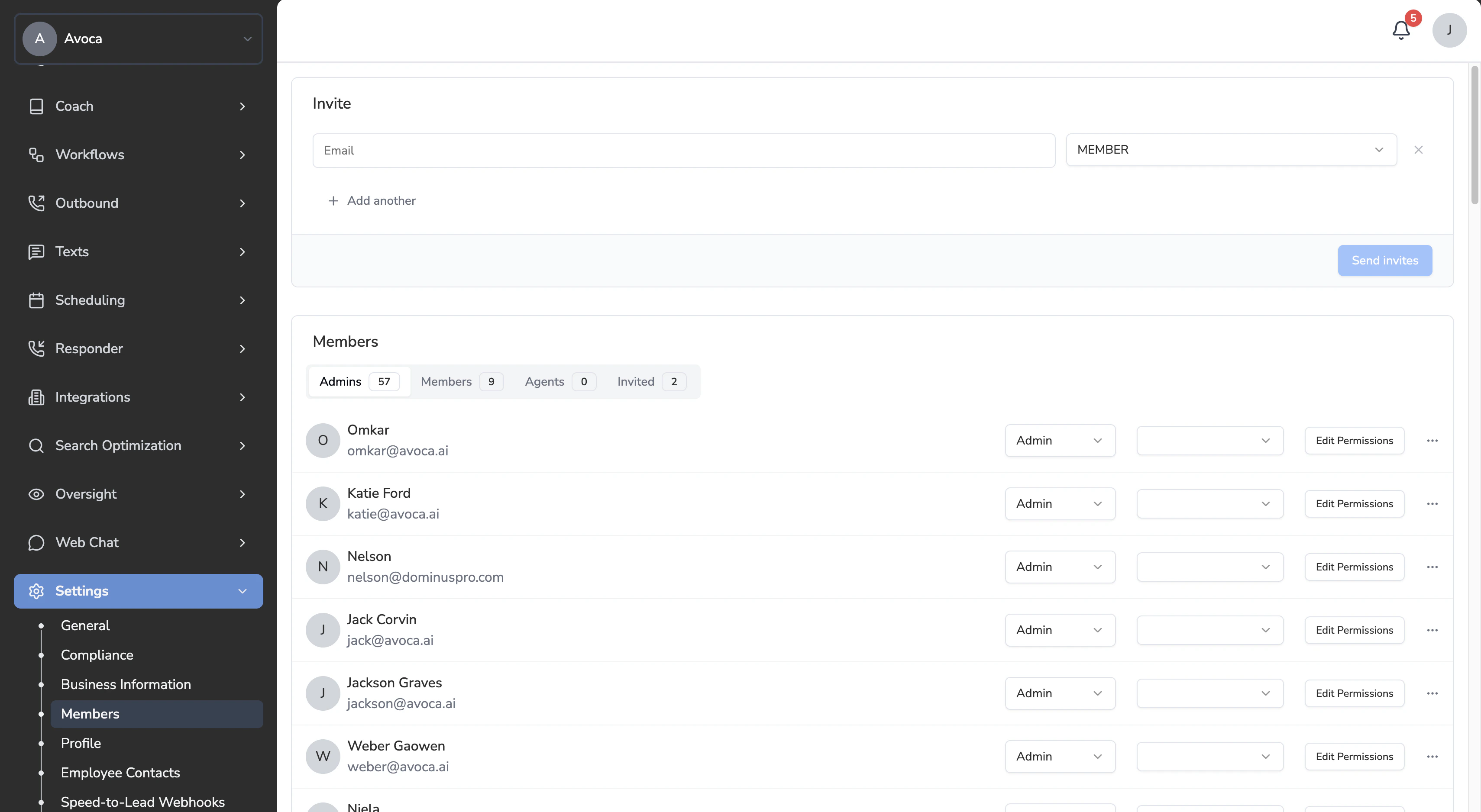
When inviting new members to your team, you’ll assign them a role that determines their level of access within the platform. This guide explains each role type and how to set up team member access correctly.Quick Start
Role Types
👑 Admin
Best for: Team leaders, managers, and account owners Permissions:- Full access to manage the team (invite/remove members)
- View and manage all calls across the organization
- Access and modify all settings
- Reclassify calls and make edits
- Export call data
👤 Member
Best for: Supervisors, call reviewers, and quality assurance staff Permissions:- View all calls across the team
- Reclassify calls as needed
- Review call details and transcripts
- Cannot manage team settings or invite new members
📞 Agent
Best for: Individual service technicians, dispatchers, or call center representatives Permissions:- View only their own assigned calls
- Listen to their own call recordings
- Cannot view other team members’ calls
- Cannot edit, reclassify, or modify any data
- Cannot access team settings
Important:When inviting someone as an Agent, you’ll need to link them to a ServiceTitan agent profile. This linkage determines which calls they can see:
- Calls are matched based on the ServiceTitan agent ID
- Only calls handled by their linked agent profile will be visible
- If no agent is selected, the system will attempt to match by the user’s full name
How to Invite Team Members
Step 1: Enter Email Address
Type the email address of the person you want to invite.Step 2: Select Role
Click the role dropdown and choose the appropriate role:- Admin – Full access to manage team, calls, and settings
- Member – Access to review and reclassify all calls
- Agent – Access to see their own calls only (read-only)
Step 3: Link ServiceTitan Agent (Agent Role Only)
If you selected the Agent role, an additional dropdown will appear:- Select the corresponding ServiceTitan agent profile from the list
- This links the invited user to a specific agent so they only see calls assigned to that agent
- If the agent isn’t in the list, you may need to sync your ServiceTitan data first
Step 4: Add Multiple Invites (Optional)
Click ”+ Add another” to invite multiple people at once. Each invite can have a different role.Step 5: Send Invites
Click “Send invites” to send email invitations to all recipients. They will receive an email with instructions to create their account and join your team.Quick Reference Table
| Permission | Admin | Member | Agent |
|---|---|---|---|
| View all calls | ✅ | ✅ | ❌ |
| View own calls | ✅ | ✅ | ✅ |
| Reclassify calls | ✅ | ✅ | ❌ |
| Edit call data | ✅ | ✅ | ❌ |
| Export call data | ✅ | ✅ | ❌ |
| Manage team settings | ✅ | ❌ | ❌ |
| Invite/remove members | ✅ | ❌ | ❌ |
Best Practices
- Start with the least privilege needed – You can always upgrade permissions later
- Always link Agents to their ServiceTitan profile – This ensures they see the correct calls
- Use Member role for supervisors – They need to see all calls to effectively manage the team
- Reserve Admin for managers – Admin access includes billing and team management capabilities
Customizing Individual Permissions
After a team member joins, you can customize their specific permissions beyond their default role settings.How to Edit Permissions
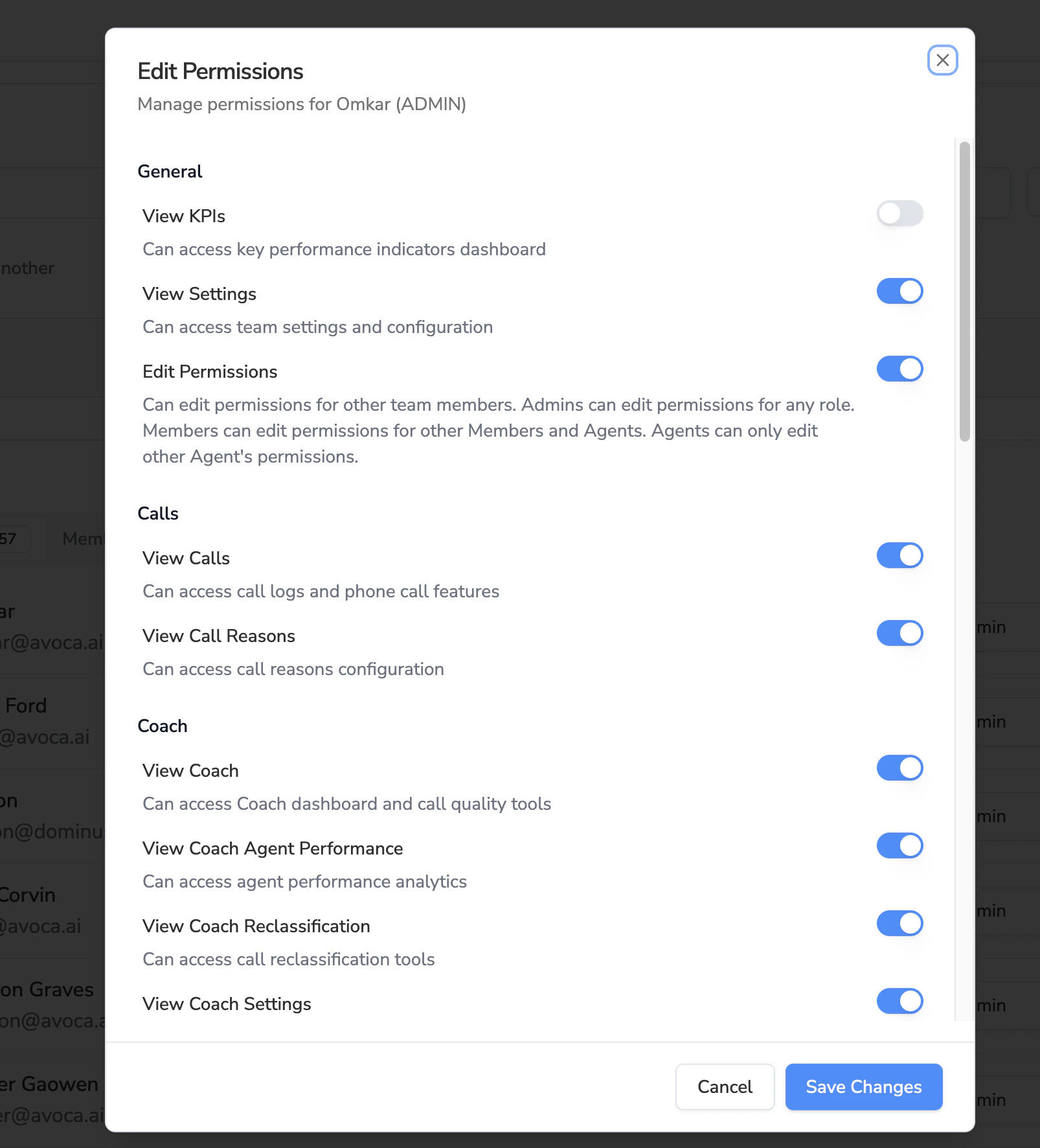
Note:Who can edit permissions depends on role:
- Admins can edit permissions for any role
- Members can edit permissions for other Members and Agents
- Agents can only edit other Agents’ permissions
Frequently asked questions
Can I change permissions after someone joins?
Can I change permissions after someone joins?
Yes. Click Edit Permissions next to any team member to customize their access.
Do permission changes apply immediately?
Do permission changes apply immediately?
Yes. Once you save, the new permissions take effect immediately.
What if I want to give a Member admin-level access to one feature?
What if I want to give a Member admin-level access to one feature?
Use the Edit Permissions modal to enable specific permissions beyond their default role settings.
Can I reset to default permissions?
Can I reset to default permissions?
You can manually toggle permissions back to match the default settings for their role.
What happens if I don't link an Agent to a ServiceTitan profile?
What happens if I don't link an Agent to a ServiceTitan profile?
If no ServiceTitan agent is selected during the invite, the system will attempt to match the user to an agent based on their full name. If no match is found, the Agent user may not see any calls.
Can I change someone's role after they've been invited?
Can I change someone's role after they've been invited?
Yes, Admins can change a team member’s role at any time from the Team Settings page.
What's the difference between Member and Agent?
What's the difference between Member and Agent?
- Members can see ALL calls from the entire team and can reclassify/edit them.
- Agents can ONLY see calls assigned to their specific agent profile and cannot make any changes.
Can an Agent see calls from multiple agent profiles?
Can an Agent see calls from multiple agent profiles?
No, each Agent user is linked to one ServiceTitan agent profile. If someone handles calls under multiple profiles, consider giving them a Member role instead.
Best Practices Summary
- Start with the right role – Choose the role closest to what they need, then customize
- Use least privilege – Only enable permissions that are necessary for their job
- Review periodically – Audit team member permissions as roles change
- Agents are read-only by default – Remember they can only see their own calls and cannot edit