

Why Admin Access?
Admin access allows Avoca to seamlessly integrate with your ServiceTitan environment and provide the full range of features without manual configuration or ongoing maintenance. With Admin access, we can:- Book appointments accurately by reading your capacity planning settings, business units, and technician availability
- Reclassify calls to ensure accurate performance metrics and reporting in your ServiceTitan dashboard
- Debug issues quickly when something isn’t working as expected, reducing downtime
- Access capacity planning data to prevent overbooking and respect your Adjustable Capacity Planning (ACP) rules
- Generate accurate analytics by accessing call recordings, customer data, and job information
Is Admin Access Required?
No, Admin access is not strictly required. However, without it, you’ll need to manually configure specific permissions for the Avoca user account, and some features may have limitations.Security Note
Avoca does not modify company settings, scheduling policies, or enterprise configurations. Some permissions may appear as “required” due to ServiceTitan’s API scope structure, but these are used in a read-only manner to correctly interpret your availability and capacity settings.How to Set Up the Avoca User Account
Regardless of which permission level you choose, follow these steps:Click Add and create a user for Avoca
- Email: credentials@avoca.ai
- Company Position: Admin (or Dispatch/CSR Manager if using custom permissions)
- Role: Admin (or as appropriate for your permission set)
Bypass training mode (if applicable)

- Click on the rocket ship icon in the top right
- Click on Training in the left navigation menu > Team Training > Select the user for Avoca.
- Then, if applicable, click Actions > Bypass training mode.
Note: If you do not see Actions, training mode is not required, and you can disregard this step.
Alternative: Custom Permission Set
If you prefer not to grant Admin access, you can create an Avoca user account with the following specific permissions:Mandatory Permissions
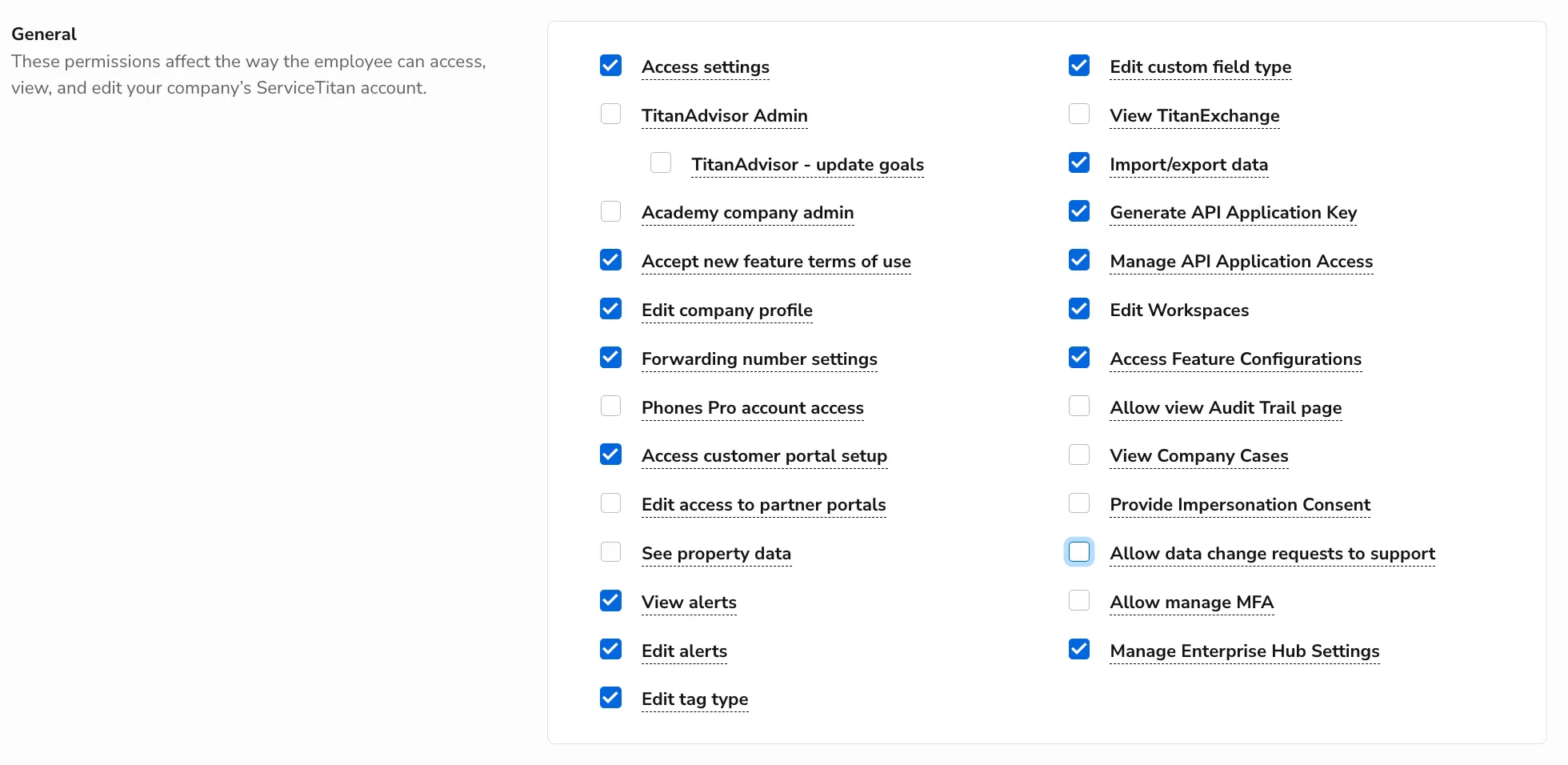
These permissions are required for Avoca to function properly: General- Access settings
- Accept new feature terms of use
- Edit company profile
- Forwarding number settings
- Access customer portal setup
- View alerts
- Edit alerts
- Edit tag type
- Edit custom field type
- Import/export data
- Generate API Application Key
- Manage API Application Access
- Edit Workspaces
- Access Feature Configurations
- Manage Enterprise Hub Settings
- Detach call
- Listen to call recording
- Outbound call
- Reclassify call
- View Second Chance Leads
- Confirm call
- Pause call recording
- View call forms and tags
- Edit call forms/tags
- Edit call reason

- Book job
- View job
- Edit job
- Reschedule appointments
- Hold job
- Cancel job
- Recall job
- Detach SMS
- Edit note
- Edit job type
- Edit cancel job reason
- Edit hold job reason
- Allow bulk booking of recurring service events

- Edit business hours and capacity planning
- View technician shifts
- Edit technician shifts
- Allow bulk deletion of technician shifts

- Payroll & admin
- View business units
Recommended Permissions
These permissions help us provide better support and debugging:- View customer – Review test customer accounts and debug customer look-up
- Edit/merge/deactivate customer – Remove or update test accounts
- View dispatch board / View dispatch config – Confirm capacity and technician assignments
- Assign technician – Manually assign technicians if the API encounters issues
- Memberships – Generate memberships for test customer profiles
- Search – Find customer profiles, locations, calls, and jobs for debugging
- All from Reports – Generate reports for data analysis (booking rates, revenue per job, etc.)
- All from Dashboard – Access call page and confirm Avoca booking rates and call volume