

How ServiceTitan Tags Work and How Avoca Determines Which Tags To Apply
In ServiceTitan, all tags exist in a single unified system. There is no technical difference between “customer tags” and “job tags” When Avoca books a job, it can automatically determine and apply tags based on:- Customer information pulled from ServiceTitan - If the customer has an active membership, Avoca can auto-apply a “Member” tag
- The nature of the call - Emergency situations, equipment age mentioned by the customer
- Custom guidance you provide - Descriptions you write explaining when specific tags should be used
Configuring Tags in Your Avoca Dashboard
Step 1: Sync Tags from ServiceTitan
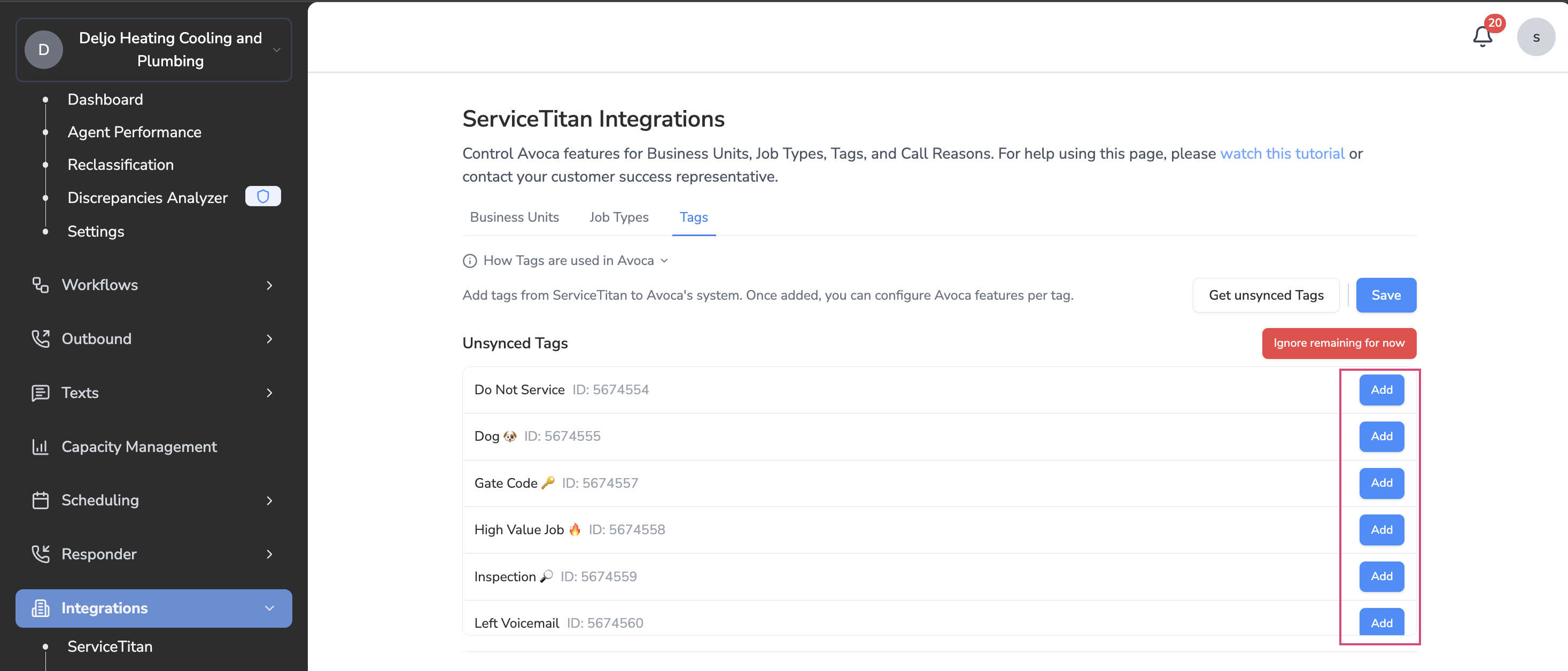
Step 3: Understanding the Tag Toggles
Adding a Tag to a Job
Controls: Whether this tag can be automatically added to jobs when Avoca books an appointment- Enabled (ON): Avoca can add this tag to jobs based on the call content and your guidance
- Disabled (OFF): Avoca will never add this tag to jobs, even if conditions match
Checking for Customer Tags
Controls: Whether Avoca should automatically check if the tag already exists in ServiceTitan and apply it accordingly- Enabled (ON): Before the call ends, Avoca checks if this tag is already present in ServiceTitan on the customer/location/equipment. If found, Avoca applies it to the job
- Disabled (OFF): Avoca will only apply the tag if the AI determines it should be added based on the call content and your guidance
- Membership tags - Auto-detect existing memberships and apply to jobs without asking
- Equipment tags - If equipment records show certain attributes, apply them automatically
- Customer preference tags - If already flagged in the system, carry forward to the job
- Tags that need to be determined fresh on every call
- Emergency tags that depend on the current situation, not historical data
- Tags where historical presence doesn’t mean it should apply to this specific job
Example Configuration Scenarios
Scenario 1: Membership Tag
Tag Name: “Member”- Include in Job Tags: ✅ ON - Should be added to every job for members
- Include in Customer Tags: ✅ ON - Describes a customer attribute
- Auto-detect from ServiceTitan: ✅ ON - If customer has active membership in ST, automatically apply to job without asking
Scenario 2: Emergency Tag
Tag Name: “No_Heat”- Include in Job Tags: ✅ ON - Describes the nature of this specific job
- Include in Customer Tags: ❌ OFF - Not a permanent customer attribute
- Auto-detect from ServiceTitan: ❌ OFF - Past “No_Heat” jobs don’t mean this call is also for no heat
Scenario 3: VIP Customer
Tag Name: “VIP”- Include in Job Tags: ⚠️ DEPENDS - Do you want every job for VIP customers tagged?
- Include in Customer Tags: ✅ ON - Describes customer status
- Auto-detect from ServiceTitan: ✅ ON - If customer is VIP in ST, carry that forward
Scenario 4: Internal Operational Tag
Tag Name: “Do Not Service”- Include in Job Tags: ❌ OFF - Shouldn’t be added to new jobs
- Include in Customer Tags: ❌ OFF - Should only be manually added by your team
- Auto-detect from ServiceTitan: ✅ ON - If present, Avoca should be aware (may affect booking logic)
Why Tag Descriptions Matter
Just like with Job Types and Business Units, tag descriptions are critical for AI accuracy. The AI uses your descriptions to determine when a tag should be applied.Without Descriptions
If you don’t provide descriptions, the AI must guess based solely on the tag name:- “Member” could mean member of what? A club? A mailing list?
- “Commercial” could refer to commercial properties, commercial-grade equipment, or commercial rates
- “Water_Heater_Age:8+” is unclear without context
- ❌ Tags applied incorrectly
- ❌ Tags missed when they should be applied
- ❌ Confusion about which tags to use
With Clear Descriptions
When you provide clear descriptions, the AI can accurately determine when to apply tags:- ✅ Tags applied based on conversation context
- ✅ Consistent tagging across all calls
- ✅ Better downstream workflows and reporting
Writing Effective Tag Descriptions
Format your descriptions as guidance for the AI: Good examples:- ✅ “Apply when customer has an active membership or service plan in ServiceTitan”
- ✅ “Apply when customer reports no heating and temperature is uncomfortable/dangerous”
- ✅ “Apply when equipment mentioned is 10 years or older”
- ✅ “Apply when service address is a commercial business, not residential”
- ❌ “Member tag” (doesn’t explain when to apply)
- ❌ “For emergencies” (too vague - what qualifies?)
- ❌ “Use this for old equipment” (how old?)
- Be specific - Include clear criteria for when the tag applies
- Use customer language - “No heat”, “won’t start”, “leaking” vs. technical jargon
- Define thresholds - “10+ years old”, “urgent/emergency”, “same day need”
- Mention auto-detection - “Automatically applied if customer has active membership in ServiceTitan”
Adding Tag Descriptions
Common Tag Types & Recommendations
Membership Tags
Examples: “Member”, “Club Member”, “Service Agreement” Recommended Configuration:- Include in Job Tags: ✅ ON
- Include in Customer Tags: ✅ ON
- Auto-detect from ServiceTitan: ✅ ON
“Apply when customer has an active [membership/service agreement name] in ServiceTitan. This tag triggers member pricing and benefits.”
Emergency Tags
Examples: “No_Heat”, “No_Cool”, “No_Power”, “Water_Leak” Recommended Configuration:- Include in Job Tags: ✅ ON
- Include in Customer Tags: ❌ OFF
- Auto-detect from ServiceTitan: ❌ OFF
“Apply when customer reports [specific situation] and indicates urgency or unsafe conditions. Used for priority scheduling.”
Equipment Age Tags
Examples: “HVAC_Age:10+”, “Water_Heater_Age:8+”, “Old_Equipment” Recommended Configuration:- Include in Job Tags: ✅ ON
- Include in Customer Tags: ❌ OFF
- Auto-detect from ServiceTitan: ✅ ON (if equipment records are maintained)
“Apply when customer mentions equipment is [X] years or older, or when equipment records in ServiceTitan show age [X]+. Affects warranty and pricing.”
Customer Type Tags
Examples: “Commercial”, “Residential”, “Rental_Property”, “HOA” Recommended Configuration:- Include in Job Tags: ⚠️ OPTIONAL
- Include in Customer Tags: ✅ ON
- Auto-detect from ServiceTitan: ✅ ON
“Apply when service address is [type of property]. Used for routing and pricing decisions.”
Operational Tags
Examples: “VIP”, “Do Not Service”, “Payment_Plan”, “Warranty” Recommended Configuration:- Include in Job Tags: ⚠️ VARIES
- Include in Customer Tags: ⚠️ VARIES
- Auto-detect from ServiceTitan: ✅ ON
“Apply when [specific condition]. Used for [specific workflow or business rule].”
Advanced: Tag Guidance Field
For customers with backend access or through your CSM, you can provide a comprehensivejob_tag_guidance field that gives the AI overarching instructions for all tags.
Example tag guidance:
“Apply the ‘No_Heat’ tag when customer reports their heating system is not working and they have no heat in their home. Apply the ‘Member’ tag when customer has an active membership in ServiceTitan - do not ask, auto-detect this. Apply ‘Commercial’ tag when the service address is a business location. Apply equipment age tags like ‘Water_Heater_Age:8+’ when customer mentions the age of their equipment or when equipment records in ServiceTitan indicate the age.”
Testing Your Tag Configuration
After configuring tags, test with realistic scenarios:- Make test calls covering different situations (members, emergencies, equipment ages)
- Check ServiceTitan to verify tags were applied correctly
- Review call transcripts in Avoca Dashboard to see what the AI detected
- Adjust descriptions if tags are being missed or misapplied
- Monitor for a few days and iterate based on real usage
Troubleshooting
Issue: Tags not being applied at all
Check:- Is
include_job_tagsenabled in your Responder Webhook Configurations? - Are the appropriate toggles turned ON for the tags you expect?
- Do your tag descriptions provide clear guidance on when to apply?
Issue: Wrong tags being applied
Check:- Are multiple tags too similar in name or description?
- Is “Auto-detect from ServiceTitan” enabled when it shouldn’t be?
- Are tag descriptions clear and specific enough?
Issue: Tags applied to wrong entity (job vs. customer)
Check:- Are both “Include in Job Tags” and “Include in Customer Tags” enabled when only one should be?
- Does your description clarify which entity type this applies to?
Issue: Membership tags require asking “Are you a member?”
Check:- Is “Auto-detect from ServiceTitan” enabled for your membership tag?
- Does the customer have the membership properly set up in ServiceTitan?
Best Practices Summary
✅ Enable tag assignment through your Avoca CSM before configuring individual tags ✅ Write clear descriptions that tell the AI exactly when to apply each tag ✅ Configure toggles carefully based on whether tags describe jobs, customers, or should be auto-detected ✅ Start with high-impact tags (membership, emergency, equipment age) before expanding ✅ Test thoroughly with realistic scenarios before going live ✅ Monitor and iterate based on actual call data and outcomes ✅ Keep tag lists manageable - too many tags increases the chance of errors ✅ Use consistent naming - Follow patterns like “Equipment_Type_Age:X+” for clarity ❌ Don’t enable both job and customer toggles unless the tag genuinely applies to both contexts ❌ Don’t rely solely on auto-detection for tags that need fresh evaluation each call ❌ Don’t use vague descriptions - be specific about when and how tags should be appliedAdditional Resources
- ServiceTitan Tag Documentation - Your ServiceTitan help center for tag best practices
- Avoca Capacity Planning - How tags integrate with Adaptive Capacity rules
- Business Unit & Job Type Guide - Related configuration for optimal AI booking