

When to use guidance
Add guidance any time you see:- The AI selecting the wrong Service Type (e.g., choosing HVAC when the caller needs plumbing).
- The AI selecting the wrong Appointment Type (e.g., “Service” vs “Maintenance” vs “Sales/Estimate”).
- Wrong availability windows being offered because the wrong combination was classified.
Before you start (recommended)
- Confirm your Service Types and Appointment Types list reflects what you actually want Avoca to support.
- Keep the list small. Fewer, clearer types makes classification more accurate.
Step 1: Open Booking Windows
Navigate to: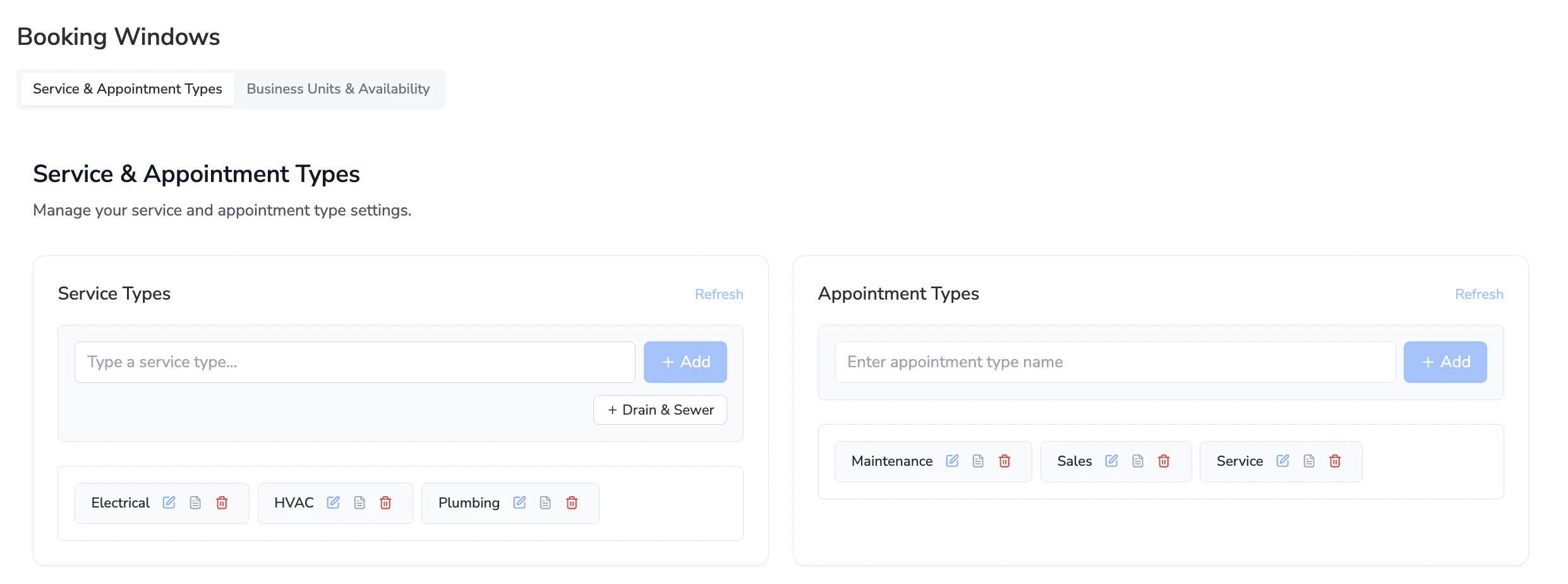
Team Settings→Booking Windows- Or open directly (replace
{TEAM_ID}):https://www.avoca.ai/team/{TEAM_ID}/booking-windows
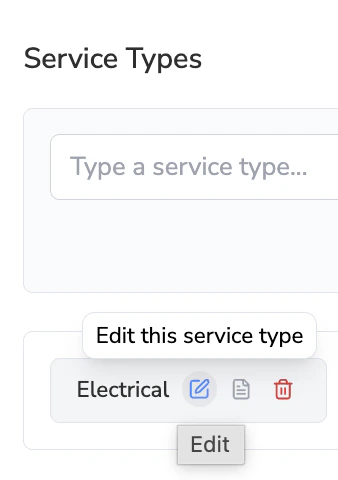
Step 2: Add guidance for a Service Type
What to write
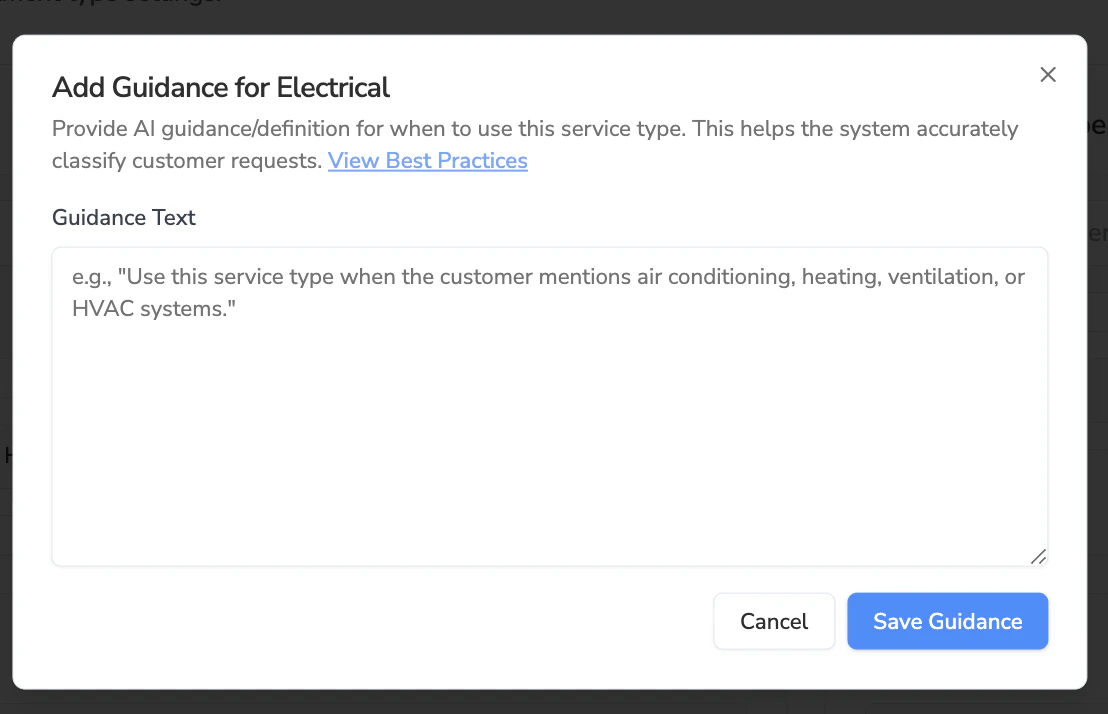
- Use clear criteria the AI can check for.
- Prefer specific symptoms, keywords, and caller intent.
- If two service types are commonly confused, include a line clarifying the boundary.
- Use Plumbing when the caller mentions leaks, clogged drains, sewer backup, water heater issues, or faucet/toilet problems.
- Do not use Plumbing for no-heat/no-cooling issues unless the caller explicitly mentions a plumbing fixture.
Step 3: Add guidance for an Appointment Type
In Appointment Types, find the appointment category you want (examples: Service, Maintenance, Sales/Estimate).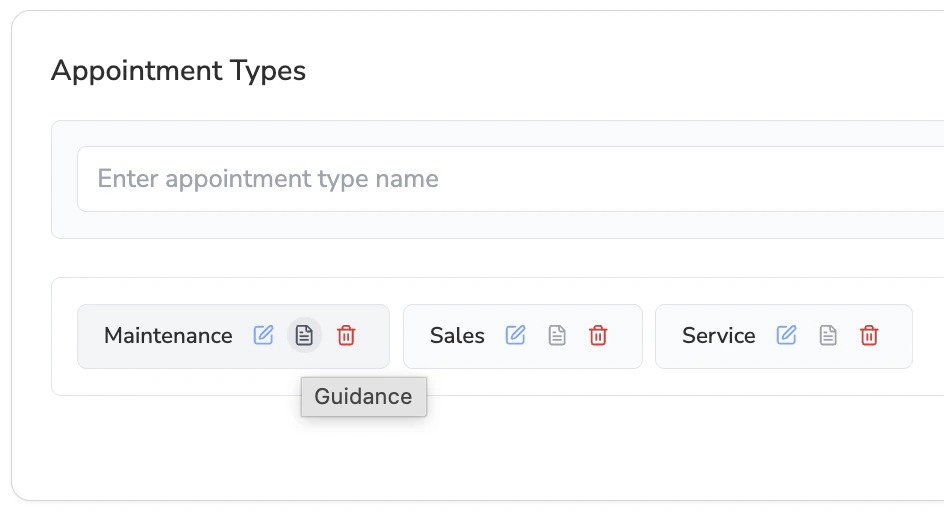
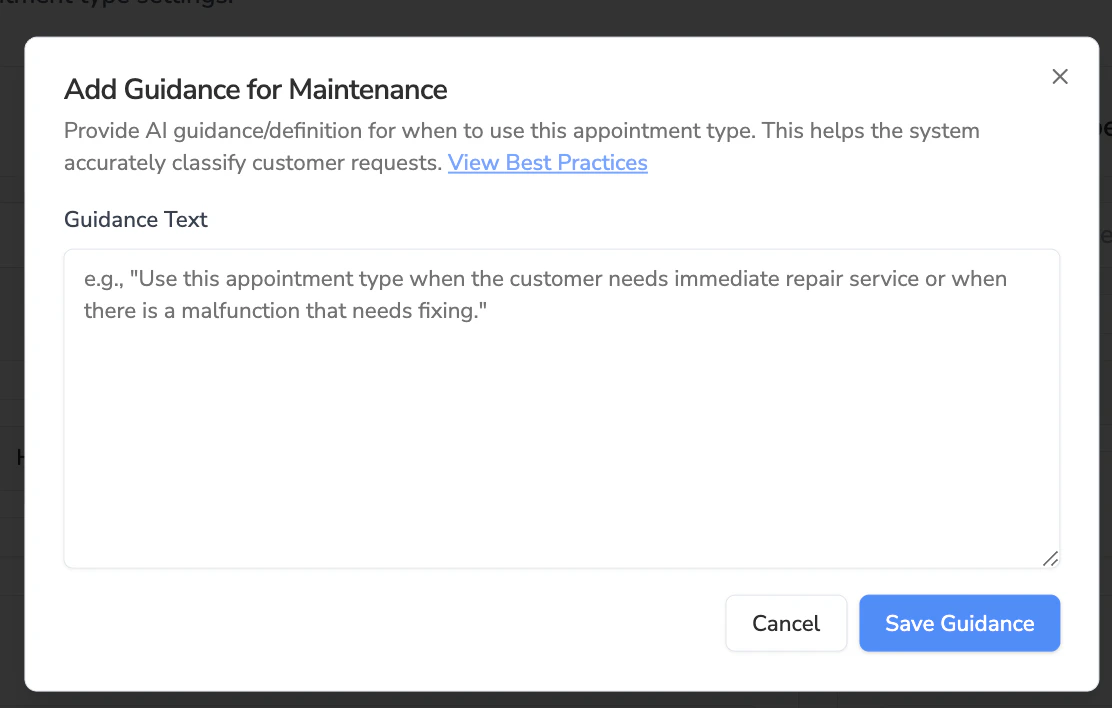
- Use Maintenance when the caller is scheduling a tune-up, annual inspection, or a membership maintenance visit.
- Do not use Maintenance when something is broken or the customer needs a repair.
- Use Service when the customer reports a problem that requires diagnosis or repair (not routine maintenance).
- Use Sales/Estimate when the caller wants a quote, replacement, or new install consultation.
Guidance best practices
- Be explicit. Write rules like you are training a new scheduler.
- Use “Use X when …” and “Do not use X when …”. This helps prevent overlap.
- Avoid internal jargon. Prefer customer language (what callers actually say).
- Keep it short. A few strong bullets beats a long paragraph.
- Update after changes. If you add new Service Types or Appointment Types, add guidance right away.
After you add guidance: validate it
- Make a few test calls covering the most common scenarios.
- Confirm Avoca selects the expected Service Type and Appointment Type.
- If the AI misclassifies:
- Tighten the guidance to reduce overlap.
- Add 1–3 additional boundary bullets for the confusing cases.
Troubleshooting
The AI still chooses the wrong type- Check for overlap between your guidance definitions.
- Simplify the taxonomy (merge types where possible).
- Ensure the caller provides enough details (prompting may need to ask one extra clarifying question).
- Confirm the Booking Windows schedule is configured for the correct combination (Service Type × Appointment Type × Residence Type × Service Area).
- For ServiceTitan ACP customers, re-import arrival windows if ServiceTitan windows changed.