

Overview
Avoca’s AI compares its own call classification with what’s recorded in ServiceTitan. When they don’t match, the call is flagged as Misclassified so you can review it. There are two ways to fix misclassified calls:- From the calls table — quickest way, supports bulk action across many calls.
- From the call details page — best when you want to review a single call closely or change fields the AI didn’t suggest (CSR, tags, linked job, notes).
Before you start
- You need to give Avoca ServiceTitan permissions to reclassify calls.
Method 1: Reclassify from the calls table
Best when you have several misclassified calls and want to act on them at once.Go to Coach — Calls and set your Date Range and any filters.Misclassified calls have an amber row highlight and a “Needs Review” tag. The Suggested Call Type and Suggested Call Reason columns show what the AI thinks the call should be — they’re highlighted in amber wherever the AI disagrees with ServiceTitan.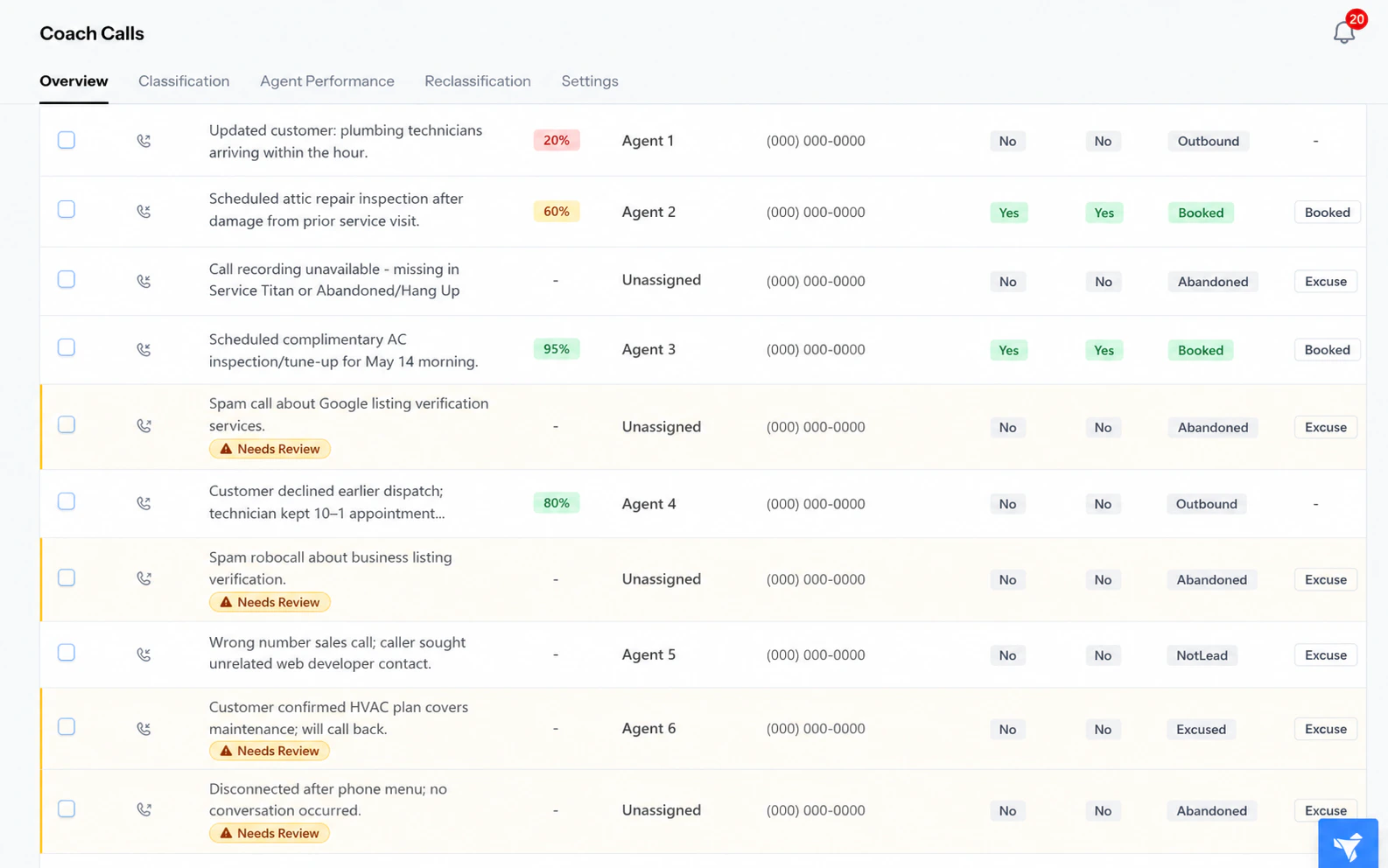
Click Columns at the top right of the table to show, hide, or reorder columns. Your choices are saved.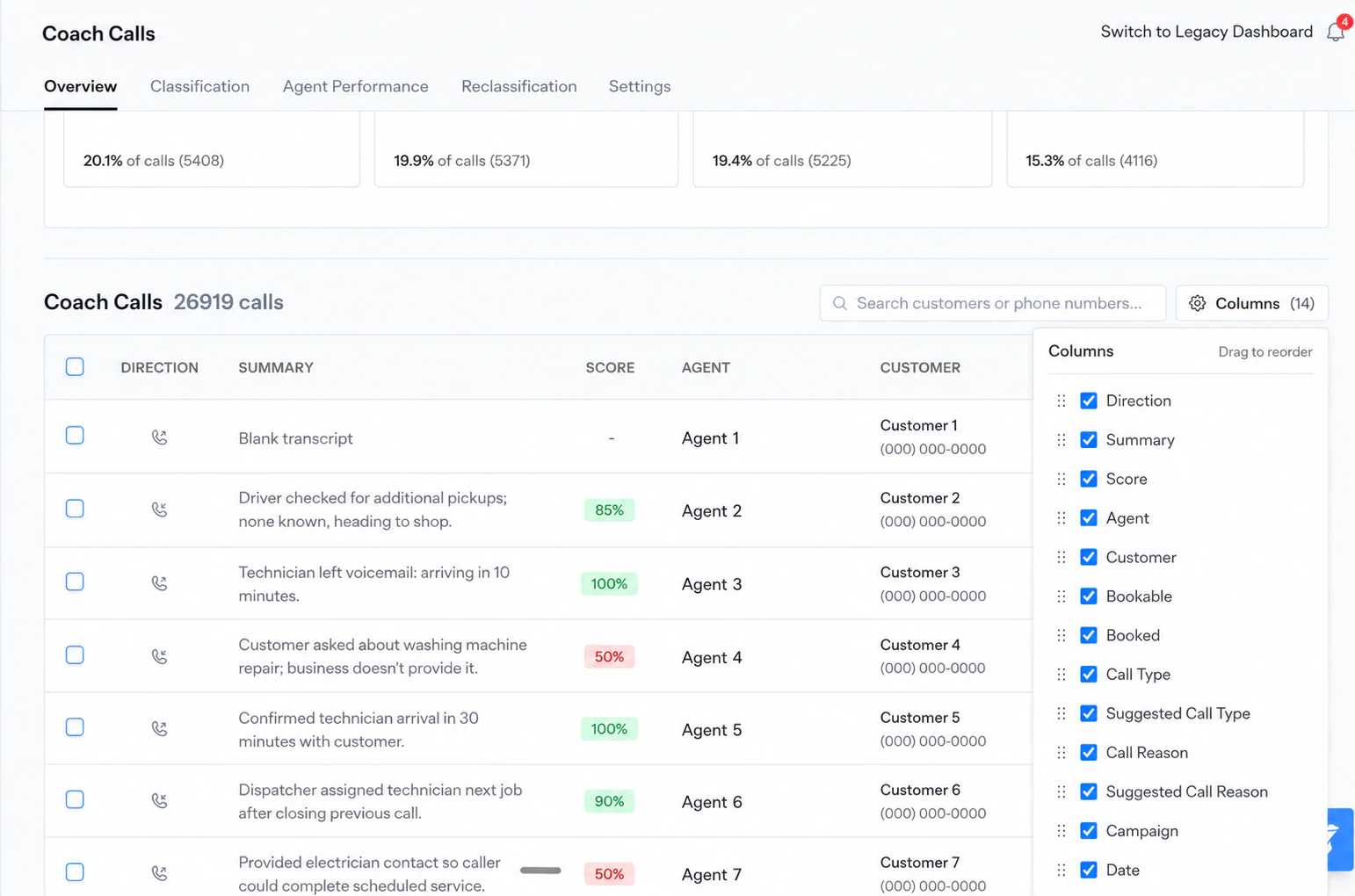
Use the checkboxes to select the calls you want to act on. Use the header checkbox to select every call on the page.A blue action bar appears at the top of the table. When your selection includes misclassified calls, two extra buttons appear: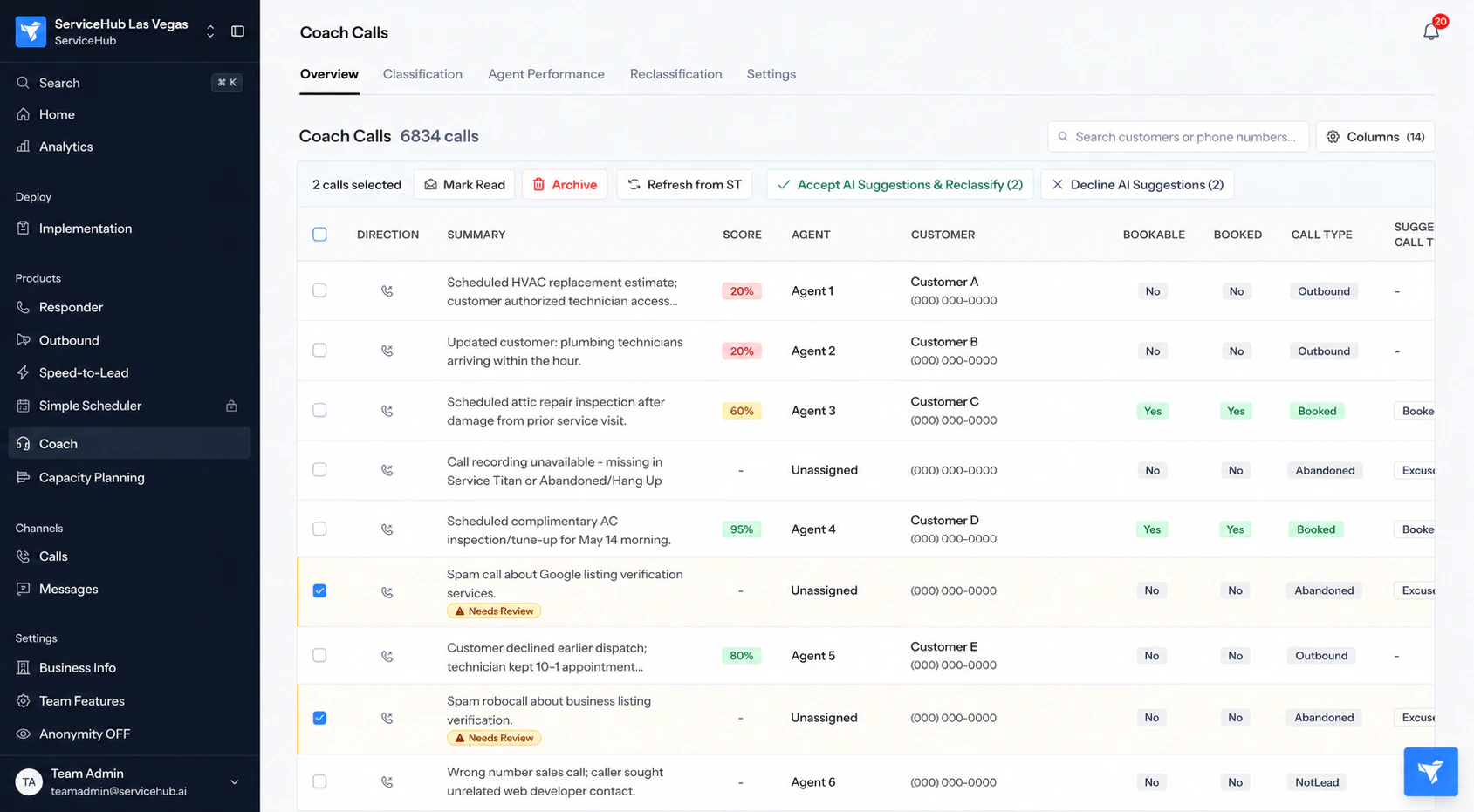
- Accept AI Suggestions and Reclassify — applies the AI’s suggested call type and reason to ServiceTitan.
- Decline AI Suggestions — keeps the existing ServiceTitan classification and removes the “Needs Review” tag.
Method 2: Reclassify from the call details page
Best when you want to review a single call carefully, or change fields the AI didn’t suggest (CSR, qualification, tags, linked job, notes).- On the Coach Calls page, click any call row to open the call details.
- Click Edit Call at the top right.

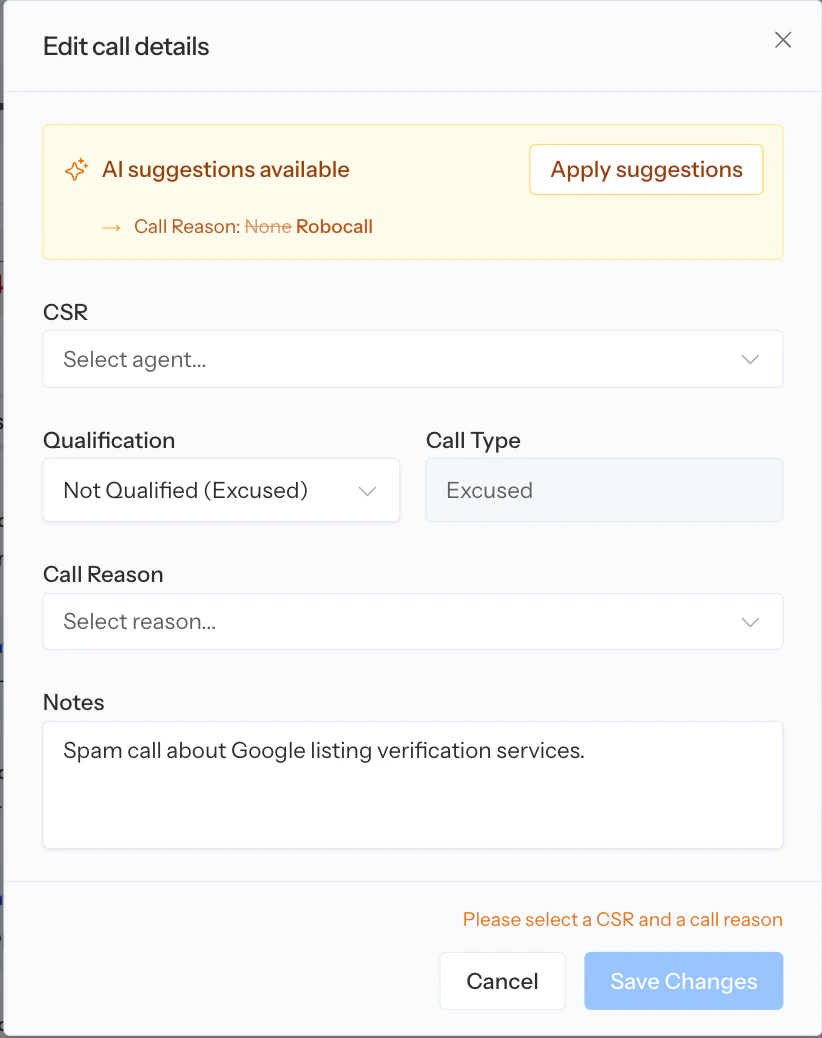
- Click Apply suggestions to fill in all the AI’s recommended values at once, or
- Edit any field manually: CSR, Qualification, Booking status, Call Type, Call Reason, Tags, Linked Job, or Notes.
Best practices
- Start with a small batch when using bulk Accept, to confirm the AI’s recommendations match what you’d do yourself.
- For patterns you keep correcting, share a few example call links with your Avoca contact so the AI definitions can be tuned.
- Once you trust the AI for a category, consider enabling Auto-Reclassification at Coach — Settings — Reclassification — Auto Reclassification.