Option A: Sync from ServiceTitan

2
Click Get Zones from ServiceTitan to import areas + zip codes from ServiceTitan
3
On each zone, click Add all postal codes to and select the Service Area you would like to add the postal code to
NOTE: If you have the same booking logic for all zones in ServiceTitan, you can click New Service Area on the first zone and create an All Service Areas zone in Avoca. Then on additional zones, add all postal codes to this new combined zone. This will ease the maintenance requirement of keeping up multiple Service Areas and booking windows later on.
4
Once done, click Save Changes
5
Check your sync settings with ServiceTitan - select Sync periodically or Allow sync to delete zips to make sure that your Avoca is always in line with your ServiceTitan


6
If you need to add postal codes that are not in your ServiceTitan, click the Import from CSV or Add Postal Codes buttons at the bottom of your zone to add zones manually

Option B: Add Postal Codes Manually

1
Click New Service Area
2
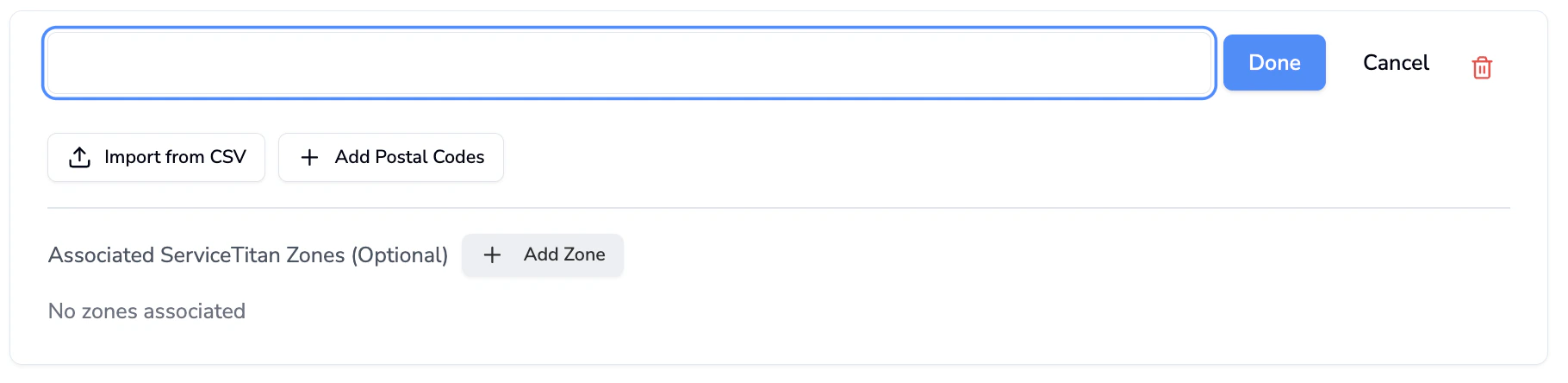
Set the name of your zone, then click Done
3
Click Import from CSV or Add Postal Codes to add postal codes manually to Avoca (both expect comma-separated postal codes)
4
Click Save Changes when done
If the service area zip list is blank (an empty list like []) or an asterisk (*), Avoca treats it as a wildcard and accept all zips
Last modified on February 19, 2026