

Background Context
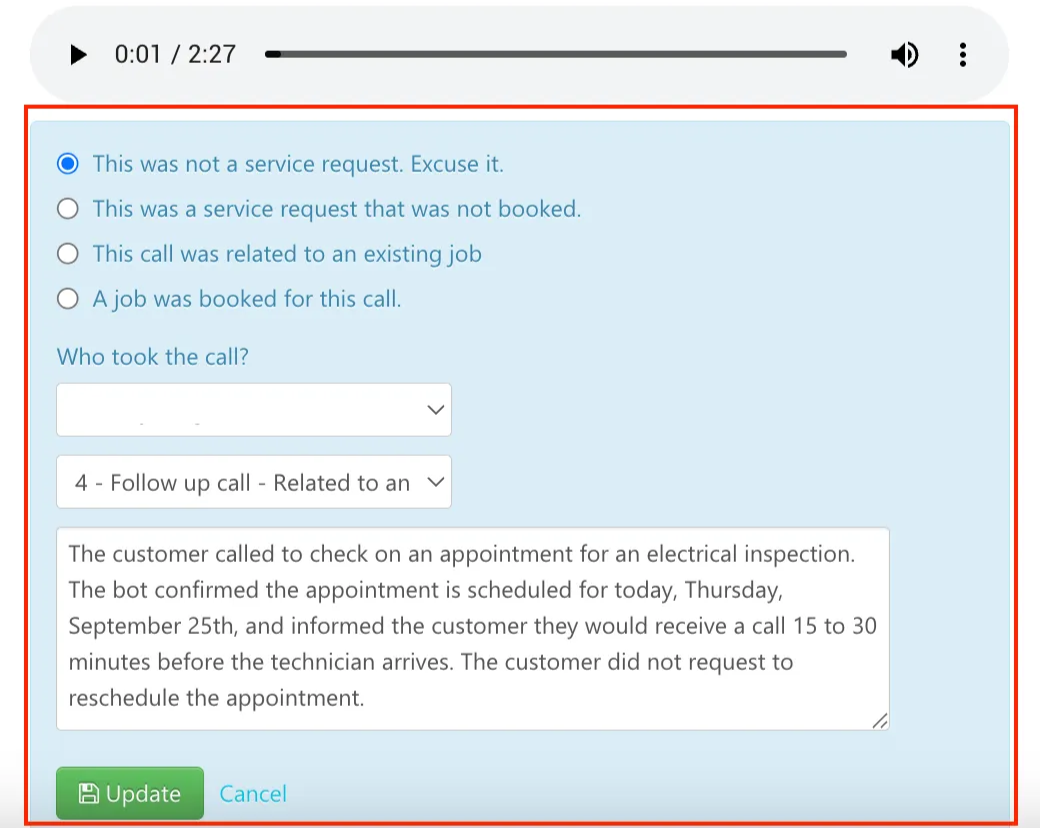
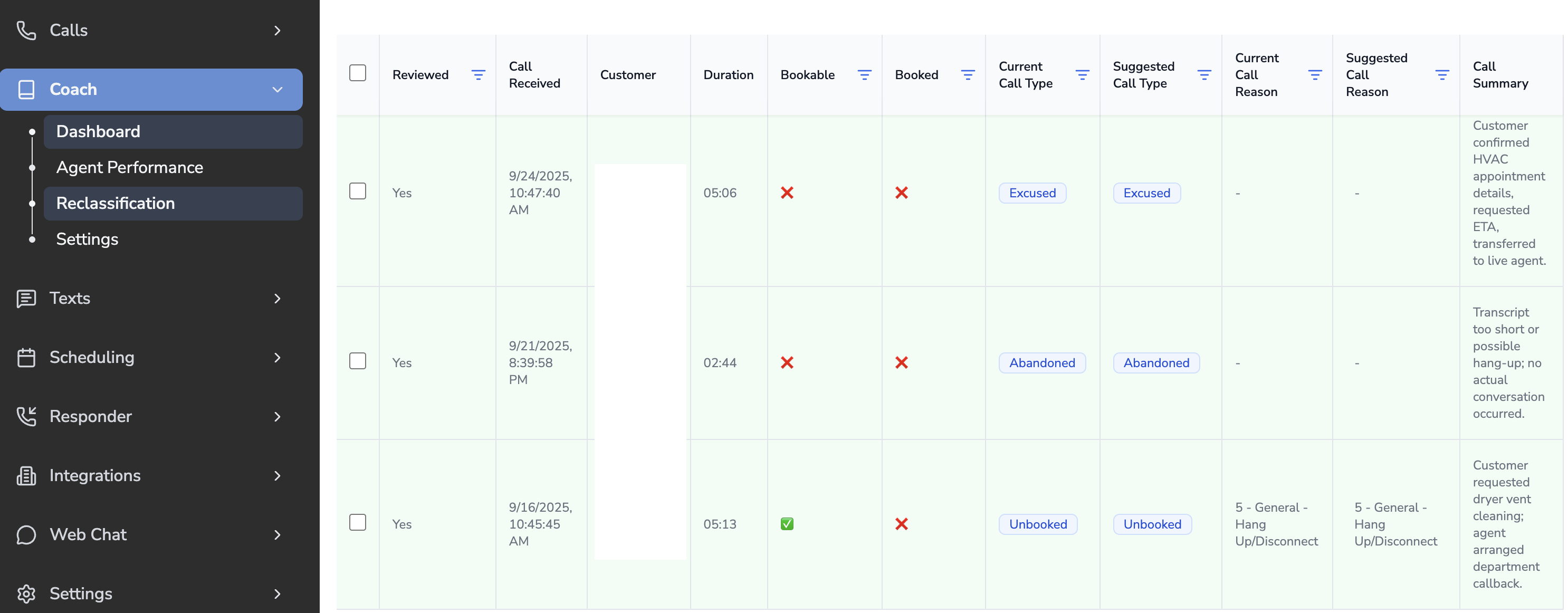
Reclassification helps ensure every call is reviewed objectively to determine if it was a true bookable lead. With this tool, you can update the call type and reason directly from the Avoca dashboard (basically the same information you’d typically input in the call review process, as shown in the screenshot below) and those updates will sync seamlessly into ServiceTitan. Accurate call classification is essential for tracking your company’s booking rate and evaluating your team’s performance with confidence.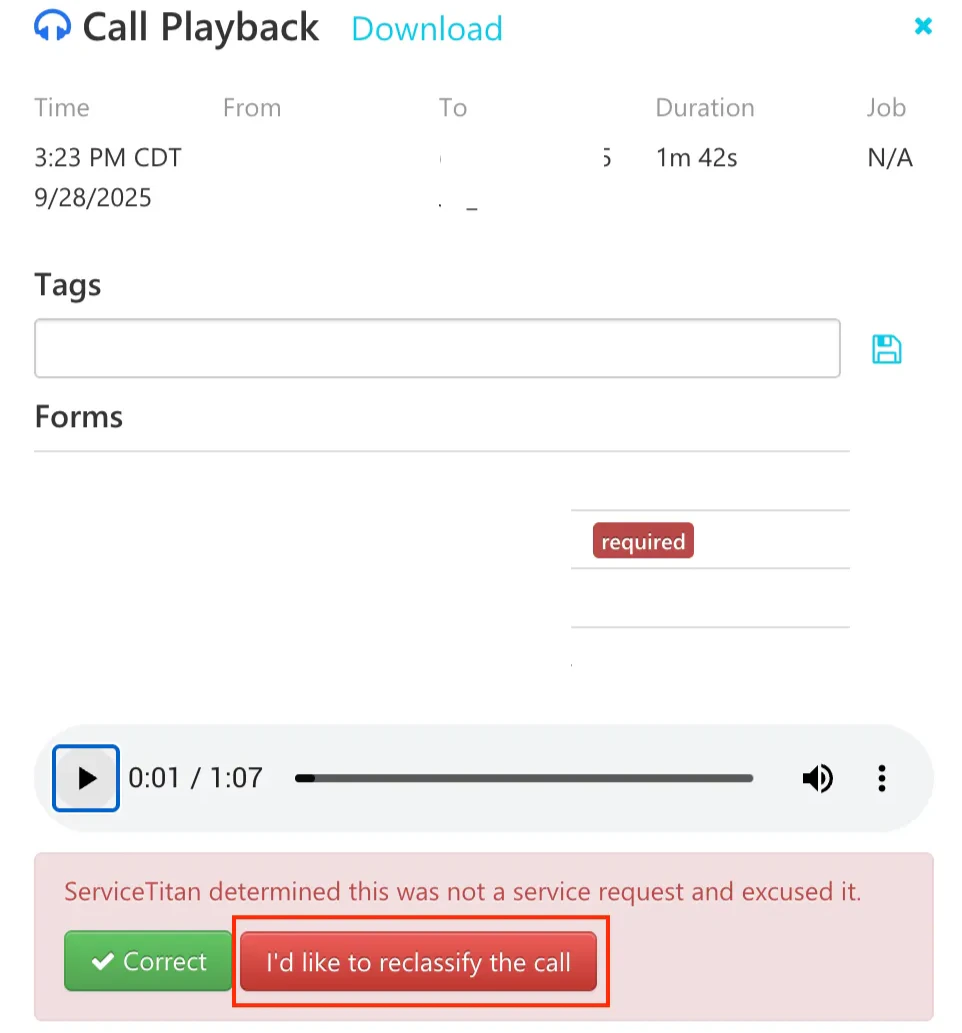
Setting Up Bookability Criteria
Avoca provides default definitions of what qualifies as a bookable lead, and the AI uses these criteria to guide call classification. When you first begin using the Avoca Coach Reclassification Tool, we recommend reviewing reclassified calls to confirm you agree with Avoca’s analysis before making any updates. If you disagree with any of the suggestions, notify your Avoca CSM so we can fine-tune the criteria and system for your specific use cases. You can view or modify the bookability criteria by navigating to Coach > Settings > Reclassification > Bookability Criteria.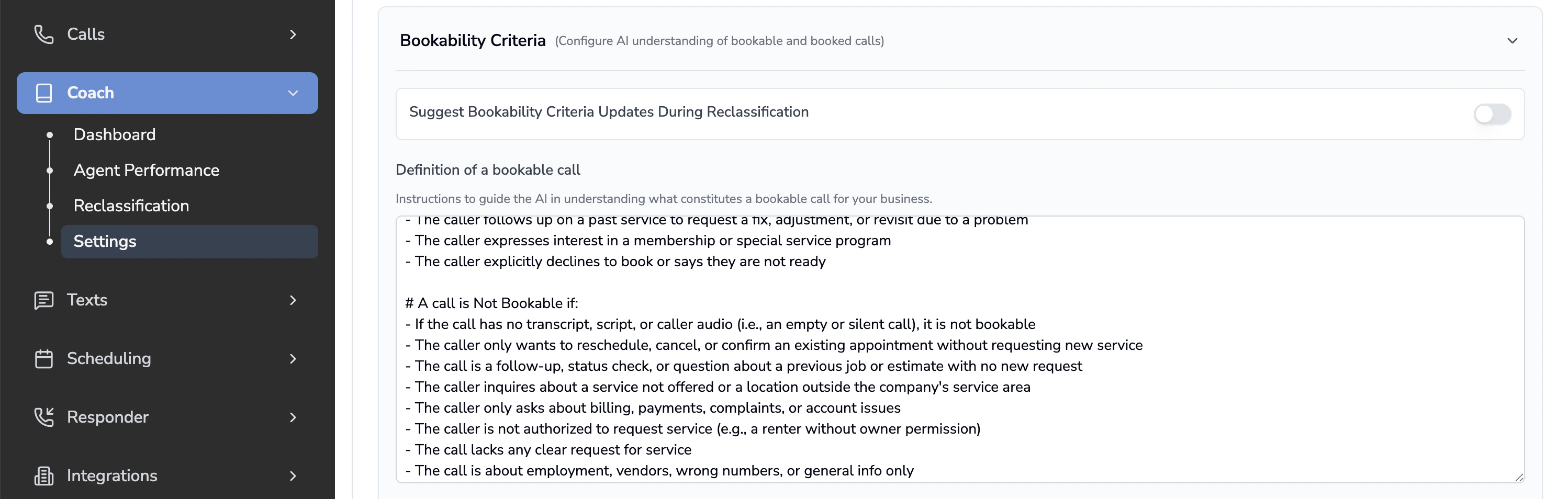
| Setting | Description | Additional Context |
|---|---|---|
| Suggest Bookability Criteria Updates During Reclassification | If enabled, the AI will suggest updates to your Bookability Criteria whenever you reclassify a call using a custom selection instead of the AI’s recommendation. | By default, this setting is off and should only be enabled during the initial fine-tuning stage of your reclassification audit. |
Setting Up Call Reasons
By syncing your call reasons from ServiceTitan, Avoca can provide a suggested call reason for each call. This feature is only helpful if you actively use call reasons to classify calls in ServiceTitan. You can confirm this by checking ServiceTitan > Settings > Operations > Call Reasons to ensure your reasons are set up and active.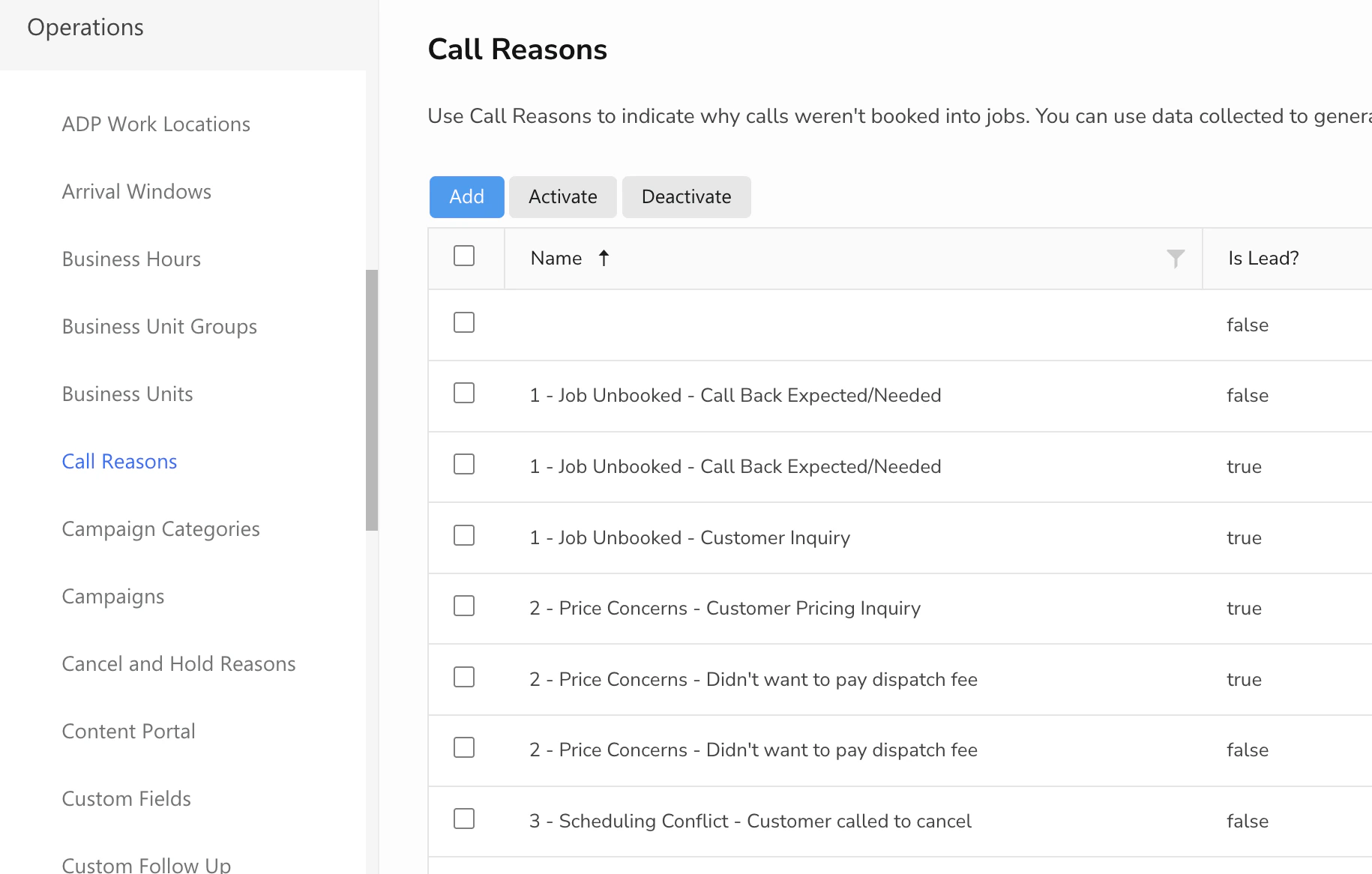
Syncing Call Reasons into Avoca
Click “Get Unsynced Reasons from Service Titan”. This will directly import your active call reasons and their “Is Lead?” configuration into Avoca.
Edit the descriptions for each reason. This is helpful guidance for the AI to understand when to select that call reason for a call.
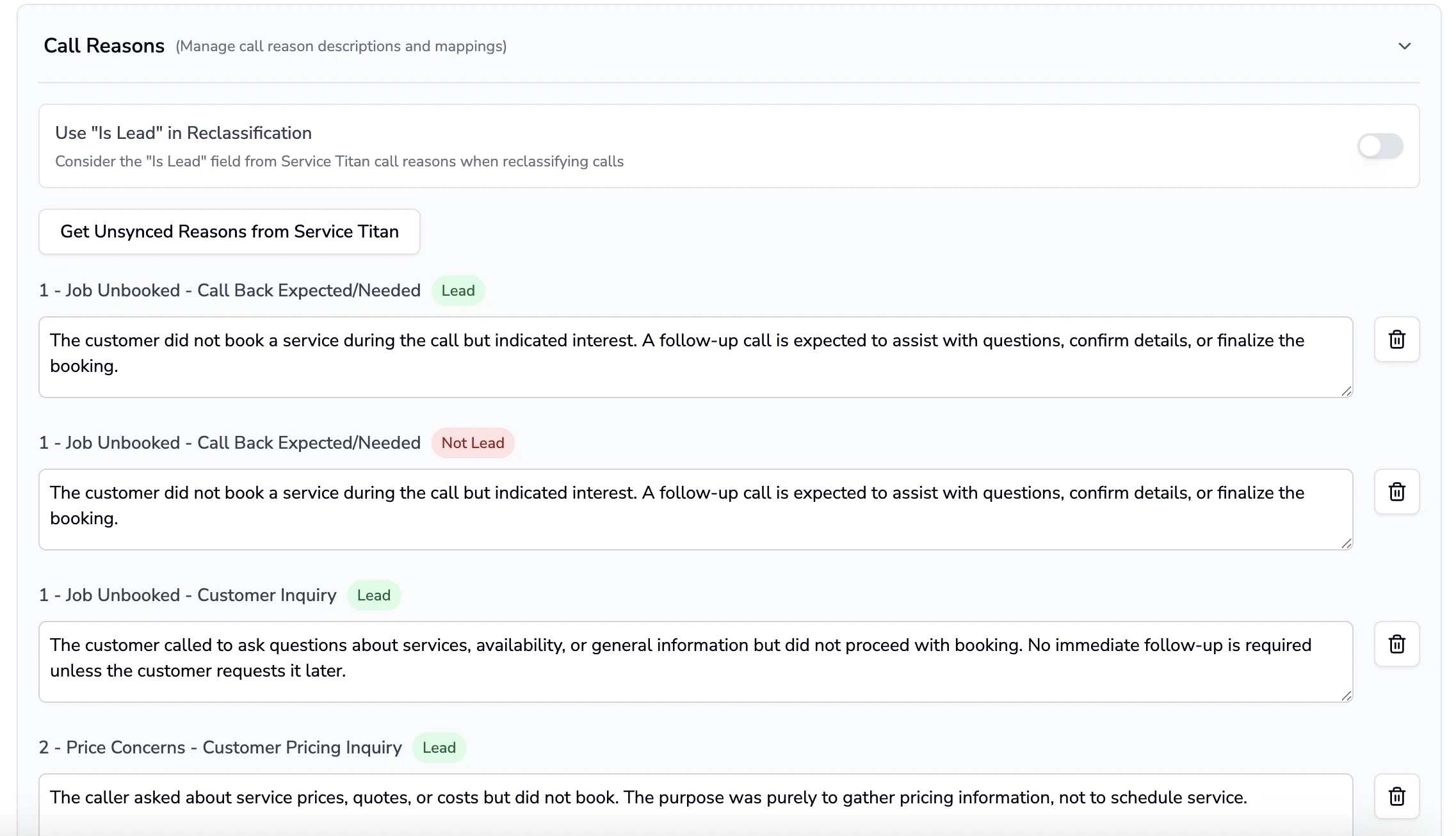
| Setting | Description | Additional Context |
|---|---|---|
| Use “Is Lead” in Reclassification | Consider the “Is Lead” field from Service Titan call reasons when reclassifying calls | If enabled, when the AI Reclassification Tool suggests a call reason, it will also reference the “Is Lead” field tied to that call reason to determine whether the call was bookable. This takes precedence over your existing Bookability Criteria. We recommend turning this on only if your team heavily relies on the “Is Lead” field in ServiceTitan call reasons and those fields are set up correctly. |
Manually Reclassifying Calls
View Demo Recording Here:
View Demo Recording Here:
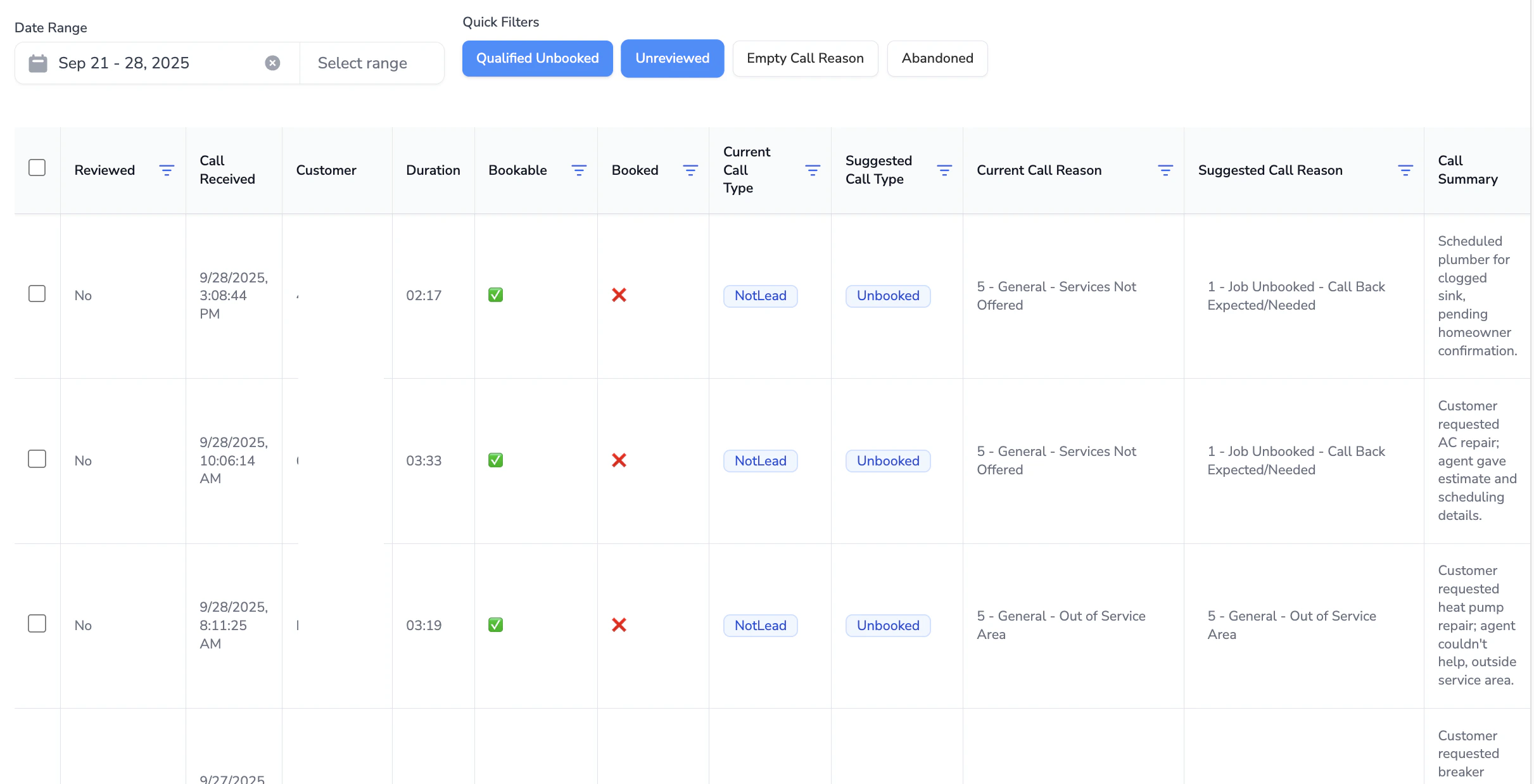
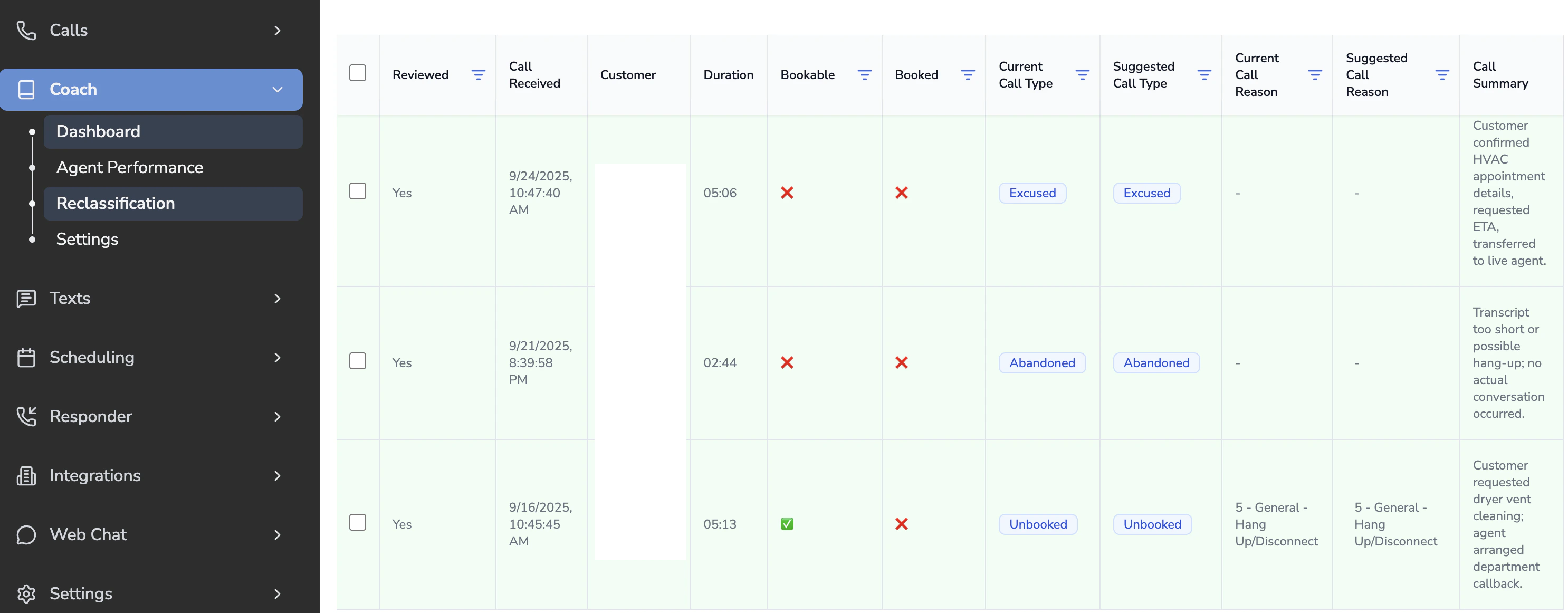
Filter Options
- Date Range: Select the specific date range of calls you want to review.
- Quick Filters: Pre-set filters to quickly narrow down call types.
- Qualified Unbooked: Shows calls that were qualified leads but not booked.
- Unreviewed: Displays calls that have not yet been reviewed in the dashboard.
- Empty Call Reason: Highlights calls that are missing a call reason.
- Abandoned: Shows calls that were abandoned before being handled.
- Individual Column Filters: Lets you filter results within each column (e.g., call type, bookable, booked).
Columns
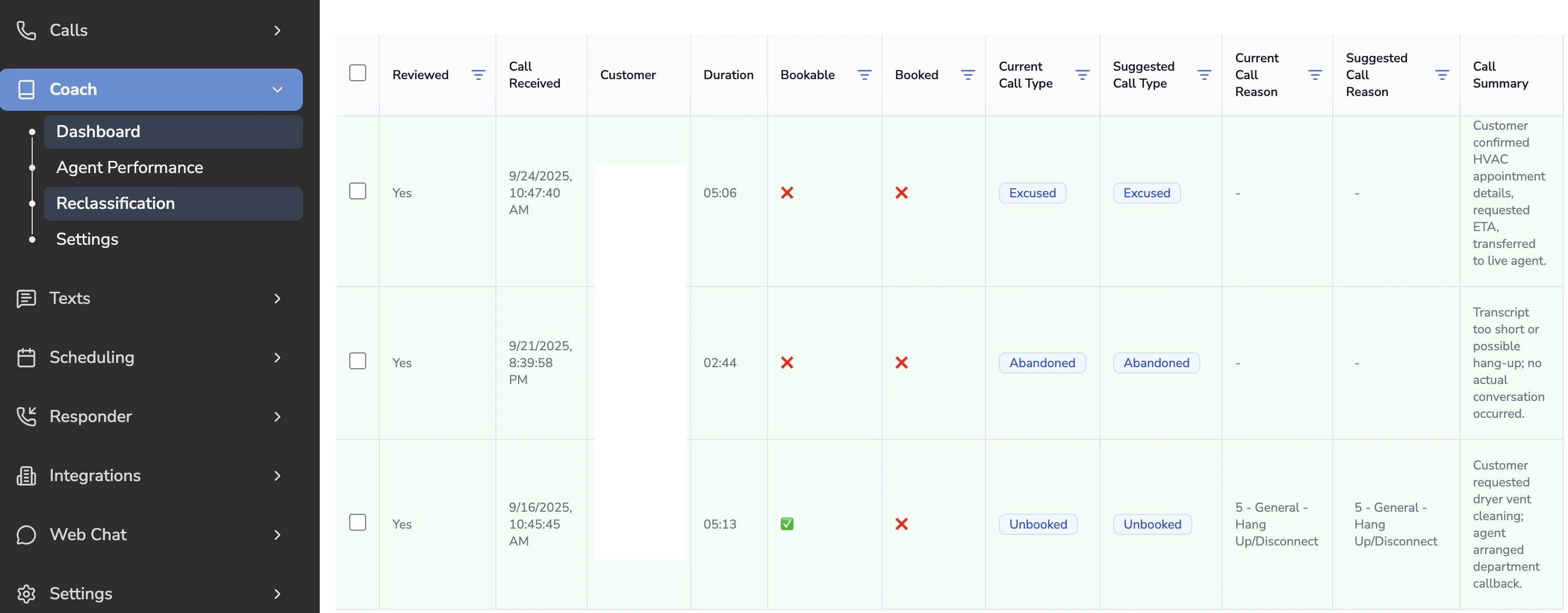
- Reviewed: Indicates whether the call has been reviewed by your team.
- Call Received: The date and time when the call was received.
- Customer: The customer associated with the call.
- Duration: How long the call lasted.
- Bookable: Whether the call qualified as a bookable lead.
- Booked: Whether the lead was successfully booked during the call.
- Current Call Type: The call type currently assigned in your system.
- Suggested Call Type: The call type recommended by the AI.
- Current Call Reason: The call reason currently assigned in your system.
- Suggested Call Reason: The call reason recommended by the AI.
- Call Summary: A short summary of what happened on the call.
Reclassifying Call Type
Compare with the Current Call Type
- If the suggestion is different, hover over it to see the AI’s reasoning.
Accept the AI Suggestion
- If you agree with the suggested type, select the call and choose either Reclassify Type Only or Reclassify Type and Reason.
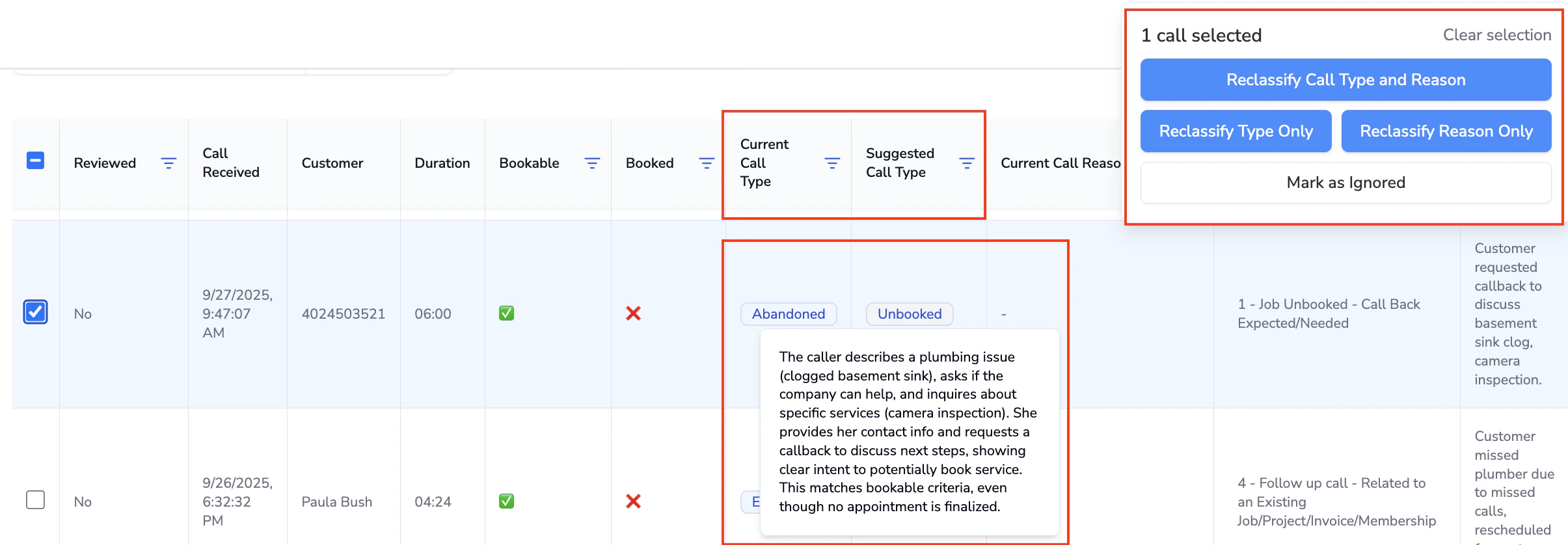
OR Make a Custom Selection
- If you disagree with the AI but want to change the call type, click the Suggested Call Type to open a dropdown of options.
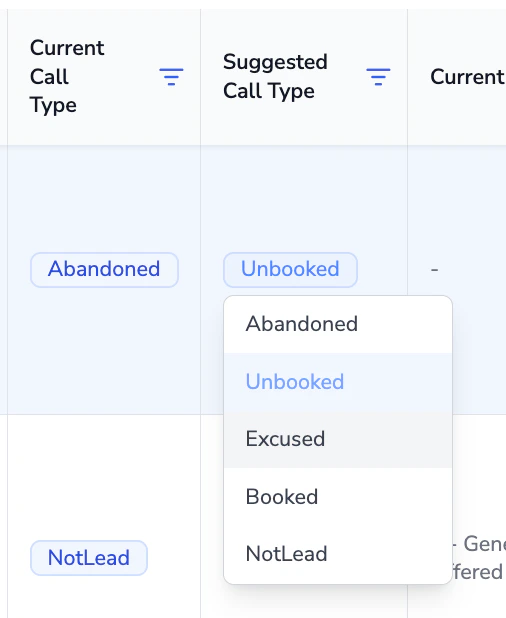
- Pick the correct type, then choose Reclassify Type Only or Reclassify Type and Reason.
- If the Suggest Bookability Criteria Updates During Reclassification setting is enabled, the system will analyze your custom choice and recommend updates to your bookability criteria. You can review and accept or decline these changes.
OR Ignore if Correct
- If the suggested and current call type already match and are correct, select Mark as Ignored.
Reclassifying Call Reason
Compare with the Current Call Reason
- If the suggestion is different, hover over it to see the AI’s reasoning.
Accept the AI Suggestion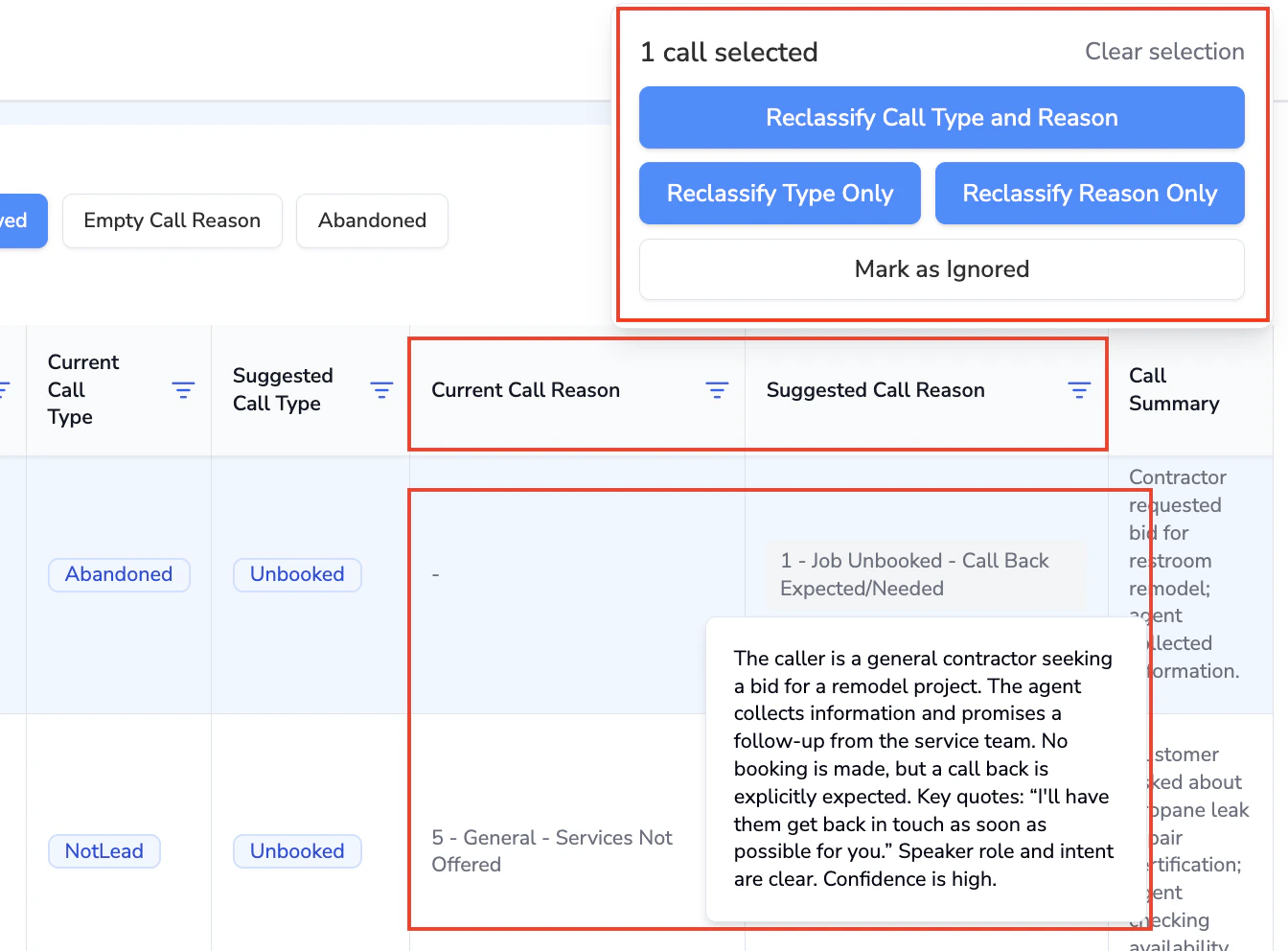
- If you agree with the suggested reason, select the call and choose either Reclassify Reason Only or Reclassify Type and Reason.
OR Make a Custom Selection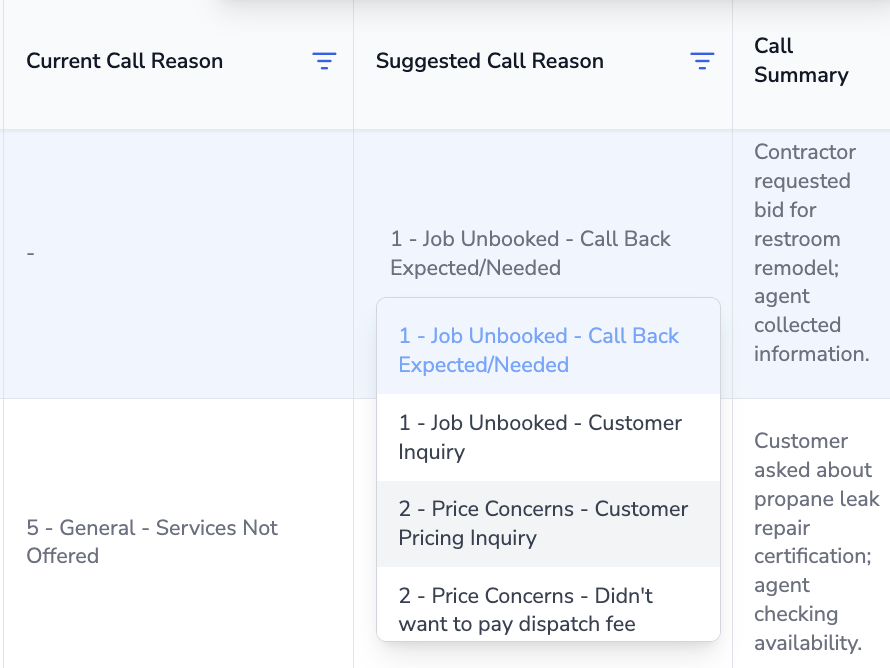
- If you disagree with the AI but want to change the call reason, click the Suggested Call Reason to open a dropdown of options.
- Pick the correct reason, then choose Reclassify Reason Only or Reclassify Type and Reason.
OR Ignore if Correct
- If the suggested and current call reason already match and are correct, select Mark as Ignored.
Turning On Auto-Reclassification
Once you have reviewed multiple calls and are confident in Avoca’s assessment of how calls should be classified, you can enable auto-reclassification so that you no longer have to manually do this for every call. To enable this feature go to Coach > Settings > Reclassification > Auto Reclassification.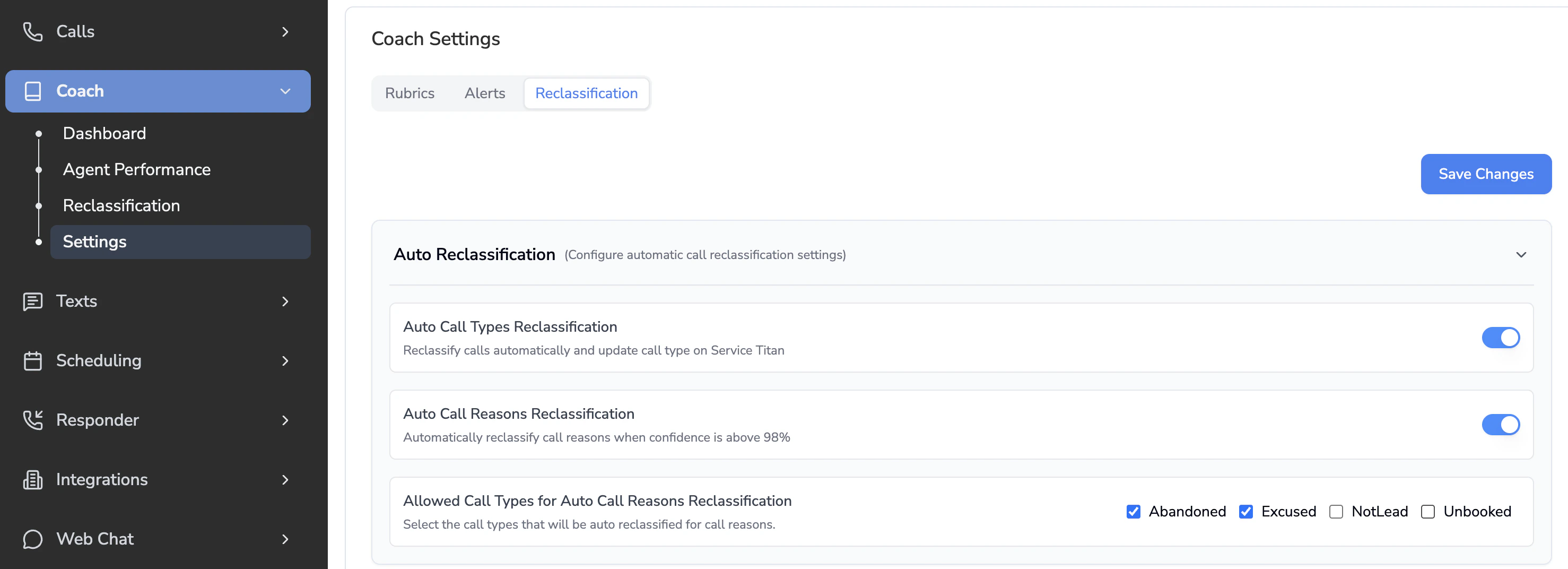
| Setting | Description | Additional Context |
|---|---|---|
| Auto Call Types Reclassification | Reclassify calls automatically and update call type on Service Titan | This basically maps to the ServiceTitan options: - Excused: This was not a service request. Excuse it. - Unbooked: This was a service request that was not booked. - Not Lead: This call was related to an existing job - Booked: A job was booked for this call. |
| Auto Call Reasons Reclassification | Automatically reclassify call reasons when confidence is above 98% | Because call reasons can vary, we set a 98% confidence threshold for the AI to match a call to the correct reason. In practice, the majority of calls (over 85%) will meet this 98%+ confidence level, so only a small number will require manual review. |
| Allowed Call Types for Auto Call Reasons Reclassification | Select the call types that will be auto reclassified for call reasons. | For Example, if only “Abandoned” call type is selected, we will only reclassify calls where the original call type was “Abandoned.” If the original type as not, we will skip those calls. |
Getting Alerted of Unbooked Leads
To ensure no leads are missed, you can set up alerts for qualified bookable leads that weren’t booked during the call. This allows your team to quickly follow up with the caller and close the opportunity. To set up notifications, go to Coach > Settings > Alerts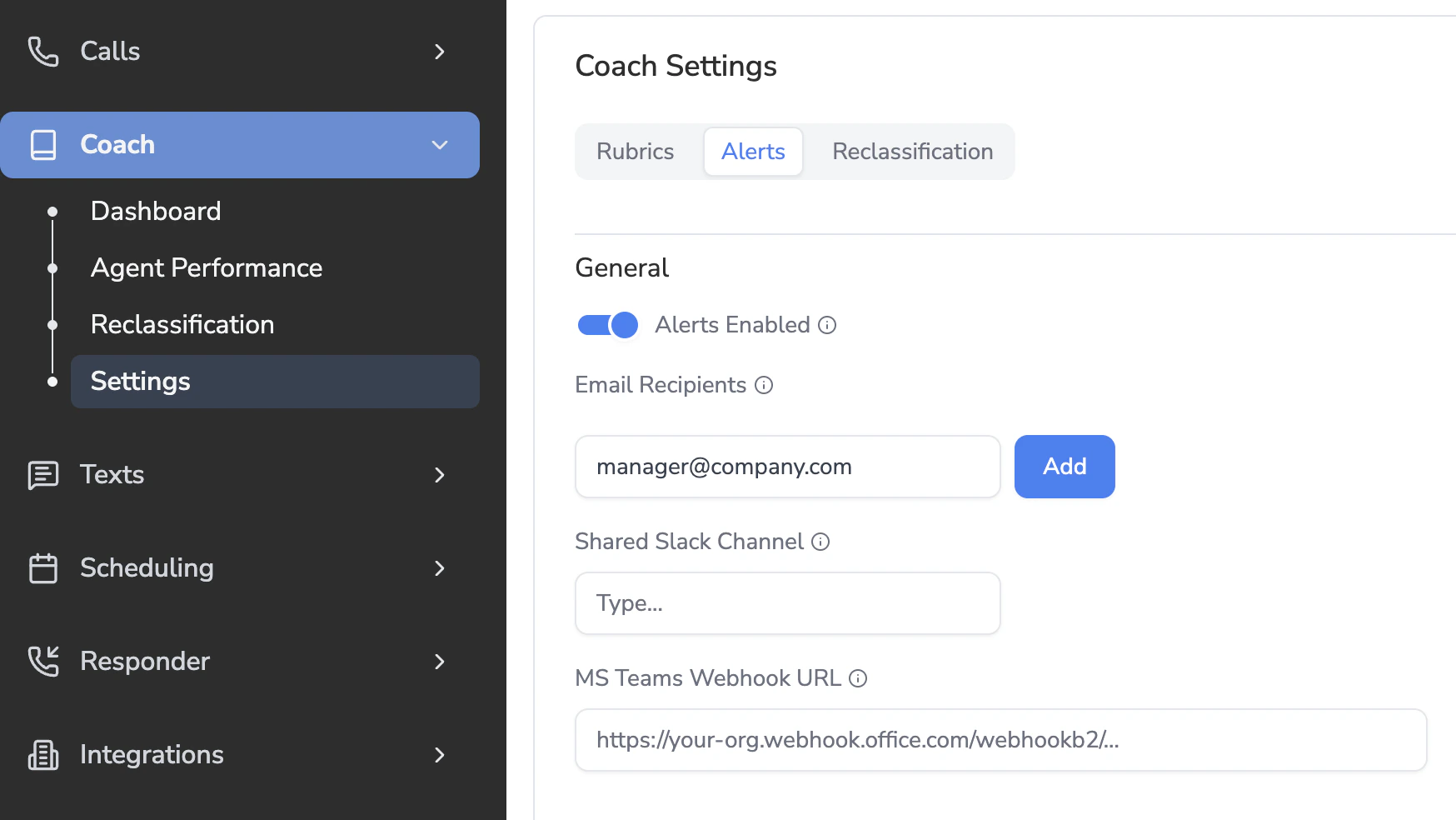
Notification Methods
Email - Simply add email(s) to send alerts to. Shared Slack Channel - Ask CSM to help configure this for you. Shared Teams Channel - Ask CSM to help configure this for you. Here is also a guide on how to set up the teams channel: LoomIntegrating Coach Alerts into Microsoft Teams