Overview
We’ve recently added a self-serve module for customers on Service Titan to manage their company holidays directly in the Avoca Dashboard. Adding your holidays will ensure that your Avoca Bot does not overbook your team on these days.This will only work if you’re configured to use Booking Windows.You can verify if you are on booking windows by going to Scheduling > Booking Windows, and check if you have Service and Appointment Types configured.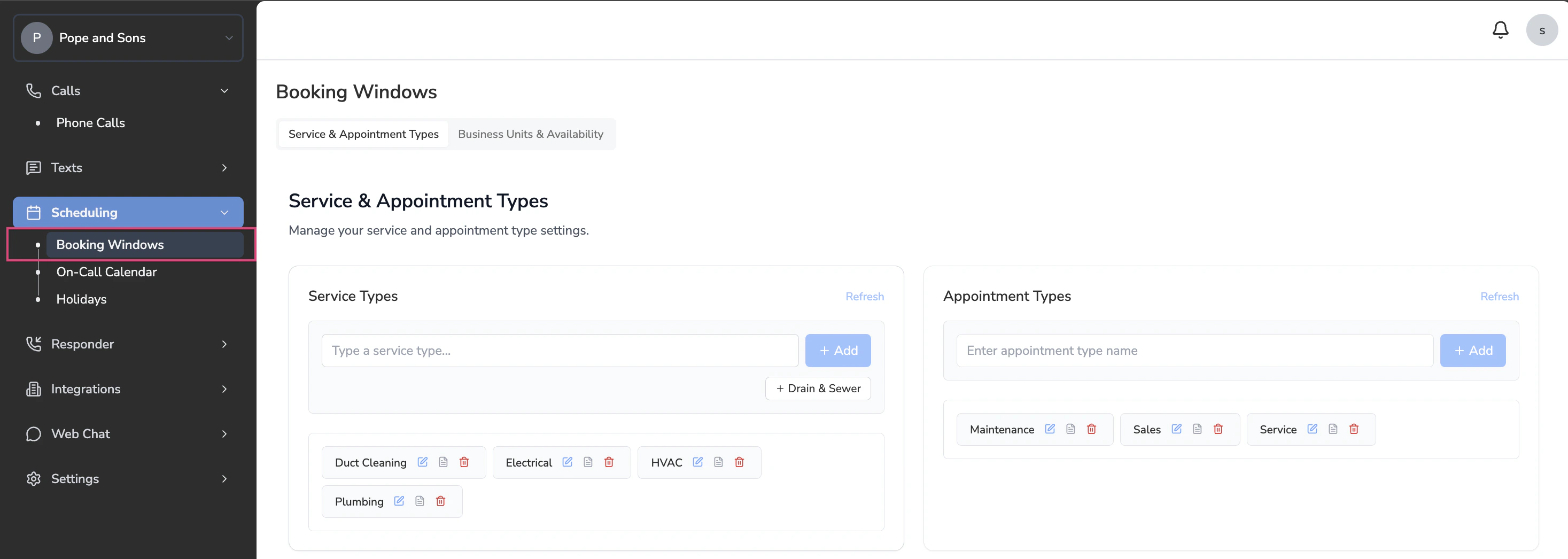
Set Up
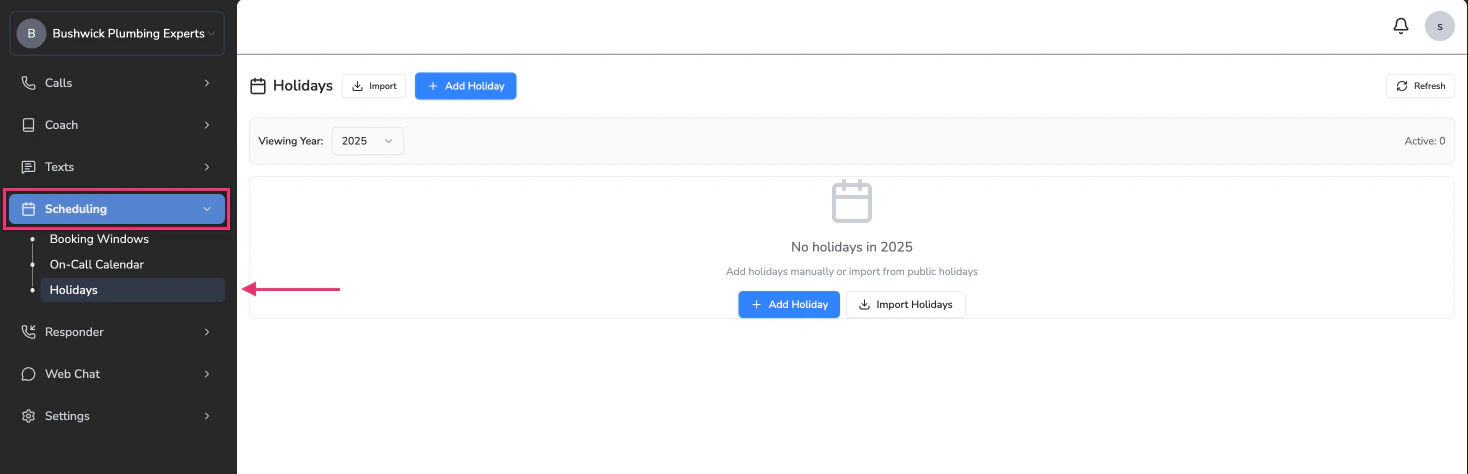
Go to ‘Scheduling’ > ‘Holidays’ on the left navigator. You’ll see two options:- Add Holiday: This will allow you to manually add a specific holiday.
- Import Holidays: This will pull a list of the current year’s public holidays.
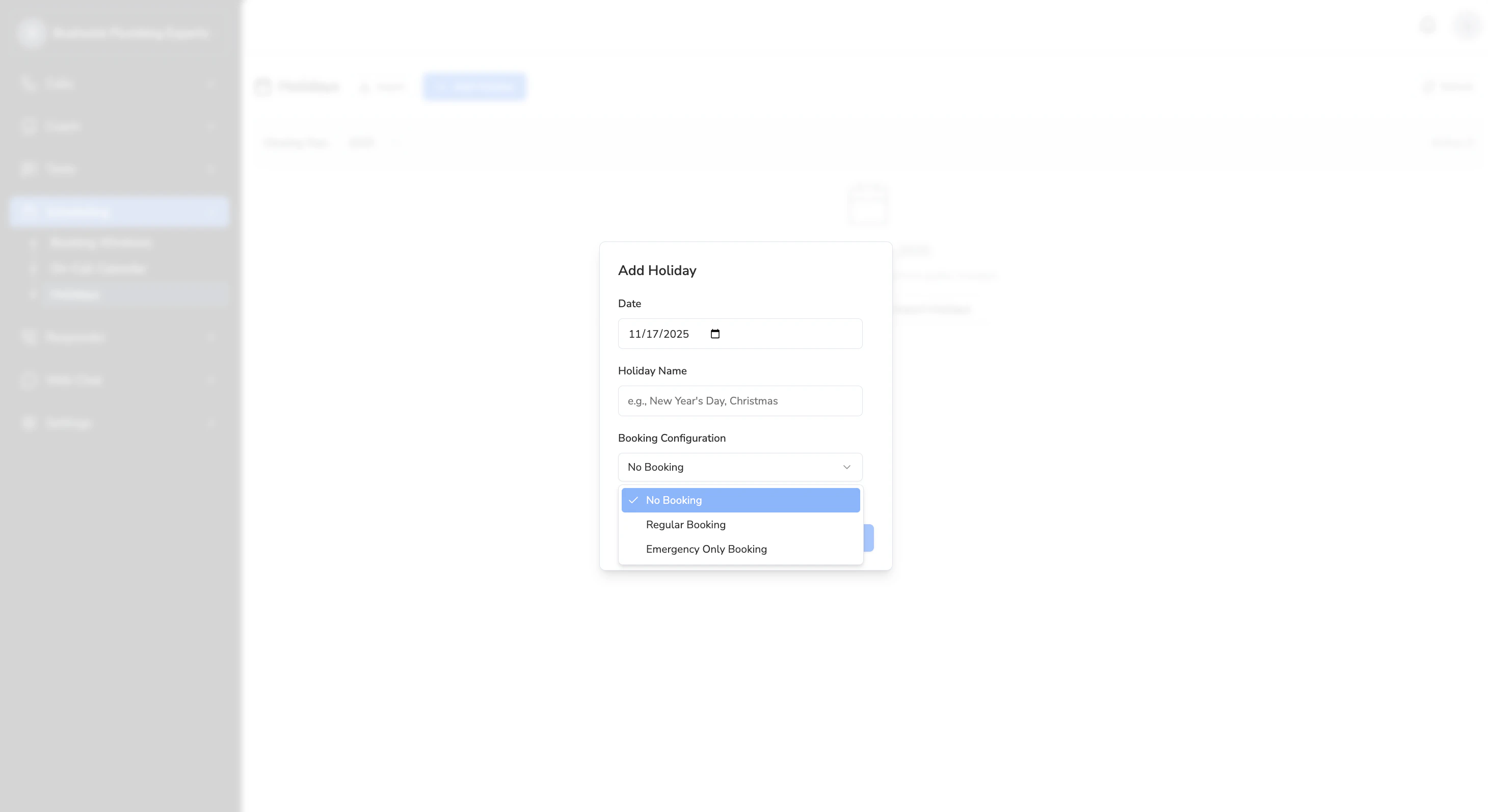
To Add a Holiday
Select the day.Currently we only allow selecting single days, if you have multiple consecutive holiday days, please create one for each.
To Import Holidays
Click on Import Holidays > Fetch Holidays.This will pull up a list of all the holidays for the year you’ve selected (e.g. 2025).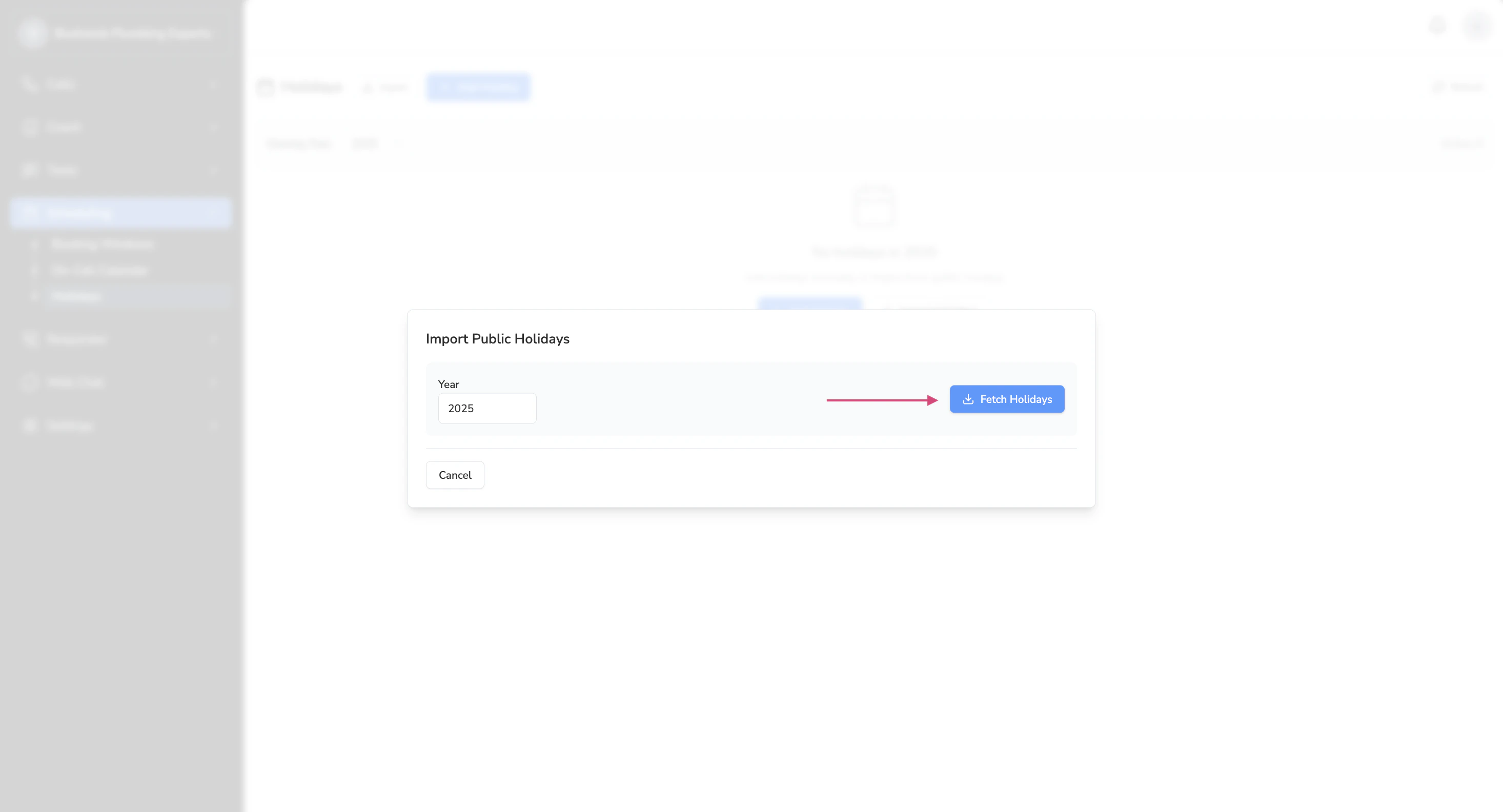
Select the holidays you want to add from the list.a. The name of the holiday will automatically be added.You can still edit the name if you have a company specific internal name for the holiday.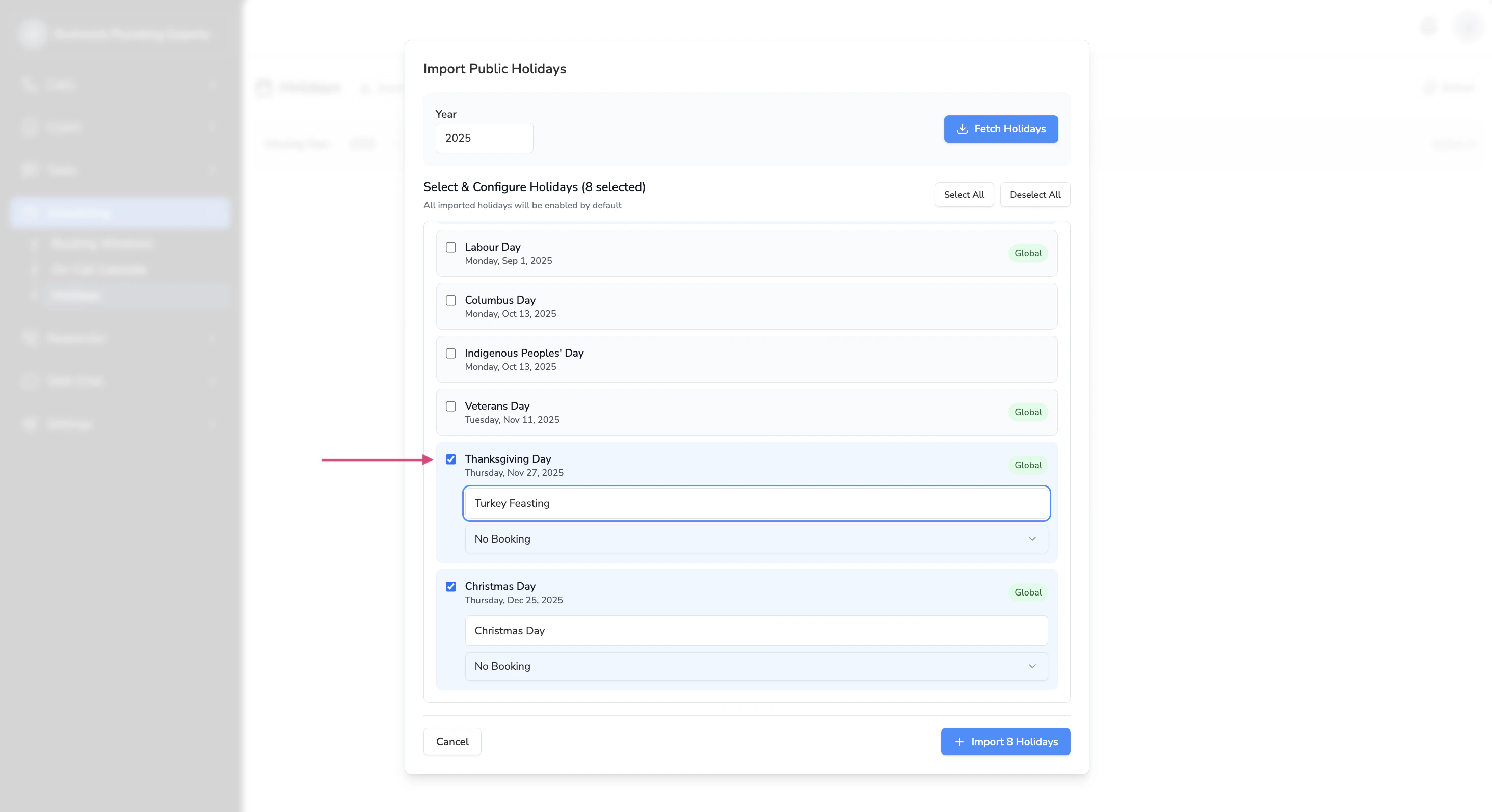
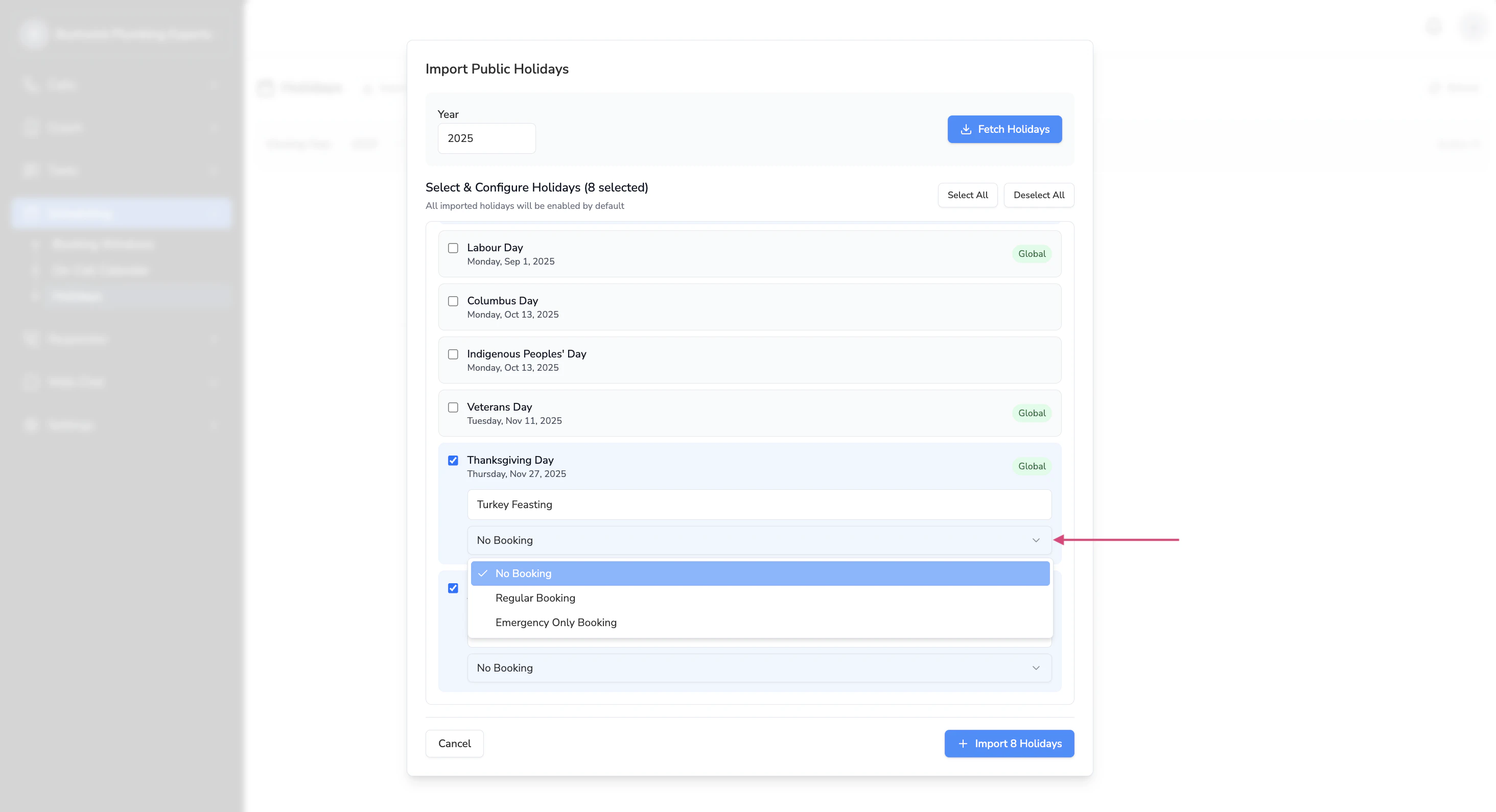
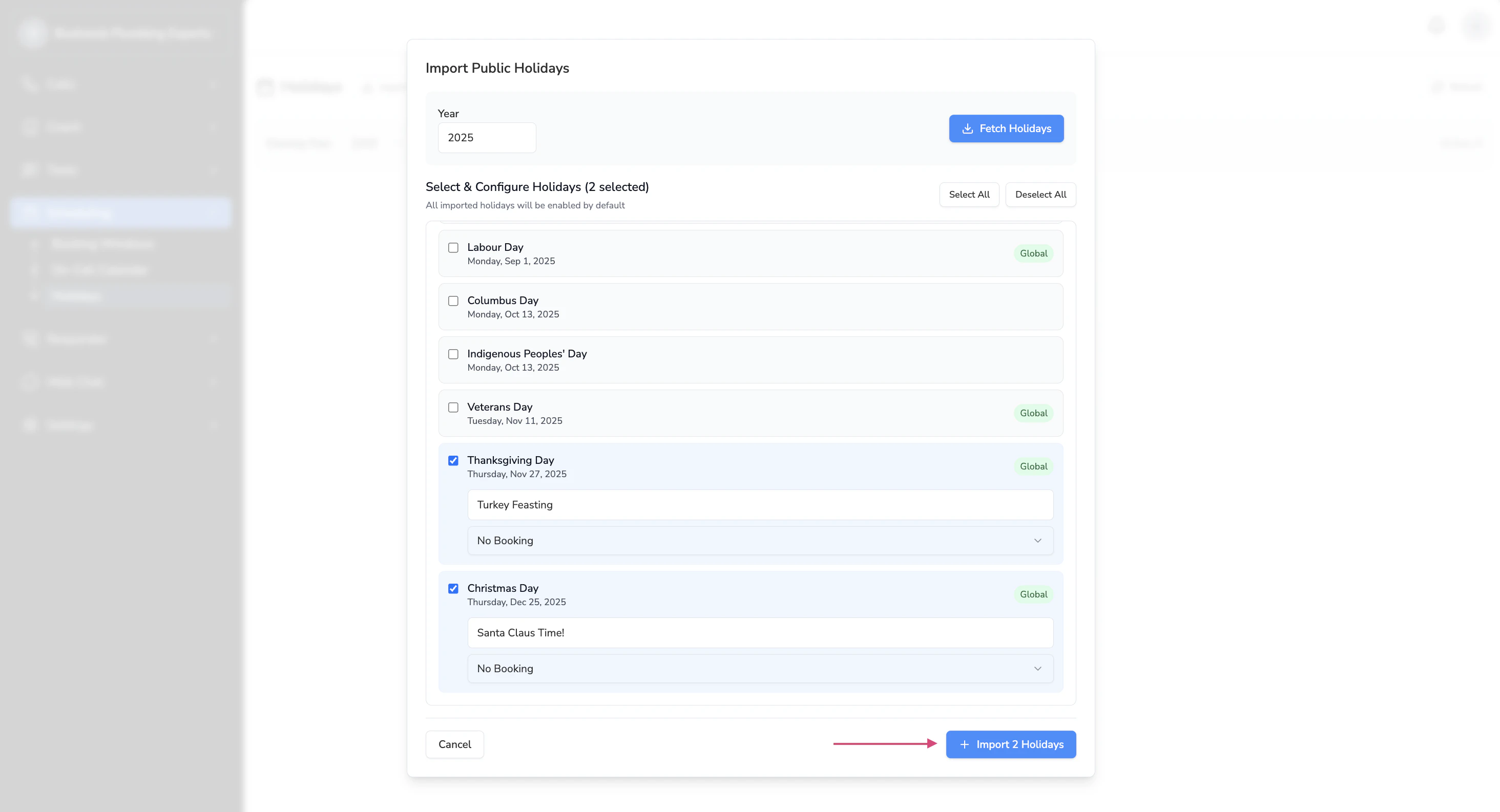
Managing Existing Holidays
Once you’ve set up your Holidays, you’ll see a Dashboard where you’ll be able to manage your holidays.Enabling Holidays
Holidays are enabled by default when they are created. If a holiday is enabled your Avoca Bot will respect the configurations you set up. If it is not enabled we will ignore that holiday.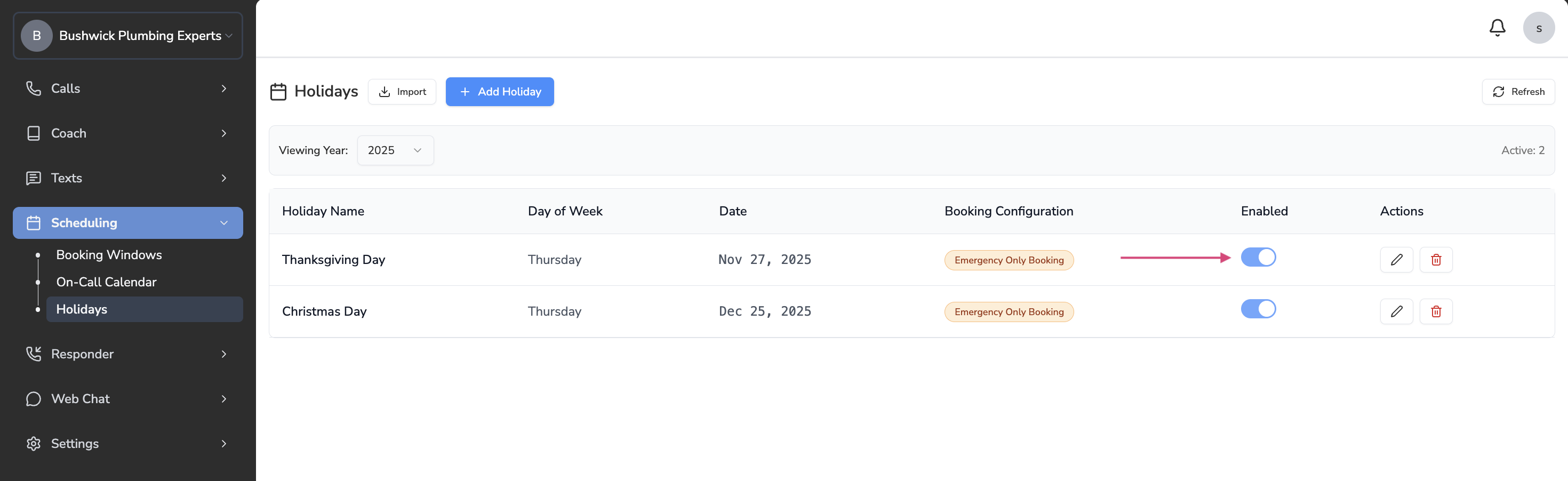
Editing Holidays
Click on the pencil icon to edit a specific holiday’s configuration.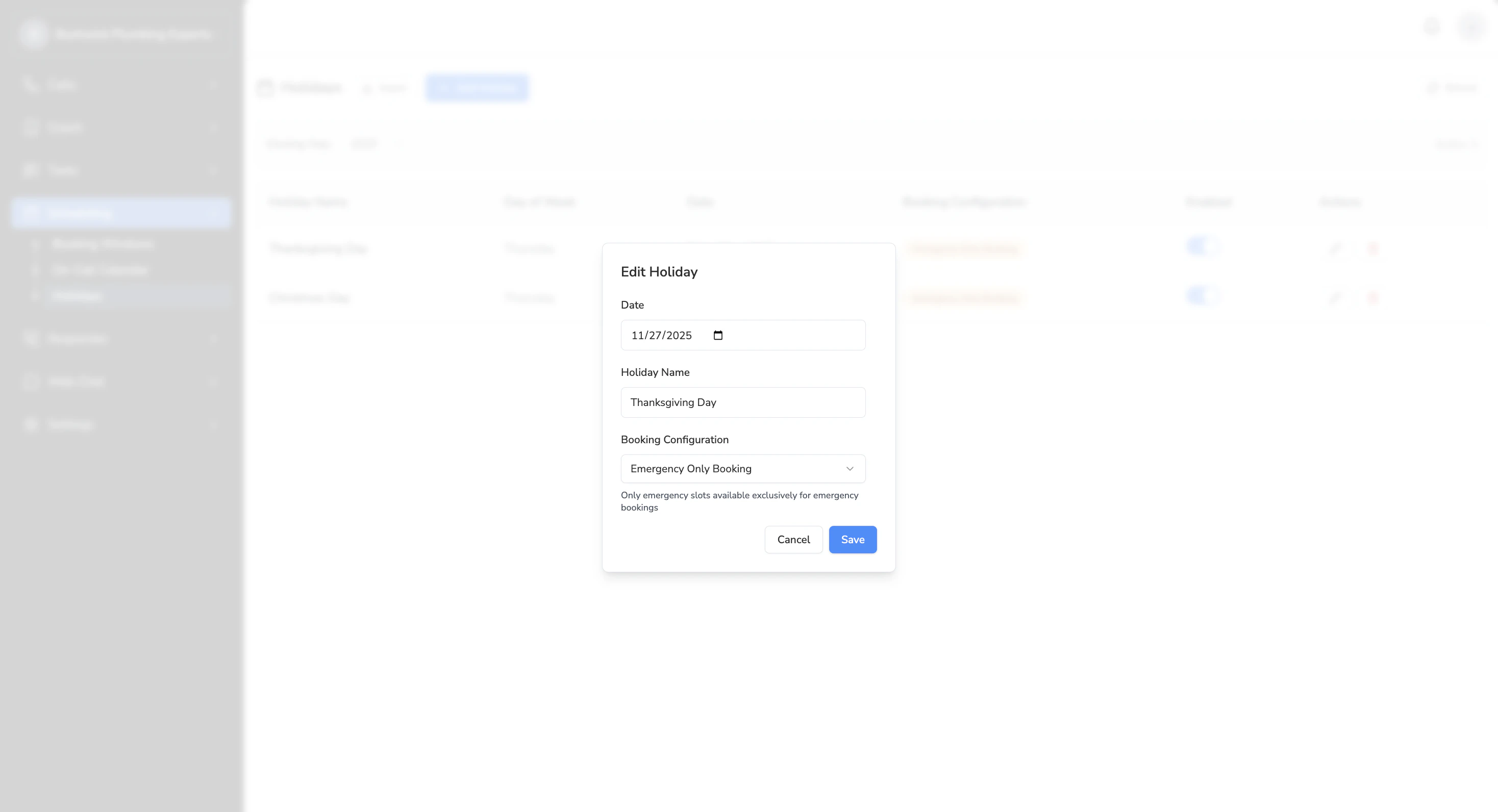
Deleting Holidays
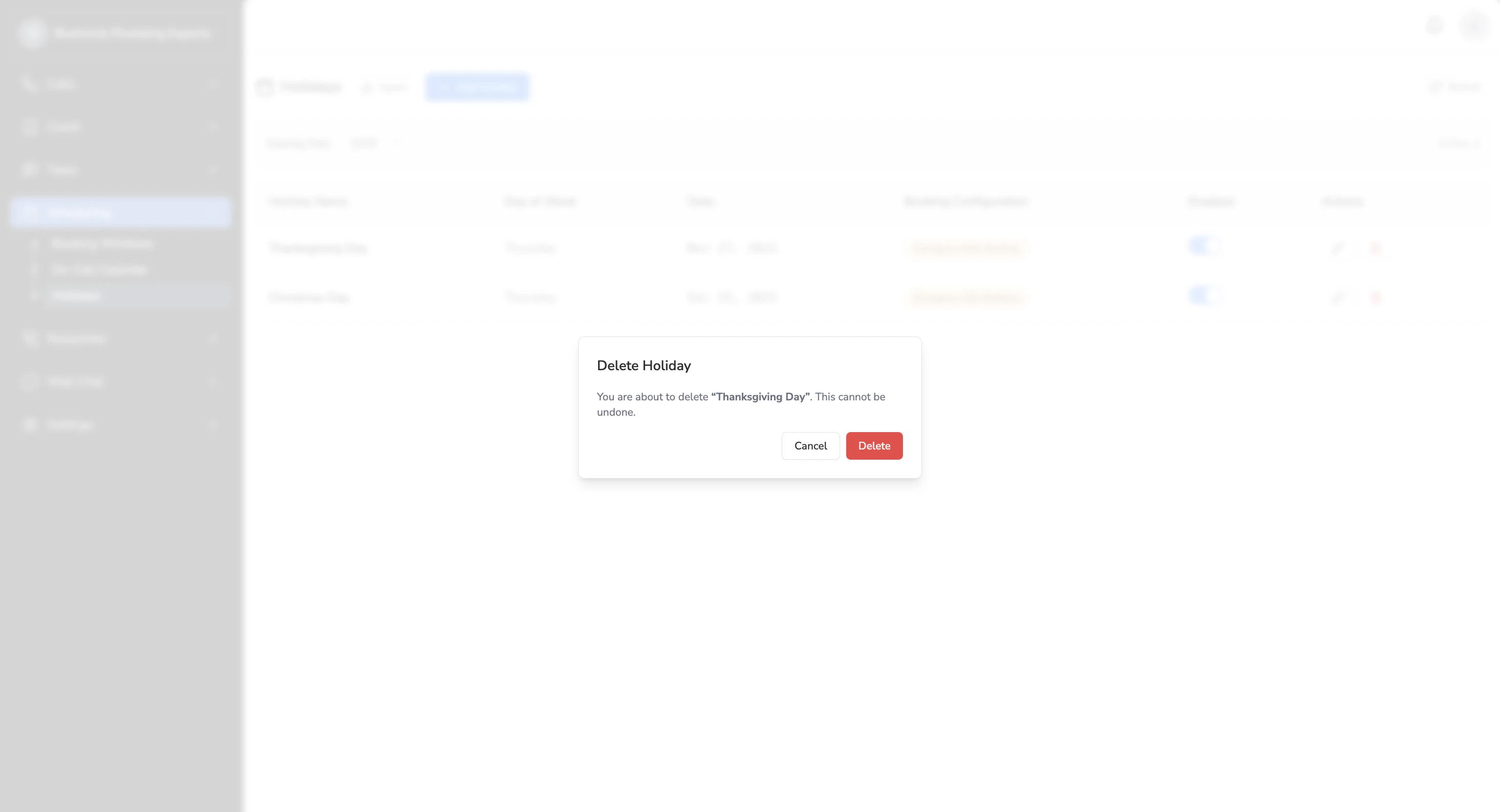
Click on the trash can icon to delete a specific holiday.