Prerequisites:
- The “Avoca Capacity” feature must be toggled on in your Avoca dashboard. Reach out to your Avoca account manager who will be able to take this step for you.
- You must be either using ServiceTitan’s Adjustible Capacity Planning, Adaptive Capacity (AdCap), or both.
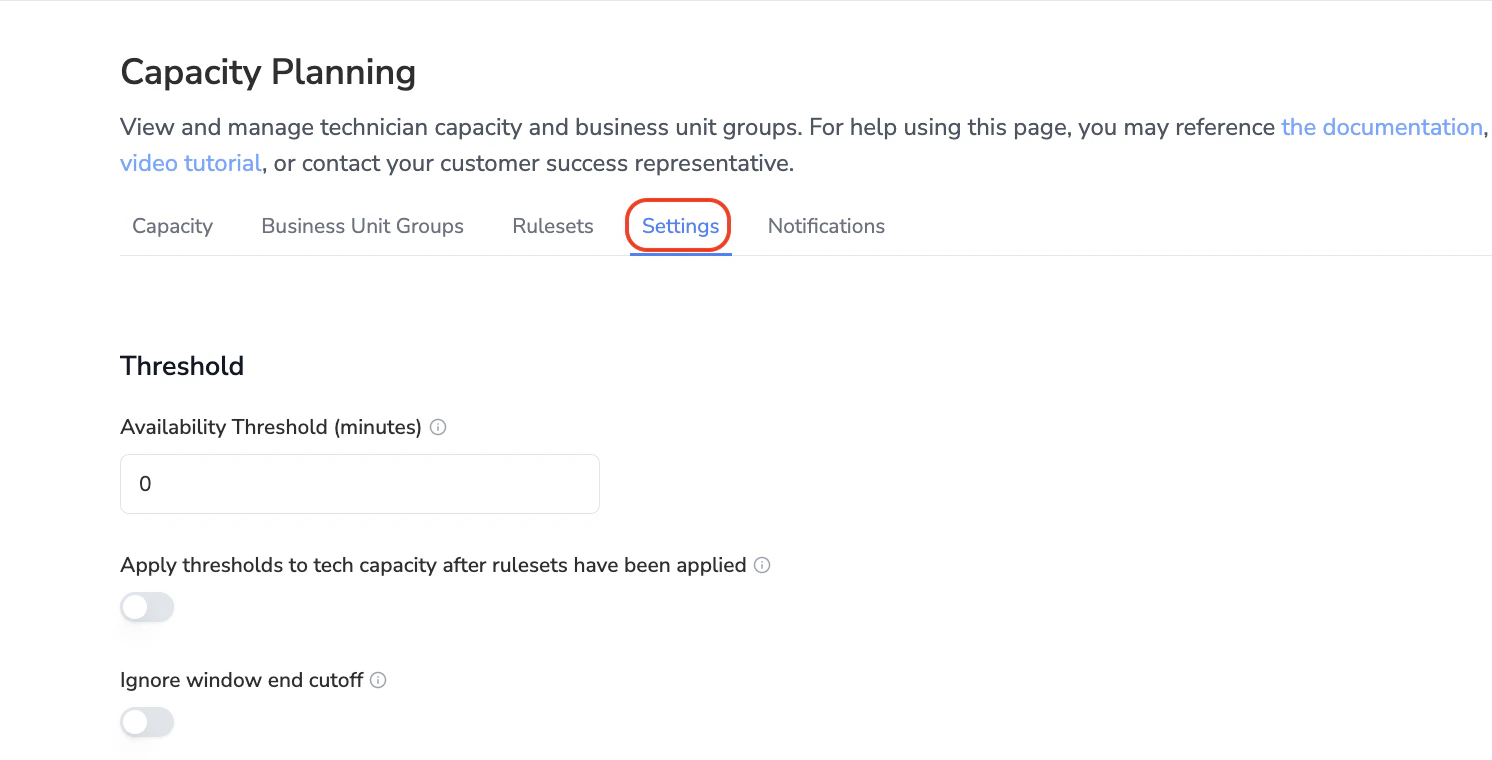
Navigate to your “Capacity Planning” section of your Avoca dashboard, and to the “Settings” section within Avoca Capacity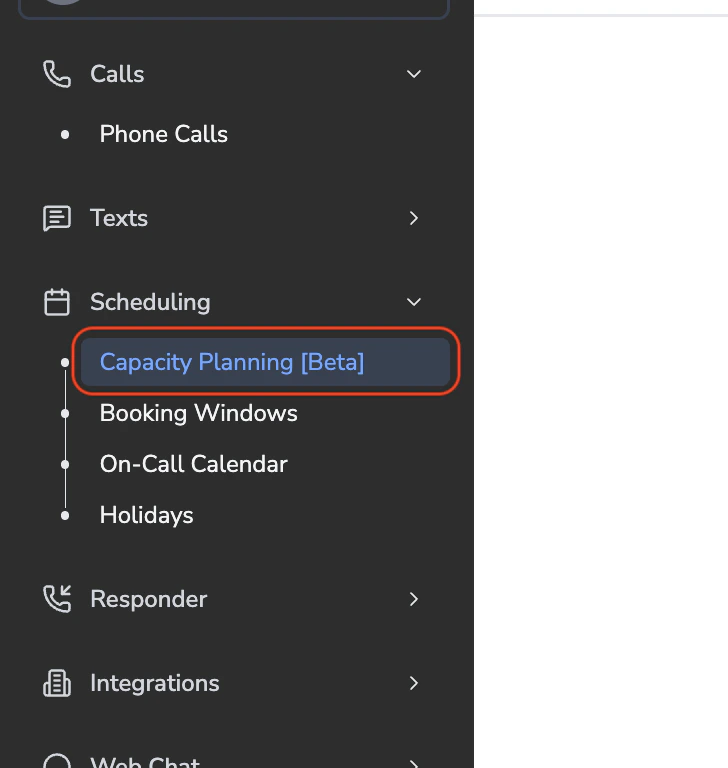
Toggle on the setting Include on-call shifts in capacity calculations. This will pull your yellow (on-call) ServiceTitan technician shifts into the Avoca system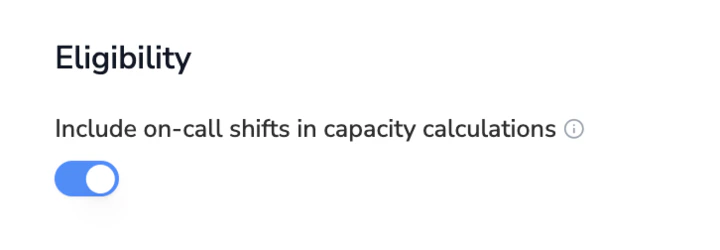
Use the Avoca Capacity UI to validate that capacity is pulling in for the time windows you’re looking for. Note that you’ll need to create arrival windows in ServiceTitan for the after-hours time periods if you have not already, and configure Booking Windows to book for the ACP-synced after-hours windows.
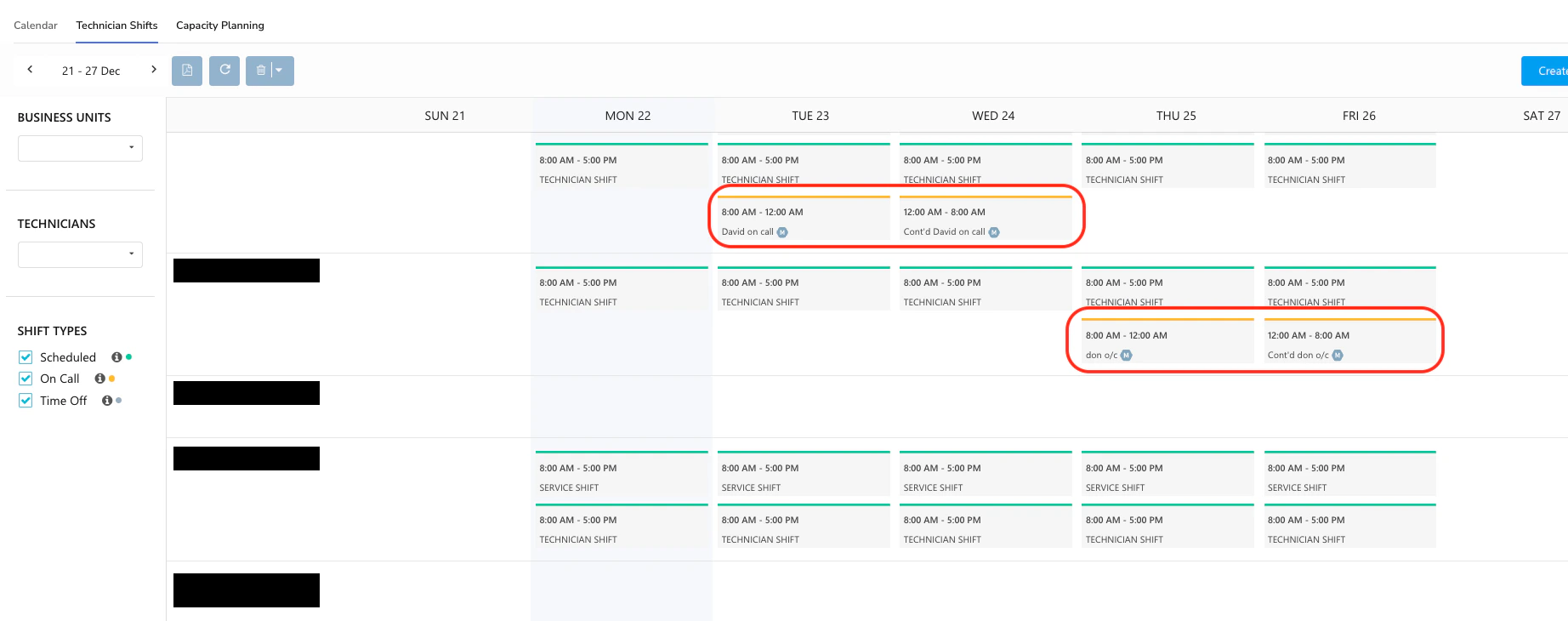
Ensure that moving forward, you always maintain an accurate calendar of your on-call technician shifts within ServiceTitan. You can do this by going into your ServiceTitan, clicking Schedule at the top of the screen, and going to Technician Shifts. You should see yellow shifts during emergency hours for all the technicians who will be on-call that week.