

How To Get Started in Service Titan
Contact account admin to get access to required permissions for following features:
- Edit Adaptive Capacity Settings
- Edit Adaptive Capacity Rules
- Access Get Adaptive Availability Filters
Make sure Technician Profiles are activated and configured.
Make sure your Arrival Windows are properly set up.
Configure Technician Shifts.
Configure AdCap Settings. Go to Settings (Gear icon in top right) > Adaptive Capacity > Settings:c. Availability Threshold - set buffer time between jobs (only affects calculation)b. Calculation Defaults - set how capacity gets calculatedc. Strategic Rules - add any specific rules needed for your team
Migration Recommendations
- During the transition period, ServiceTitan recommends that majority of the business continues to use ACP while one or two CSRs test out Adaptive Capacity and familiarize themselves with it. After they’re comfortable with Adaptive Capacity, you can train the rest of your team, fully transition over to Adaptive Capacity, and turn off ACP.
Additional Set Up Guides
Setting Up Hierarchy Levels
Setting Up Hierarchy Levels
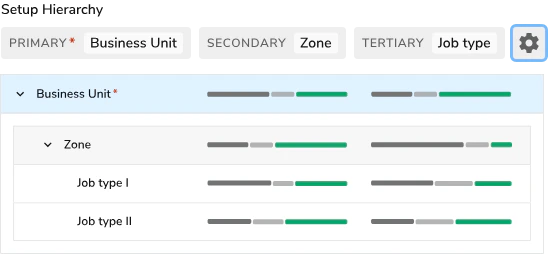
Highly recommended YouTube tutorial:
Highly recommended YouTube tutorial:
How To Get Started in Avoca
We do not have a direct integration with ServiceTitan’s Adaptive Capacity because they do not expose those API endpoints. However, we’ve developed an internal version that operates the same way as ServiceTitan’s functionality, and it is managed through the Avoca platform.
Full Video Tutorial
Capacity
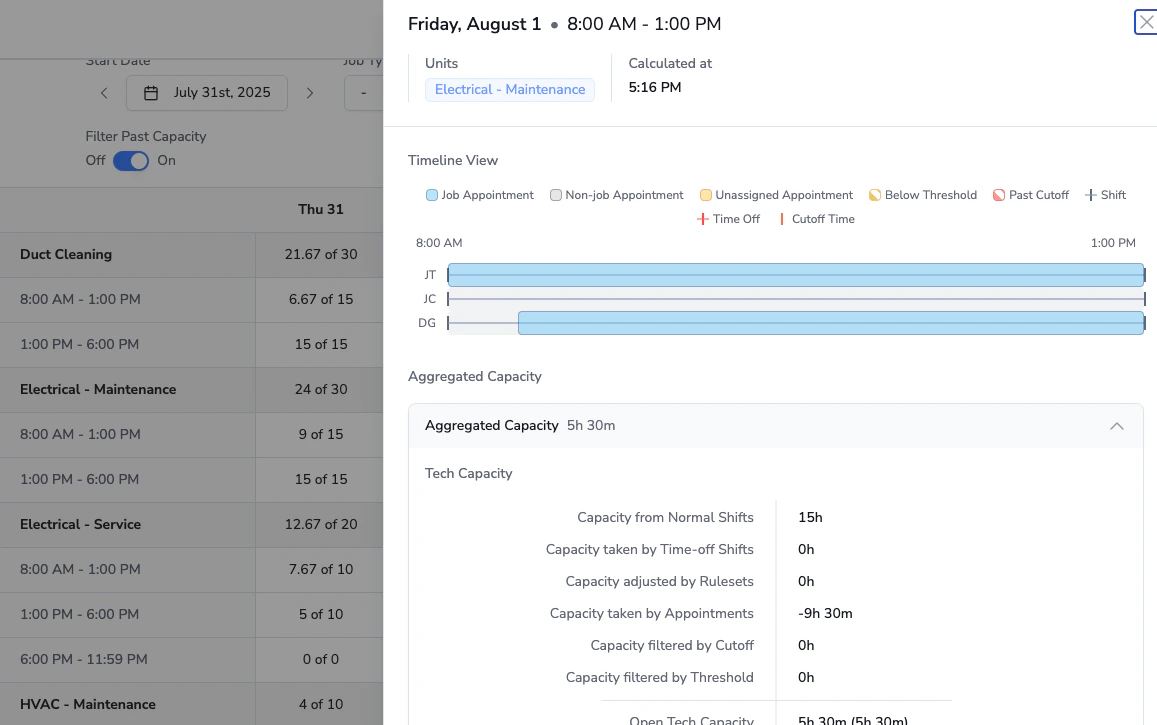
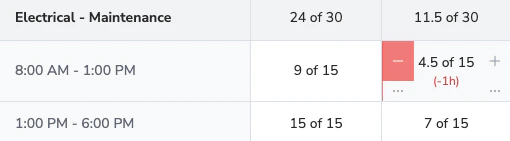
This is the main tab where you can view the available capacity out of total capacity for the business units and arrival windows. You can filter by Job Type, Service area, etc and display in your Timezone.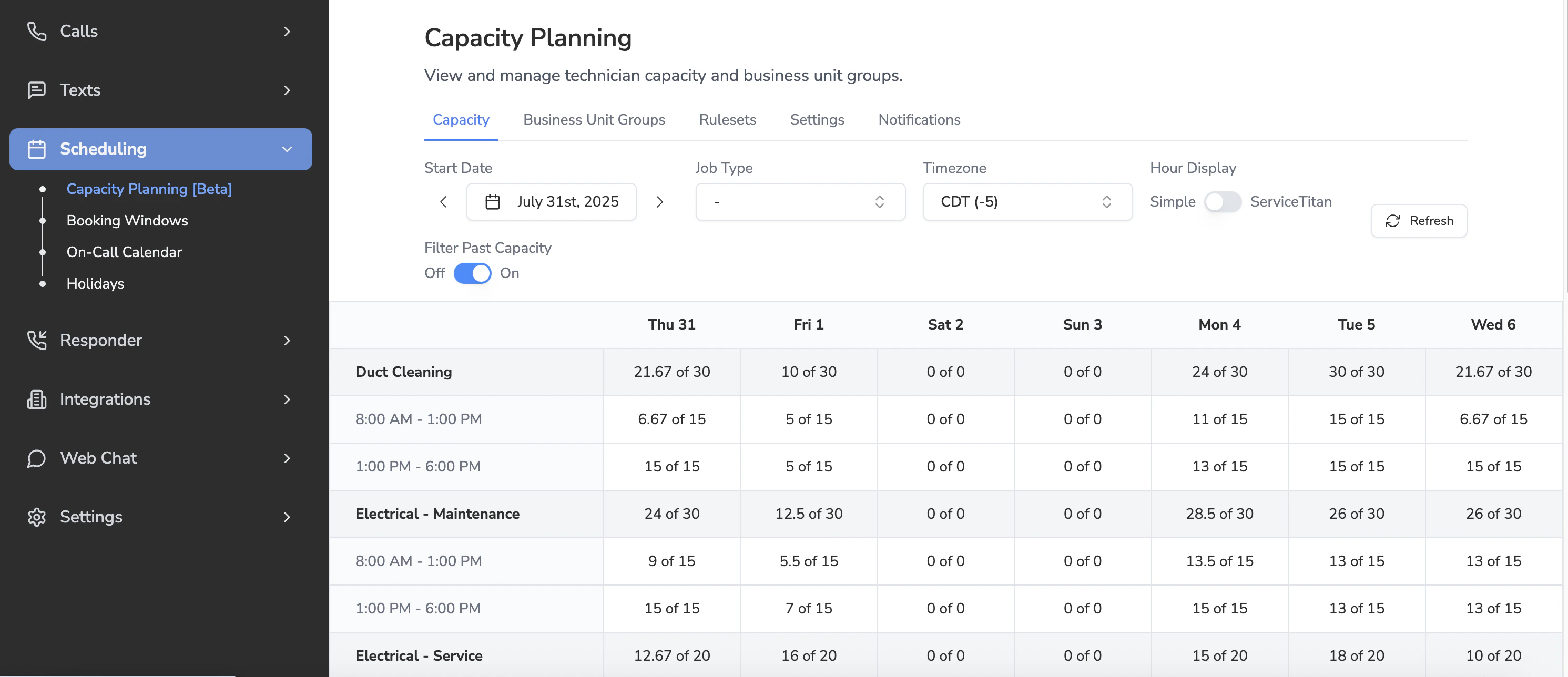
Business Unit Groups
You can group business units together and configure a base capacity for the group.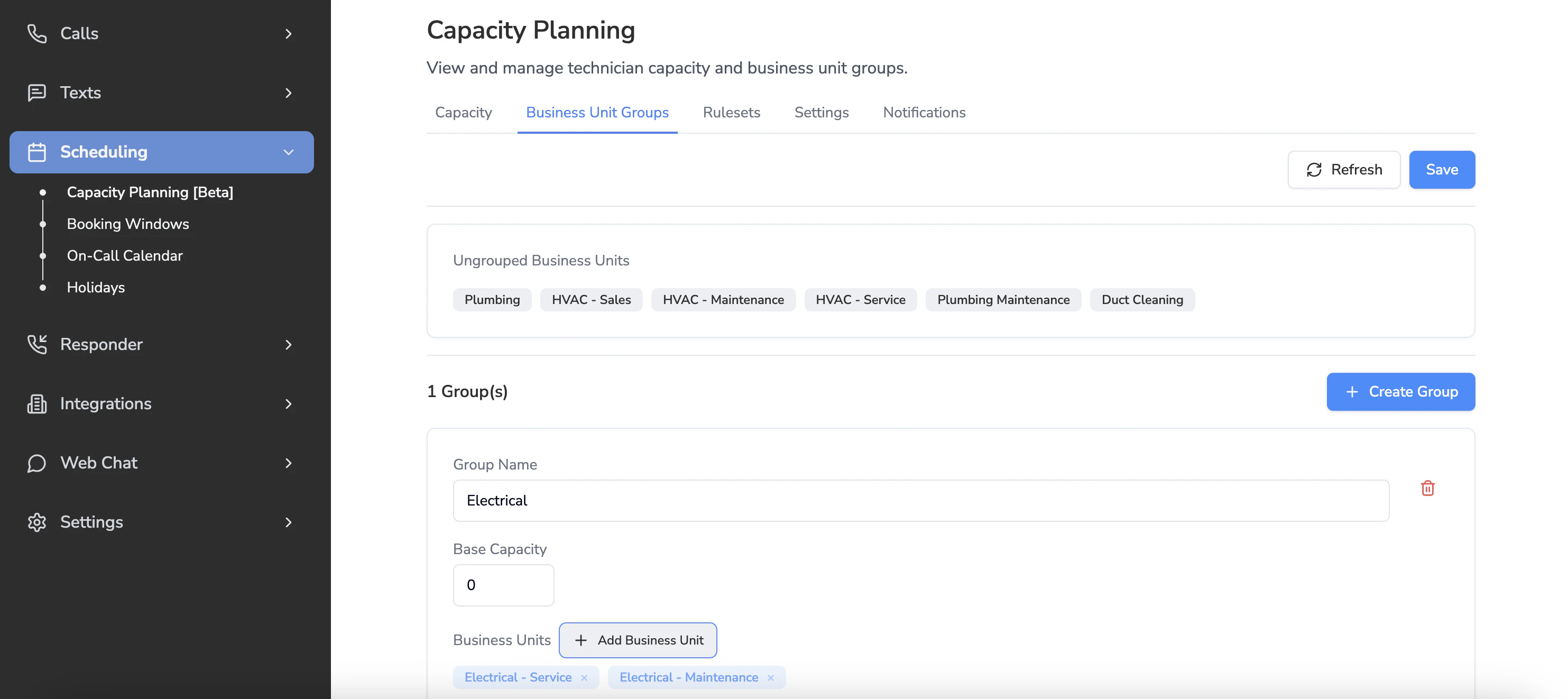
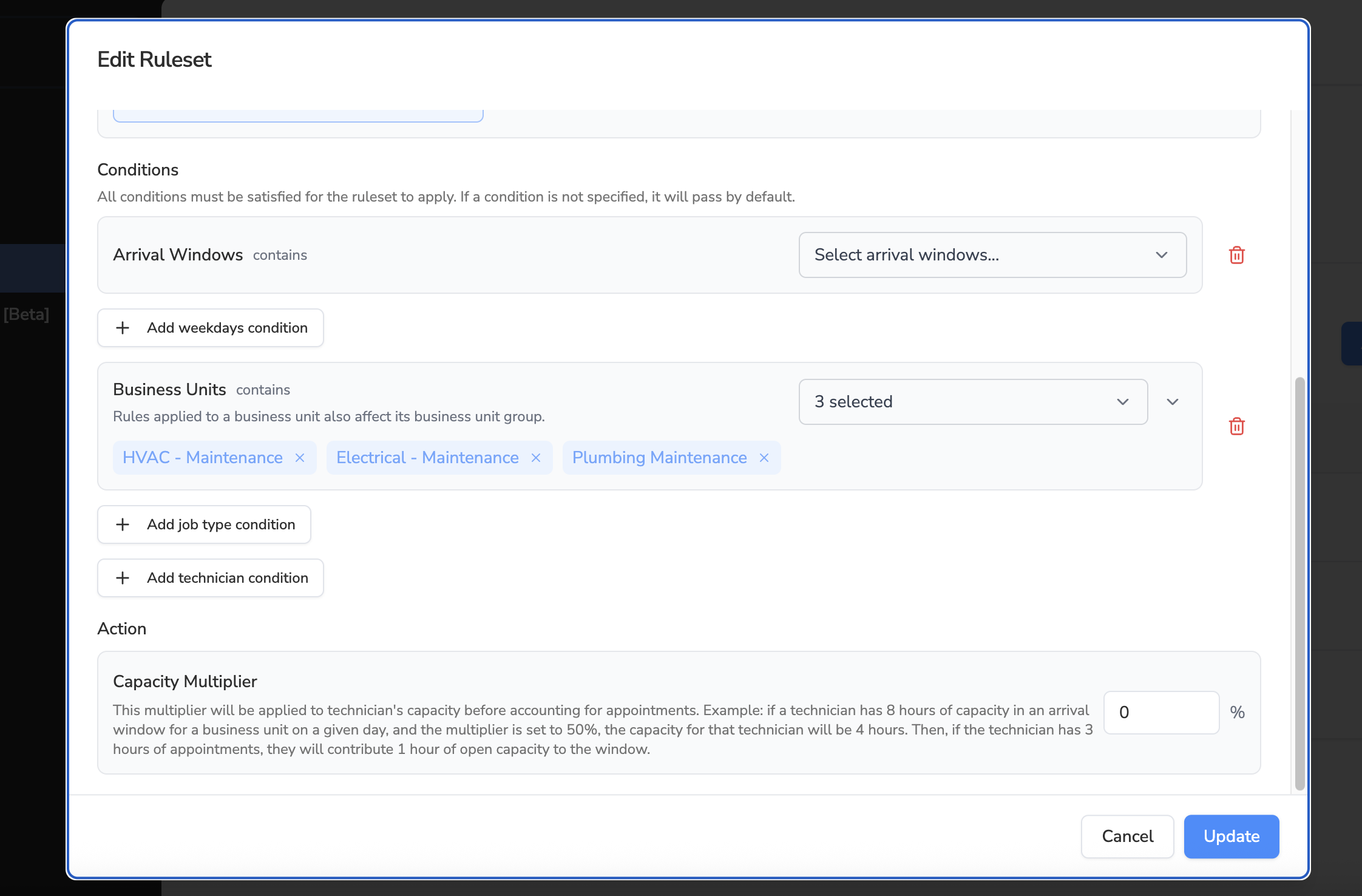
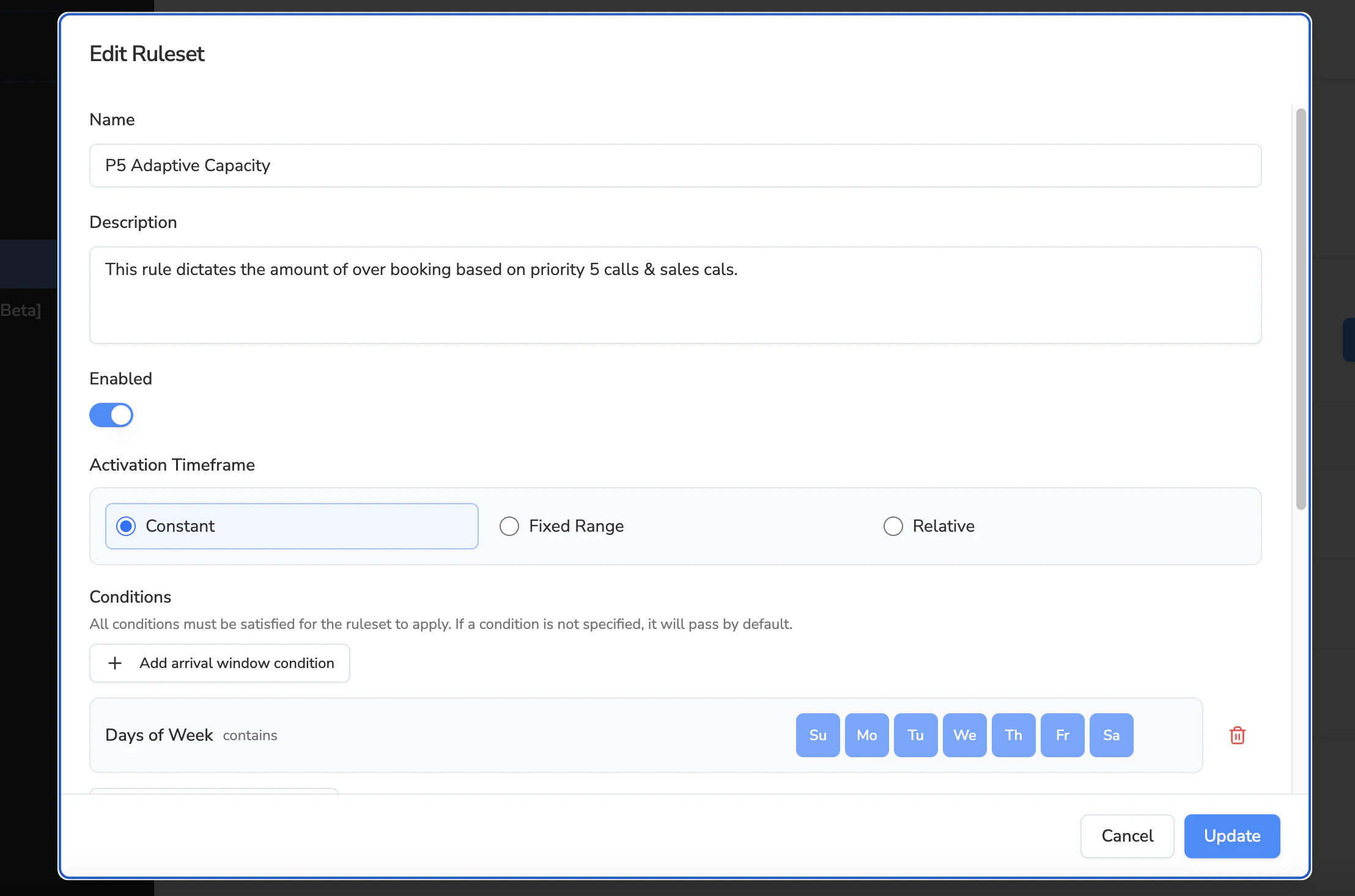
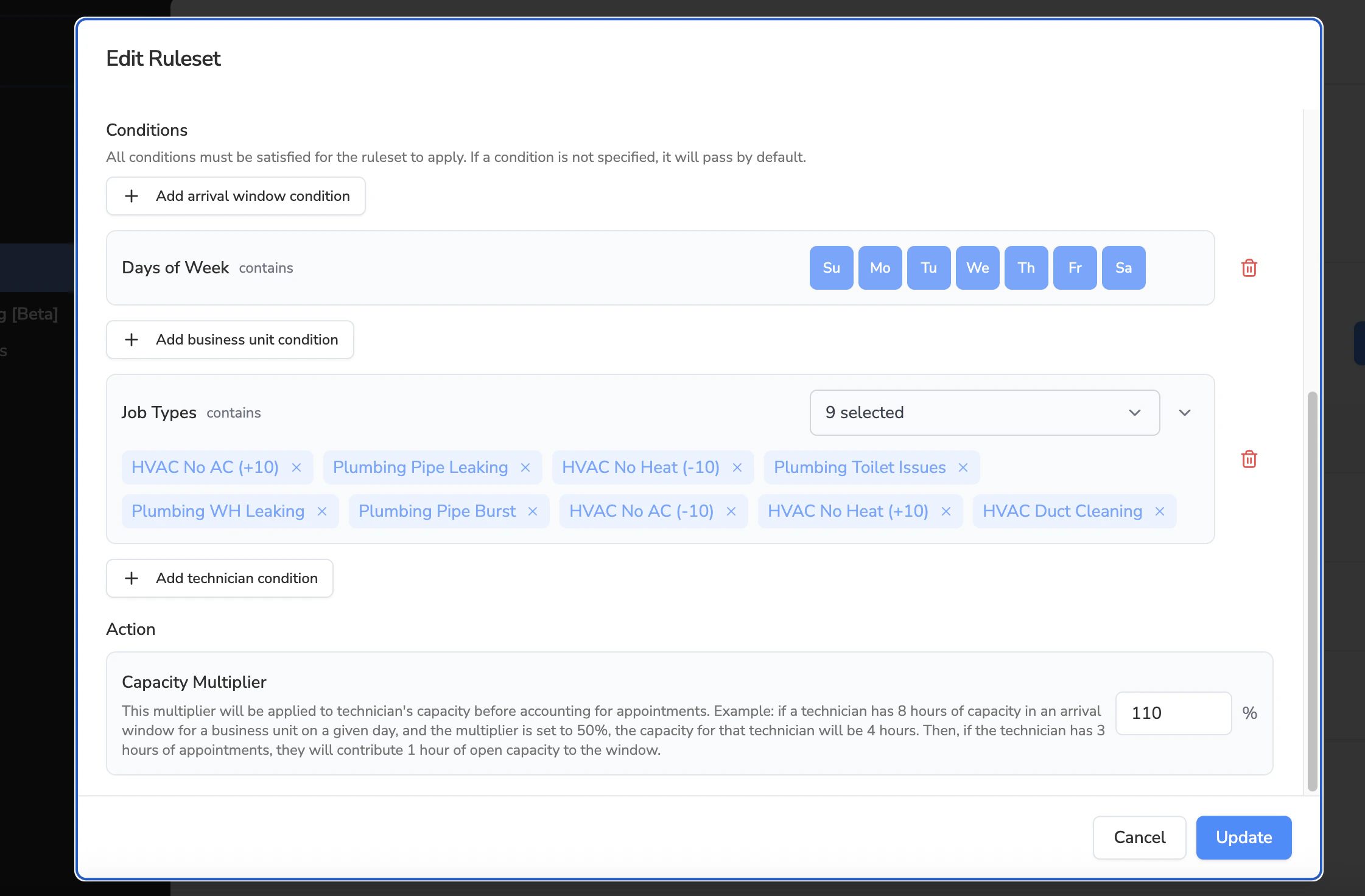
Rulesets
This behaves similarly to the **Adaptive Capacity Configuration > Strategic Rules in your ServiceTitan.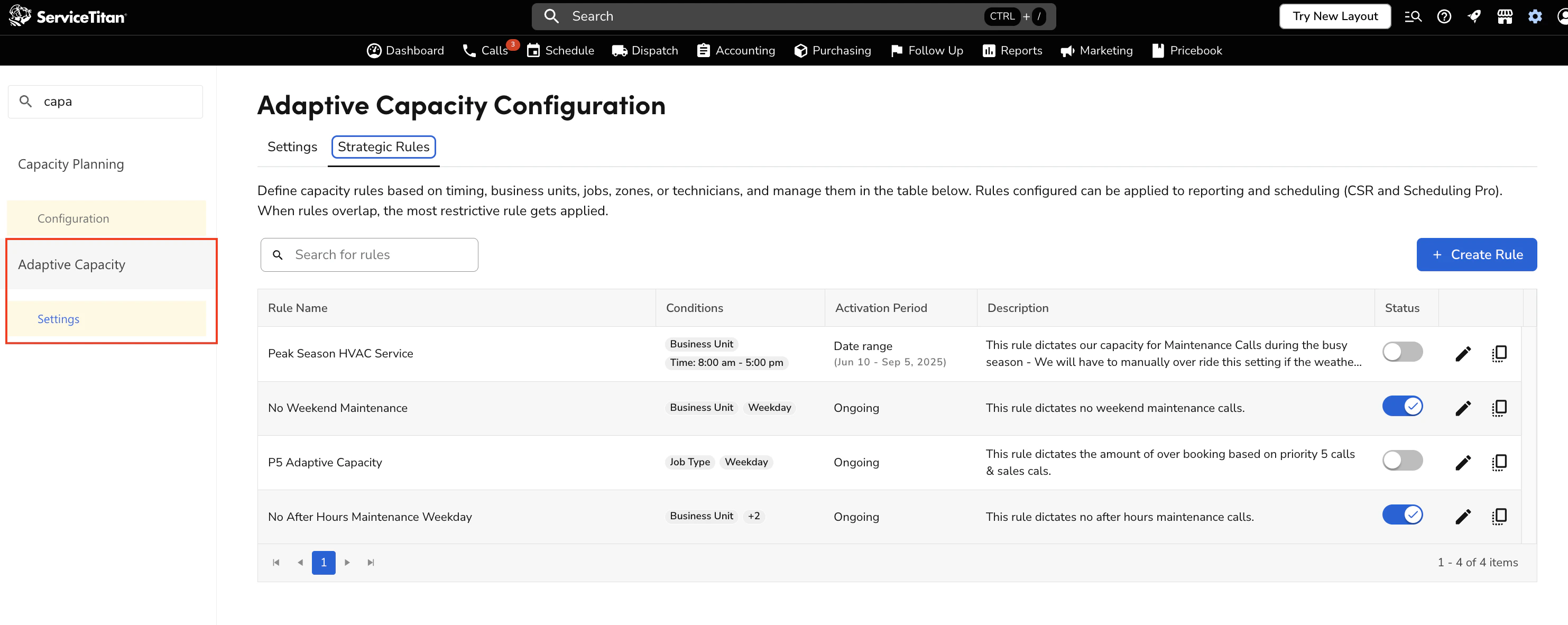
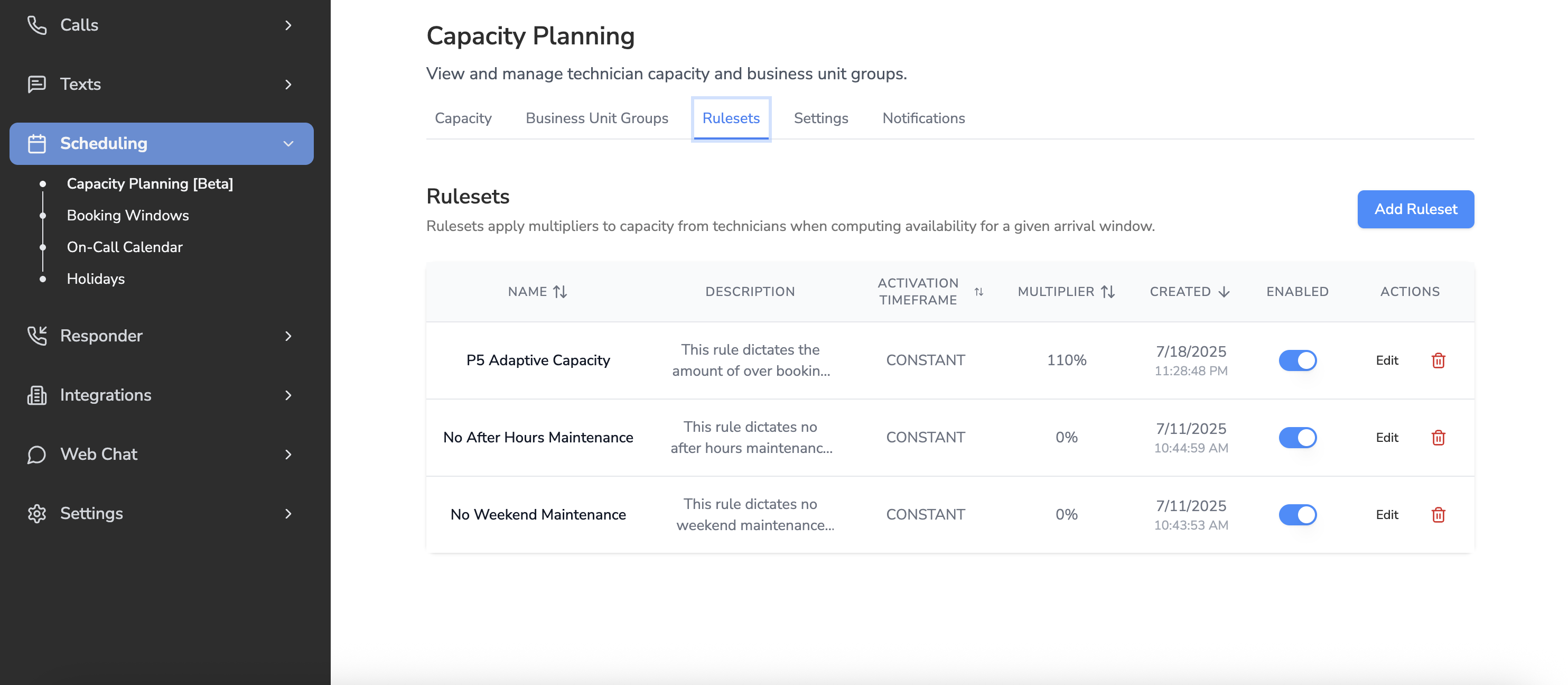
- Arrival Windows
- Weekdays
- Business Units
- Job Types
- Technicians
Note: We don’t have Skills conditions yet (see limitations below).
Settings
This behaves similarly to the Adaptive Capacity Configuration > Settings in your ServiceTitan.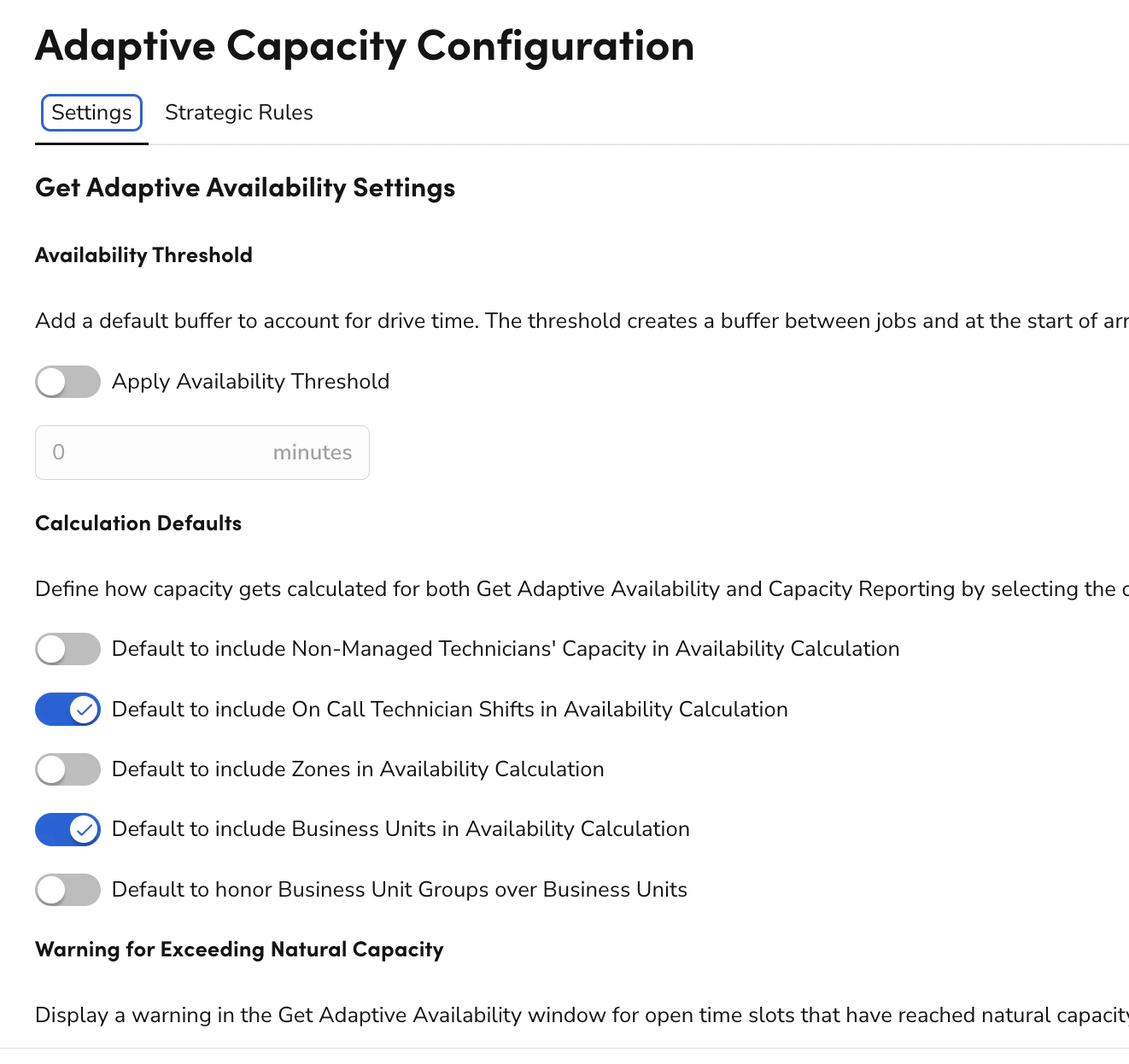
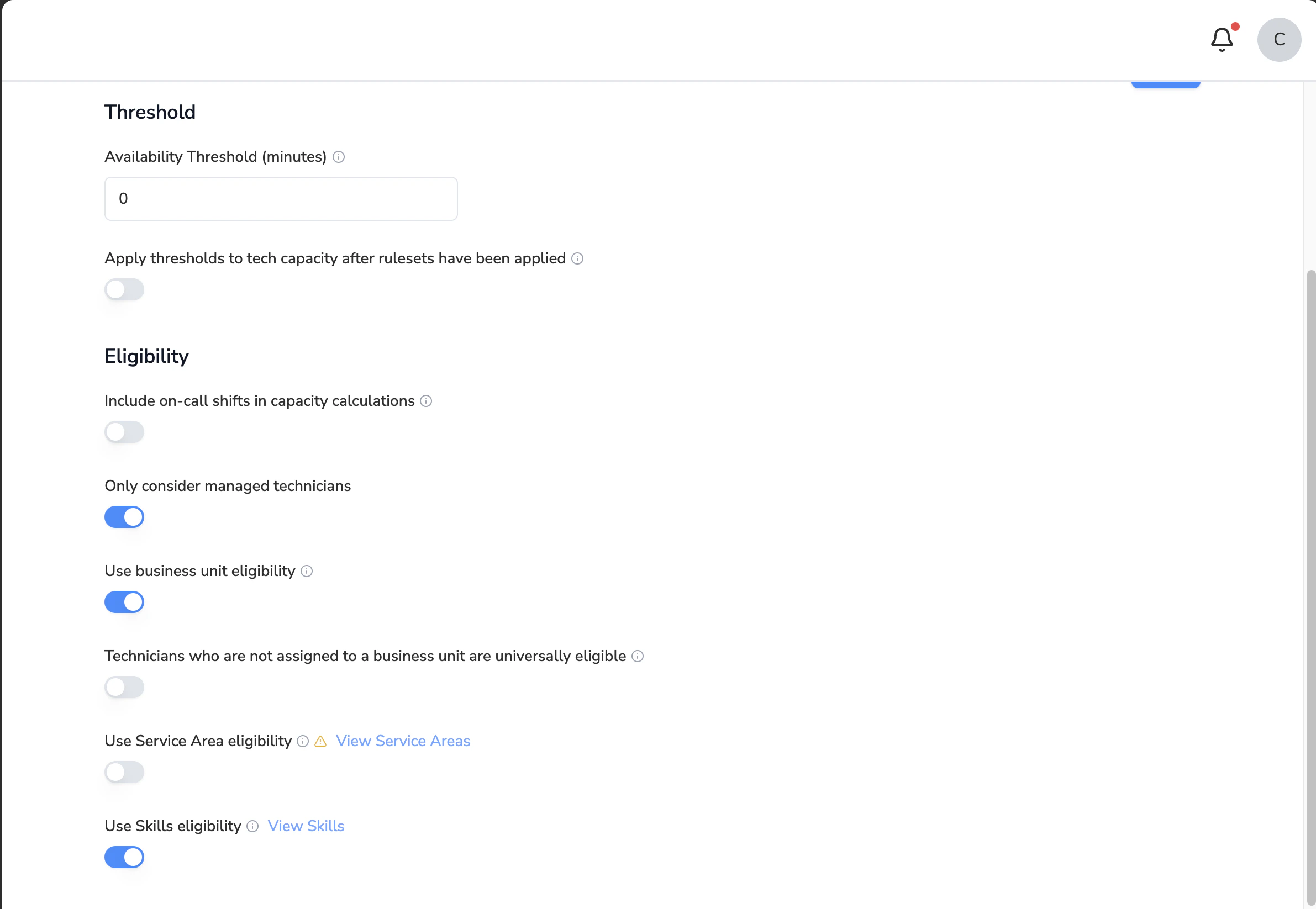
Service Areas
You can associate Service Titan Zones with your Service Areas. When getting the capacity for service at a certain address, this will allow us to filter by which technicians are configured to work at that address.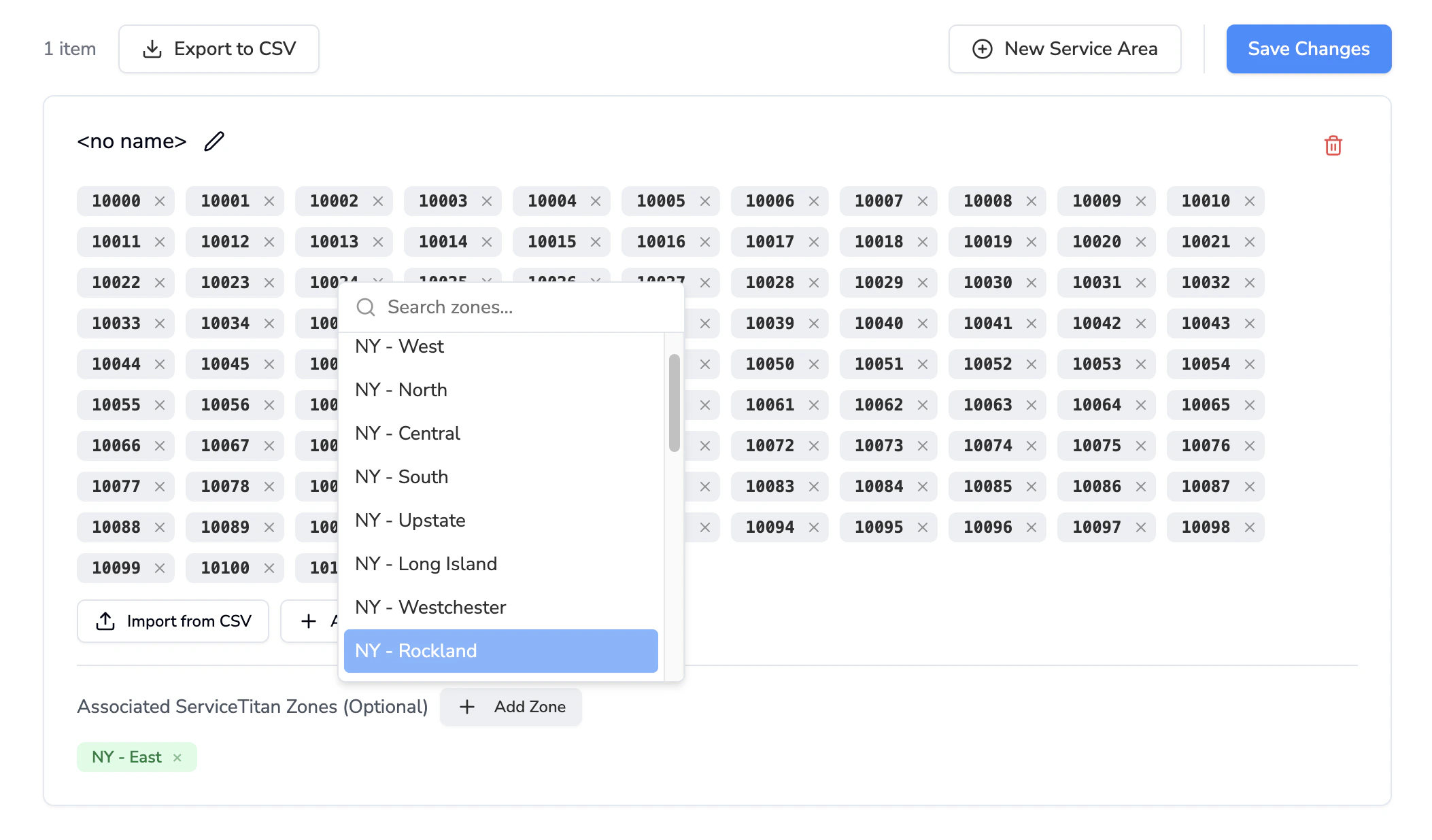
Skills
You can use technician skills to determine which technicians are eligible to contribute capacity to a given job type. We can sync the skills you have set up in your ServiceTitan on a daily basis.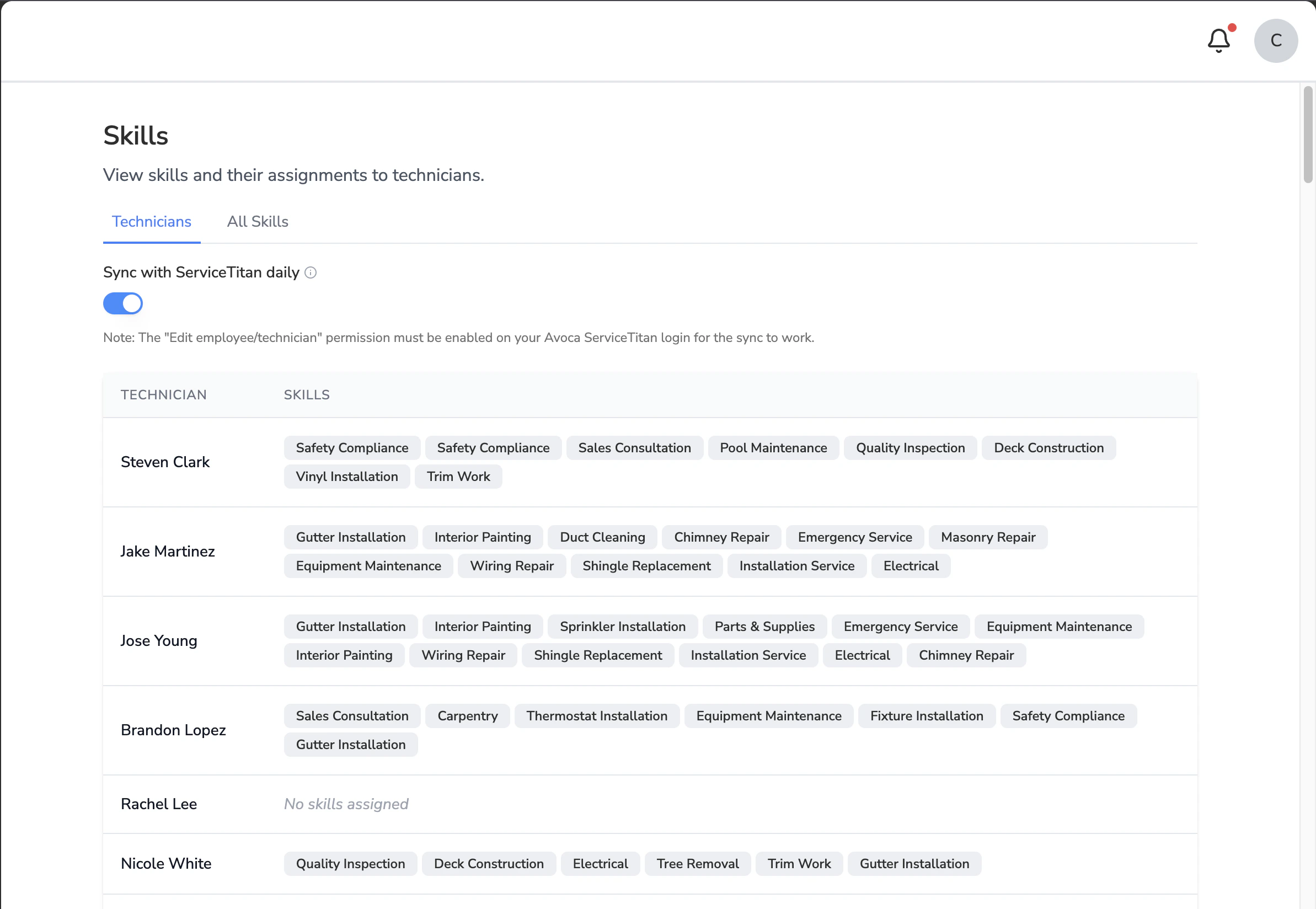
Notifications
You can receive capacity reminder emails multiple times a day. Set the times you’d like here.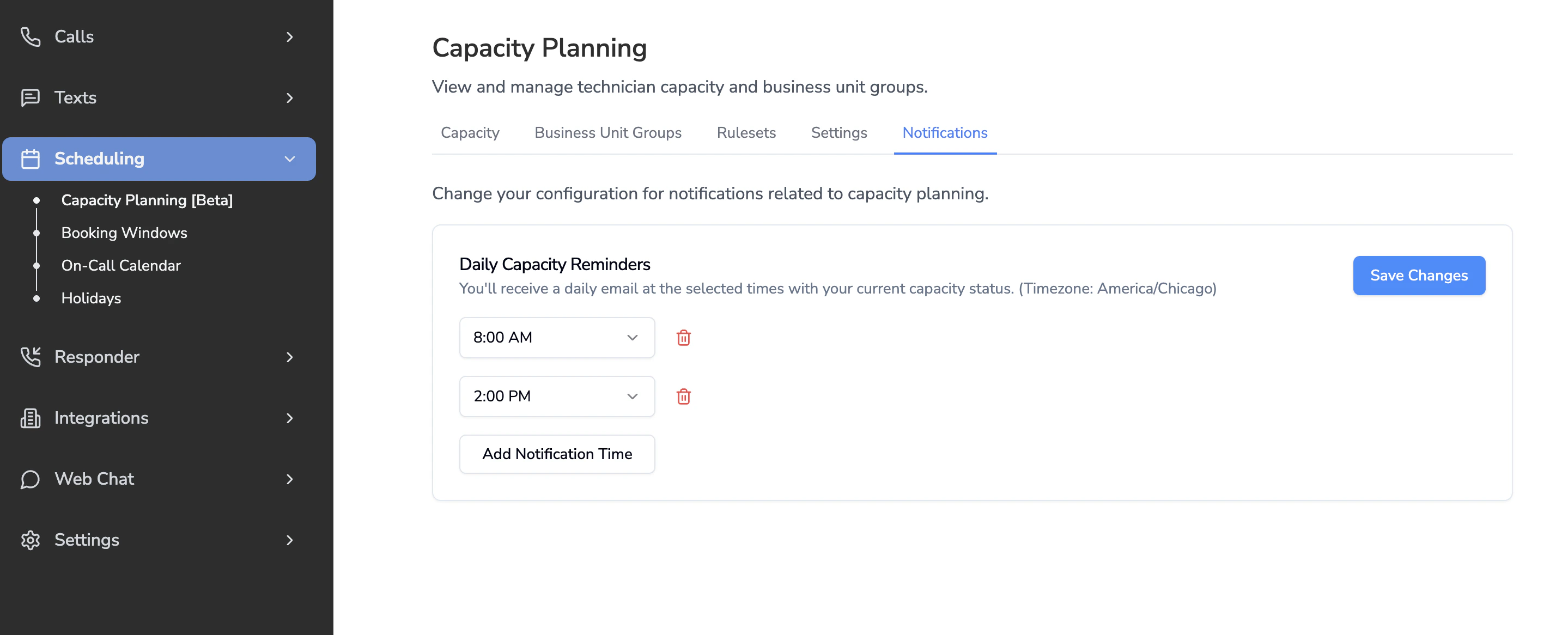
Current Limitations in Avoca Capacity
| Last Updated | Limitation | Description | Workaround | Plan Forward in Avoca Roadmap |
|---|---|---|---|---|
| 7/24/25 | Not Compatible with Business Hours | We’re only compatible with arrival windows right now, not business hours | Create an arrival window that replicates your business hours | ETA TBD. |
| 7/24/25 | Syncing Rulesets | There isn’t a good way to sync the capacity rules from ServiceTitan because those API endpoints aren’t exposed. | Set them up manually in the Rulesets section. | Blocked by ServiceTitan. |
AdCap Best Practices
[Work in Progress]General FAQs
How is Adaptive Capacity different from Adjustable Capacity Planning (ACP)?
How is Adaptive Capacity different from Adjustable Capacity Planning (ACP)?
- Adjustable Capacity (legacy) allows you to manually adjust how many jobs could be book per day by Business Groups only. It focused on day-of planning and only offered static adjustments.
- Adaptive Capacity is a more flexible and real-time solution that provides additional options for filtering, manual and rule-based adjustments, and more.
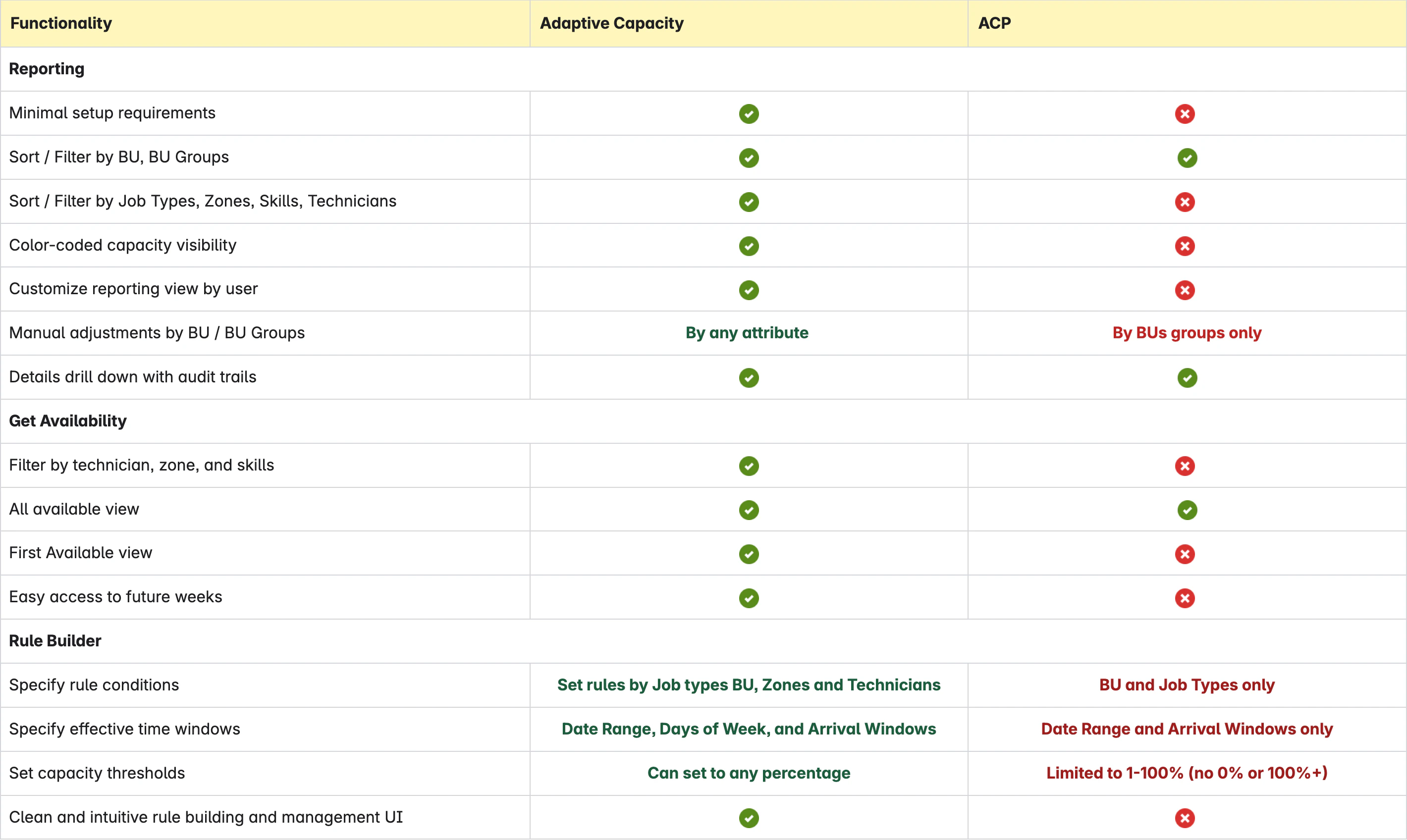
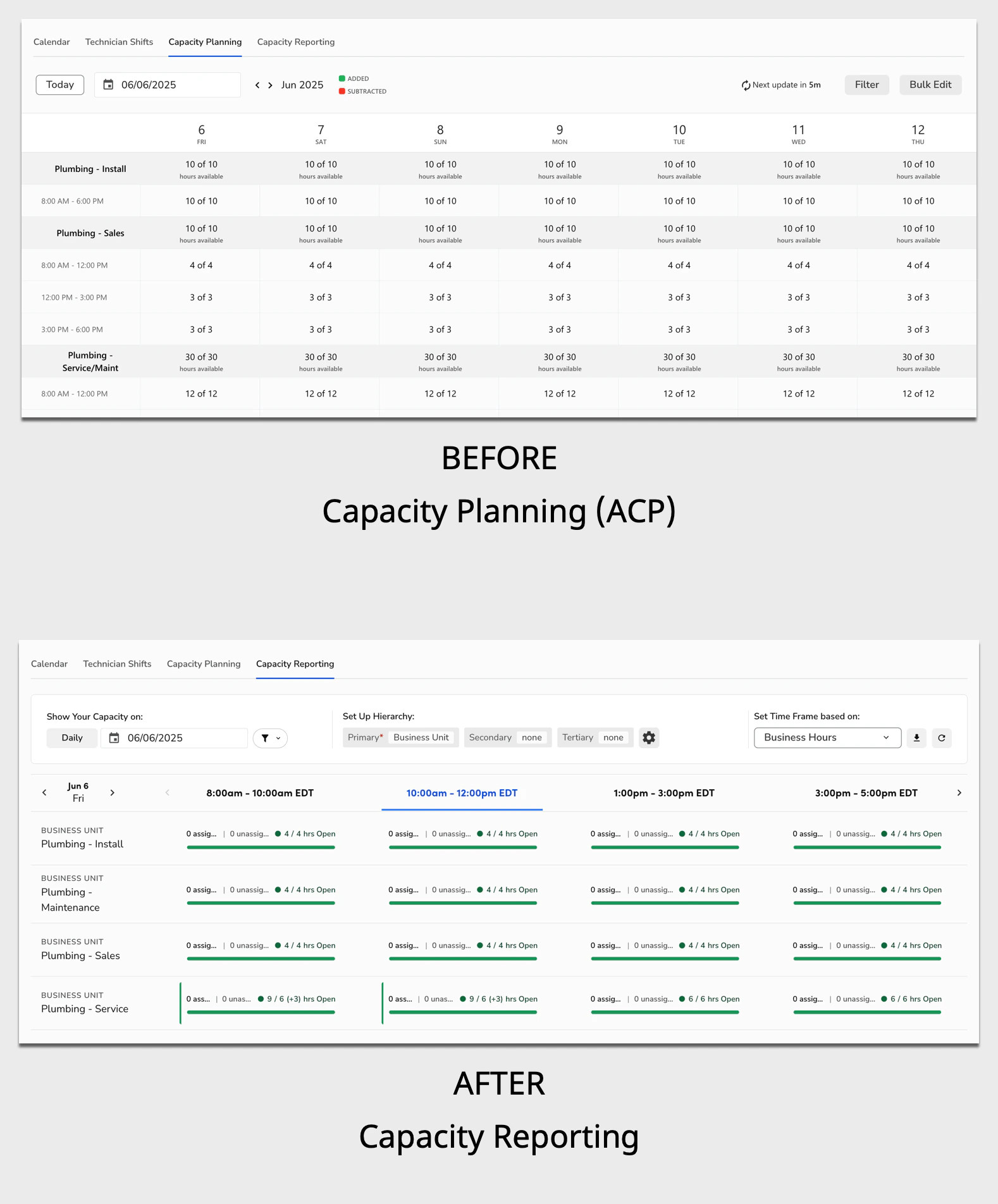
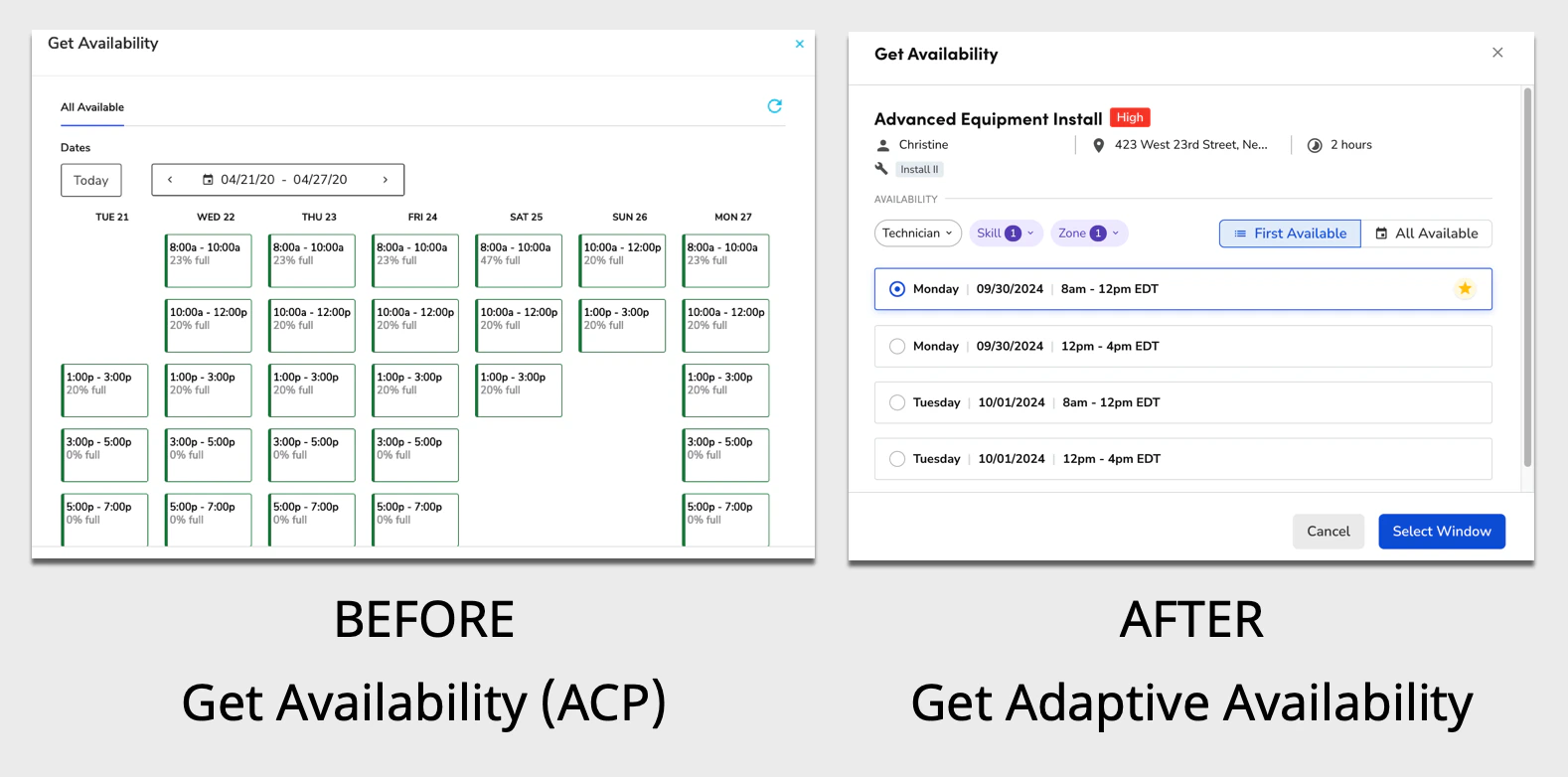
What if ACP and ServiceTitan Adaptive Capacity are both enabled?
What if ACP and ServiceTitan Adaptive Capacity are both enabled?
On our side, we can configure whether we will look at ACP or Avoca Capacity.Avoca can read from ACP until it is deactivated on you ServiceTitan account. Once you migrate to AdCap on ServiceTitan, the Capacity Planning (Avoca Capacity) feature must be configured for us to see capacity.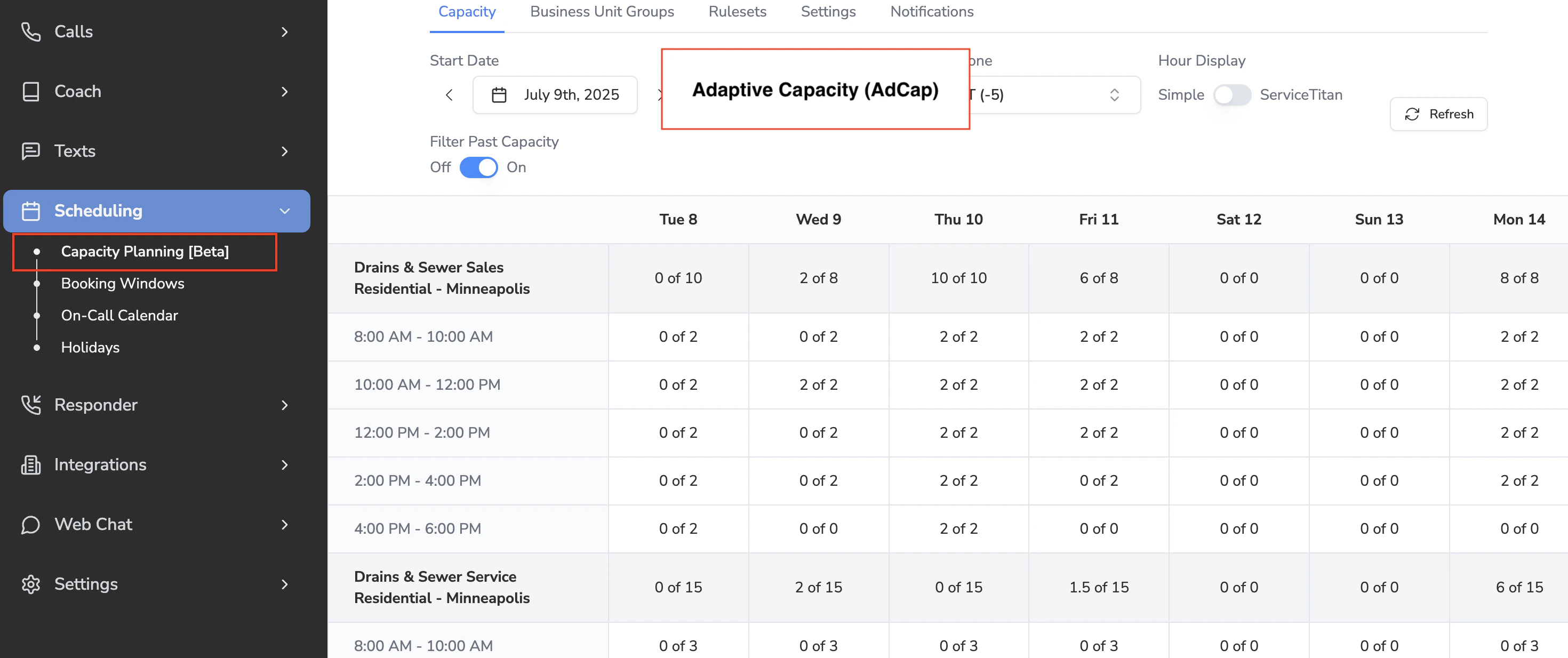
How does Capacity Calculation work?
How does Capacity Calculation work?
Capacity will be calculated via either Natural Calculation or Strategic Calculation. Natural is the basic calculation that should work with your existing setup. Strategic Calculation is a more advanced calculation that considers custom rules and manual adjustments. Docs: https://help.servicetitan.com/how-to/adaptive-capacity-overview#how-adaptive-capacity-calculation-works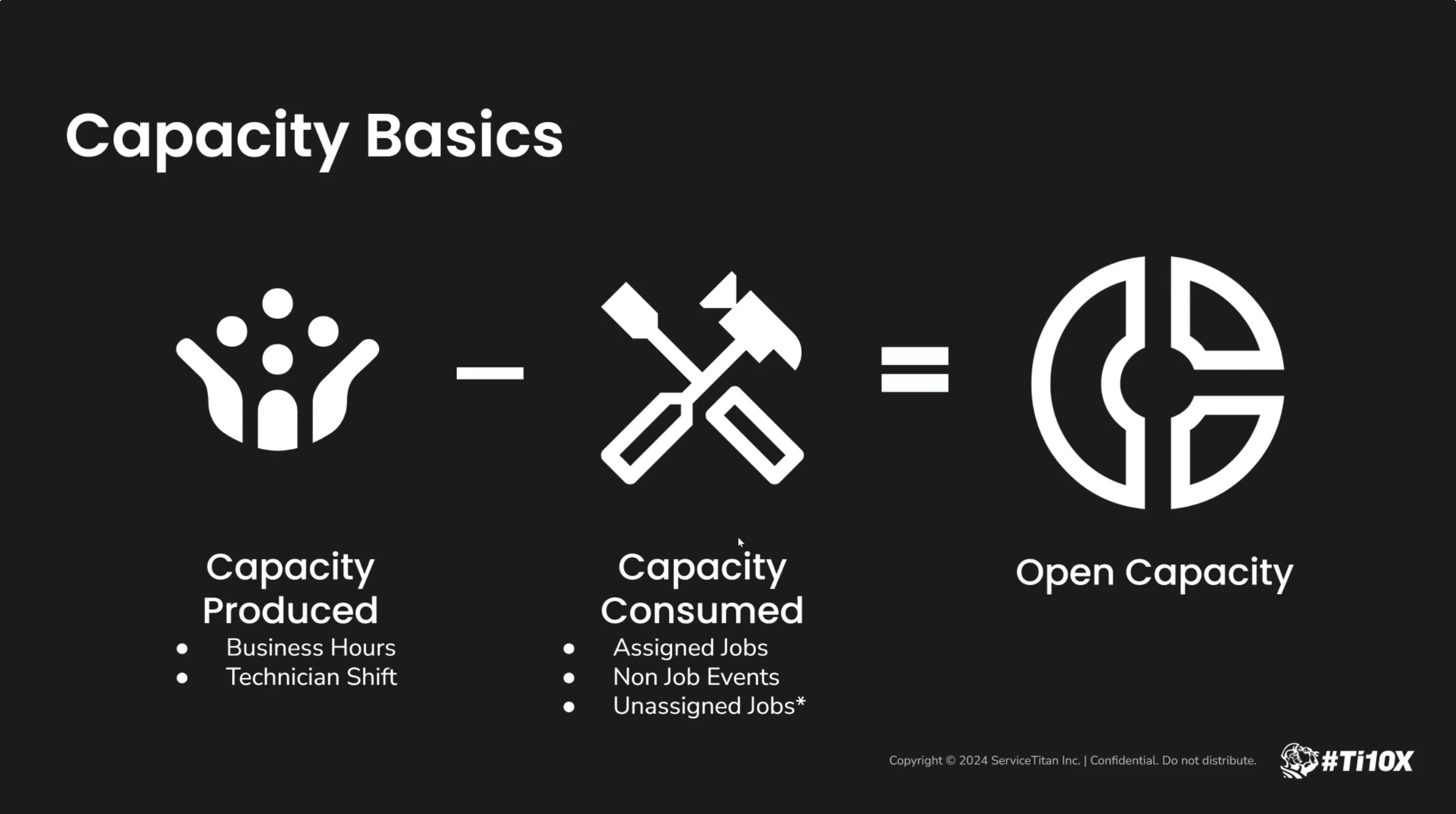
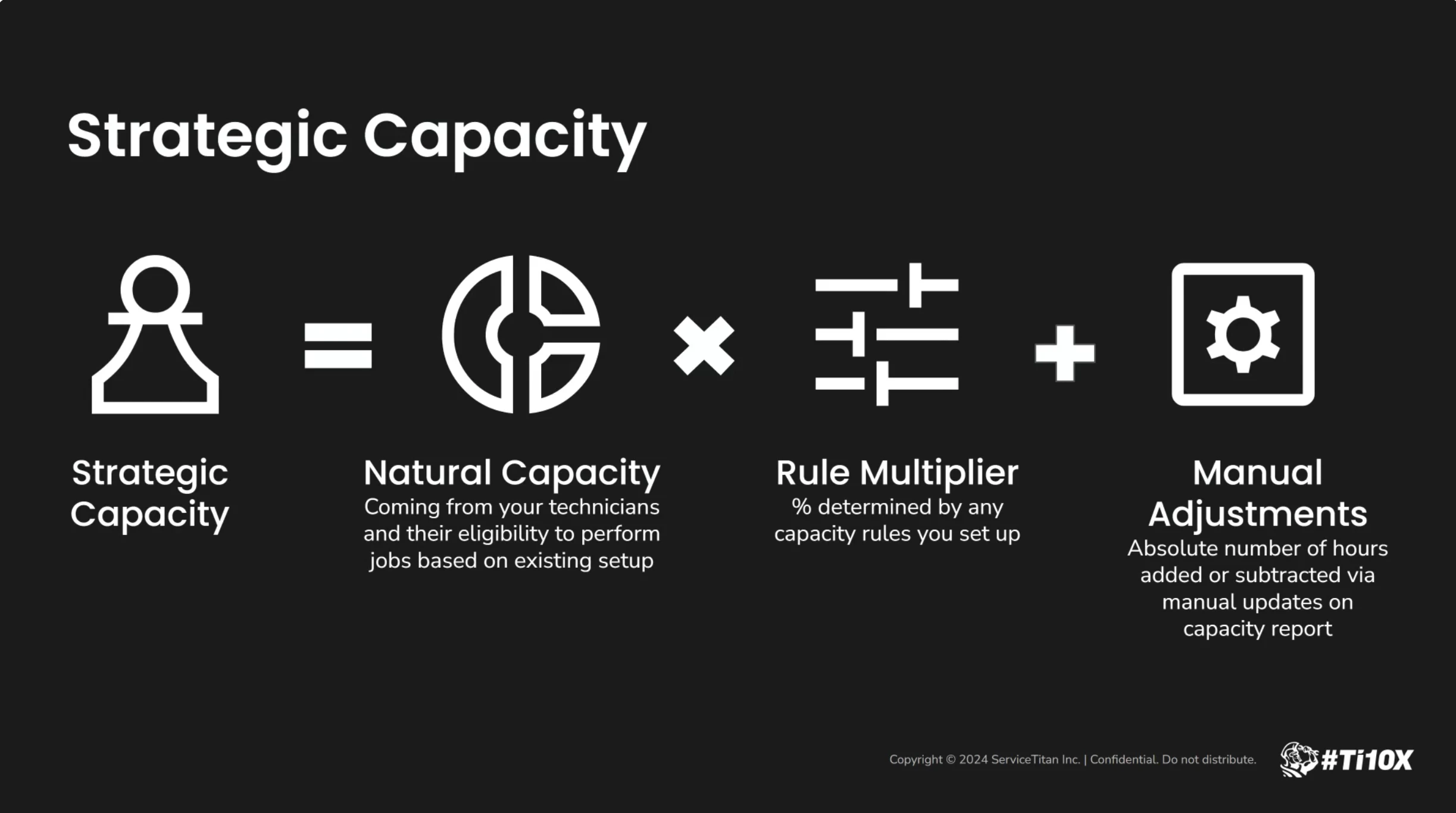
- Natural Calculation
- Strategic Calculation
What do the Calculation Defaults settings mean?
What do the Calculation Defaults settings mean?
- Default to include Non-Managed Technicians’ Capacity in Availability Calculation
- Do you want non-managed techs availability to be accounted for by AdCap and be displayed as bookable? If yes, enable.
- Default to include On Call Technician Shifts in Availability Calculation
- Do you want on call shifts to be displayed as bookable by AdCap? If yes, enable. If yes, make sure the on call shifts are created and maintained.
- Default to include Zones in Availability Calculation
- Do you dispatch techs based on where they’re geographically located and which areas/zones they are assigned to? If yes, enable. If yes, make sure the zones are created and assigned to techs.
- Default to include Business Units in Availability Calculation
- Can techs only work within the BU they are assigned to and not for other BUs? If yes, enable. If yes, ensure BUs are properly assigned to techs and job types.
- Default to honor Business Unit Groups over Business Units
What if Rulesets are overlapping?
What if Rulesets are overlapping?
It will always take the most restrictive rule as higher priority. For example, it will reflect the 50% capacity multiplier over the 80% one.
Troubleshooting
Helpful links & documentation in ServiceTitan for AdCap
Helpful links & documentation in ServiceTitan for AdCap