

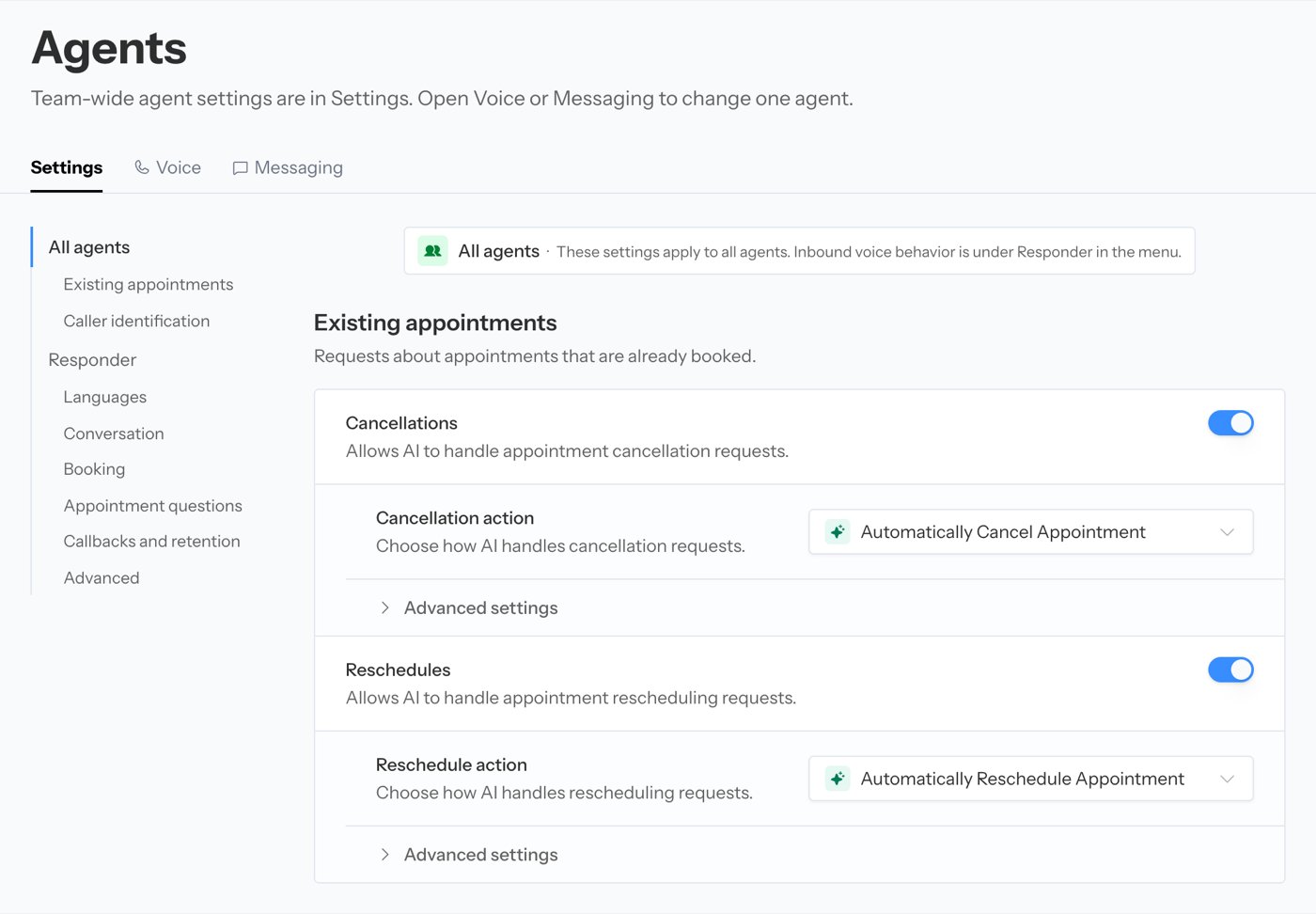
The menu on the left jumps to each section
Change a setting
1
Open Settings
Go to Settings → Agents and select the Settings tab.
2
Pick a section
Use the menu on the left to jump to a section. The banner at the top shows who the section applies to.
3
Make the change
Change one setting. An Unsaved changes bar appears at the bottom.
4
Save
Select Save, or Discard to throw the change away.
All agents
These settings apply to every agent, including your message agents. Existing appointments
Caller identification
Messaging agents don’t transfer, since they work by text.
Responder
These settings apply only to your inbound voice agents. Languages English is always on. Each additional language adds a fee. Conversation
Booking
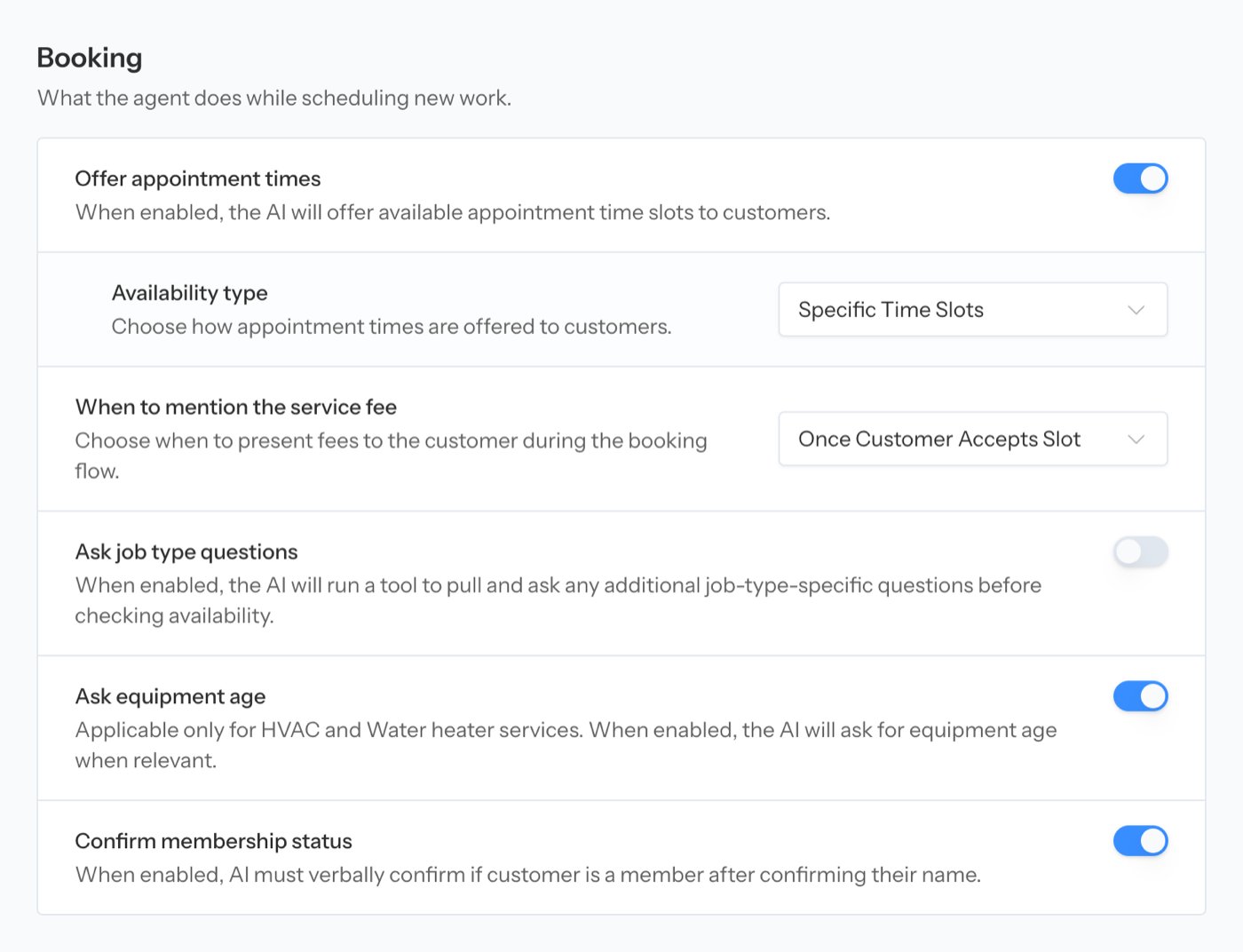
When to mention the service fee is in the Booking section
Appointment questions
Whether your agent can cancel or reschedule at all is set under Existing appointments in All agents.
Callbacks and retention
Advanced
Most teams can leave these as they are.
- Team defaults: the Agent name and AI intro line every agent uses unless it has its own. In the intro line, select + Agent name or + Company name to add a tag that fills in on each call.
- Property-type questions: extra questions for Renters, Residential and Commercial properties.
- Cancellation and reschedule questions: extra questions to ask when a caller wants to cancel or reschedule.
Write price objection instructions carefully
When you use Custom instructions, be exact about fees. Say what your team may offer, who can approve a fee waiver, and whether a waiver happens upfront or only after the customer goes ahead with the repair. Don’t write broad permission such as “waive when needed.”Test it
After you save a change, test it with a call that should work and one that is easy to confuse with it.
See Test your agent with real calls for how to run and review test calls.
More options
I don't see the Settings tab
I don't see the Settings tab
The Settings tab needs permission to view both Agents and Business Info. If you can’t open it, these settings stay in the Knowledge Base. Ask a team admin about your permissions.
I can see the settings but can't change them
I can see the settings but can't change them
Changing them needs edit access to the Knowledge Base. Ask a team admin for it.
A setting is missing
A setting is missing
Some settings only show for certain types of business and CRMs. For example, Any customer-provided name under Customer lookup only shows if you use ServiceTitan. On AccuLynx, Ask job type questions is called Ask trade type questions. On FieldRoutes, it’s Ask service type questions.
Where are transfer reasons?
Where are transfer reasons?
Transfer reasons and destinations are set with your call transfers. See Configure call transfers.