> ## Documentation Index
> Fetch the complete documentation index at: https://help.avoca.ai/llms.txt
> Use this file to discover all available pages before exploring further.
# Connect Housecall Pro
> Prepare Housecall Pro, connect the API, map job types and technicians, and validate an Avoca booking.
Open **Settings → Integrations → CRM → Housecall Pro**. The integration supports a Housecall Pro-specific catalog and booking setup; do not copy ServiceTitan field assumptions into it.
## Confirm prerequisites
* The Housecall Pro account must support API Key Management.
* The person completing setup needs Housecall Pro admin access.
* Generate the credential only through Housecall Pro's supported API Key Management experience.
* Identify which employees can run jobs and which job types Avoca should book.
Never paste a Housecall Pro API key into a ticket, email thread, screenshot, or help article. Enter it only in Avoca's secure integration field or use the secure exchange directed by Support.
## Find API Key Management
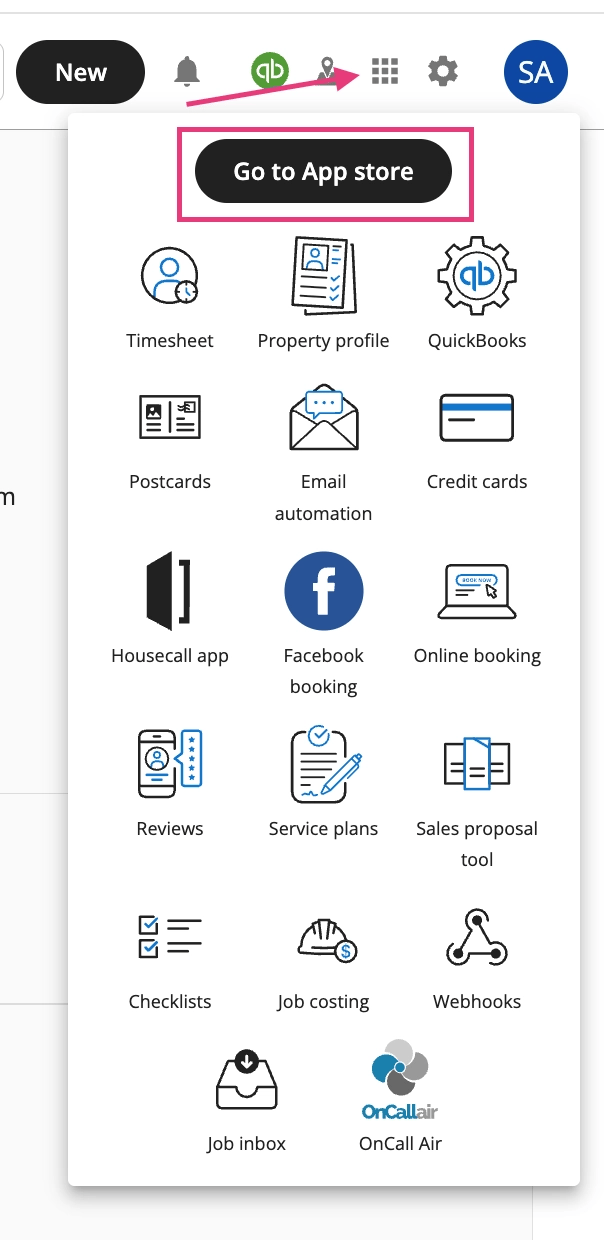
In Housecall Pro, open the app menu and choose **Go to App store**.
 Search the App Store for **API Key Management** and open it.
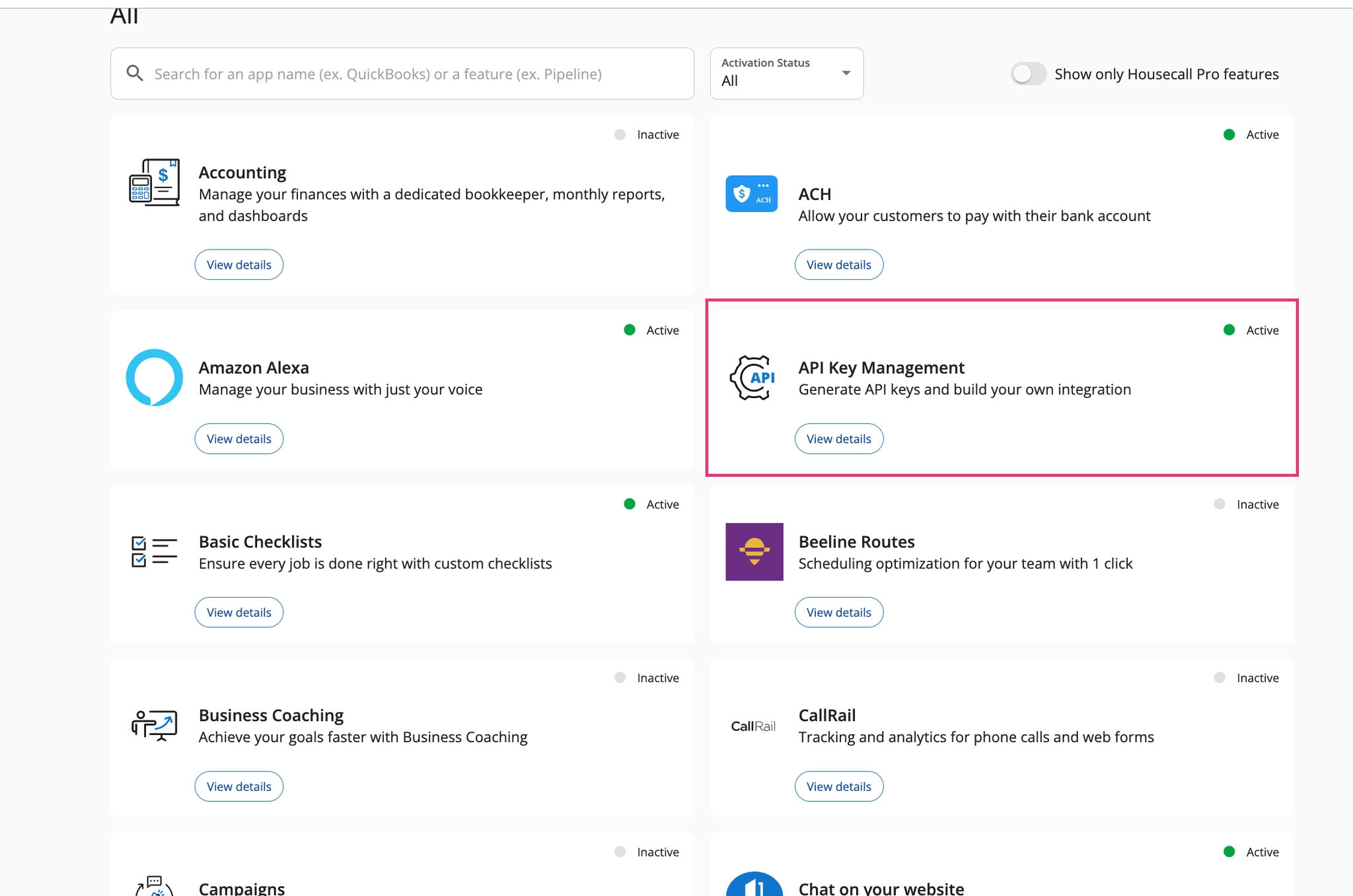 Generate an Avoca key with the access level agreed during implementation. Copy it once into **Settings → Integrations → CRM → Housecall Pro → Configure**, then save and confirm the card shows a connected state.
## Configure job types
Housecall Pro combines work classification differently from ServiceTitan. In Avoca, an HCP job type is the primary unit selected in Booking Windows.
1. Review the job types the business actually uses.
2. Create a small, clear set such as Service, Estimate, and Maintenance when all technicians perform the same work.
3. Split job types by trade only when technician eligibility or booking behavior differs.
4. Create a more specific type when only a limited technician group can perform the work.
5. Avoid importing or recreating unused historical job types.
Housecall Pro job types are configured deliberately in Avoca rather than treated as a complete automatic catalog copy.
Add a specific description to each job type so Avoca can distinguish similar requests. **Generate Definitions** can draft these descriptions from the current job-type names. By default, it fills only blank descriptions; select **Also expand existing definitions** when you intentionally want AI to rewrite and expand the descriptions already present.
Review every generated definition before selecting **Save**. Generation updates the draft on the page but does not apply it until you save. Because these descriptions help Avoca classify a caller's request, vague or overlapping wording can select the wrong job type, booking window, or technician group.
## Choose the booking record type
In **Basic Configuration**, leave **Always Book Estimate** and **Always Book Job** off when the assistant should decide between an HCP estimate and job from each caller's request.
* Turn on **Always Book Estimate** to create every booking as an estimate, including requests for a repair or service call.
* Turn on **Always Book Job** to create every booking as a job, including callers who only want an estimate.
Enabling either setting opens a confirmation and turns off the other setting. Only one can be active at a time.
These settings change the HCP record type for every new booking. Confirm the intended workflow with the person responsible for HCP dispatch. During an approved test, enable **Always Book Estimate**, save, and verify that HCP creates an estimate. Then enable **Always Book Job**, save, and verify that HCP creates a job. Restore the intended live state, including turning both settings off when the assistant should decide per call, before relying on the integration for live calls.
## Map technicians
1. Fetch technicians from Housecall Pro.
2. Confirm which technicians are active and eligible for Avoca bookings.
3. Map each technician to the job types they can perform.
4. Review fallback or assignment behavior with your implementation contact.
5. Keep non-job events and technician schedules current in Housecall Pro.
When **Schedule by Job Type** is enabled, capacity-backed windows count only active technicians mapped to the selected HCP job type. If no active technician is mapped to that job type, Avoca treats the window as unavailable instead of counting technicians from another trade. A fallback technician does not make that capacity-backed window available.
Recurring non-job events may not be available through the same API path as individual events. If a recurring block is not respected, use the availability controls agreed with Avoca or create supported individual blocks.
## Configure Booking Windows
Open **Business Info → Booking Windows**.
1. Select the HCP job type for each booking configuration.
2. Define the arrival windows and normal or emergency behavior.
3. Review lead hours and the maximum booking horizon.
4. Confirm whether the window uses capacity-backed or manual availability.
5. Test one available and one unavailable request.
For HCP, lead hours limit how close to a window a customer can book. The booking horizon limits how far into the future a window can be offered.
Manual windows are not gated by the technician-to-job-type capacity check. Confirm that a manual window is intentional before using it for a job type with no mapped technician.
## Cancellation, rescheduling, and assignment
The available cancellation, rescheduling, and technician-assignment behavior depends on whether the appointment is an HCP job or estimate, plus the team's Responder and integration configuration.
* **Reschedule an HCP job:** Avoca moves the job to the confirmed schedule and follows the configured technician-assignment behavior.
* **Cancel an HCP job:** HCP's public API does not support a true cancellation. Avoca removes the schedule and assigned employees when possible. The job remains in HCP as a dormant record for a dispatcher to finish cancelling in the HCP interface.
* **Reschedule an HCP estimate:** Avoca updates the estimate option's schedule and adds a note with the previous and new times. Estimates that are already in progress or in a terminal status cannot be rescheduled.
* **Cancel an HCP estimate:** HCP's public API does not provide a supported cancel or unschedule action for estimate options. Avoca records the request on the estimate when possible and sends a high-priority manual-action alert. A dispatcher must complete the cancellation in HCP.
A caller-facing cancellation confirmation does not remove an HCP estimate automatically. The post-call notification email identifies the estimate under **Action needed** when email notifications are enabled. Use that estimate ID to complete the cancellation manually in HCP. If your team does not receive post-call notification emails, contact Avoca Support to confirm the manual follow-up path.
Do not change hidden or legacy setup values based on an old guide. Use the current Housecall Pro integration page, Responder settings, Booking Windows, and On-Call Calendar. Contact Support when assignment behavior needs to change.
## Validate end to end
1. Confirm the Housecall Pro card is connected.
2. Confirm the intended job type and technician eligibility.
3. Review the matching service in the Knowledge Base and Booking Windows.
4. Run an approved test booking.
5. Verify the customer, address, HCP job-or-estimate record type, job type, schedule, technician behavior, and notes in Housecall Pro.
6. Test rescheduling or cancellation only when the behavior is enabled. Include a job and an estimate when both record types are used.
7. Review the Avoca call and CRM result together.
## Troubleshoot
| Symptom | Check |
| --------------------------------------------- | -------------------------------------------------------------------------------------------------------------------------------------------------------------------------------------------------------------- |
| No availability | **Schedule by Job Type**, active technician-to-job-type mappings, booking window, lead hours, schedules, and capacity source |
| Wrong technician | Technician eligibility, job-type mapping, on-call setup, and assignment configuration |
| Duplicate or overlapping booking | Existing HCP events, fetched schedule range, and unsupported recurring blocks |
| Reschedule keeps the wrong technician | Current Responder rescheduling and assignment settings |
| Estimate did not reschedule | Estimate status, the caller's matching HCP record, and the post-call notification email's **Action needed** item. If email notifications are not enabled, contact Avoca Support with the call and estimate IDs |
| Estimate cancellation still appears scheduled | Complete the cancellation manually in HCP; estimate cancellation is not available through the public API |
| No CRM record | Connection status, API access, selected job type, and the Avoca interaction error |
Preserve the Avoca call ID and the Housecall Pro job or estimate ID when contacting Support.
Generate an Avoca key with the access level agreed during implementation. Copy it once into **Settings → Integrations → CRM → Housecall Pro → Configure**, then save and confirm the card shows a connected state.
## Configure job types
Housecall Pro combines work classification differently from ServiceTitan. In Avoca, an HCP job type is the primary unit selected in Booking Windows.
1. Review the job types the business actually uses.
2. Create a small, clear set such as Service, Estimate, and Maintenance when all technicians perform the same work.
3. Split job types by trade only when technician eligibility or booking behavior differs.
4. Create a more specific type when only a limited technician group can perform the work.
5. Avoid importing or recreating unused historical job types.
Housecall Pro job types are configured deliberately in Avoca rather than treated as a complete automatic catalog copy.
Add a specific description to each job type so Avoca can distinguish similar requests. **Generate Definitions** can draft these descriptions from the current job-type names. By default, it fills only blank descriptions; select **Also expand existing definitions** when you intentionally want AI to rewrite and expand the descriptions already present.
Review every generated definition before selecting **Save**. Generation updates the draft on the page but does not apply it until you save. Because these descriptions help Avoca classify a caller's request, vague or overlapping wording can select the wrong job type, booking window, or technician group.
## Choose the booking record type
In **Basic Configuration**, leave **Always Book Estimate** and **Always Book Job** off when the assistant should decide between an HCP estimate and job from each caller's request.
* Turn on **Always Book Estimate** to create every booking as an estimate, including requests for a repair or service call.
* Turn on **Always Book Job** to create every booking as a job, including callers who only want an estimate.
Enabling either setting opens a confirmation and turns off the other setting. Only one can be active at a time.
These settings change the HCP record type for every new booking. Confirm the intended workflow with the person responsible for HCP dispatch. During an approved test, enable **Always Book Estimate**, save, and verify that HCP creates an estimate. Then enable **Always Book Job**, save, and verify that HCP creates a job. Restore the intended live state, including turning both settings off when the assistant should decide per call, before relying on the integration for live calls.
## Map technicians
1. Fetch technicians from Housecall Pro.
2. Confirm which technicians are active and eligible for Avoca bookings.
3. Map each technician to the job types they can perform.
4. Review fallback or assignment behavior with your implementation contact.
5. Keep non-job events and technician schedules current in Housecall Pro.
When **Schedule by Job Type** is enabled, capacity-backed windows count only active technicians mapped to the selected HCP job type. If no active technician is mapped to that job type, Avoca treats the window as unavailable instead of counting technicians from another trade. A fallback technician does not make that capacity-backed window available.
Recurring non-job events may not be available through the same API path as individual events. If a recurring block is not respected, use the availability controls agreed with Avoca or create supported individual blocks.
## Configure Booking Windows
Open **Business Info → Booking Windows**.
1. Select the HCP job type for each booking configuration.
2. Define the arrival windows and normal or emergency behavior.
3. Review lead hours and the maximum booking horizon.
4. Confirm whether the window uses capacity-backed or manual availability.
5. Test one available and one unavailable request.
For HCP, lead hours limit how close to a window a customer can book. The booking horizon limits how far into the future a window can be offered.
Manual windows are not gated by the technician-to-job-type capacity check. Confirm that a manual window is intentional before using it for a job type with no mapped technician.
## Cancellation, rescheduling, and assignment
The available cancellation, rescheduling, and technician-assignment behavior depends on whether the appointment is an HCP job or estimate, plus the team's Responder and integration configuration.
* **Reschedule an HCP job:** Avoca moves the job to the confirmed schedule and follows the configured technician-assignment behavior.
* **Cancel an HCP job:** HCP's public API does not support a true cancellation. Avoca removes the schedule and assigned employees when possible. The job remains in HCP as a dormant record for a dispatcher to finish cancelling in the HCP interface.
* **Reschedule an HCP estimate:** Avoca updates the estimate option's schedule and adds a note with the previous and new times. Estimates that are already in progress or in a terminal status cannot be rescheduled.
* **Cancel an HCP estimate:** HCP's public API does not provide a supported cancel or unschedule action for estimate options. Avoca records the request on the estimate when possible and sends a high-priority manual-action alert. A dispatcher must complete the cancellation in HCP.
A caller-facing cancellation confirmation does not remove an HCP estimate automatically. The post-call notification email identifies the estimate under **Action needed** when email notifications are enabled. Use that estimate ID to complete the cancellation manually in HCP. If your team does not receive post-call notification emails, contact Avoca Support to confirm the manual follow-up path.
Do not change hidden or legacy setup values based on an old guide. Use the current Housecall Pro integration page, Responder settings, Booking Windows, and On-Call Calendar. Contact Support when assignment behavior needs to change.
## Validate end to end
1. Confirm the Housecall Pro card is connected.
2. Confirm the intended job type and technician eligibility.
3. Review the matching service in the Knowledge Base and Booking Windows.
4. Run an approved test booking.
5. Verify the customer, address, HCP job-or-estimate record type, job type, schedule, technician behavior, and notes in Housecall Pro.
6. Test rescheduling or cancellation only when the behavior is enabled. Include a job and an estimate when both record types are used.
7. Review the Avoca call and CRM result together.
## Troubleshoot
| Symptom | Check |
| --------------------------------------------- | -------------------------------------------------------------------------------------------------------------------------------------------------------------------------------------------------------------- |
| No availability | **Schedule by Job Type**, active technician-to-job-type mappings, booking window, lead hours, schedules, and capacity source |
| Wrong technician | Technician eligibility, job-type mapping, on-call setup, and assignment configuration |
| Duplicate or overlapping booking | Existing HCP events, fetched schedule range, and unsupported recurring blocks |
| Reschedule keeps the wrong technician | Current Responder rescheduling and assignment settings |
| Estimate did not reschedule | Estimate status, the caller's matching HCP record, and the post-call notification email's **Action needed** item. If email notifications are not enabled, contact Avoca Support with the call and estimate IDs |
| Estimate cancellation still appears scheduled | Complete the cancellation manually in HCP; estimate cancellation is not available through the public API |
| No CRM record | Connection status, API access, selected job type, and the Avoca interaction error |
Preserve the Avoca call ID and the Housecall Pro job or estimate ID when contacting Support.