> ## Documentation Index
> Fetch the complete documentation index at: https://help.avoca.ai/llms.txt
> Use this file to discover all available pages before exploring further.
# Configure Coach settings
> Configure call classification, reasons, tags, rubrics, agent groups, alerts, daily reports, and metric colors.
Open **Coach → Settings** to control how Coach classifies calls, evaluates behavior, organizes agents, and distributes results.
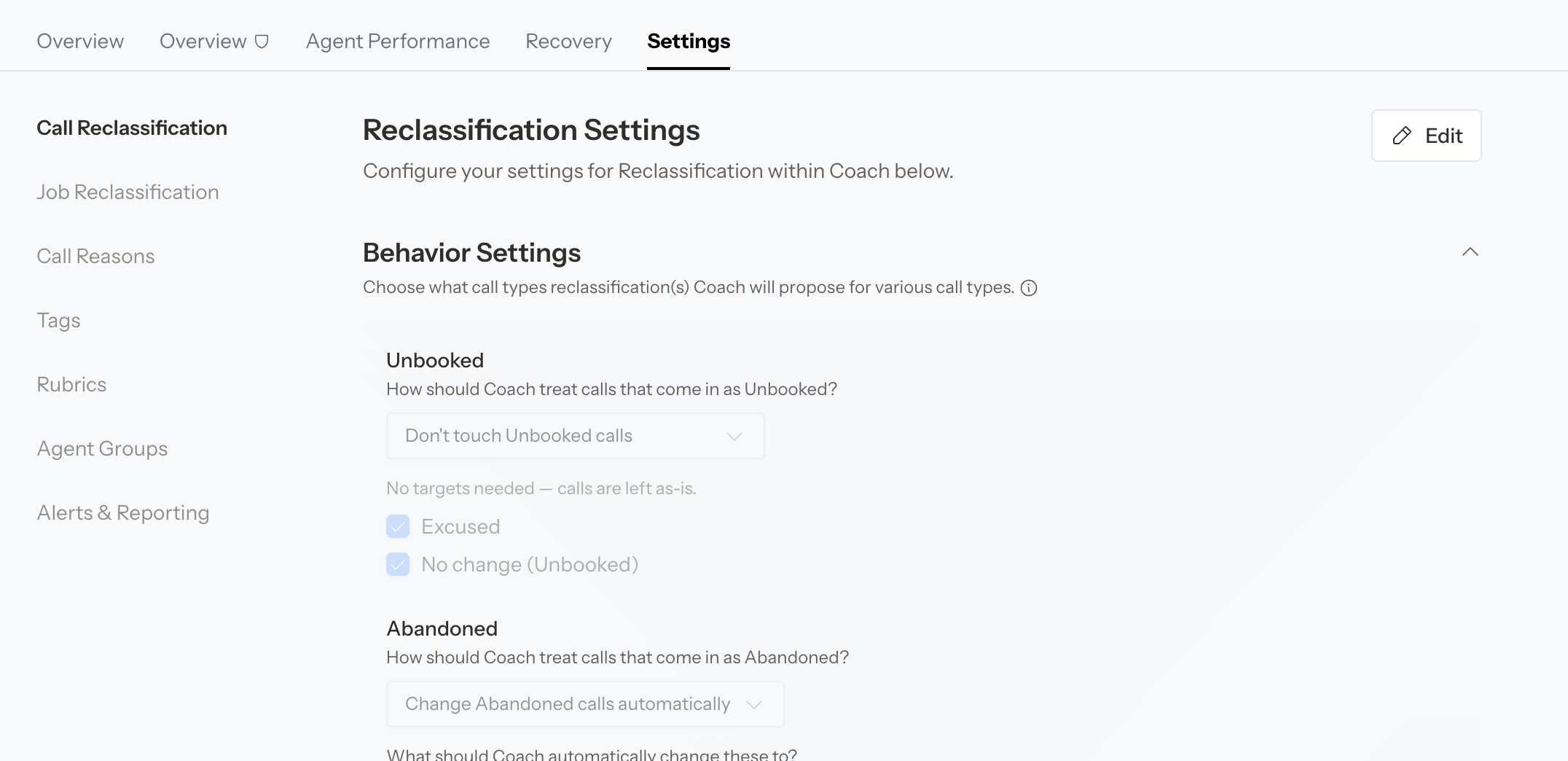 The Settings tab and individual editing controls depend on your permissions, integrations, and enabled Coach features. A page can be visible but read-only for your role.
## Before you change a setting
1. Identify the problem using a specific call or a filtered report.
2. Decide whether the issue is call classification, call reason, tag logic, rubric grading, agent organization, notification delivery, or display.
3. Make the smallest configuration change that addresses the cause.
4. Save the page and test with representative calls.
5. Review new results with the same filters.
Coach settings pages warn you before leaving with unsaved changes. Use the page's **Save**, **Cancel**, **Done**, or discard control instead of relying on navigation to preserve a draft.
## Call Reclassification
Use **Call Reclassification** to define how Coach decides whether a call was a lead, whether it booked, and what to do when Coach disagrees with the current call type.
See [Review and automate call reclassification](/coach/reclassification) for the recommended validation and rollout workflow.
### Behavior Settings
Configure each source call type independently:
* Unbooked
* Abandoned
* Excused
* Not a Lead
For each source, choose:
* **Don't touch:** leave the source classification unchanged
* **Suggest changes:** place the supported alternative in the review workflow
* **Change automatically:** apply a supported alternative without waiting for review
When suggestions or automatic changes are enabled, select the allowed target call types.
Coach can target **Unbooked**, **Booked**, or **Excused** where the source rules support them. **Abandoned** is never a target, and calls already classified as **Booked** are not reclassified by this policy.
Automatic reclassification changes Coach reporting and can update ServiceTitan for supported teams. Begin with suggestions when you are still validating new criteria.
### Bookable criteria
Define what makes a call a genuine booking opportunity separately for:
* Inbound calls
* Outbound calls
Write operational criteria that distinguish a lead from an informational, vendor, employee, spam, or otherwise non-bookable conversation.
### Booked criteria
Define the evidence Coach should treat as a confirmed booking separately for inbound and outbound calls.
Be explicit about what counts as confirmation. A customer expressing interest is not necessarily a booked job.
### Automatic CSR correction
When available, choose how Coach handles the CSR it identifies from the transcript:
* **Off:** show the inferred CSR as a suggestion
* **Fill in missing CSRs:** assign the inferred CSR only when no real CSR is present
* **Always correct CSRs:** also replace an existing CSR when the transcript clearly identifies a different person
For ServiceTitan teams, an applied correction is pushed to ServiceTitan. For other teams, it updates Avoca's Coach record.
### Fallback CSR
ServiceTitan teams can select a fallback CSR for calls where no speaker can be detected, such as abandoned calls, auto-attendant interactions, or voicemail.
A fallback is a placeholder for attribution. It should not be interpreted as proof that the selected person handled the call.
### ServiceTitan Memo Sync
When enabled, Coach writes an AI-generated, technician-facing memo into the ServiceTitan call's **ExcuseMemo** after each processed call.
Choose how Coach handles an existing memo:
* **Add to it, keeping what's there:** preserves CSR-written text and updates the Avoca-tagged block.
* **Replace it with Avoca's memo:** writes only the generated Avoca memo. This can overwrite text entered by a CSR. Avoca retains a recovery copy of displaced text for 30 days.
Use **Replace** only when a consistent machine-readable memo is more important than preserving existing text. Confirm that CSRs and other integrations do not rely on the current ExcuseMemo, then test with controlled calls before rollout.
You can continue using the default or team-specific free-text prompt. For a consistent memo shape, select **Build the memo from fields** and configure:
* The separator and field order
* Whether each value comes from ServiceTitan data, the job type, or the transcript
* Allowed values, or a free-form text, ZIP code, or date format
* The value used when a field does not apply or cannot be determined
* Optional conditions or branches based on an earlier field
Fields that cannot be determined are filled with the configured fallback instead of being left blank. Review the example output, save the settings, and verify both a normal call and a call where one field does not apply.
### Understand the opportunity outcome memo field
The built-in **Booked + opportunity outcome** signal combines the confirmed booking result with Coach's transcript-based opportunity decision. It can produce values such as `BOOKED_OPPORTUNITY`, `UNBOOKED_OPPORTUNITY`, `BOOKED_NON_OPPORTUNITY`, or `UNBOOKED_NON_OPPORTUNITY`.
Coach treats the call as an opportunity only when it represents net-new revenue, including when the caller:
* Books a new demand, inspection, or sales job
* Asks for a new job but cannot get a suitable slot
Coach treats anything about work already arranged as a non-opportunity. This includes rescheduling or bringing forward an existing appointment, asking for an earlier slot, cancelling, or following up about status, ETA, warranty, backorder, or billing. Install work and calls from employees, vendors, wrong numbers, or spam callers are also non-opportunities.
This signal controls the structured memo field; it is separate from the team's editable **Bookable criteria** and call-reclassification policy. If another system parses the memo, test a new booking, a no-slot request for new work, a live reschedule, and an outright cancellation before relying on the field downstream.
## Call Reasons
Call reasons explain why a call occurred. They are separate from call type, lead status, and booking status.
### Create or sync reasons
You can:
* Create a custom reason in Avoca
* Pull the latest reasons from ServiceTitan
* Search the configured list
* Activate or deactivate a reason
* Edit its description and bookability
* Delete or hide a reason when it is no longer used
For a ServiceTitan-managed reason, the name is controlled in ServiceTitan. Edit it there and sync again. Coach still needs a clear description so the model knows when to assign it.
Each reason includes:
* **Name**
* **Description**
* **Bookable** state
* **Active** state
Inactive reasons remain visible for historical reporting but are ignored when Coach categorizes new calls.
### Configure reason behavior
* **Auto-reclassify by reason:** automatically updates the ServiceTitan call reason when Coach's confidence is at least 98%. Lower-confidence differences remain suggestions.
* **Always require a call reason:** assigns the best available reason even below the normal confidence threshold.
If you always require a reason, include accurate catch-all choices such as an "Other Lead" and "Other Non-Lead" reason. Otherwise, low-confidence calls can be forced into an overly specific category.
See [Understand unbooked Avoca call reasons](/coach/unbooked-call-reasons) for the standard unbooked-reason definitions.
## Tags
Coach tags classify signals such as objection type, call quality, customer intent, or another business-specific condition.
### Create a tag group
A tag group defines the context and selection behavior for its tags:
* **Name**
* **Description**
* **Call type condition**
* **Call direction:** inbound, outbound, or both
* **Selection rule:** how many tags in the group Coach can or must apply
* **Enabled** state
Disable a group when Coach should skip the group and every tag inside it.
### Create a tag
Each tag can include:
* A ServiceTitan tag mapping
* A display label
* A required classification description
* Customer type: new, existing, or both
* An optional agent restriction
* An enabled state
The description is the rule Coach reads. Missing descriptions block the page from saving.
If a tag is mapped to ServiceTitan, its label is managed by the ServiceTitan tag. An unmapped tag can still be used inside Avoca.
### Import and sync tags
ServiceTitan teams can import available tags, then add the descriptions Coach needs. Enable **Auto-reclassify by tag** to push mapped, enabled tags from enabled groups onto matching ServiceTitan calls.
Unmapped tags remain Avoca-only even when automatic tag sync is on.
## Rubrics
Rubrics define the expected agent behavior and scoring model.
Use this page to:
* Create inbound and outbound rubrics
* Start from a default template
* Set title, direction, active state, and selection criteria
* Add sections and criteria
* Assign criterion points
* Test active rubrics with the Rubric Playground
* Maintain the objection-handling playbook
See [Configure and analyze rubrics](/coach/rubrics) for the full workflow.
## Agent Groups
Agent groups organize agents for Coach filters, dashboards, comparisons, rubrics, alerts, and the daily report.
To create a group:
1. Select **Edit**.
2. Select **New group**.
3. Name the group.
4. Add members.
5. Include unassigned calls if they should belong in the group.
6. Optionally mark it as the default group.
7. Save the group, then select **Done**.
The default group is used as the fallback selection on supported Coach reports. Use one default that represents the most common operational view.
Deleting a group does not delete its agents, but it removes that grouping from Coach. Confirm any downstream report or alert usage first.
## Alerts & Reporting
This page has separate **Alerts** and **Daily Coach Report** sections.
### Alerts
Enable real-time alerts, then configure supported channels:
* **Email:** a fixed recipient list
* **Slack:** a channel in the team's connected workspace
* **Microsoft Teams:** an incoming webhook URL
The event-routing matrix determines which enabled channel receives:
* **Unbooked calls:** bookable inbound ServiceTitan calls that did not book, excluding Avoca AI agent calls
* **Misclassified calls:** calls where Coach's call type or reason disagrees with ServiceTitan and the call has not been reclassified
Both the global alert switch, the channel, and the event-to-channel route must be enabled for a standard alert to fire.
Some teams use an Avoca-maintained custom alert rule set. On those teams, you can manage the available on/off and destination fields, while the underlying event rules remain managed by Avoca.
### Daily Coach Report
Choose one delivery mode:
* **Standard:** automatically sent to the team's admins and agents
* **Custom:** choose recipients, timing, directions, and report sections
* **Off:** do not send a daily report
For a custom report, configure:
* To and optional Cc recipients
* Send time in the team's local timezone
* Inbound and outbound call inclusion
* Summary fields: calls, leads, booked calls, average score, and AI changes
* Deep dives: top unbooked reasons and top failed rubric items
The report window is the previous local day.
Changing report recipients affects who receives operational call-performance data. Verify every address before saving.
## Display
Display settings control the colors used for:
* **Coaching Score** on call and agent tables
* **Booking Rate** on team and agent performance
For each metric, define the minimum value for the green, yellow, and red bands. The highest matching **greater than or equal to** rule wins.
Keep a **≥ 0** catch-all rule so every value receives a color. Use **Reset to default** to restore:
* Coaching Score: green at 80, yellow at 60, red at 0
* Booking Rate: green at 70, yellow at 50, red at 0
These thresholds influence visual prioritization, including the red state used to identify agents who may need review. They do not change the underlying metric.
## Validate a configuration change
After saving:
1. Open a recent call that should match the new behavior.
2. Confirm the selected call type, reason, tags, and rubric.
3. Review the Activity tab for the initial and updated values.
4. If ServiceTitan sync is expected, open the ServiceTitan record.
5. Monitor new calls rather than assuming historical records will be recomputed.
6. Compare the same filtered population before and after the change.
The Settings tab and individual editing controls depend on your permissions, integrations, and enabled Coach features. A page can be visible but read-only for your role.
## Before you change a setting
1. Identify the problem using a specific call or a filtered report.
2. Decide whether the issue is call classification, call reason, tag logic, rubric grading, agent organization, notification delivery, or display.
3. Make the smallest configuration change that addresses the cause.
4. Save the page and test with representative calls.
5. Review new results with the same filters.
Coach settings pages warn you before leaving with unsaved changes. Use the page's **Save**, **Cancel**, **Done**, or discard control instead of relying on navigation to preserve a draft.
## Call Reclassification
Use **Call Reclassification** to define how Coach decides whether a call was a lead, whether it booked, and what to do when Coach disagrees with the current call type.
See [Review and automate call reclassification](/coach/reclassification) for the recommended validation and rollout workflow.
### Behavior Settings
Configure each source call type independently:
* Unbooked
* Abandoned
* Excused
* Not a Lead
For each source, choose:
* **Don't touch:** leave the source classification unchanged
* **Suggest changes:** place the supported alternative in the review workflow
* **Change automatically:** apply a supported alternative without waiting for review
When suggestions or automatic changes are enabled, select the allowed target call types.
Coach can target **Unbooked**, **Booked**, or **Excused** where the source rules support them. **Abandoned** is never a target, and calls already classified as **Booked** are not reclassified by this policy.
Automatic reclassification changes Coach reporting and can update ServiceTitan for supported teams. Begin with suggestions when you are still validating new criteria.
### Bookable criteria
Define what makes a call a genuine booking opportunity separately for:
* Inbound calls
* Outbound calls
Write operational criteria that distinguish a lead from an informational, vendor, employee, spam, or otherwise non-bookable conversation.
### Booked criteria
Define the evidence Coach should treat as a confirmed booking separately for inbound and outbound calls.
Be explicit about what counts as confirmation. A customer expressing interest is not necessarily a booked job.
### Automatic CSR correction
When available, choose how Coach handles the CSR it identifies from the transcript:
* **Off:** show the inferred CSR as a suggestion
* **Fill in missing CSRs:** assign the inferred CSR only when no real CSR is present
* **Always correct CSRs:** also replace an existing CSR when the transcript clearly identifies a different person
For ServiceTitan teams, an applied correction is pushed to ServiceTitan. For other teams, it updates Avoca's Coach record.
### Fallback CSR
ServiceTitan teams can select a fallback CSR for calls where no speaker can be detected, such as abandoned calls, auto-attendant interactions, or voicemail.
A fallback is a placeholder for attribution. It should not be interpreted as proof that the selected person handled the call.
### ServiceTitan Memo Sync
When enabled, Coach writes an AI-generated, technician-facing memo into the ServiceTitan call's **ExcuseMemo** after each processed call.
Choose how Coach handles an existing memo:
* **Add to it, keeping what's there:** preserves CSR-written text and updates the Avoca-tagged block.
* **Replace it with Avoca's memo:** writes only the generated Avoca memo. This can overwrite text entered by a CSR. Avoca retains a recovery copy of displaced text for 30 days.
Use **Replace** only when a consistent machine-readable memo is more important than preserving existing text. Confirm that CSRs and other integrations do not rely on the current ExcuseMemo, then test with controlled calls before rollout.
You can continue using the default or team-specific free-text prompt. For a consistent memo shape, select **Build the memo from fields** and configure:
* The separator and field order
* Whether each value comes from ServiceTitan data, the job type, or the transcript
* Allowed values, or a free-form text, ZIP code, or date format
* The value used when a field does not apply or cannot be determined
* Optional conditions or branches based on an earlier field
Fields that cannot be determined are filled with the configured fallback instead of being left blank. Review the example output, save the settings, and verify both a normal call and a call where one field does not apply.
### Understand the opportunity outcome memo field
The built-in **Booked + opportunity outcome** signal combines the confirmed booking result with Coach's transcript-based opportunity decision. It can produce values such as `BOOKED_OPPORTUNITY`, `UNBOOKED_OPPORTUNITY`, `BOOKED_NON_OPPORTUNITY`, or `UNBOOKED_NON_OPPORTUNITY`.
Coach treats the call as an opportunity only when it represents net-new revenue, including when the caller:
* Books a new demand, inspection, or sales job
* Asks for a new job but cannot get a suitable slot
Coach treats anything about work already arranged as a non-opportunity. This includes rescheduling or bringing forward an existing appointment, asking for an earlier slot, cancelling, or following up about status, ETA, warranty, backorder, or billing. Install work and calls from employees, vendors, wrong numbers, or spam callers are also non-opportunities.
This signal controls the structured memo field; it is separate from the team's editable **Bookable criteria** and call-reclassification policy. If another system parses the memo, test a new booking, a no-slot request for new work, a live reschedule, and an outright cancellation before relying on the field downstream.
## Call Reasons
Call reasons explain why a call occurred. They are separate from call type, lead status, and booking status.
### Create or sync reasons
You can:
* Create a custom reason in Avoca
* Pull the latest reasons from ServiceTitan
* Search the configured list
* Activate or deactivate a reason
* Edit its description and bookability
* Delete or hide a reason when it is no longer used
For a ServiceTitan-managed reason, the name is controlled in ServiceTitan. Edit it there and sync again. Coach still needs a clear description so the model knows when to assign it.
Each reason includes:
* **Name**
* **Description**
* **Bookable** state
* **Active** state
Inactive reasons remain visible for historical reporting but are ignored when Coach categorizes new calls.
### Configure reason behavior
* **Auto-reclassify by reason:** automatically updates the ServiceTitan call reason when Coach's confidence is at least 98%. Lower-confidence differences remain suggestions.
* **Always require a call reason:** assigns the best available reason even below the normal confidence threshold.
If you always require a reason, include accurate catch-all choices such as an "Other Lead" and "Other Non-Lead" reason. Otherwise, low-confidence calls can be forced into an overly specific category.
See [Understand unbooked Avoca call reasons](/coach/unbooked-call-reasons) for the standard unbooked-reason definitions.
## Tags
Coach tags classify signals such as objection type, call quality, customer intent, or another business-specific condition.
### Create a tag group
A tag group defines the context and selection behavior for its tags:
* **Name**
* **Description**
* **Call type condition**
* **Call direction:** inbound, outbound, or both
* **Selection rule:** how many tags in the group Coach can or must apply
* **Enabled** state
Disable a group when Coach should skip the group and every tag inside it.
### Create a tag
Each tag can include:
* A ServiceTitan tag mapping
* A display label
* A required classification description
* Customer type: new, existing, or both
* An optional agent restriction
* An enabled state
The description is the rule Coach reads. Missing descriptions block the page from saving.
If a tag is mapped to ServiceTitan, its label is managed by the ServiceTitan tag. An unmapped tag can still be used inside Avoca.
### Import and sync tags
ServiceTitan teams can import available tags, then add the descriptions Coach needs. Enable **Auto-reclassify by tag** to push mapped, enabled tags from enabled groups onto matching ServiceTitan calls.
Unmapped tags remain Avoca-only even when automatic tag sync is on.
## Rubrics
Rubrics define the expected agent behavior and scoring model.
Use this page to:
* Create inbound and outbound rubrics
* Start from a default template
* Set title, direction, active state, and selection criteria
* Add sections and criteria
* Assign criterion points
* Test active rubrics with the Rubric Playground
* Maintain the objection-handling playbook
See [Configure and analyze rubrics](/coach/rubrics) for the full workflow.
## Agent Groups
Agent groups organize agents for Coach filters, dashboards, comparisons, rubrics, alerts, and the daily report.
To create a group:
1. Select **Edit**.
2. Select **New group**.
3. Name the group.
4. Add members.
5. Include unassigned calls if they should belong in the group.
6. Optionally mark it as the default group.
7. Save the group, then select **Done**.
The default group is used as the fallback selection on supported Coach reports. Use one default that represents the most common operational view.
Deleting a group does not delete its agents, but it removes that grouping from Coach. Confirm any downstream report or alert usage first.
## Alerts & Reporting
This page has separate **Alerts** and **Daily Coach Report** sections.
### Alerts
Enable real-time alerts, then configure supported channels:
* **Email:** a fixed recipient list
* **Slack:** a channel in the team's connected workspace
* **Microsoft Teams:** an incoming webhook URL
The event-routing matrix determines which enabled channel receives:
* **Unbooked calls:** bookable inbound ServiceTitan calls that did not book, excluding Avoca AI agent calls
* **Misclassified calls:** calls where Coach's call type or reason disagrees with ServiceTitan and the call has not been reclassified
Both the global alert switch, the channel, and the event-to-channel route must be enabled for a standard alert to fire.
Some teams use an Avoca-maintained custom alert rule set. On those teams, you can manage the available on/off and destination fields, while the underlying event rules remain managed by Avoca.
### Daily Coach Report
Choose one delivery mode:
* **Standard:** automatically sent to the team's admins and agents
* **Custom:** choose recipients, timing, directions, and report sections
* **Off:** do not send a daily report
For a custom report, configure:
* To and optional Cc recipients
* Send time in the team's local timezone
* Inbound and outbound call inclusion
* Summary fields: calls, leads, booked calls, average score, and AI changes
* Deep dives: top unbooked reasons and top failed rubric items
The report window is the previous local day.
Changing report recipients affects who receives operational call-performance data. Verify every address before saving.
## Display
Display settings control the colors used for:
* **Coaching Score** on call and agent tables
* **Booking Rate** on team and agent performance
For each metric, define the minimum value for the green, yellow, and red bands. The highest matching **greater than or equal to** rule wins.
Keep a **≥ 0** catch-all rule so every value receives a color. Use **Reset to default** to restore:
* Coaching Score: green at 80, yellow at 60, red at 0
* Booking Rate: green at 70, yellow at 50, red at 0
These thresholds influence visual prioritization, including the red state used to identify agents who may need review. They do not change the underlying metric.
## Validate a configuration change
After saving:
1. Open a recent call that should match the new behavior.
2. Confirm the selected call type, reason, tags, and rubric.
3. Review the Activity tab for the initial and updated values.
4. If ServiceTitan sync is expected, open the ServiceTitan record.
5. Monitor new calls rather than assuming historical records will be recomputed.
6. Compare the same filtered population before and after the change.