> ## Documentation Index
> Fetch the complete documentation index at: https://help.avoca.ai/llms.txt
> Use this file to discover all available pages before exploring further.
# Review a Coach call
> Use the recording, transcript, coaching evaluation, activity history, customer history, and supported edit controls on a Coach call.
Open a call from the Coach Overview, Agent Performance, Rubric Performance, or a list of calls with a failed rubric item. Coach can open the review in a full page or in a side sheet without losing your place in the list.
The exact cards and actions depend on the call data, integrations, enabled Coach features, and your permissions.
## Orient yourself
The review header identifies the customer and provides the call recording when one is available. For ServiceTitan-connected calls, the **ServiceTitan** menu can link to the agent scorecard, customer, or job.
The page is divided into:
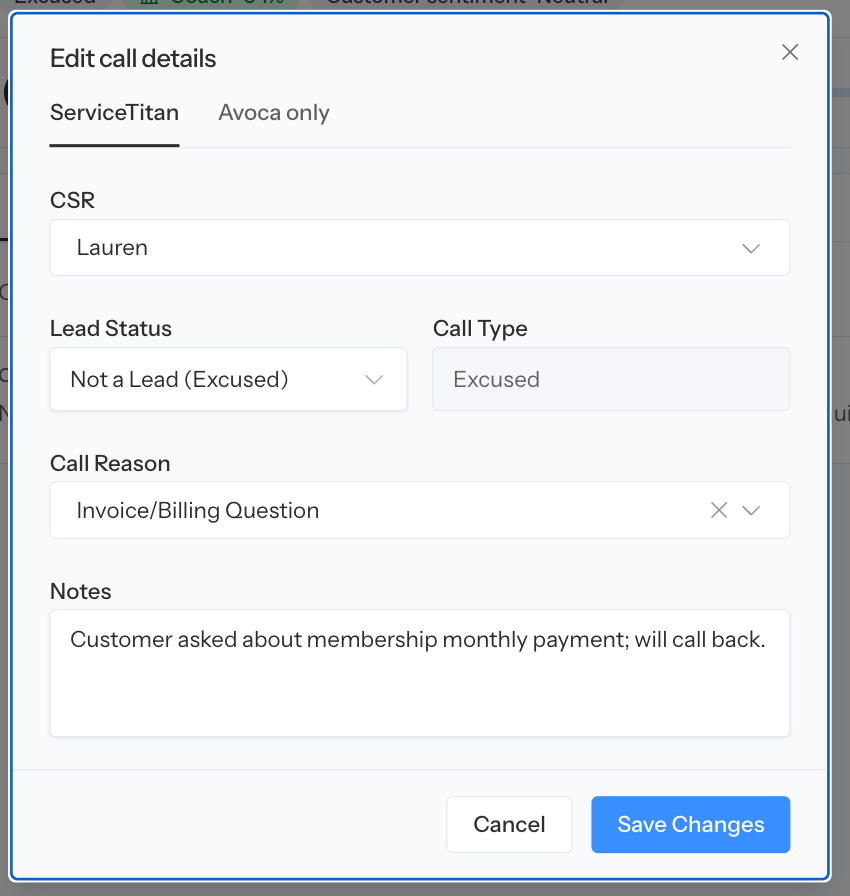
* A main review area with **Summary**, **Transcript**, **Coaching**, **Activity**, and **Customer History**
* A right rail for customer information, disposition, the ServiceTitan call memo, revenue, tags, recovery tasks, and internal notes when supported
Use the call's displayed date, customer, and handler to confirm that you opened the intended record before making a correction.
 ## Listen to the right recording
A call can contain more than one leg, such as an Avoca AI interaction followed by a human transfer. When the recording control offers a leg selector:
* Choose **Full call** for the end-to-end interaction.
* Choose an individual leg to isolate the AI or human portion.
* Use timestamps in coaching evidence to jump to the relevant point in the recording.
If the full recording is sourced from ServiceTitan, it can contain audio that is not present in an Avoca-only leg.
## Use each review tab
## Listen to the right recording
A call can contain more than one leg, such as an Avoca AI interaction followed by a human transfer. When the recording control offers a leg selector:
* Choose **Full call** for the end-to-end interaction.
* Choose an individual leg to isolate the AI or human portion.
* Use timestamps in coaching evidence to jump to the relevant point in the recording.
If the full recording is sourced from ServiceTitan, it can contain audio that is not present in an Avoca-only leg.
## Use each review tab
 ### Summary
The Summary tab presents the call summary and the best available outcome and next-step information. It is the quickest way to understand the call, but it should not replace listening when you are changing a score or classification.
### Transcript
Use the Transcript tab to:
* Confirm what the caller and agent actually said
* Understand the sequence around an objection or booking decision
* Validate the CSR assignment
* Compare Coach's reasoning with the underlying conversation
Transcripts are generated data and can contain recognition errors. Use the recording as the final source when wording or speaker identity matters.
### Coaching
The Coaching tab can include:
* Talk metrics
* Objection-handling analysis
* Rubric Grading
* An overall score
* The rubric selected for the call and why it was selected
Rubric categories expand into individual criteria. Each criterion shows:
* **Yes**, **No**, or **N/A**
* The criterion's points or weight
* Coach's reasoning
* A suggestion when an improvement was identified
* Clickable recording timestamps when available
### Activity
Activity records the initial classification and later changes to fields such as call type, CSR, call reason, job, or call memo. Memo entries show a shortened previous and new value when available. Use Activity to distinguish the original Coach result from a later human or automated correction.
### Customer History
Customer History shows other supported calls for the customer. Select another call to move through the timeline without leaving the review workflow.
Use history to avoid treating one conversation as an isolated event when the customer has called repeatedly about the same issue.
## Review and correct rubric grading
The rubric opens in **Locked** mode.
1. Listen to the relevant recording segment.
2. Switch the grading toolbar to **Unlocked**.
3. Select a criterion's answer to cycle between **Yes**, **No**, and **N/A**.
4. Update the reasoning when the evidence needs clarification.
5. Select **Save**.
You can also print the evaluation.
**Exclude from Grading** sets every rubric item to **N/A** and removes the call from score calculations. Use it only when the rubric genuinely does not apply to the call. The exclusion can be reversed by unlocking the rubric and grading it manually.
A call-level rubric edit overrides the evaluation for that call; it does not rewrite the master rubric. If the same criterion is repeatedly misunderstood, update the rubric configuration instead of correcting calls one by one.
### Summary
The Summary tab presents the call summary and the best available outcome and next-step information. It is the quickest way to understand the call, but it should not replace listening when you are changing a score or classification.
### Transcript
Use the Transcript tab to:
* Confirm what the caller and agent actually said
* Understand the sequence around an objection or booking decision
* Validate the CSR assignment
* Compare Coach's reasoning with the underlying conversation
Transcripts are generated data and can contain recognition errors. Use the recording as the final source when wording or speaker identity matters.
### Coaching
The Coaching tab can include:
* Talk metrics
* Objection-handling analysis
* Rubric Grading
* An overall score
* The rubric selected for the call and why it was selected
Rubric categories expand into individual criteria. Each criterion shows:
* **Yes**, **No**, or **N/A**
* The criterion's points or weight
* Coach's reasoning
* A suggestion when an improvement was identified
* Clickable recording timestamps when available
### Activity
Activity records the initial classification and later changes to fields such as call type, CSR, call reason, job, or call memo. Memo entries show a shortened previous and new value when available. Use Activity to distinguish the original Coach result from a later human or automated correction.
### Customer History
Customer History shows other supported calls for the customer. Select another call to move through the timeline without leaving the review workflow.
Use history to avoid treating one conversation as an isolated event when the customer has called repeatedly about the same issue.
## Review and correct rubric grading
The rubric opens in **Locked** mode.
1. Listen to the relevant recording segment.
2. Switch the grading toolbar to **Unlocked**.
3. Select a criterion's answer to cycle between **Yes**, **No**, and **N/A**.
4. Update the reasoning when the evidence needs clarification.
5. Select **Save**.
You can also print the evaluation.
**Exclude from Grading** sets every rubric item to **N/A** and removes the call from score calculations. Use it only when the rubric genuinely does not apply to the call. The exclusion can be reversed by unlocking the rubric and grading it manually.
A call-level rubric edit overrides the evaluation for that call; it does not rewrite the master rubric. If the same criterion is repeatedly misunderstood, update the rubric configuration instead of correcting calls one by one.
 ## Understand disposition
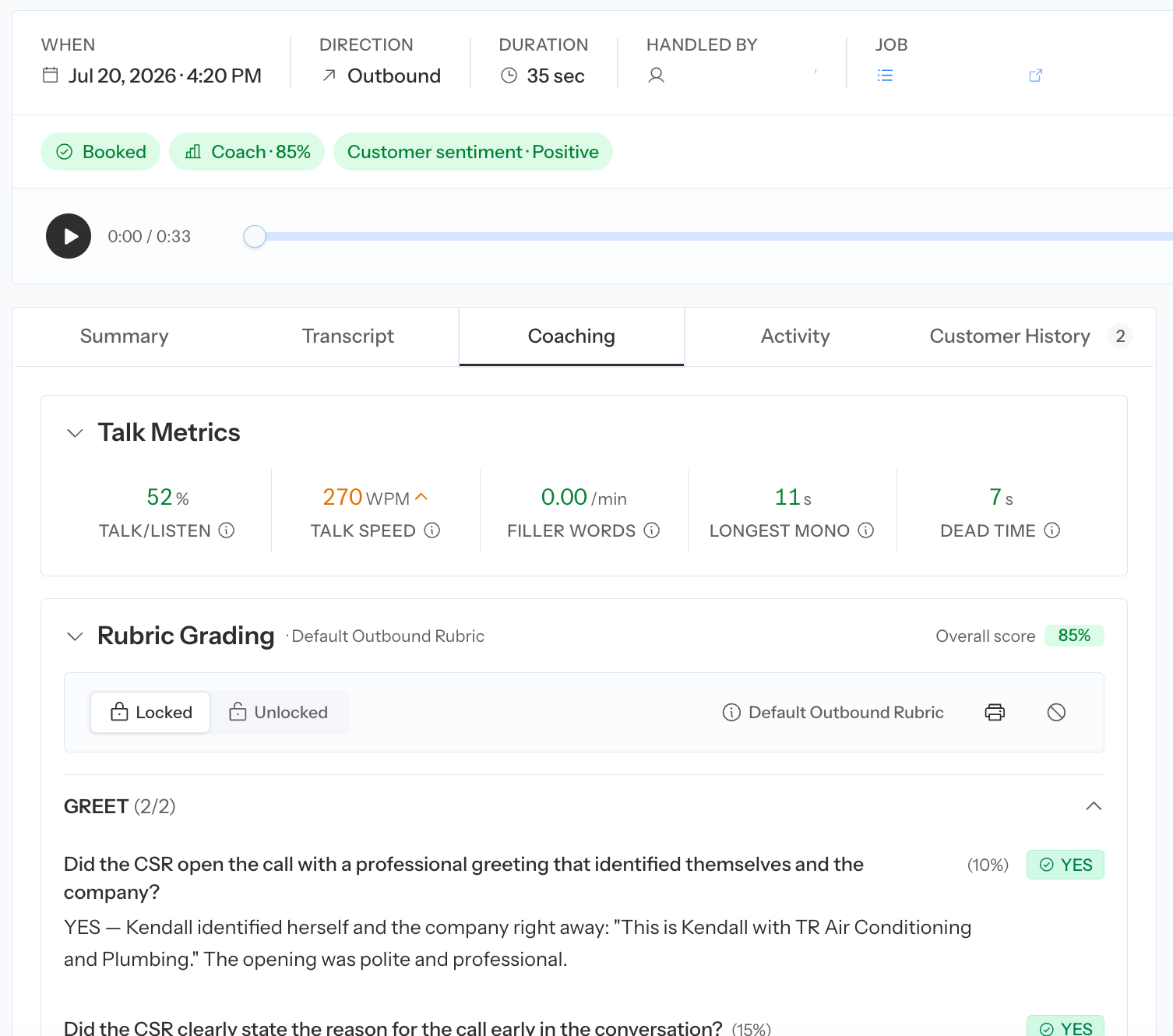
The Disposition card separates:
* **Qualification:** Lead or Not a Lead
* **Booking:** Booked or Unbooked
* **Reason:** the call reason, when applicable
Call type and call reason are independent. For example, correcting a call from **Unbooked** to **Excused** does not by itself define the most accurate call reason.
Coach can show a review banner when its suggested classification or CSR differs from the current data. Review the evidence before applying or rejecting a suggestion.
## Understand disposition
The Disposition card separates:
* **Qualification:** Lead or Not a Lead
* **Booking:** Booked or Unbooked
* **Reason:** the call reason, when applicable
Call type and call reason are independent. For example, correcting a call from **Unbooked** to **Excused** does not by itself define the most accurate call reason.
Coach can show a review banner when its suggested classification or CSR differs from the current data. Review the evidence before applying or rejecting a suggestion.
 ## Edit call details
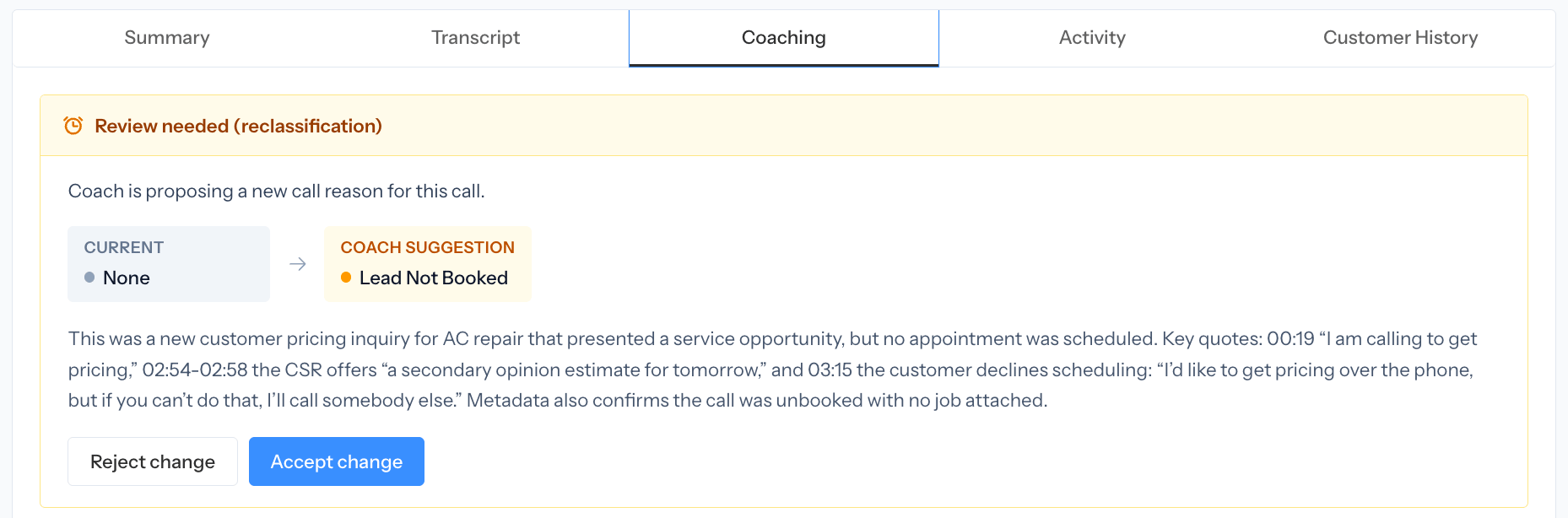
Users with reclassification access can select **Edit call details**.
For a supported ServiceTitan call, the editor has two scopes:
* **ServiceTitan:** saves the selected changes and attempts to sync supported fields to ServiceTitan
* **Avoca only:** updates Coach's record without changing ServiceTitan
The editor can include:
* CSR
* Lead status
* Booking status
* Call reason
* Tags
* Linked job
* Notes
When Coach has proposed changes, the ServiceTitan tab can show each original and suggested value. Check only the rows you want to act on, then choose:
* **Apply changes** to use the selected Coach suggestions
* **Keep original** to retain the current ServiceTitan values for the selected rows
### Link a booked call to a job
For supported ServiceTitan calls, marking a lead **Booked** requires a linked job.
1. Enter the ServiceTitan job number.
2. Select **Locate**.
3. Confirm the customer and job details.
4. Select **Attach this job**.
5. Save the call changes.
If a field saves in Avoca but cannot sync to ServiceTitan, the review shows an error. Verify ServiceTitan permissions and retry rather than repeatedly changing other fields.
See [Review and automate call reclassification](/coach/reclassification) before enabling automatic production changes.
## Manage tags
Coach tags can be edited from the call-details editor. When an applied tag already appears in the right rail, it can also be updated there.
* Tags mapped to a ServiceTitan tag can sync to the matching ServiceTitan call.
* Unmapped tags remain Avoca-only.
* Only tags eligible for the call's group rules are available.
See [Configure Coach settings](/coach/settings) for tag-group conditions and ServiceTitan mapping.
## Read the ServiceTitan call memo
For supported ServiceTitan rollouts, the right rail shows the current memo mirrored from ServiceTitan. A long memo is shortened to three lines; select **View full memo** to read the complete value. **No memo** means Coach does not currently have a mirrored memo for that call.
The memo card is read-only. Use it as operational context alongside the recording, transcript, and Activity history; do not treat it as a replacement for the conversation evidence.
## Add internal notes
Use **Internal Notes** for concise operational context that another reviewer needs. Do not copy sensitive information from the transcript unless it is necessary for the approved workflow.
Internal notes do not contact the customer and do not replace the ServiceTitan customer record.
## Work recovery tasks from the call
When Call Recovery is enabled, the right rail can show recovery tasks associated with the call. You can create a task, open an existing task, and update its status or assignment without leaving the review.
See [Manage Call Recovery](/coach/recovery).
## Review checklist
Before you close the call:
* Confirm you listened to the correct recording leg.
* Verify the current qualification, booking outcome, reason, CSR, and linked job.
* Compare rubric reasoning with the recording.
* Use **N/A** only when a criterion does not apply.
* Decide whether the correction belongs in Avoca only or should sync to ServiceTitan.
* Record an internal note only when it adds useful context.
* Create or update a recovery task if the missed booking requires follow-up.
## Edit call details
Users with reclassification access can select **Edit call details**.
For a supported ServiceTitan call, the editor has two scopes:
* **ServiceTitan:** saves the selected changes and attempts to sync supported fields to ServiceTitan
* **Avoca only:** updates Coach's record without changing ServiceTitan
The editor can include:
* CSR
* Lead status
* Booking status
* Call reason
* Tags
* Linked job
* Notes
When Coach has proposed changes, the ServiceTitan tab can show each original and suggested value. Check only the rows you want to act on, then choose:
* **Apply changes** to use the selected Coach suggestions
* **Keep original** to retain the current ServiceTitan values for the selected rows
### Link a booked call to a job
For supported ServiceTitan calls, marking a lead **Booked** requires a linked job.
1. Enter the ServiceTitan job number.
2. Select **Locate**.
3. Confirm the customer and job details.
4. Select **Attach this job**.
5. Save the call changes.
If a field saves in Avoca but cannot sync to ServiceTitan, the review shows an error. Verify ServiceTitan permissions and retry rather than repeatedly changing other fields.
See [Review and automate call reclassification](/coach/reclassification) before enabling automatic production changes.
## Manage tags
Coach tags can be edited from the call-details editor. When an applied tag already appears in the right rail, it can also be updated there.
* Tags mapped to a ServiceTitan tag can sync to the matching ServiceTitan call.
* Unmapped tags remain Avoca-only.
* Only tags eligible for the call's group rules are available.
See [Configure Coach settings](/coach/settings) for tag-group conditions and ServiceTitan mapping.
## Read the ServiceTitan call memo
For supported ServiceTitan rollouts, the right rail shows the current memo mirrored from ServiceTitan. A long memo is shortened to three lines; select **View full memo** to read the complete value. **No memo** means Coach does not currently have a mirrored memo for that call.
The memo card is read-only. Use it as operational context alongside the recording, transcript, and Activity history; do not treat it as a replacement for the conversation evidence.
## Add internal notes
Use **Internal Notes** for concise operational context that another reviewer needs. Do not copy sensitive information from the transcript unless it is necessary for the approved workflow.
Internal notes do not contact the customer and do not replace the ServiceTitan customer record.
## Work recovery tasks from the call
When Call Recovery is enabled, the right rail can show recovery tasks associated with the call. You can create a task, open an existing task, and update its status or assignment without leaving the review.
See [Manage Call Recovery](/coach/recovery).
## Review checklist
Before you close the call:
* Confirm you listened to the correct recording leg.
* Verify the current qualification, booking outcome, reason, CSR, and linked job.
* Compare rubric reasoning with the recording.
* Use **N/A** only when a criterion does not apply.
* Decide whether the correction belongs in Avoca only or should sync to ServiceTitan.
* Record an internal note only when it adds useful context.
* Create or update a recovery task if the missed booking requires follow-up.