> ## Documentation Index
> Fetch the complete documentation index at: https://help.avoca.ai/llms.txt
> Use this file to discover all available pages before exploring further.
# Analyze agent performance
> Compare agent metrics, find agents who need review, inspect coaching insights, and export performance reports.
Open **Coach → Agent Performance** to compare agents over the same date range and call population.
Agent Performance appears only when it is enabled for your team. A role with "view own performance" access is taken directly to the linked agent's page and cannot browse the team roster.
Coach evaluates calls after they end. New calls appear after ingestion, transcription, and scoring; Agent Performance is not a live in-call assistant.
 ## Review the team overview
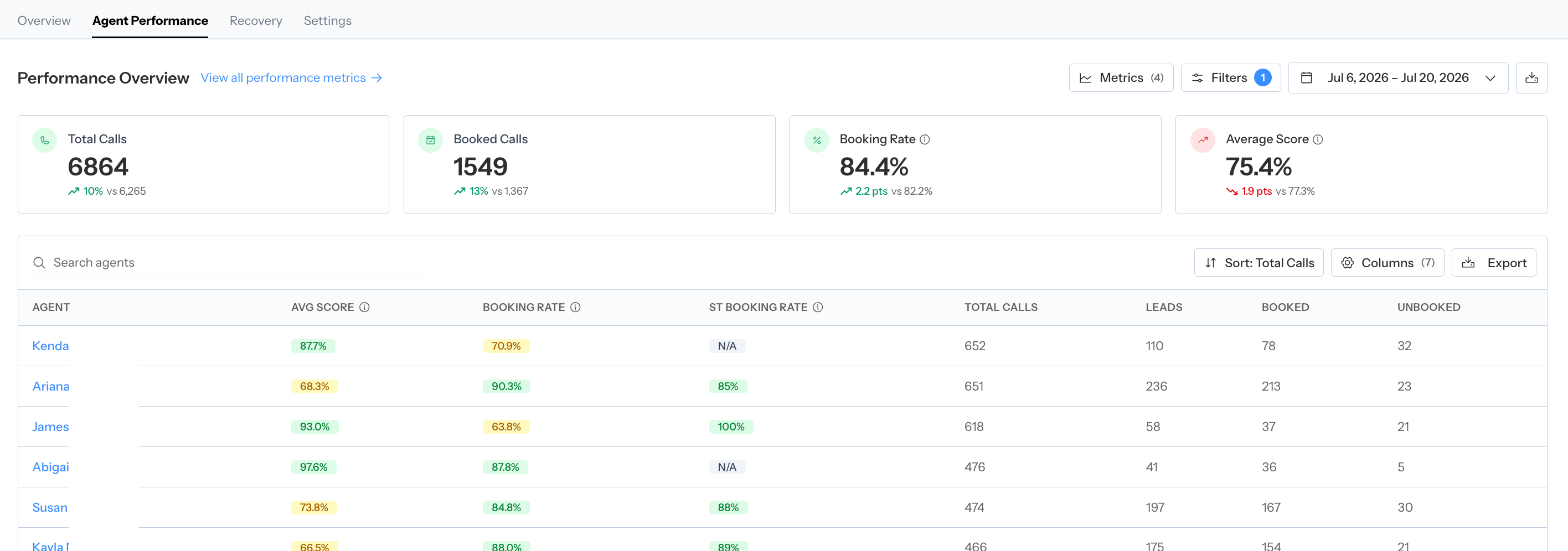
The **Performance Overview** starts with configurable metric cards. The standard metrics are:
* **Total Calls**
* **Booked Calls**
* **Booking Rate**
* **Average Score**
* **Missed Opportunities:** leads that were not booked
* **Positive Sentiment:** the positive share of calls with a sentiment classification
Some teams also see **ST Booking Rate**, upsell context, average handling time, or rubric-category metrics.
Use the **Metrics** menu to show or hide cards. Your choices are stored for the browser you are using.
## Review the team overview
The **Performance Overview** starts with configurable metric cards. The standard metrics are:
* **Total Calls**
* **Booked Calls**
* **Booking Rate**
* **Average Score**
* **Missed Opportunities:** leads that were not booked
* **Positive Sentiment:** the positive share of calls with a sentiment classification
Some teams also see **ST Booking Rate**, upsell context, average handling time, or rubric-category metrics.
Use the **Metrics** menu to show or hide cards. Your choices are stored for the browser you are using.
 ### Open an inline trend
Select a metric card to open its trend chart. The chart uses the current filters and compares the selected range with the previous period.
Select **View all performance metrics** to open the full **Performance Metrics** page. The full page plots the supported metrics over the selected range and can be exported as a PDF report.
## Filter the population
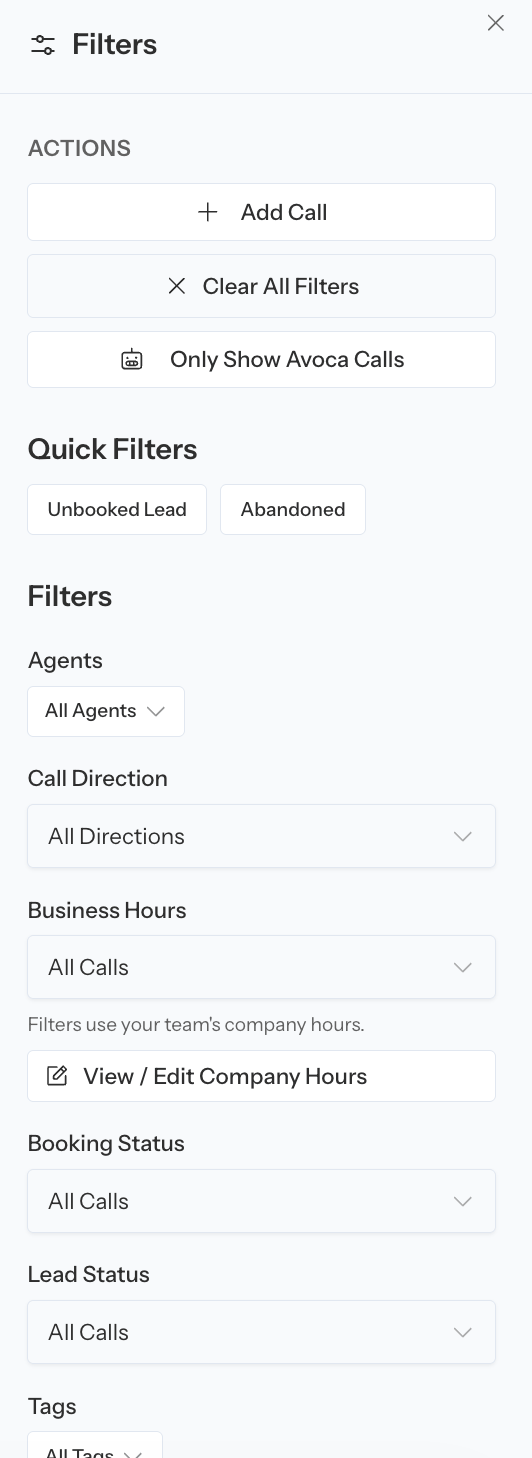
Agent Performance filters can include:
* Inbound and outbound direction
* Agent group
* Specific agents
* Booked or unbooked calls
* Leads or non-leads
* Days of the week to exclude
* One or more rubrics
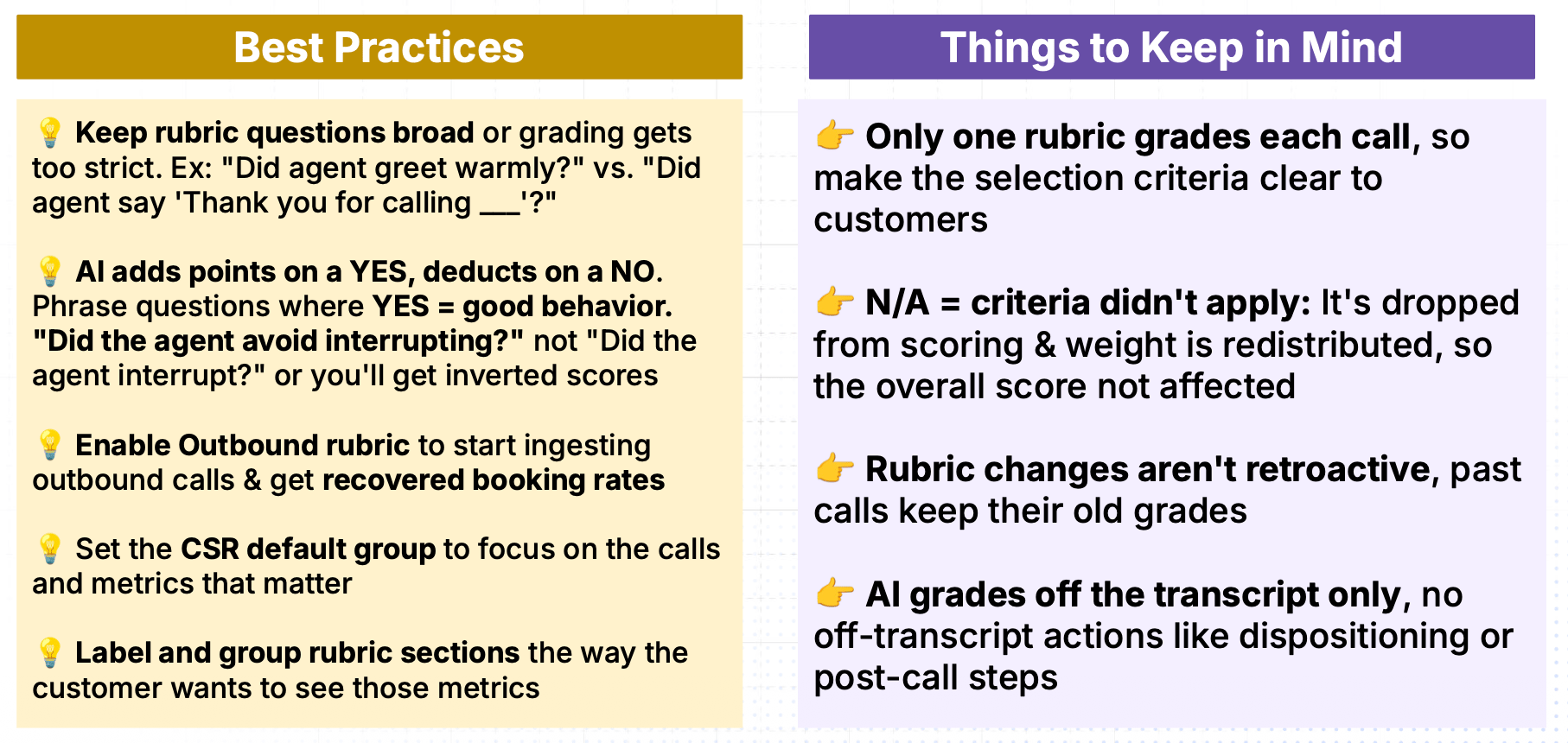
The rubric filter scopes every metric on the page to calls graded under the selected rubrics. All rubrics are selected by default.
Selecting a strict subset of rubrics changes the metric population, not only the rubric columns. Compare agents only when their filters and rubric scope match.
## Use agent groups
Agent groups can appear in one of two ways:
* As a filter that narrows the overview and roster to one group
* As expandable group rows that aggregate the members' performance
The default group can be selected or expanded automatically. Agents who do not belong to a configured group can appear under **Ungrouped**.
Group rows summarize their member agents. Open the group to inspect the individuals before drawing a conclusion from the aggregate.
See [Configure Coach settings](/coach/settings#agent-groups) to create and maintain groups.
## Find agents who need review
Coach can flag an agent as **Needs review** when their booking rate or average score falls into the red band configured for the team. Flagged agents are brought to the top of the flat roster, and the review banner can narrow the list to those agents.
The threshold is a prioritization aid, not a performance verdict. Before coaching:
1. Check the number and type of calls in the range.
2. Compare the agent with an appropriate group.
3. Review the agent's missed opportunities and coaching insights.
4. Listen to representative calls.
## Configure and read the roster
Search agents by name, choose a sort metric, and use **Columns** to show, hide, or reorder the table.
Available columns can include:
* Total Calls
* Leads
* Booked Calls
* Unbooked Calls
* Booking Rate
* ST Booking Rate
* Average Score
* Average Handling Time
* Upsell Calls
* Rubric-category scores
Not every column is available to every team. For example, ST Booking Rate requires ServiceTitan classification data and handling time requires the relevant timing data.
Select **Export** to download the current agent-performance data as an XLSX file. The export follows the current date range and filters.
### Open an inline trend
Select a metric card to open its trend chart. The chart uses the current filters and compares the selected range with the previous period.
Select **View all performance metrics** to open the full **Performance Metrics** page. The full page plots the supported metrics over the selected range and can be exported as a PDF report.
## Filter the population
Agent Performance filters can include:
* Inbound and outbound direction
* Agent group
* Specific agents
* Booked or unbooked calls
* Leads or non-leads
* Days of the week to exclude
* One or more rubrics
The rubric filter scopes every metric on the page to calls graded under the selected rubrics. All rubrics are selected by default.
Selecting a strict subset of rubrics changes the metric population, not only the rubric columns. Compare agents only when their filters and rubric scope match.
## Use agent groups
Agent groups can appear in one of two ways:
* As a filter that narrows the overview and roster to one group
* As expandable group rows that aggregate the members' performance
The default group can be selected or expanded automatically. Agents who do not belong to a configured group can appear under **Ungrouped**.
Group rows summarize their member agents. Open the group to inspect the individuals before drawing a conclusion from the aggregate.
See [Configure Coach settings](/coach/settings#agent-groups) to create and maintain groups.
## Find agents who need review
Coach can flag an agent as **Needs review** when their booking rate or average score falls into the red band configured for the team. Flagged agents are brought to the top of the flat roster, and the review banner can narrow the list to those agents.
The threshold is a prioritization aid, not a performance verdict. Before coaching:
1. Check the number and type of calls in the range.
2. Compare the agent with an appropriate group.
3. Review the agent's missed opportunities and coaching insights.
4. Listen to representative calls.
## Configure and read the roster
Search agents by name, choose a sort metric, and use **Columns** to show, hide, or reorder the table.
Available columns can include:
* Total Calls
* Leads
* Booked Calls
* Unbooked Calls
* Booking Rate
* ST Booking Rate
* Average Score
* Average Handling Time
* Upsell Calls
* Rubric-category scores
Not every column is available to every team. For example, ST Booking Rate requires ServiceTitan classification data and handling time requires the relevant timing data.
Select **Export** to download the current agent-performance data as an XLSX file. The export follows the current date range and filters.
 ## Open an agent
Select an agent's name to open their detail page. The page carries the relevant date range, direction, booking, lead, excluded-day, and rubric context from the roster.
An agent detail page contains:
* The agent's configurable performance cards
* Inline trends and a full Performance Metrics report
* **Coaching Insights**
* The agent's filtered calls table
## Open an agent
Select an agent's name to open their detail page. The page carries the relevant date range, direction, booking, lead, excluded-day, and rubric context from the roster.
An agent detail page contains:
* The agent's configurable performance cards
* Inline trends and a full Performance Metrics report
* **Coaching Insights**
* The agent's filtered calls table
 ### Coaching Insights
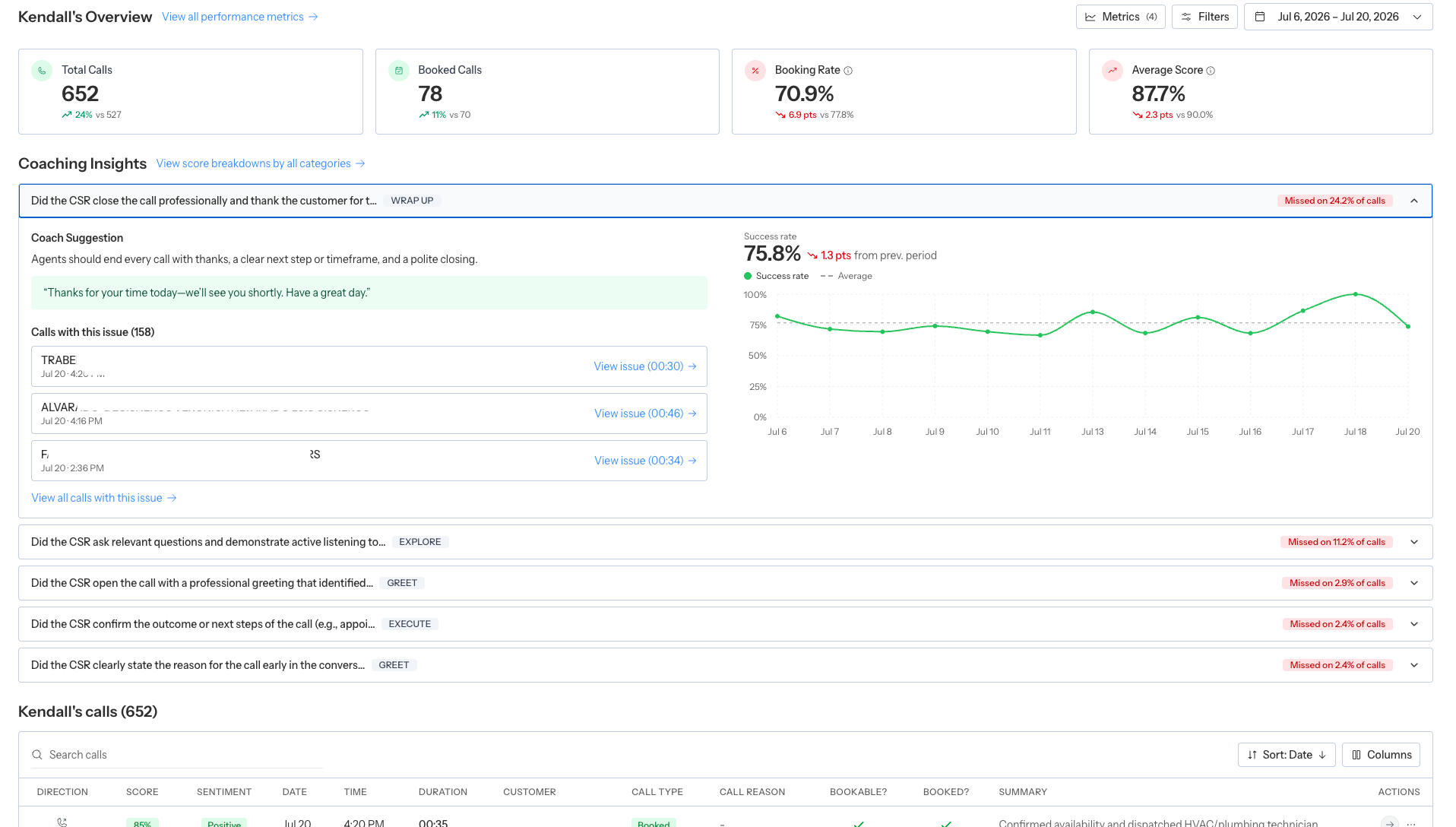
Coach shows up to five of the agent's most frequently failed rubric items. Each row displays how often the item was missed.
Expand an item to see:
* The Coach Suggestion
* A suggested script when one is available
* Recent calls with the issue
* A clickable issue timestamp
* The item's success-rate trend
* The change from the prior period
Select **View issue** to open that call directly on the Coaching tab. Select **View all calls with this issue** to open the complete filtered list.
### Coaching Insights
Coach shows up to five of the agent's most frequently failed rubric items. Each row displays how often the item was missed.
Expand an item to see:
* The Coach Suggestion
* A suggested script when one is available
* Recent calls with the issue
* A clickable issue timestamp
* The item's success-rate trend
* The change from the prior period
Select **View issue** to open that call directly on the Coaching tab. Select **View all calls with this issue** to open the complete filtered list.
 ### Full Rubric Performance
Select **View score breakdowns by all categories** to open the agent's full Rubric Performance page.
The page:
* Groups criteria by rubric category
* Shows success rate for each criterion
* Compares it with the prior period
* Supports the current direction and rubric filters
* Can be exported as a PDF report
See [Configure and analyze rubrics](/coach/rubrics) for the team-wide view and rubric setup.
### Agent calls
The calls table supports search, configurable columns, pagination, and direct review.
Open a call to:
* Listen to the recording
* Review the transcript and evaluation
* Inspect classification history and customer history
* Correct supported rubric answers or call details
See [Review a Coach call](/coach/call-review).
## Interpret agent metrics fairly
* Compare similar call directions, lead populations, and rubric scopes.
* Use a meaningful call sample; a small denominator can create extreme rates.
* Separate booking opportunity from booking outcome.
* Account for calls attributed to **Unassigned** when CSR mapping is incomplete.
* Treat sentiment as a supporting signal, not a substitute for the call evidence.
* Use the same date window before and after a coaching intervention.
* Review rubric criteria, not only the overall score.
## Give agents access to self-review
Agents can review their own scorecard without seeing the full team roster.
An administrator should:
1. Invite the person with the **Agent** role or grant **View Own Coach Performance**.
2. Map the dashboard member to the correct ServiceTitan agent.
3. Ask the agent to open **Products → Coach** and confirm the scorecard identity.
If the member is not mapped, Coach cannot safely determine which ServiceTitan agent belongs to that user.
See [Invite managers and agents to Coach](/coach/access).
## Recommended coaching workflow
1. Filter to the relevant team, group, direction, and rubric.
2. Review agents marked **Needs review**.
3. Open one agent and expand their top Coaching Insights.
4. Listen to multiple calls for the same issue.
5. Share the specific expected behavior and evidence with the agent.
6. Revisit the same metric and rubric item after new calls have accumulated.
### Full Rubric Performance
Select **View score breakdowns by all categories** to open the agent's full Rubric Performance page.
The page:
* Groups criteria by rubric category
* Shows success rate for each criterion
* Compares it with the prior period
* Supports the current direction and rubric filters
* Can be exported as a PDF report
See [Configure and analyze rubrics](/coach/rubrics) for the team-wide view and rubric setup.
### Agent calls
The calls table supports search, configurable columns, pagination, and direct review.
Open a call to:
* Listen to the recording
* Review the transcript and evaluation
* Inspect classification history and customer history
* Correct supported rubric answers or call details
See [Review a Coach call](/coach/call-review).
## Interpret agent metrics fairly
* Compare similar call directions, lead populations, and rubric scopes.
* Use a meaningful call sample; a small denominator can create extreme rates.
* Separate booking opportunity from booking outcome.
* Account for calls attributed to **Unassigned** when CSR mapping is incomplete.
* Treat sentiment as a supporting signal, not a substitute for the call evidence.
* Use the same date window before and after a coaching intervention.
* Review rubric criteria, not only the overall score.
## Give agents access to self-review
Agents can review their own scorecard without seeing the full team roster.
An administrator should:
1. Invite the person with the **Agent** role or grant **View Own Coach Performance**.
2. Map the dashboard member to the correct ServiceTitan agent.
3. Ask the agent to open **Products → Coach** and confirm the scorecard identity.
If the member is not mapped, Coach cannot safely determine which ServiceTitan agent belongs to that user.
See [Invite managers and agents to Coach](/coach/access).
## Recommended coaching workflow
1. Filter to the relevant team, group, direction, and rubric.
2. Review agents marked **Needs review**.
3. Open one agent and expand their top Coaching Insights.
4. Listen to multiple calls for the same issue.
5. Share the specific expected behavior and evidence with the agent.
6. Revisit the same metric and rubric item after new calls have accumulated.