> ## Documentation Index
> Fetch the complete documentation index at: https://help.avoca.ai/llms.txt
> Use this file to discover all available pages before exploring further.
# Invite managers and agents to Coach
> Choose Coach roles and permissions, invite team members, map agents to ServiceTitan, and troubleshoot access.
Coach is most useful when managers can review the team and agents can inspect their own performance without receiving broader access than they need.
Open **Settings → Business Info → Members → Team Members** to manage dashboard access.
You need the **Invite members** permission to send invitations. The Coach product must also be enabled for the team before invited members can open it.
## Choose the right access pattern
Start with the least-privileged role that covers the person's work. An administrator can customize individual permissions before sending the invitation or after the person joins.
| Person | Recommended starting role | Typical Coach access |
| --------------------------------- | ------------------------- | ------------------------------------------------------------------------------------------ |
| Coach owner or team administrator | Admin | Every Coach page, settings, invitations, score editing, and reclassification configuration |
| CSR manager or team lead | Member | Overview, all Agent Performance, and call reclassification |
| Operations or CX reviewer | Member | Overview, all Agent Performance, and reclassification without settings access |
| Frontline CSR | Agent | Their own Agent Performance scorecard |
An **Admin** is not required merely to review team performance. Give a Member additional settings or editing permissions only when their work requires them.
## Understand the default Coach permissions
The current role defaults are:
| Permission | Admin | Member | Agent |
| ------------------------------------ | :---: | :----: | :---: |
| View Coach | On | On | On |
| View Coach Overview | On | On | Off |
| View Coach Call Recovery | On | Off | Off |
| View All Coach Agent Performance | On | On | Off |
| View Own Coach Performance | On | On | On |
| View Coach Reclassification | On | On | Off |
| View Coach Settings | On | Off | Off |
| Suggest Bookability Criteria Updates | On | Off | Off |
| Edit Call Scores | On | Off | Off |
| Edit Reclassification Config | On | Off | Off |
These are defaults, not permanent bundles. An administrator with permission-management access can customize them for an individual member.
**View Coach Settings** and **Edit Reclassification Config** are separate permissions. A person may be able to open settings without being allowed to change bookability criteria, automatic reclassification, or call reasons.
## Prepare the invitations
Before inviting anyone, collect:
* Each person's work email address
* The role they should receive
* Any Coach permissions that should differ from the role default
* The correct ServiceTitan agent for anyone who will use **View Own Coach Performance**
Decide separately who should be able to edit call scores and who should be able to change reclassification behavior. Keep both groups small so grading and production CRM updates remain controlled.
## Send invitations
1. Open **Settings → Business Info → Members**.
2. On **Team Members**, enter the person's work email.
3. Select **Admin**, **Member**, or **Agent**.
4. For a ServiceTitan agent, select the matching agent record.
5. Review or customize permissions when needed.
6. Add more invitation rows if you are onboarding several people.
7. Select **Send invites**.
 If an email already belongs to a member or has a pending invitation, Avoca skips that row and reports how many invitations were sent.
## Track pending invitations
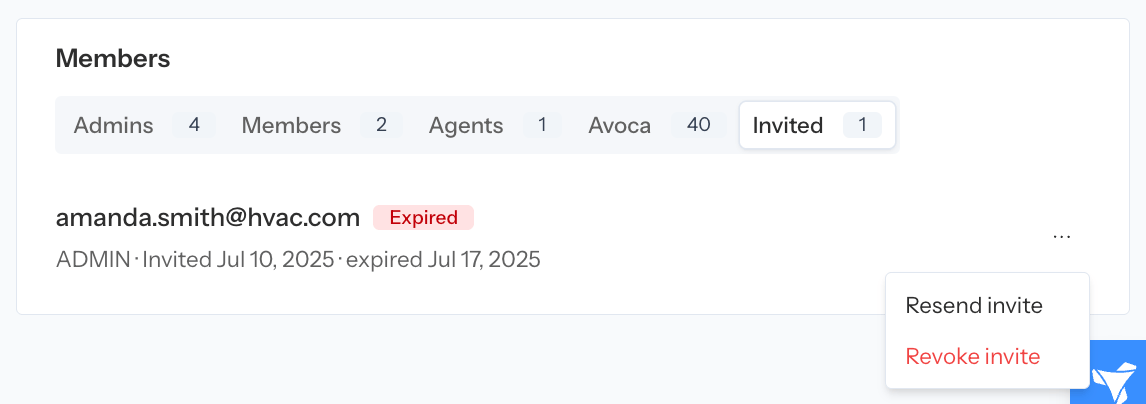
Open the **Invited** tab to review outstanding invitations.
From this tab, an authorized administrator can:
* Resend an invitation
* Revoke an invitation
* Confirm the selected role and ServiceTitan agent
* See when the invitation was created and when it expires
If an email already belongs to a member or has a pending invitation, Avoca skips that row and reports how many invitations were sent.
## Track pending invitations
Open the **Invited** tab to review outstanding invitations.
From this tab, an authorized administrator can:
* Resend an invitation
* Revoke an invitation
* Confirm the selected role and ServiceTitan agent
* See when the invitation was created and when it expires
 Ask the invitee to check spam or quarantine folders if the message does not arrive.
## Map an agent to ServiceTitan
**View Own Coach Performance** uses the member's ServiceTitan agent ID to find the correct Coach scorecard.
Set the mapping while sending the invitation, or update the member after they join.
Mapping a dashboard member to a ServiceTitan agent is not the same as creating an **Employee Contact**. The member mapping controls Coach identity and dashboard access. Employee Contacts control operational routing and delivery.
If an agent sees no performance data:
1. Confirm the member has **View Coach** and **View Own Coach Performance**.
2. Confirm the member is mapped to the correct ServiceTitan agent.
3. Confirm calls exist for that agent in the selected date range.
4. Check whether the calls are attributed to **Unassigned** or a different ServiceTitan agent.
## Verify access after the person joins
Ask the new member to sign in and open **Products → Coach**.
Verify the result against their job:
| They need to… | They should be able to… |
| ------------------------------- | --------------------------------------------------------- |
| Manage team performance | Open Overview and the full Agent Performance roster |
| Self-review as a CSR | Open only their linked Agent Performance scorecard |
| Correct call disposition | Open supported call details and reclassification controls |
| Work missed opportunities | Open Recovery, when enabled |
| Configure rubrics and reporting | Open Coach Settings |
| Calibrate AI grading | Unlock and edit call-level rubric answers |
| Change automatic classification | Edit reclassification configuration |
Continue with [Coach overview](/coach/overview), [Analyze agent performance](/coach/agent-performance), or [Configure and analyze rubrics](/coach/rubrics).
## Troubleshoot access
### The invitation email did not arrive
Confirm the email spelling, check spam or quarantine folders, and resend the invitation from **Invited**.
### The person signed in but cannot see Coach
Confirm that Coach is enabled for the team and that the member has **View Coach**.
### An agent cannot see their own scorecard
Confirm **View Own Coach Performance** and the ServiceTitan agent mapping. If the member has no mapping, Coach cannot safely determine which agent page belongs to them.
### A Member cannot open Settings
This is the default. Grant **View Coach Settings** only when the person needs configuration access.
### A manager can view a score but cannot change it
Grant **Edit Call Scores**. Viewing all Agent Performance does not imply score-editing access.
### A manager can view settings but cannot change reclassification
Grant **Edit Reclassification Config**. This permission controls bookability and booked criteria, automatic reclassification settings, and call reasons.
### The company uses Single Sign-On
Configure SAML under **Members → Single Sign-On** when it is enabled for the team. Coordinate provisioning and SSO-only enforcement with the identity-provider administrator and Avoca.
See [Manage members, employee contacts, and SSO](/business-info/members-and-sso) for the broader access model.
Ask the invitee to check spam or quarantine folders if the message does not arrive.
## Map an agent to ServiceTitan
**View Own Coach Performance** uses the member's ServiceTitan agent ID to find the correct Coach scorecard.
Set the mapping while sending the invitation, or update the member after they join.
Mapping a dashboard member to a ServiceTitan agent is not the same as creating an **Employee Contact**. The member mapping controls Coach identity and dashboard access. Employee Contacts control operational routing and delivery.
If an agent sees no performance data:
1. Confirm the member has **View Coach** and **View Own Coach Performance**.
2. Confirm the member is mapped to the correct ServiceTitan agent.
3. Confirm calls exist for that agent in the selected date range.
4. Check whether the calls are attributed to **Unassigned** or a different ServiceTitan agent.
## Verify access after the person joins
Ask the new member to sign in and open **Products → Coach**.
Verify the result against their job:
| They need to… | They should be able to… |
| ------------------------------- | --------------------------------------------------------- |
| Manage team performance | Open Overview and the full Agent Performance roster |
| Self-review as a CSR | Open only their linked Agent Performance scorecard |
| Correct call disposition | Open supported call details and reclassification controls |
| Work missed opportunities | Open Recovery, when enabled |
| Configure rubrics and reporting | Open Coach Settings |
| Calibrate AI grading | Unlock and edit call-level rubric answers |
| Change automatic classification | Edit reclassification configuration |
Continue with [Coach overview](/coach/overview), [Analyze agent performance](/coach/agent-performance), or [Configure and analyze rubrics](/coach/rubrics).
## Troubleshoot access
### The invitation email did not arrive
Confirm the email spelling, check spam or quarantine folders, and resend the invitation from **Invited**.
### The person signed in but cannot see Coach
Confirm that Coach is enabled for the team and that the member has **View Coach**.
### An agent cannot see their own scorecard
Confirm **View Own Coach Performance** and the ServiceTitan agent mapping. If the member has no mapping, Coach cannot safely determine which agent page belongs to them.
### A Member cannot open Settings
This is the default. Grant **View Coach Settings** only when the person needs configuration access.
### A manager can view a score but cannot change it
Grant **Edit Call Scores**. Viewing all Agent Performance does not imply score-editing access.
### A manager can view settings but cannot change reclassification
Grant **Edit Reclassification Config**. This permission controls bookability and booked criteria, automatic reclassification settings, and call reasons.
### The company uses Single Sign-On
Configure SAML under **Members → Single Sign-On** when it is enabled for the team. Coordinate provisioning and SSO-only enforcement with the identity-provider administrator and Avoca.
See [Manage members, employee contacts, and SSO](/business-info/members-and-sso) for the broader access model.