> ## Documentation Index
> Fetch the complete documentation index at: https://help.avoca.ai/llms.txt
> Use this file to discover all available pages before exploring further.
# Business Info overview
> Use the Business Info hub to manage the business data, people, schedules, and operating rules Avoca relies on.
Open **Settings → Business Info** in the Avoca dashboard. The page is a hub of tiles rather than one long settings form.
The tiles you see depend on your team's enabled products and your permissions. A saved URL does not bypass those requirements.
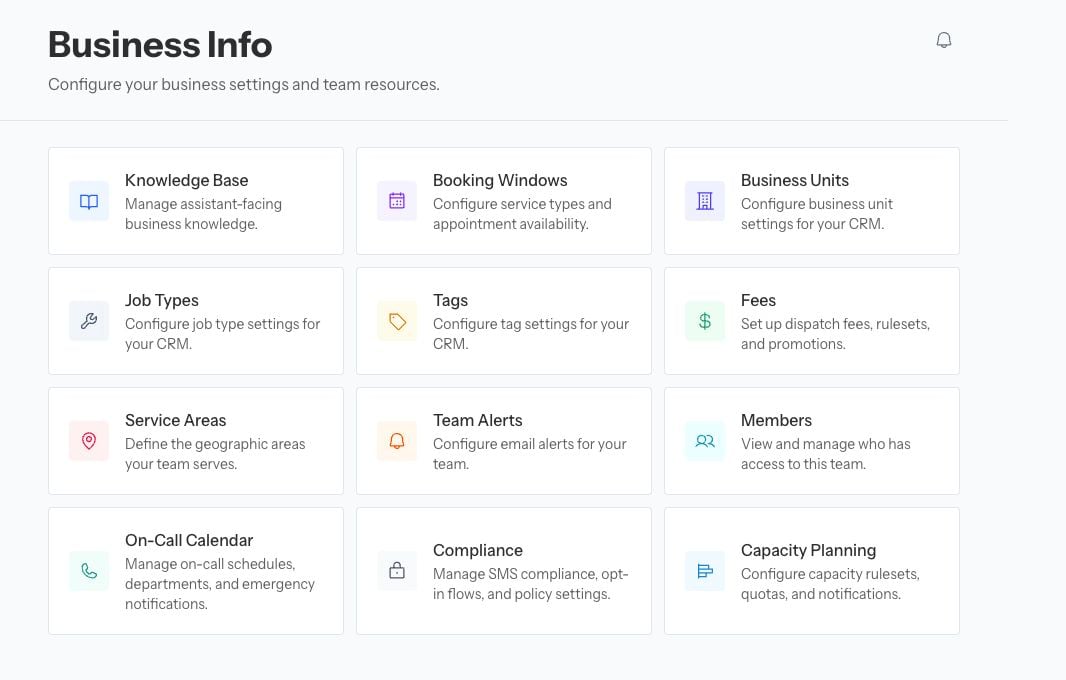 ## Choose the right source of truth
| Tile | Use it for |
| ----------------------------------------------- | --------------------------------------------------------------------------------------------------------------------------- |
| **Knowledge Base** | Business hours, policies, services, memberships, emergency guidance, and other facts Avoca's assistants use with customers. |
| **Brand Kit** | Approved logos, colors, and images used by supported creative tools. |
| **Job Types**, **Business Units**, and **Tags** | Review and configure the CRM catalog records Avoca can use. Business Units and Tags are shown for ServiceTitan teams. |
| **Service Areas** | Define the ZIP or postal-code patterns the team serves. |
| **Booking Windows** | Map service and appointment types and define when appointments can be offered. The **Holidays** tab adds exceptions. |
| **Fees** | Define customer-facing fees, the conditions on each fee, holiday overrides, and promotions. |
| **Members** | Manage dashboard access, employee contacts, and Single Sign-On when enabled. |
| **Team Alerts** | Route internal operational alerts to selected recipients. |
| **On-Call Calendar** | Maintain emergency recipients, schedules, broadcast history, and on-call behavior. |
| **Skills** | Review technician eligibility and the skills read from ServiceTitan when the Skills product is enabled. |
| **Capacity Planning** | Review and configure the capacity Avoca uses to decide which appointment windows are available. |
| **Compliance** | Manage available messaging compliance and opt-in settings. |
The CRM remains the source of truth for its catalog and customer records. The Business Info pages control how Avoca interprets or uses those records. If a job type, business unit, tag, or technician is missing, correct or sync the CRM record before creating a duplicate in Avoca.
## Make a safe change
1. Confirm the team name in the dashboard.
2. Open the relevant Business Info tile.
3. Record the current setting before changing live booking, routing, fee, or notification behavior.
4. Save the smallest required change.
5. Test the affected scenario in the appropriate Avoca testing surface.
6. Check the resulting call, message, booking, or alert.
Business Info is shared by several Avoca products. A change to hours, service areas, catalog mappings, fees, or capacity can affect live customer conversations immediately.
## If a tile is missing
Confirm that you selected the right team, that the product is enabled, and that your role has the relevant view or edit permission. Ask a team admin or Avoca Support for access rather than using another team's configuration as a workaround.
## Choose the right source of truth
| Tile | Use it for |
| ----------------------------------------------- | --------------------------------------------------------------------------------------------------------------------------- |
| **Knowledge Base** | Business hours, policies, services, memberships, emergency guidance, and other facts Avoca's assistants use with customers. |
| **Brand Kit** | Approved logos, colors, and images used by supported creative tools. |
| **Job Types**, **Business Units**, and **Tags** | Review and configure the CRM catalog records Avoca can use. Business Units and Tags are shown for ServiceTitan teams. |
| **Service Areas** | Define the ZIP or postal-code patterns the team serves. |
| **Booking Windows** | Map service and appointment types and define when appointments can be offered. The **Holidays** tab adds exceptions. |
| **Fees** | Define customer-facing fees, the conditions on each fee, holiday overrides, and promotions. |
| **Members** | Manage dashboard access, employee contacts, and Single Sign-On when enabled. |
| **Team Alerts** | Route internal operational alerts to selected recipients. |
| **On-Call Calendar** | Maintain emergency recipients, schedules, broadcast history, and on-call behavior. |
| **Skills** | Review technician eligibility and the skills read from ServiceTitan when the Skills product is enabled. |
| **Capacity Planning** | Review and configure the capacity Avoca uses to decide which appointment windows are available. |
| **Compliance** | Manage available messaging compliance and opt-in settings. |
The CRM remains the source of truth for its catalog and customer records. The Business Info pages control how Avoca interprets or uses those records. If a job type, business unit, tag, or technician is missing, correct or sync the CRM record before creating a duplicate in Avoca.
## Make a safe change
1. Confirm the team name in the dashboard.
2. Open the relevant Business Info tile.
3. Record the current setting before changing live booking, routing, fee, or notification behavior.
4. Save the smallest required change.
5. Test the affected scenario in the appropriate Avoca testing surface.
6. Check the resulting call, message, booking, or alert.
Business Info is shared by several Avoca products. A change to hours, service areas, catalog mappings, fees, or capacity can affect live customer conversations immediately.
## If a tile is missing
Confirm that you selected the right team, that the product is enabled, and that your role has the relevant view or edit permission. Ask a team admin or Avoca Support for access rather than using another team's configuration as a workaround.