> ## Documentation Index
> Fetch the complete documentation index at: https://help.avoca.ai/llms.txt
> Use this file to discover all available pages before exploring further.
# Notifications Settings
## Employee Contact Settings
After [adding an employee](/Settings-Adding-Members-to-the-Avoca-Dashboard-2f0f2b56d4d580b2a4c4e115a0af92bb) you'll see several settings that control how that contact interacts with different Avoca features. Here's what each setting does:
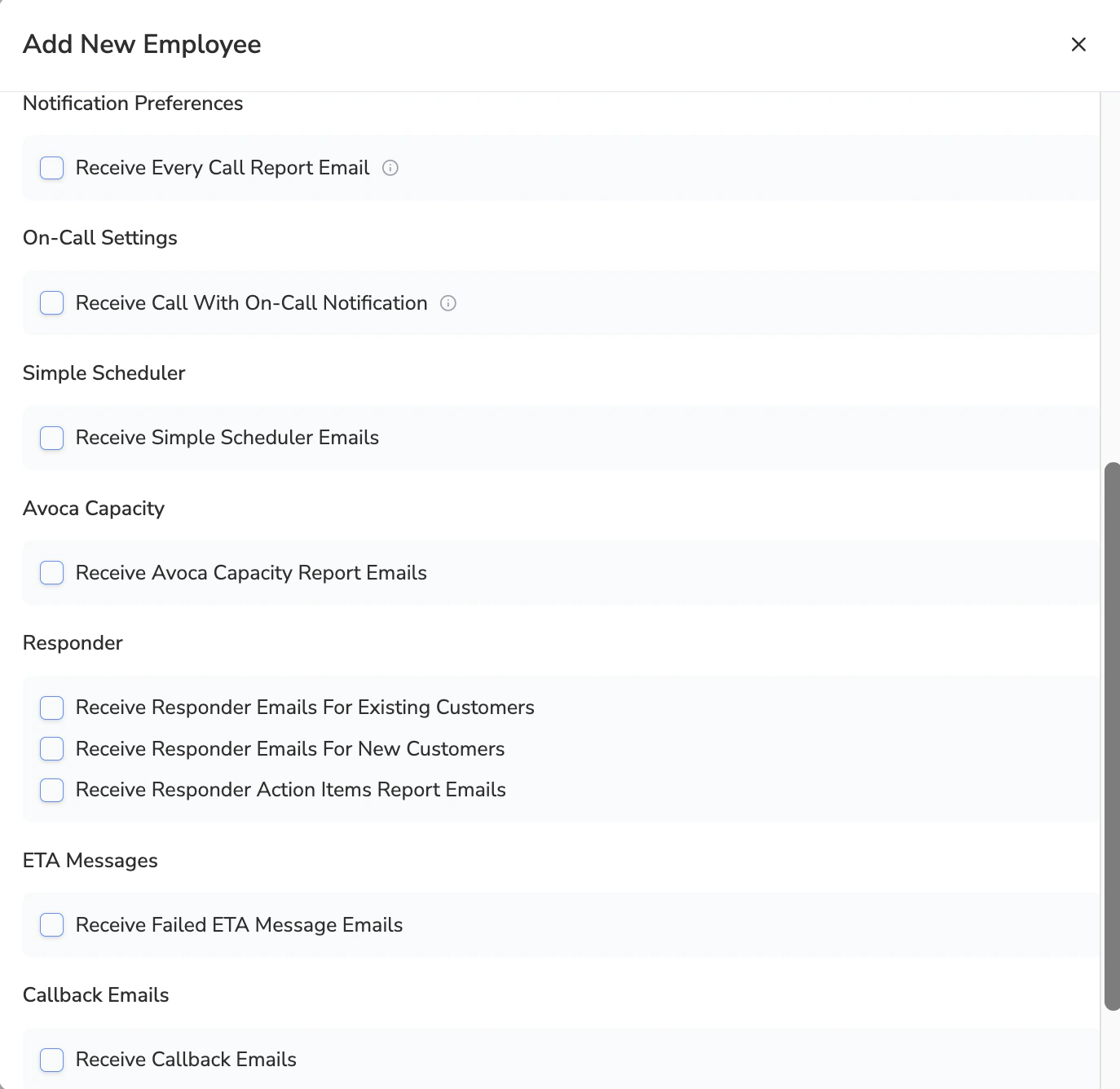 **Notification Preferences**
* If you want this employee to receive all the Avoca call summaries.
* This NEEDS to be enabled for you to be able to configure your preferences in the [Responder](/On-Call-Calendar-Setup-User-Guide-2cef2b56d4d580e79415efffd457d758) section.
**On-Call Settings**
* Determines whether this employee should receive on-call notifications if they have a shift assigned
**Simple Scheduler**
* Controls whether this employee receives notifications when a job gets booked via the Avoca Simple Scheduler
*If you currently don’t have Avoca’s Simple Scheduler and you’d like to learn more, please reach out to your Avoca CSM*
**Avoca Capacity**
* Determines whether this contact receives reminders to review and adjust their Avoca Capacity
*If you are not sure if you are using Avoca Capacity, please reach out to your Avoca CSM*
**Responder**
* Receive Responder Emails For Existing Customers
* Receive Responder Emails For New Customers
* Receive Responder Action Items Report Emails
* **Hourly Reports**: Sent every hour from 8 AM to 8 PM, covering action items from the previous hour
* **Daily Summary**: Sent at 8 AM each day, covering overnight action items (8 PM to 8 AM)
**ETA Messages**
* Determines whether this employee receives a notification if a customer called regarding ETA for a job
**Call Back Emails**
* Controls whether this contact receives notifications when customers request callbacks
When adding or editing an employee contact, you may notice a **"Description for Routes"** field. This advanced feature allows you to set up custom email routing rules for specific call scenarios.
### How It Works
The "Description for Routes" field lets you automatically route certain types of calls to specific email addresses based on the call content or scenario. When you configure this field:
* The employee will **only** receive emails for the specific scenarios you define
* Other email notification toggles (like "Receive Every Call Report Email") will be **ignored** for this contact
* This email address will be **excluded** from receiving default email notifications
### Use Cases
**Example 1: Department-Specific Routing**
If someone calls after hours wanting to pay a bill, you can automatically send an email notification to your billing department contact.
**Example 2: Membership Inquiries**
Route all membership-related calls to your membership coordinator's email address.
**Example 3: Time-Based Routing**
You can set up time-based routing rules to send notifications to different people depending on when the call comes in.
**When to Use This Feature**
This is an advanced feature best used when you need granular control over who gets notified about specific types of calls. Most teams won't need this—the standard notification settings work well for typical use cases.
If you're interested in setting up custom routing rules, contact your Avoca Customer Success Manager for assistance with configuration.
**Notification Preferences**
* If you want this employee to receive all the Avoca call summaries.
* This NEEDS to be enabled for you to be able to configure your preferences in the [Responder](/On-Call-Calendar-Setup-User-Guide-2cef2b56d4d580e79415efffd457d758) section.
**On-Call Settings**
* Determines whether this employee should receive on-call notifications if they have a shift assigned
**Simple Scheduler**
* Controls whether this employee receives notifications when a job gets booked via the Avoca Simple Scheduler
*If you currently don’t have Avoca’s Simple Scheduler and you’d like to learn more, please reach out to your Avoca CSM*
**Avoca Capacity**
* Determines whether this contact receives reminders to review and adjust their Avoca Capacity
*If you are not sure if you are using Avoca Capacity, please reach out to your Avoca CSM*
**Responder**
* Receive Responder Emails For Existing Customers
* Receive Responder Emails For New Customers
* Receive Responder Action Items Report Emails
* **Hourly Reports**: Sent every hour from 8 AM to 8 PM, covering action items from the previous hour
* **Daily Summary**: Sent at 8 AM each day, covering overnight action items (8 PM to 8 AM)
**ETA Messages**
* Determines whether this employee receives a notification if a customer called regarding ETA for a job
**Call Back Emails**
* Controls whether this contact receives notifications when customers request callbacks
When adding or editing an employee contact, you may notice a **"Description for Routes"** field. This advanced feature allows you to set up custom email routing rules for specific call scenarios.
### How It Works
The "Description for Routes" field lets you automatically route certain types of calls to specific email addresses based on the call content or scenario. When you configure this field:
* The employee will **only** receive emails for the specific scenarios you define
* Other email notification toggles (like "Receive Every Call Report Email") will be **ignored** for this contact
* This email address will be **excluded** from receiving default email notifications
### Use Cases
**Example 1: Department-Specific Routing**
If someone calls after hours wanting to pay a bill, you can automatically send an email notification to your billing department contact.
**Example 2: Membership Inquiries**
Route all membership-related calls to your membership coordinator's email address.
**Example 3: Time-Based Routing**
You can set up time-based routing rules to send notifications to different people depending on when the call comes in.
**When to Use This Feature**
This is an advanced feature best used when you need granular control over who gets notified about specific types of calls. Most teams won't need this—the standard notification settings work well for typical use cases.
If you're interested in setting up custom routing rules, contact your Avoca Customer Success Manager for assistance with configuration.