> ## Documentation Index
> Fetch the complete documentation index at: https://help.avoca.ai/llms.txt
> Use this file to discover all available pages before exploring further.
# Navigating the Coach Dashboard
> **Goals:** To assist the customer in a high level overview of Coach capabilities.
**Read Time:** 15 mins
## Coach Features:
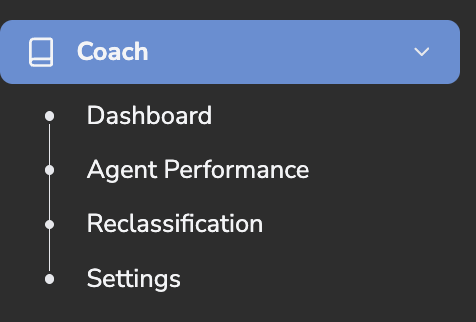 **Dashboard:** High level overview of your orgs metrics
**Agent Performance:** Gives an review of your team strengths and weakness based on the rubric you provided
**Reclassification:** If you need to manually change the rating of a customer call
**Settings: I**f you need to update the grading rubric
## Dashboard:
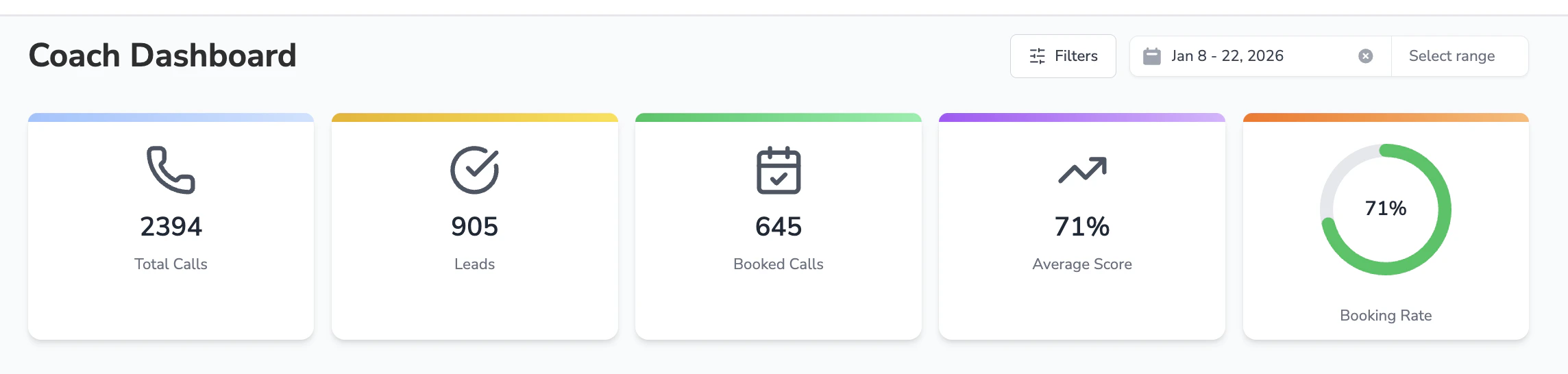
This page breaks into detail of your team metrics into three categories: Dashboard, Call Performance, Coach Calls
* Based on the filters chosen located on the top dashboard the metrics will reflect this data
**Dashboard:** High level overview of your orgs metrics
**Agent Performance:** Gives an review of your team strengths and weakness based on the rubric you provided
**Reclassification:** If you need to manually change the rating of a customer call
**Settings: I**f you need to update the grading rubric
## Dashboard:
This page breaks into detail of your team metrics into three categories: Dashboard, Call Performance, Coach Calls
* Based on the filters chosen located on the top dashboard the metrics will reflect this data

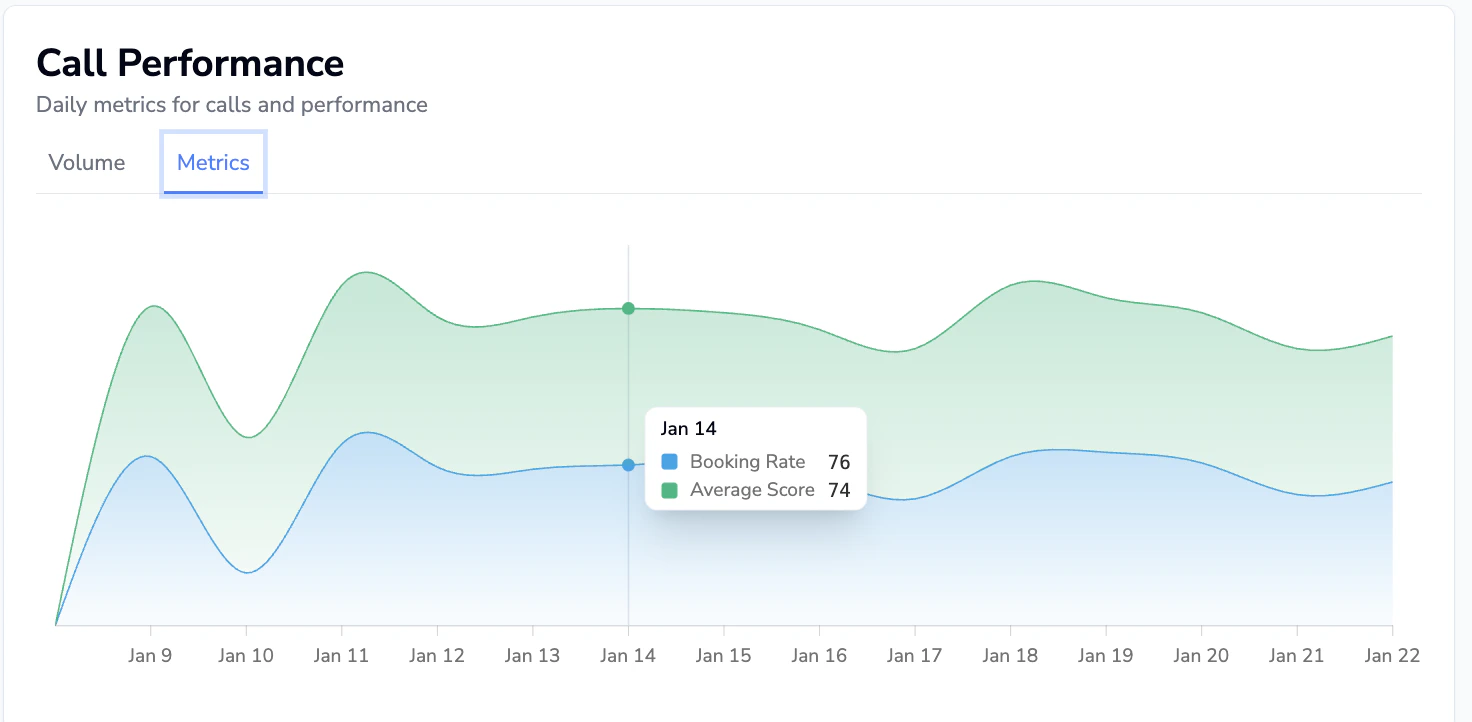
 ## Call Performance
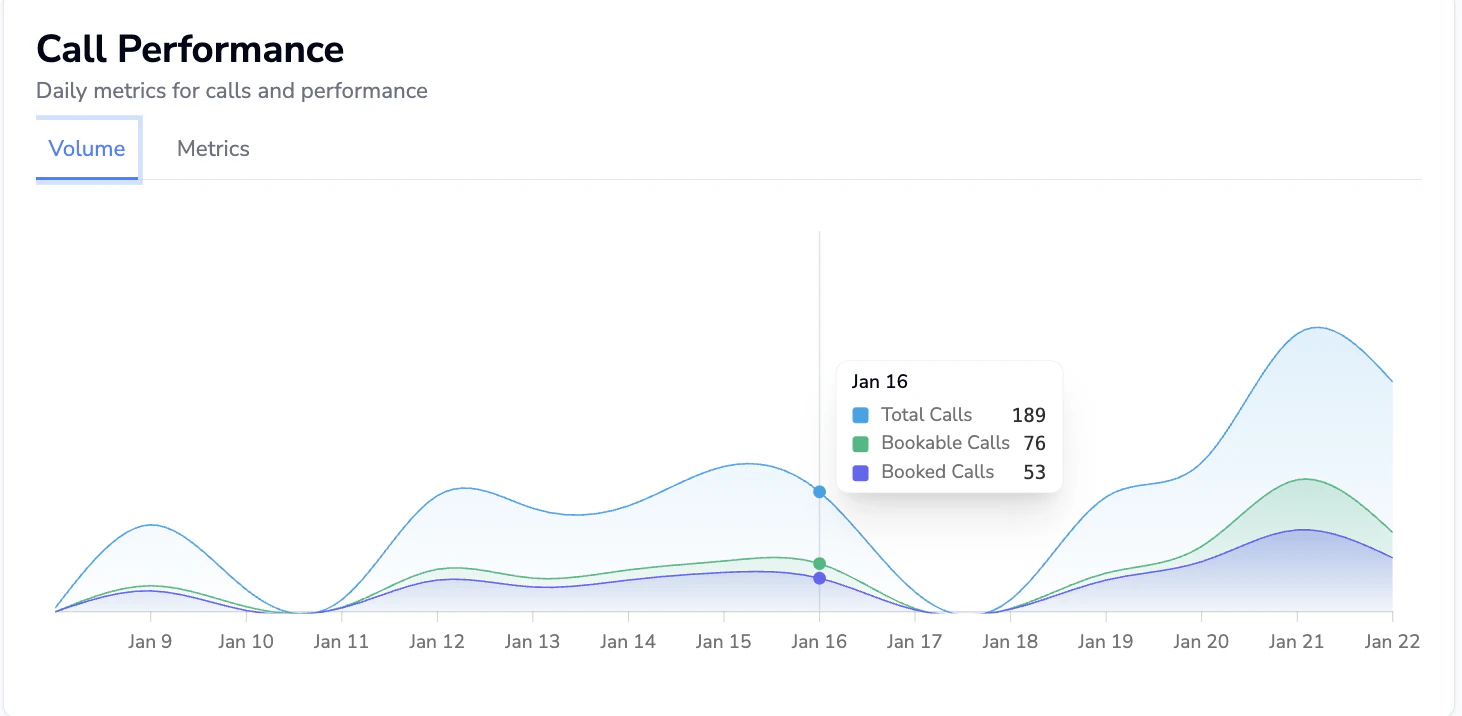
* Based on the date range and filter chosen this will provide a visual aid to review call data
* *Hover your cursor over the graph to pull the granular data of the calls*
## Call Performance
* Based on the date range and filter chosen this will provide a visual aid to review call data
* *Hover your cursor over the graph to pull the granular data of the calls*
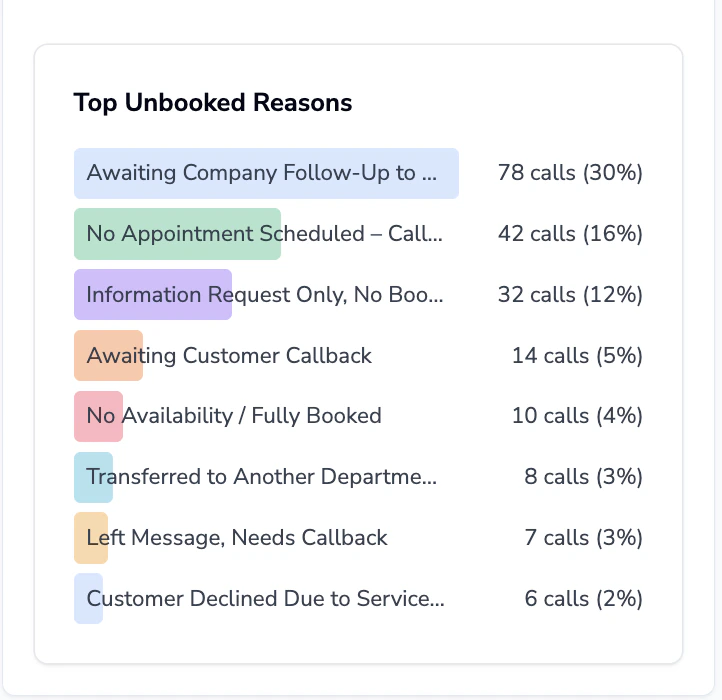
 ## Top Unbooked Reasons
* Presents Avoca’s best-practice [call reason](/Coach-Unbooked-Call-Reasons-List-2f1f2b56d4d58003a646cbc0defa27f5) list and establishes a grading rubric for assessing call quality
* *Hover your cursor over the call reason to get an explanation*
## Top Unbooked Reasons
* Presents Avoca’s best-practice [call reason](/Coach-Unbooked-Call-Reasons-List-2f1f2b56d4d58003a646cbc0defa27f5) list and establishes a grading rubric for assessing call quality
* *Hover your cursor over the call reason to get an explanation*
 ## Coach Calls
* Gain insight into your team's call performance and quality
## Coach Calls
* Gain insight into your team's call performance and quality
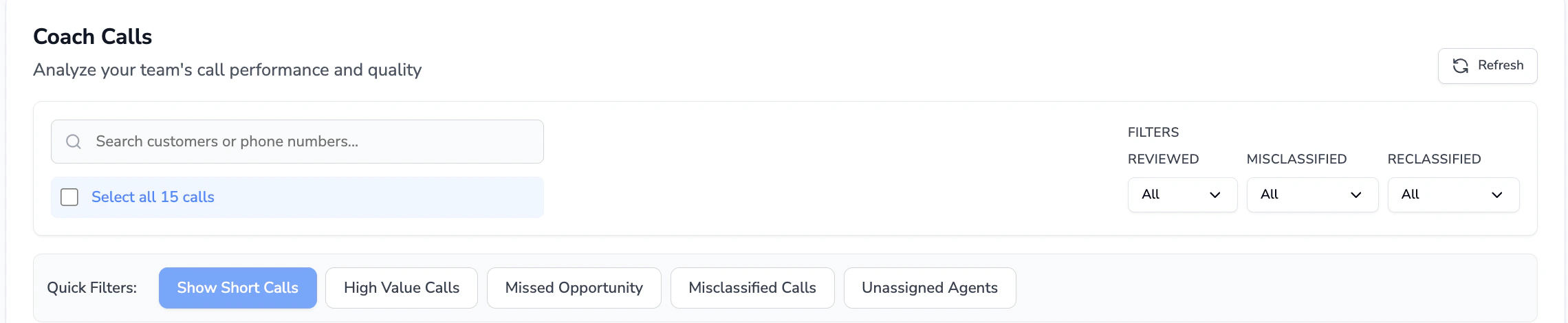 * Use quick filters to view silo team results
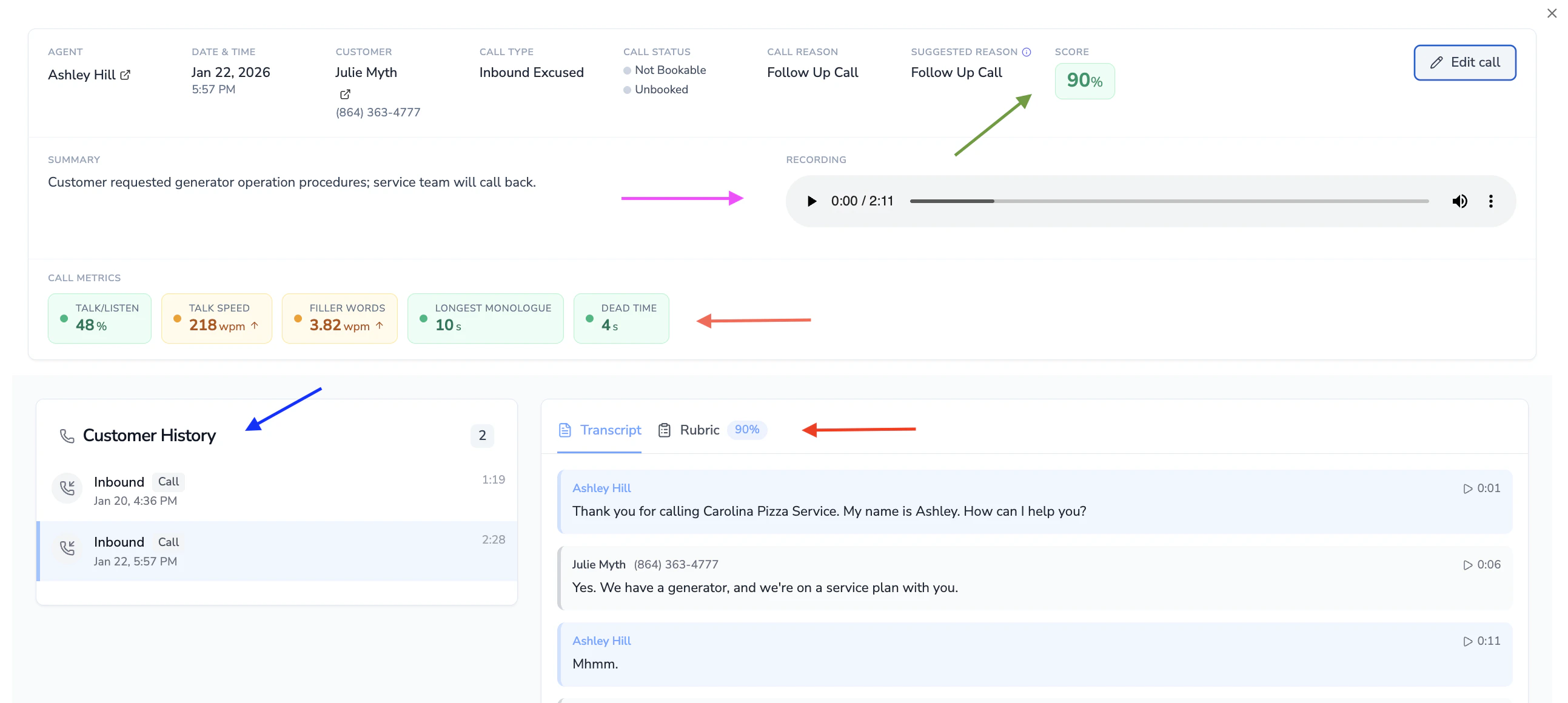
* To view more details click into the call to view the grading based on your rubric. You can also view the transcript recording and rubric grading
* Use quick filters to view silo team results
* To view more details click into the call to view the grading based on your rubric. You can also view the transcript recording and rubric grading
 ## Filtering calls
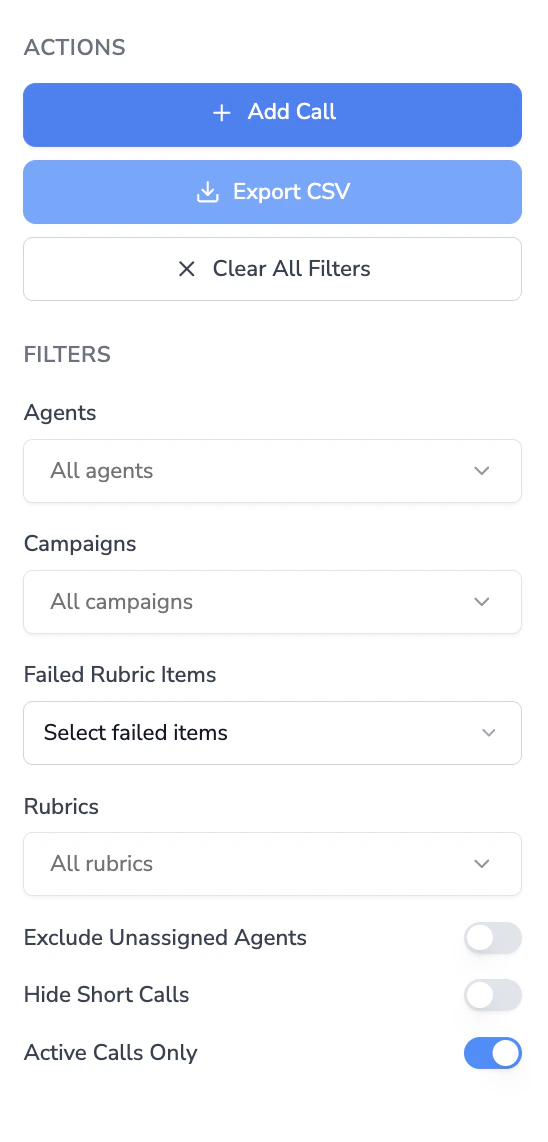
The Coach dashboard includes a filter sidebar with the following options:
| Filter | Description |
| ----------------------- | ------------------------------------------------------------------------------------------ |
| **Date range** | Select a custom date range for the calls displayed. |
| **Agents** | Filter by one or more CSR agents. |
| **Agent groups** | Filter by agent group if your team has groups configured. |
| **Tags** | Filter by Coach tags applied to calls. |
| **Rubrics** | Filter by a specific rubric to see only calls evaluated against it. |
| **Failed rubric items** | Filter to calls that failed specific rubric checklist items. |
| **Call reasons** | Filter by Avoca-suggested call reason or ServiceTitan call reason. |
| **Campaigns** | Filter by the marketing campaign associated with the call. |
| **Call types** | Filter by inbound, outbound, or other call types. |
| **Score range** | Set a minimum and/or maximum score percentage to narrow results. |
| **Duration range** | Set a minimum and/or maximum call duration in seconds. |
| **Quick toggles** | Toggle filters for misclassified calls, reclassified calls, and reviewed/unreviewed calls. |
| **Business hours** | Toggle to show only calls during configured business hours. |
| **Customer sentiment** | Filter by detected customer sentiment. |
Active filters appear as dismissible pills above the calls table. Click any pill to remove that filter.
## Exporting call data
You can export Coach call data as a CSV file for offline analysis.
Click **Export Data** above the calls table to open the export dialog.
By default, the export uses the date range selected in the dashboard filters. Click **Change date range** to override the range with custom start and end dates.
Click **Start Export**. The export is generated in the background — you will receive an email when it is ready to download.
Once complete, return to the export dialog to see your recent exports and click **Download CSV** to save the file.
The exported CSV includes call ID, date, score, agent name, customer name, call type, call reason, direction, campaign, booking status, tags, summary, rubric name, and individual rubric item results.
You can view the status of up to three recent exports directly in the export dialog, including progress percentage for in-progress exports.
## Filtering calls
The Coach dashboard includes a filter sidebar with the following options:
| Filter | Description |
| ----------------------- | ------------------------------------------------------------------------------------------ |
| **Date range** | Select a custom date range for the calls displayed. |
| **Agents** | Filter by one or more CSR agents. |
| **Agent groups** | Filter by agent group if your team has groups configured. |
| **Tags** | Filter by Coach tags applied to calls. |
| **Rubrics** | Filter by a specific rubric to see only calls evaluated against it. |
| **Failed rubric items** | Filter to calls that failed specific rubric checklist items. |
| **Call reasons** | Filter by Avoca-suggested call reason or ServiceTitan call reason. |
| **Campaigns** | Filter by the marketing campaign associated with the call. |
| **Call types** | Filter by inbound, outbound, or other call types. |
| **Score range** | Set a minimum and/or maximum score percentage to narrow results. |
| **Duration range** | Set a minimum and/or maximum call duration in seconds. |
| **Quick toggles** | Toggle filters for misclassified calls, reclassified calls, and reviewed/unreviewed calls. |
| **Business hours** | Toggle to show only calls during configured business hours. |
| **Customer sentiment** | Filter by detected customer sentiment. |
Active filters appear as dismissible pills above the calls table. Click any pill to remove that filter.
## Exporting call data
You can export Coach call data as a CSV file for offline analysis.
Click **Export Data** above the calls table to open the export dialog.
By default, the export uses the date range selected in the dashboard filters. Click **Change date range** to override the range with custom start and end dates.
Click **Start Export**. The export is generated in the background — you will receive an email when it is ready to download.
Once complete, return to the export dialog to see your recent exports and click **Download CSV** to save the file.
The exported CSV includes call ID, date, score, agent name, customer name, call type, call reason, direction, campaign, booking status, tags, summary, rubric name, and individual rubric item results.
You can view the status of up to three recent exports directly in the export dialog, including progress percentage for in-progress exports.