> ## Documentation Index
> Fetch the complete documentation index at: https://help.avoca.ai/llms.txt
> Use this file to discover all available pages before exploring further.
# Inviting your Managers and CSRs
## Overview
Coach allows you to give managers and Customer Service Representatives (CSRs) visibility into call performance.
Managers can review team performance and trends, while CSRs can self-review their own calls for coaching and improvement.
Access is controlled through role-based permissions, ensuring each user only sees what is relevant to them.
## Step 1: Navigate to Members
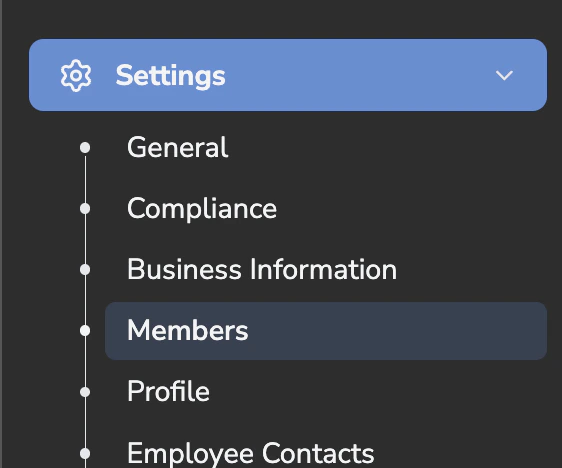
Go to **Settings**
Select **Members**
This is where you invite new users and manage access levels.
 ## Inviting Managers
Managers typically need visibility into team-level performance and coaching insights.
### How to Invite a Manager
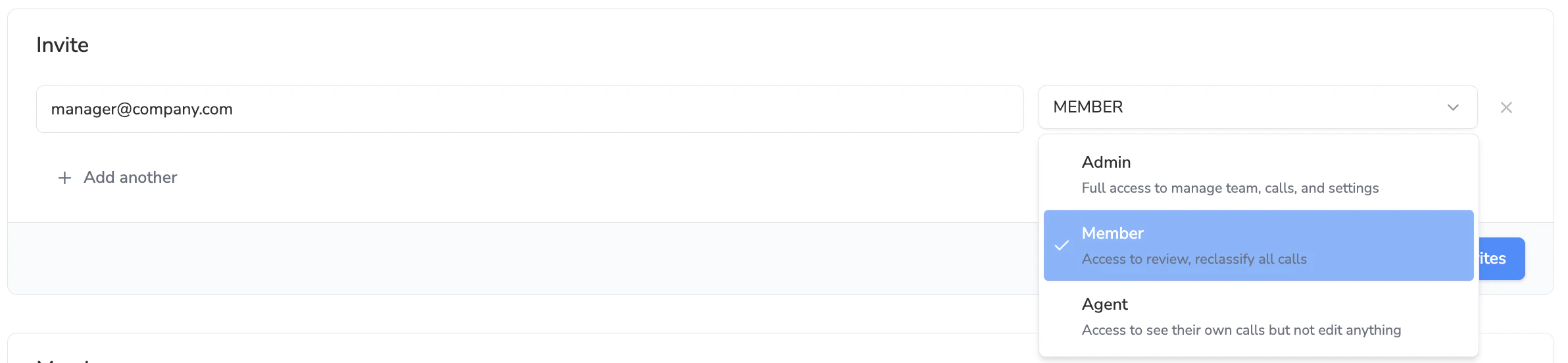
Enter the manager’s email address
Select the appropriate access level:
* **Admin** or **Member**, depending on the level of visibility and control you want to provide
* See [Settings: Adding Members to the Avoca Dashboard](/Settings-Adding-Members-to-the-Avoca-Dashboard-2f0f2b56d4d580b2a4c4e115a0af92bb)
Send the invitation
Managers will be able to log in once they accept the invite.
## Inviting Managers
Managers typically need visibility into team-level performance and coaching insights.
### How to Invite a Manager
Enter the manager’s email address
Select the appropriate access level:
* **Admin** or **Member**, depending on the level of visibility and control you want to provide
* See [Settings: Adding Members to the Avoca Dashboard](/Settings-Adding-Members-to-the-Avoca-Dashboard-2f0f2b56d4d580b2a4c4e115a0af92bb)
Send the invitation
Managers will be able to log in once they accept the invite.
 ## Inviting CSRs (Agents)
CSRs should be invited with **Agent** access. This role is designed for individual contributors who need visibility into their own calls only.
### How to Invite a CSR
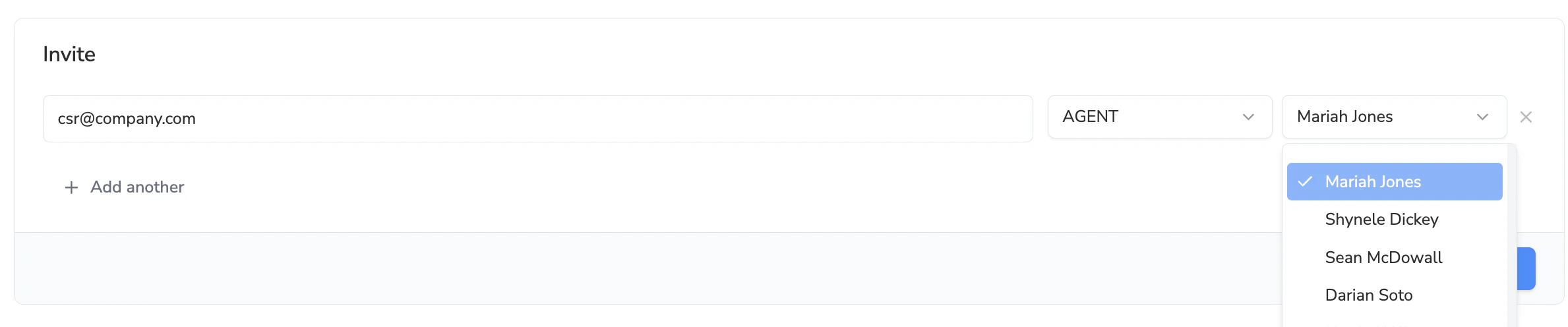
Enter the CSR’s email address
Select **Agent** as the access level
Users invited as **Agents** have the following permissions:
* View **only their own assigned calls**
* Listen to **their own call recordings**
* Cannot view other team members’ calls
* Cannot edit, reclassify, or modify any data
* Cannot access team or account-level settings
This ensures CSRs can self-review without impacting system configuration or other users.
Link the user to the appropriate ServiceTitan agent profile
**Important:** When inviting someone as an Agent, you'll need to **link them to a ServiceTitan agent profile**. This linkage determines which calls they can see:
* Calls are matched based on the ServiceTitan agent ID
* Only calls handled by their linked agent profile will be visible
* If no agent is selected, the system will attempt to match by the user's full name
## Inviting CSRs (Agents)
CSRs should be invited with **Agent** access. This role is designed for individual contributors who need visibility into their own calls only.
### How to Invite a CSR
Enter the CSR’s email address
Select **Agent** as the access level
Users invited as **Agents** have the following permissions:
* View **only their own assigned calls**
* Listen to **their own call recordings**
* Cannot view other team members’ calls
* Cannot edit, reclassify, or modify any data
* Cannot access team or account-level settings
This ensures CSRs can self-review without impacting system configuration or other users.
Link the user to the appropriate ServiceTitan agent profile
**Important:** When inviting someone as an Agent, you'll need to **link them to a ServiceTitan agent profile**. This linkage determines which calls they can see:
* Calls are matched based on the ServiceTitan agent ID
* Only calls handled by their linked agent profile will be visible
* If no agent is selected, the system will attempt to match by the user's full name
 Send the invitation - this will send an email to join the dashboard to the agent’s inbox, where they can then accept the invite