> ## Documentation Index
> Fetch the complete documentation index at: https://help.avoca.ai/llms.txt
> Use this file to discover all available pages before exploring further.
# How to use the feedback doc?
> Here’s the standard way we use the **Testing Feedback Tracker** during bot testing.
### 1) Run a test call
Follow the testing scenarios in the playbook (regular bookings, emergencies, non-booking calls, edge cases).
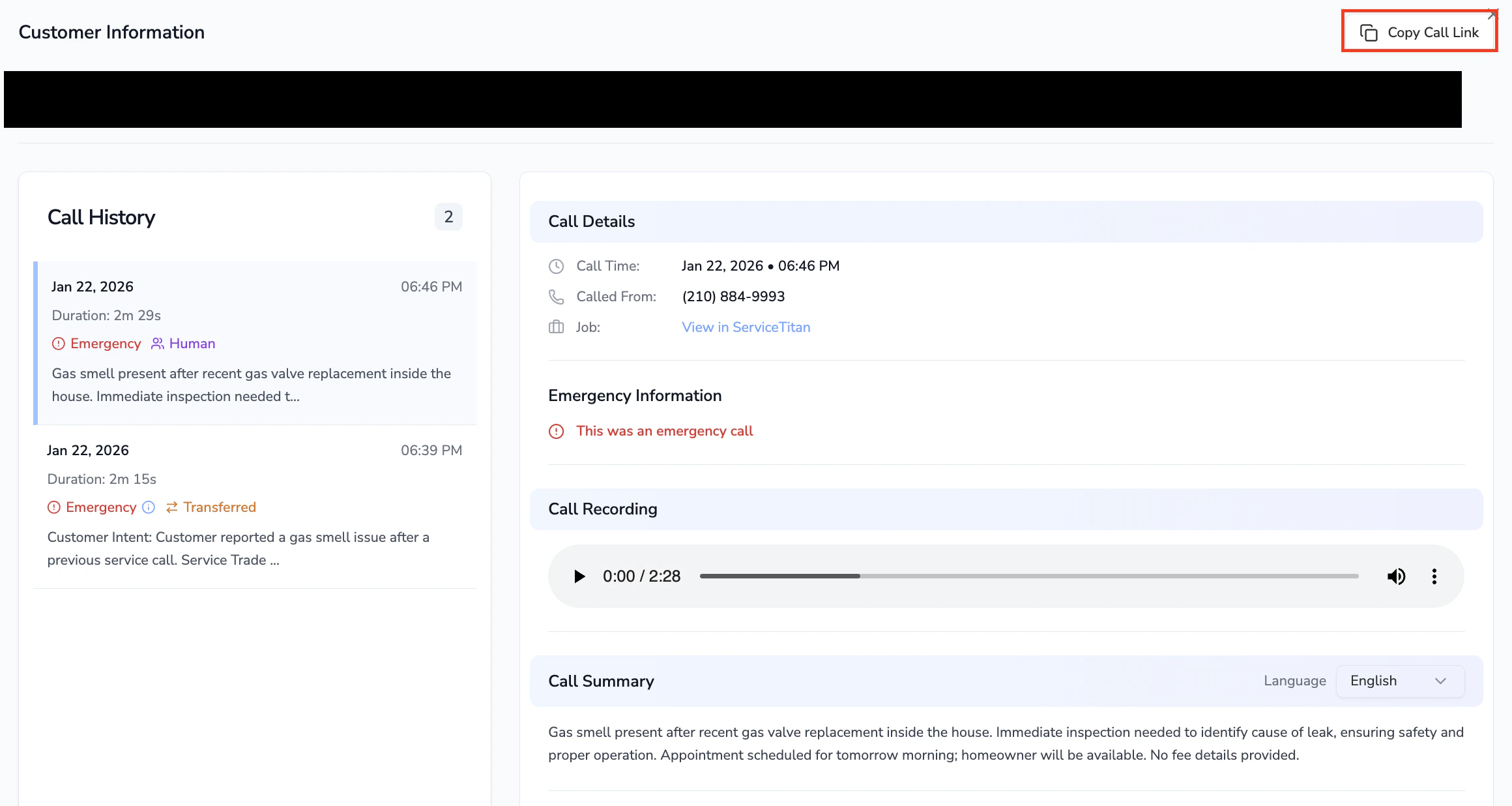
### 2) Grab the call link from Call Logs
After the call:
* Go to **Call Logs**
* Open the call
* **Copy the call URL**
 ### 3) Log the issue i[n the tracker](https://docs.google.com/spreadsheets/d/1BjHt8484VtP1-LUabz7x99OXJEzXOgtq/edit?usp=sharing\&ouid=111852090726336965605\&rtpof=true\&sd=true) (one row per call)
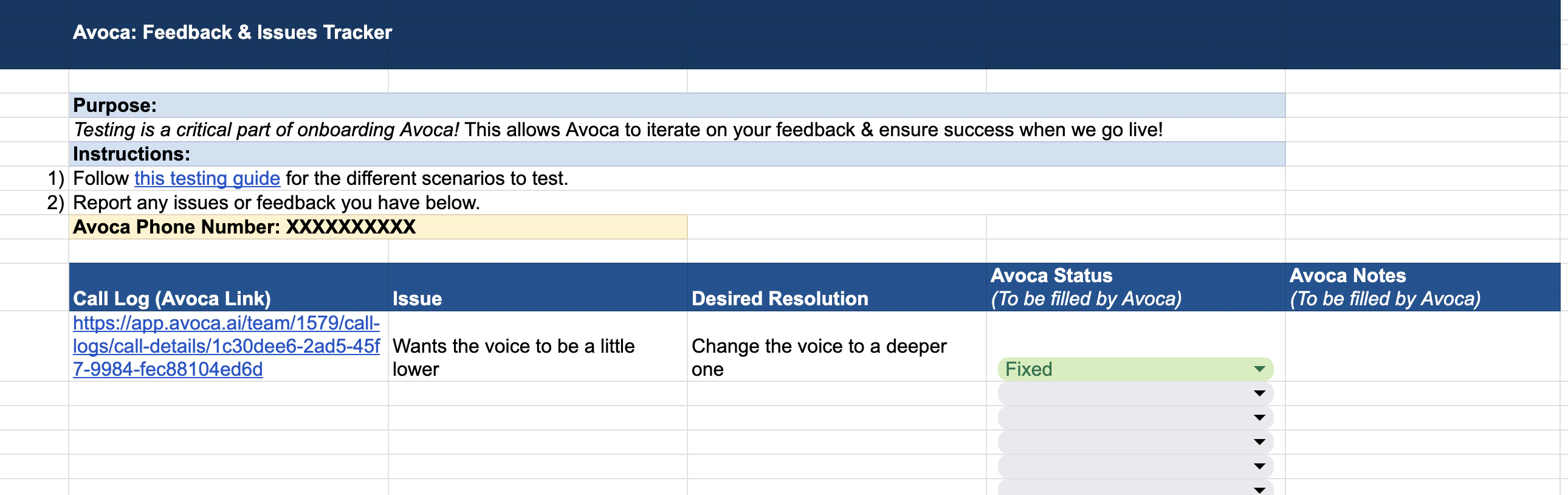
In the tracker, add:
* **Call Log (Avoca Link)**: paste the URL
* **Issue**: what went wrong (be specific)
* **Desired Resolution**: what “good” looks like (even if it feels obvious)
### 3) Log the issue i[n the tracker](https://docs.google.com/spreadsheets/d/1BjHt8484VtP1-LUabz7x99OXJEzXOgtq/edit?usp=sharing\&ouid=111852090726336965605\&rtpof=true\&sd=true) (one row per call)
In the tracker, add:
* **Call Log (Avoca Link)**: paste the URL
* **Issue**: what went wrong (be specific)
* **Desired Resolution**: what “good” looks like (even if it feels obvious)
 ### 4) Use status to drive the workflow
Avoca uses the tracker status to manage the loop:
* **Reported** → new item logged
* **Fix In Progress / Ready to retest** → someone has made or is making a change
* **Fixed / Pass** → confirmed resolved (often after a retest call)
### 5) Keep expectations in mind
* We recommend \~**30 test calls** to cover the common scenarios before go-live.
* **Test calls can create real bookings** in ServiceTitan; cancel them afterward, or once you’ve done a few calls you can tell the bot at the end that it was just a test.
### 4) Use status to drive the workflow
Avoca uses the tracker status to manage the loop:
* **Reported** → new item logged
* **Fix In Progress / Ready to retest** → someone has made or is making a change
* **Fixed / Pass** → confirmed resolved (often after a retest call)
### 5) Keep expectations in mind
* We recommend \~**30 test calls** to cover the common scenarios before go-live.
* **Test calls can create real bookings** in ServiceTitan; cancel them afterward, or once you’ve done a few calls you can tell the bot at the end that it was just a test.