> ## Documentation Index
> Fetch the complete documentation index at: https://help.avoca.ai/llms.txt
> Use this file to discover all available pages before exploring further.
# How to set up auto-reclassification?
### Overview
Auto Reclassification in Coach automatically updates **call types** (and optionally **call reasons**) based on Avoca’s definitions and confidence. Once enabled, you can stop manually reclassifying every call and instead focus on reviewing edge cases. The classification happens everytime the call comes in.
### Before you start
* If you want to use **Auto Call Reasons Reclassification**, make sure your **ServiceTitan Call Reasons** are set up and active in ServiceTitan, since Coach can sync them in.
 ### Step 1: Validate your reclassification setup (recommended)
Before turning on auto reclassification, review a sample of calls to make sure Coach’s suggestions match how you want calls counted.
Go to **Coach → Reclassification**.
Set a **Date Range** and use **Quick Filters** as needed (for example: *Unreviewed*, *Qualified Unbooked*, *Empty Call Reason*).
Review the **Suggested Call Type** and (if applicable) **Suggested Call Reason** for accuracy.
If you notice consistent mismatches, update your configuration before enabling auto reclassification:
* **Bookability Criteria**: Coach → Settings → Reclassification → Bookability Criteria.
### Step 1: Validate your reclassification setup (recommended)
Before turning on auto reclassification, review a sample of calls to make sure Coach’s suggestions match how you want calls counted.
Go to **Coach → Reclassification**.
Set a **Date Range** and use **Quick Filters** as needed (for example: *Unreviewed*, *Qualified Unbooked*, *Empty Call Reason*).
Review the **Suggested Call Type** and (if applicable) **Suggested Call Reason** for accuracy.
If you notice consistent mismatches, update your configuration before enabling auto reclassification:
* **Bookability Criteria**: Coach → Settings → Reclassification → Bookability Criteria.
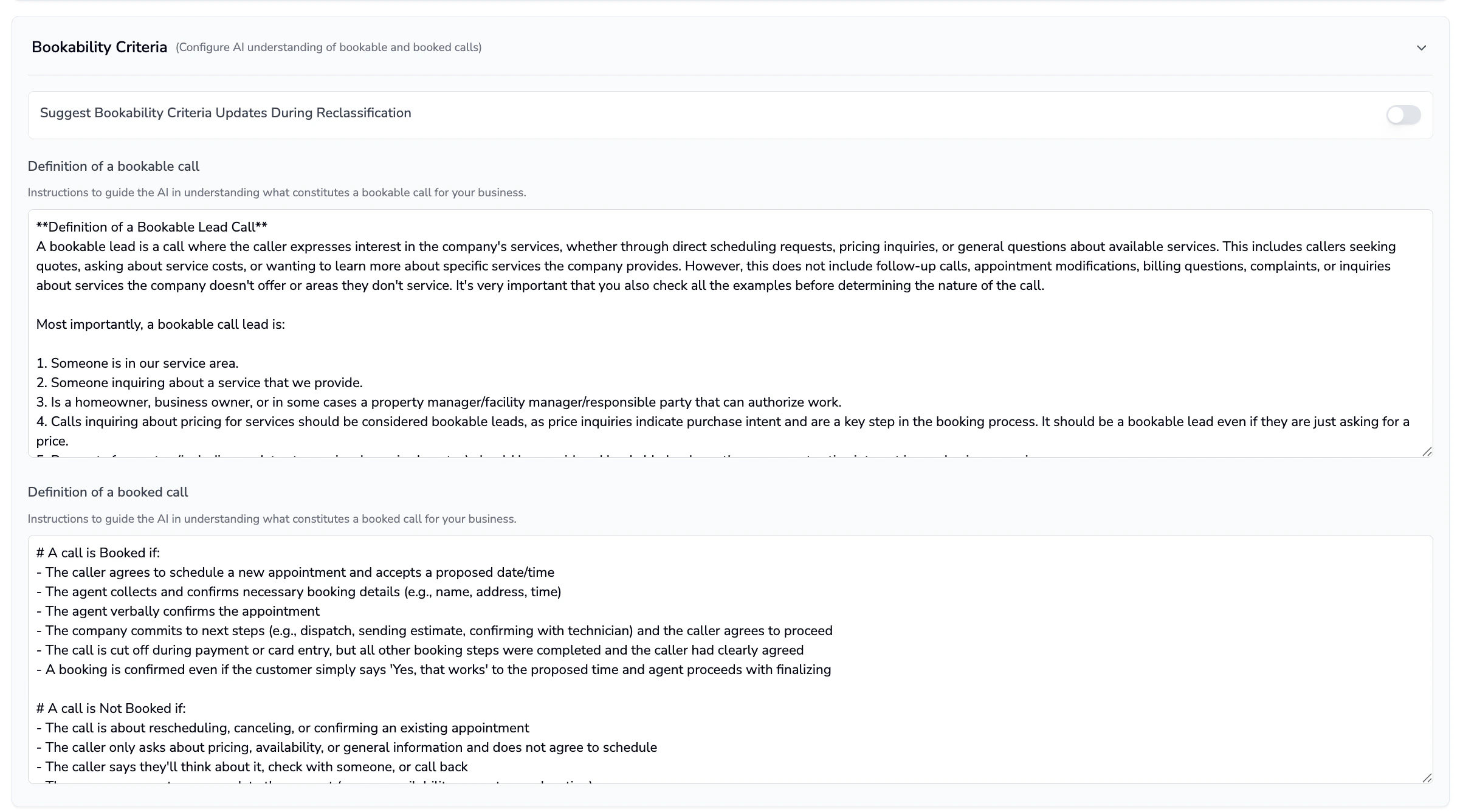 * **Call Reasons**: Coach → Settings → Reclassification → Call Reasons (details below).
 ### Step 2: Sync ServiceTitan call reasons into Coach (optional, but required for auto call reasons)
If your team uses call reasons in ServiceTitan, sync them into Coach so Coach can recommend (and auto-apply) call reasons.
Go to **Coach → Settings → Reclassification → Call Reasons**.
### Step 2: Sync ServiceTitan call reasons into Coach (optional, but required for auto call reasons)
If your team uses call reasons in ServiceTitan, sync them into Coach so Coach can recommend (and auto-apply) call reasons.
Go to **Coach → Settings → Reclassification → Call Reasons**.
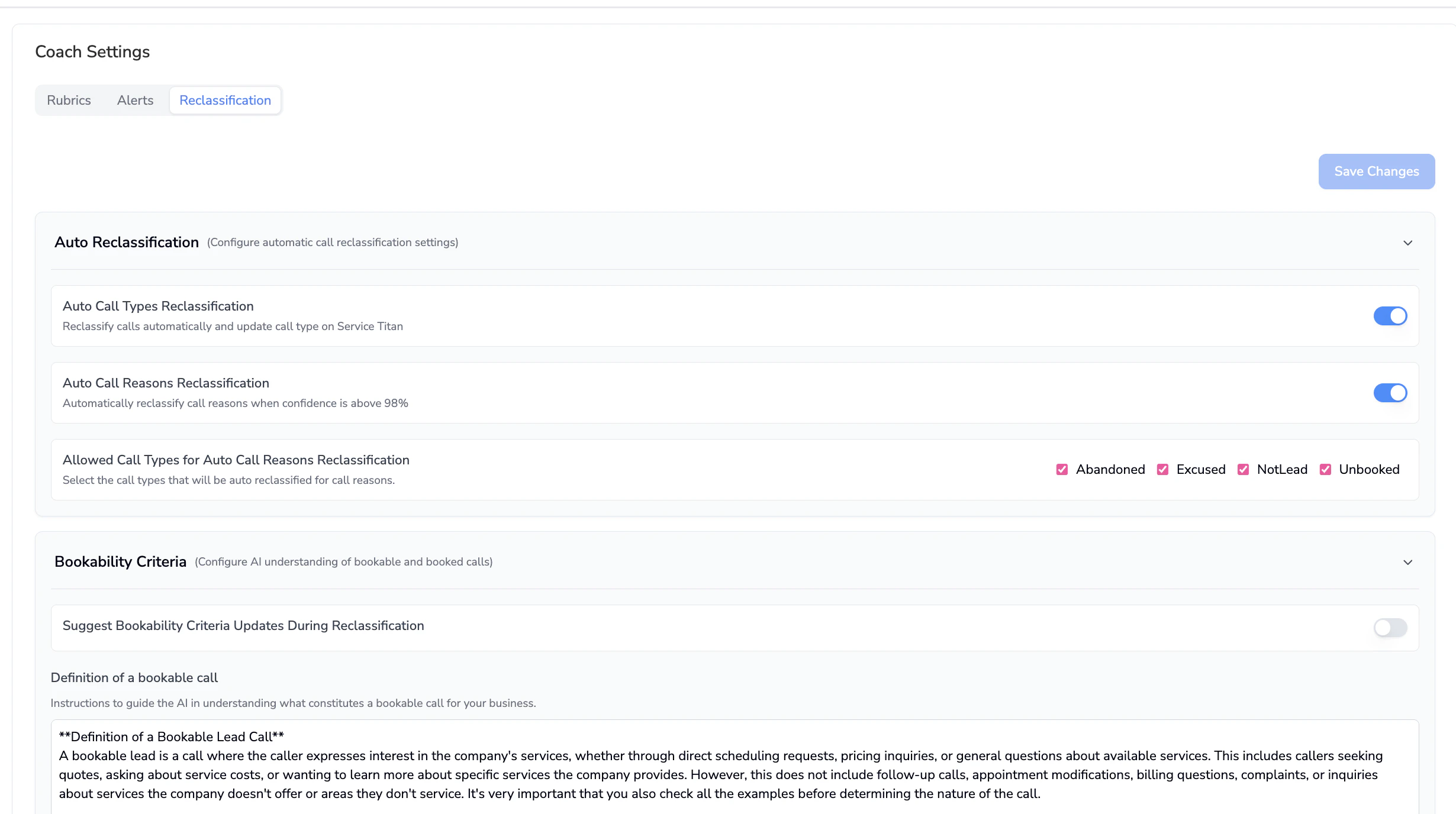 Click **Get Unsynced Reasons from ServiceTitan**.
 Add or refine the **descriptions** for each call reason. Descriptions help the AI pick the correct reason.[\[1\]](/Call-Reclassification-1caf2b56d4d5808ea8c4ebf8794948a1)
Click **Save**.
**Optional setting: Use “Is Lead” in Reclassification**
* If enabled, Coach will use the ServiceTitan “Is Lead” flag to determine whether a call is bookable. This can override your Bookability Criteria logic.
* Only enable this if your team’s “Is Lead” flags are accurate and consistently maintained.
### Step 3: Turn on Auto Reclassification
Go to **Coach → Settings → Reclassification → Auto Reclassification**.
Add or refine the **descriptions** for each call reason. Descriptions help the AI pick the correct reason.[\[1\]](/Call-Reclassification-1caf2b56d4d5808ea8c4ebf8794948a1)
Click **Save**.
**Optional setting: Use “Is Lead” in Reclassification**
* If enabled, Coach will use the ServiceTitan “Is Lead” flag to determine whether a call is bookable. This can override your Bookability Criteria logic.
* Only enable this if your team’s “Is Lead” flags are accurate and consistently maintained.
### Step 3: Turn on Auto Reclassification
Go to **Coach → Settings → Reclassification → Auto Reclassification**.
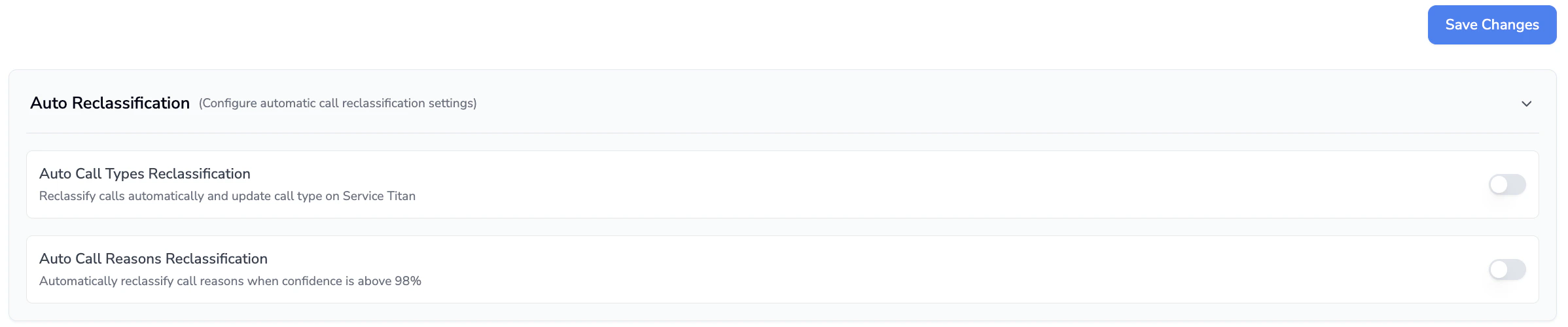 Enable the settings you want:
* **Auto Call Types Reclassification**: Automatically reclassifies calls and updates the call type in ServiceTitan.
* This maps to ServiceTitan outcomes:
* **Excused** (not a service request)
* **Unbooked** (service request, not booked)
* **Not Lead** (related to an existing job)
* **Booked** (job booked)
* **Auto Call Reasons Reclassification**: Automatically reclassifies call reasons when AI confidence is high!
* **Allowed Call Types for Auto Call Reasons Reclassification**: Choose which call types are eligible for auto-updating call reasons (for example, only apply call reasons auto-updates to calls originally marked *Abandoned*).
### What to expect after enabling
* Calls that are successfully reclassified will appear as reviewed and typically highlight **in green** on the Reclassification page.
* Most calls should meet a high confidence threshold for auto call reasons (only a smaller set will need manual review).
### Troubleshooting
* **Call reasons look wrong or empty**
* Re-sync call reasons and ensure descriptions are filled out: Coach → Settings → Reclassification → Call Reasons → Get Unsynced Reasons from ServiceTitan → Save.
* **You’re seeing repeated misclassifications**
* Revisit Bookability Criteria and call reason descriptions. Then re-check accuracy on a small call sample before leaving auto reclassification on.
Enable the settings you want:
* **Auto Call Types Reclassification**: Automatically reclassifies calls and updates the call type in ServiceTitan.
* This maps to ServiceTitan outcomes:
* **Excused** (not a service request)
* **Unbooked** (service request, not booked)
* **Not Lead** (related to an existing job)
* **Booked** (job booked)
* **Auto Call Reasons Reclassification**: Automatically reclassifies call reasons when AI confidence is high!
* **Allowed Call Types for Auto Call Reasons Reclassification**: Choose which call types are eligible for auto-updating call reasons (for example, only apply call reasons auto-updates to calls originally marked *Abandoned*).
### What to expect after enabling
* Calls that are successfully reclassified will appear as reviewed and typically highlight **in green** on the Reclassification page.
* Most calls should meet a high confidence threshold for auto call reasons (only a smaller set will need manual review).
### Troubleshooting
* **Call reasons look wrong or empty**
* Re-sync call reasons and ensure descriptions are filled out: Coach → Settings → Reclassification → Call Reasons → Get Unsynced Reasons from ServiceTitan → Save.
* **You’re seeing repeated misclassifications**
* Revisit Bookability Criteria and call reason descriptions. Then re-check accuracy on a small call sample before leaving auto reclassification on.