> ## Documentation Index
> Fetch the complete documentation index at: https://help.avoca.ai/llms.txt
> Use this file to discover all available pages before exploring further.
# How to set up Fees and Rulesets?
## Overview
Fees in Avoca allow you to configure what your AI agent will quote to customers when booking appointments. By setting up fees and rulesets, you ensure that your bot quotes the correct pricing based on booking windows, job types, call timing, and other conditions.
**Important:**
To use the Fees feature, your account must have Booking Windows enabled. If you don't see the Fees tab in your dashboard, please contact your Customer Success Manager.
## Where to Configure Fees
Navigate to **Scheduling > Fees** in your Avoca Dashboard. You'll see two main tabs:
* **Fees** - Where you create and manage your fee definitions
* **Rulesets** - Where you attach fees to specific booking windows and conditions
## Step 1: Creating Fees
Before you can apply fees to booking windows, you need to create them first.
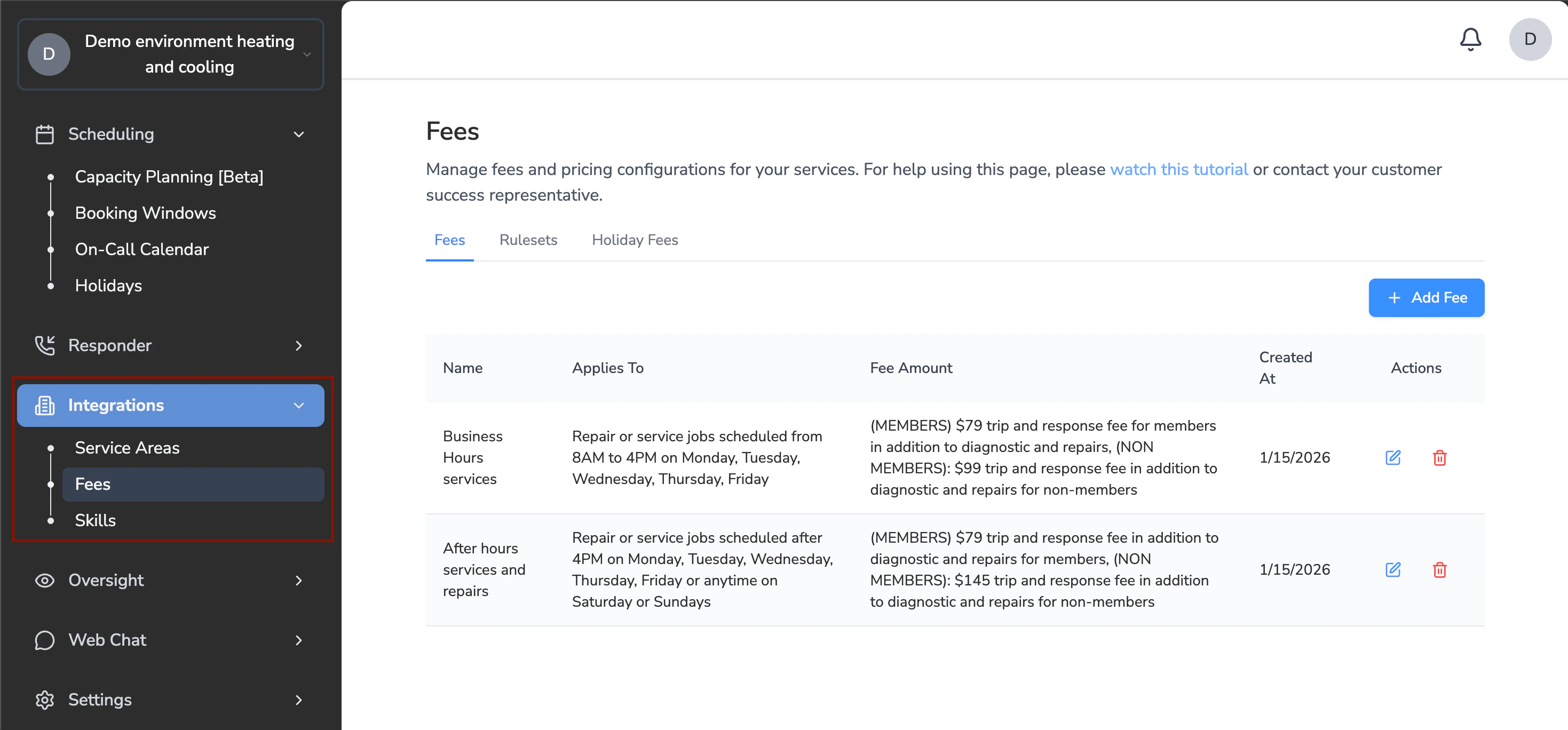 ### To Create a Fee:
Go to **Scheduling > Fees**
Click **Add Fee**
Fill in the three required fields:
### To Create a Fee:
Go to **Scheduling > Fees**
Click **Add Fee**
Fill in the three required fields:
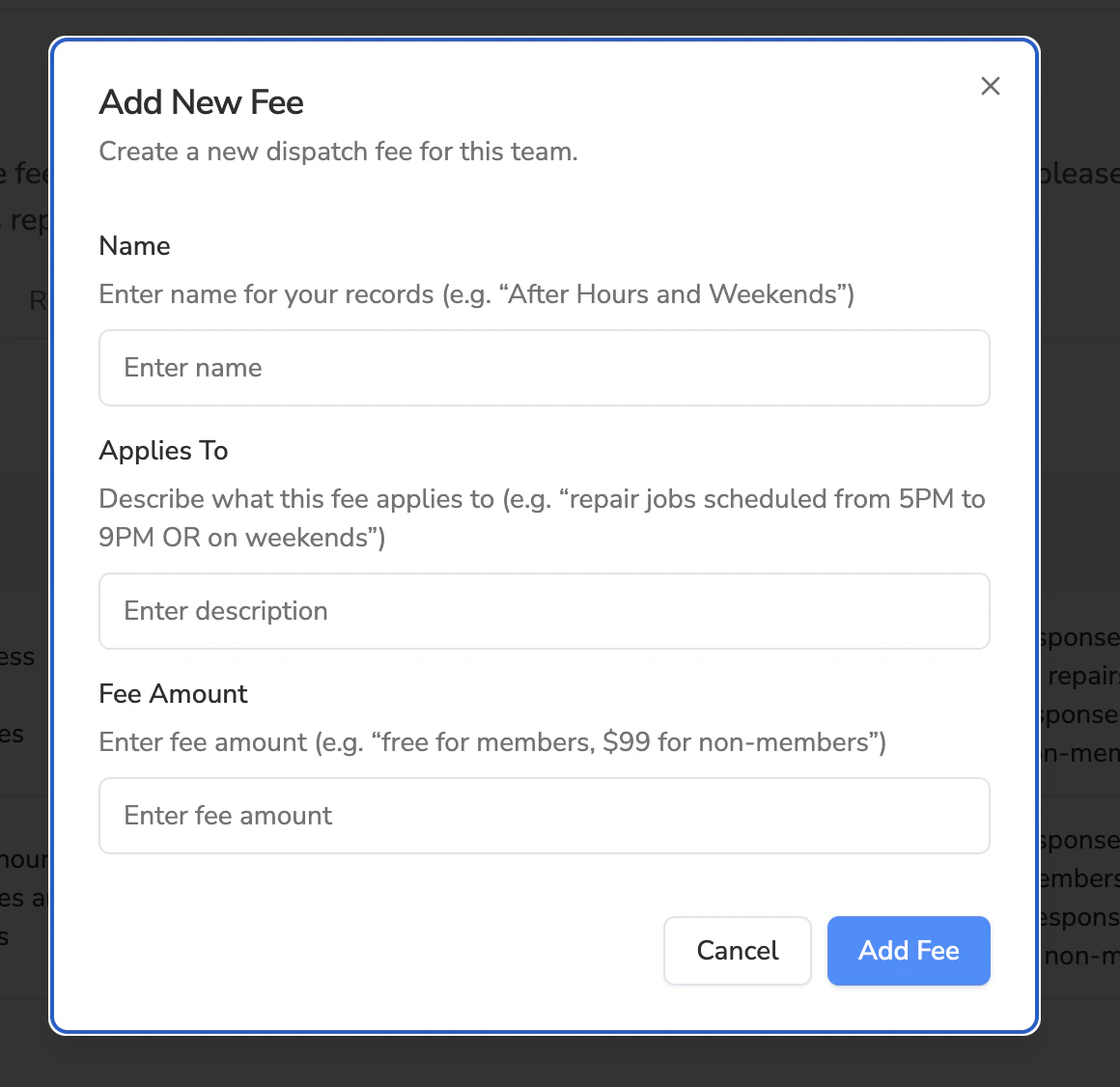 **Name** (for your reference)
* Example: "Standard Service Call," "Emergency After Hours," "Member Maintenance"
**Applies To** (description of when this fee applies)
* This is informational text that helps the bot answer questions about fees
* The bot uses this description when customers ask "What are your fees?" or similar questions
* Example: "Regular business hours service calls for non-members"
**Fee Amount** (what the bot will quote)
* This is freeform text by design for maximum flexibility
* You can specify member vs non-member pricing, fees per unit, per inspection, etc.
* Examples:
* "\$89 for non-members, \$49 for members"
* "\$150 service fee"
* "\$75 per unit inspected"
Click **Save**
**Pro Tip:**
If you have different pricing for members vs non-members, include both prices in a single fee (e.g., "$89 for non-members, $49 for members"). Don't create separate fees for each, as this can cause conflicts.
## Step 2: Configuring Fee Rulesets
Rulesets determine **which fee** the bot will quote **when** based on the conditions you set. This is where you attach your fees to specific booking windows and scenarios.
**Name** (for your reference)
* Example: "Standard Service Call," "Emergency After Hours," "Member Maintenance"
**Applies To** (description of when this fee applies)
* This is informational text that helps the bot answer questions about fees
* The bot uses this description when customers ask "What are your fees?" or similar questions
* Example: "Regular business hours service calls for non-members"
**Fee Amount** (what the bot will quote)
* This is freeform text by design for maximum flexibility
* You can specify member vs non-member pricing, fees per unit, per inspection, etc.
* Examples:
* "\$89 for non-members, \$49 for members"
* "\$150 service fee"
* "\$75 per unit inspected"
Click **Save**
**Pro Tip:**
If you have different pricing for members vs non-members, include both prices in a single fee (e.g., "$89 for non-members, $49 for members"). Don't create separate fees for each, as this can cause conflicts.
## Step 2: Configuring Fee Rulesets
Rulesets determine **which fee** the bot will quote **when** based on the conditions you set. This is where you attach your fees to specific booking windows and scenarios.
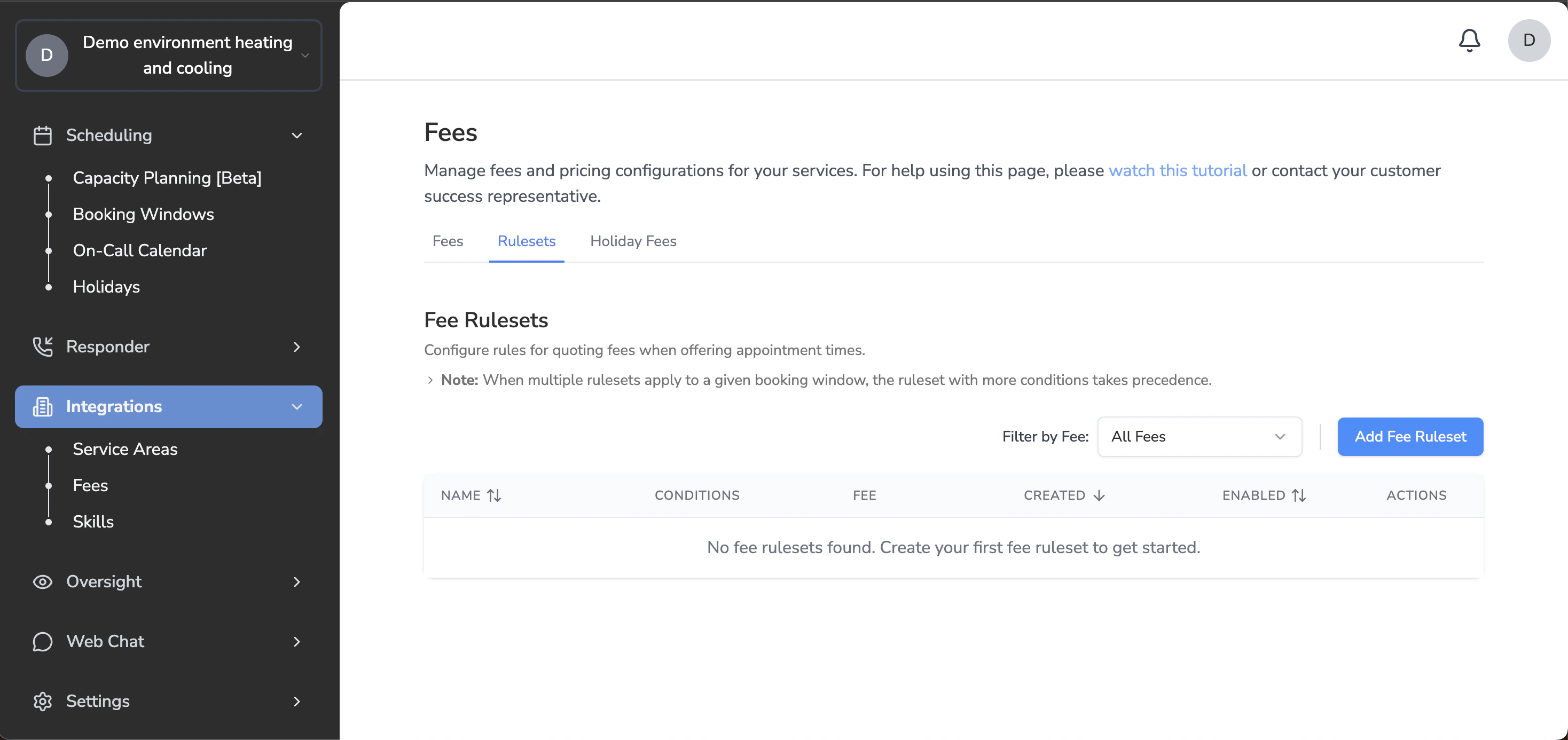 ### To Create a Ruleset:
Go to **Scheduling > Fees > Rulesets** tab
Click **Add Fee Ruleset**
Select the fee you want to create rules for
Configure the conditions:
### To Create a Ruleset:
Go to **Scheduling > Fees > Rulesets** tab
Click **Add Fee Ruleset**
Select the fee you want to create rules for
Configure the conditions:
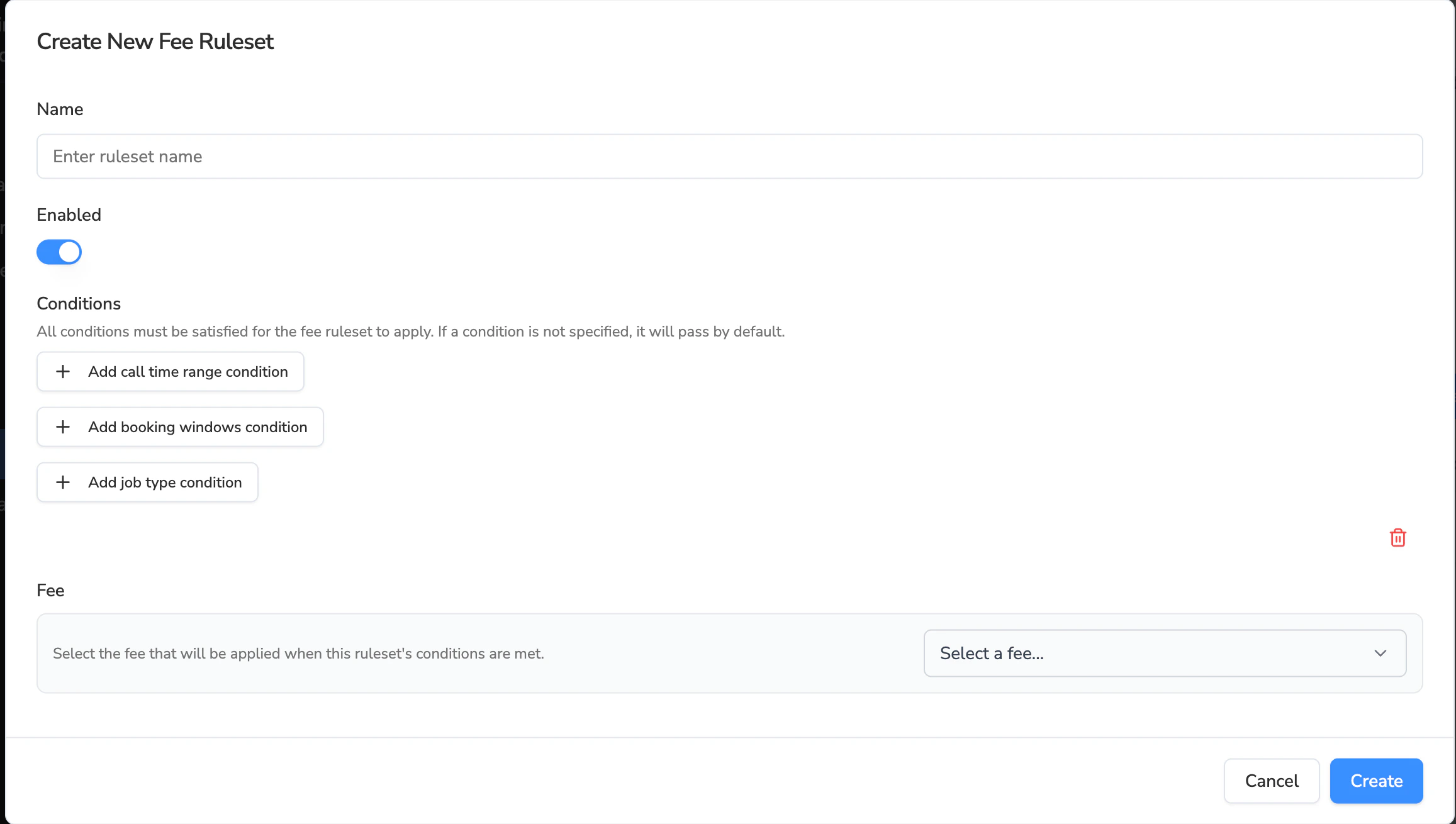 ### Available Conditions:
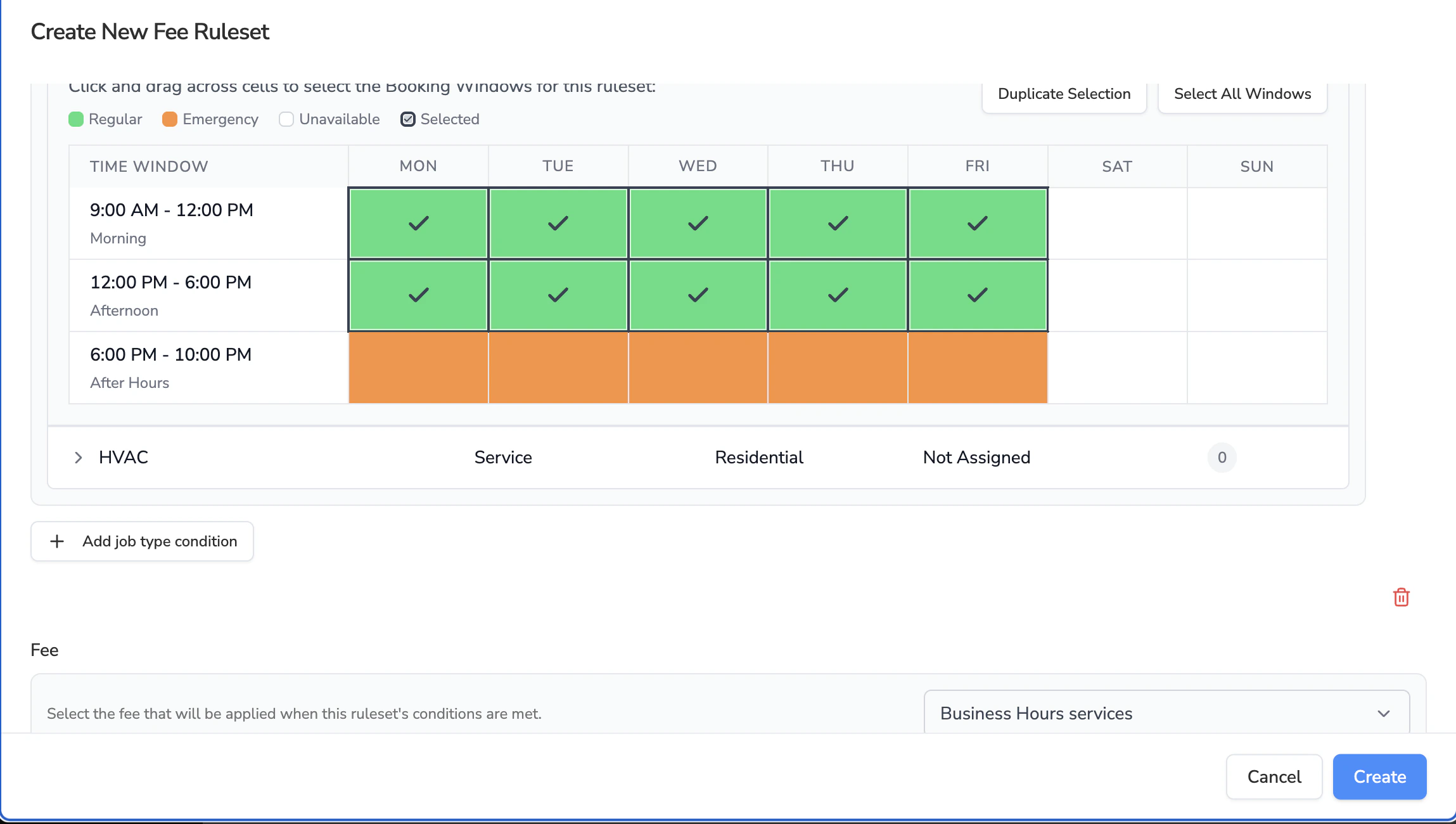
**Booking Windows** (most commonly used)
* Select which booking windows this fee applies to
* You'll see the familiar booking windows interface
* Check the boxes for all applicable service types, appointment types, and time slots
### Available Conditions:
**Booking Windows** (most commonly used)
* Select which booking windows this fee applies to
* You'll see the familiar booking windows interface
* Check the boxes for all applicable service types, appointment types, and time slots
 **Call Time**
* Apply fees based on when the customer calls
* Useful for same-day booking surcharges
* Example: If customer calls after 2 PM, charge an expedited fee
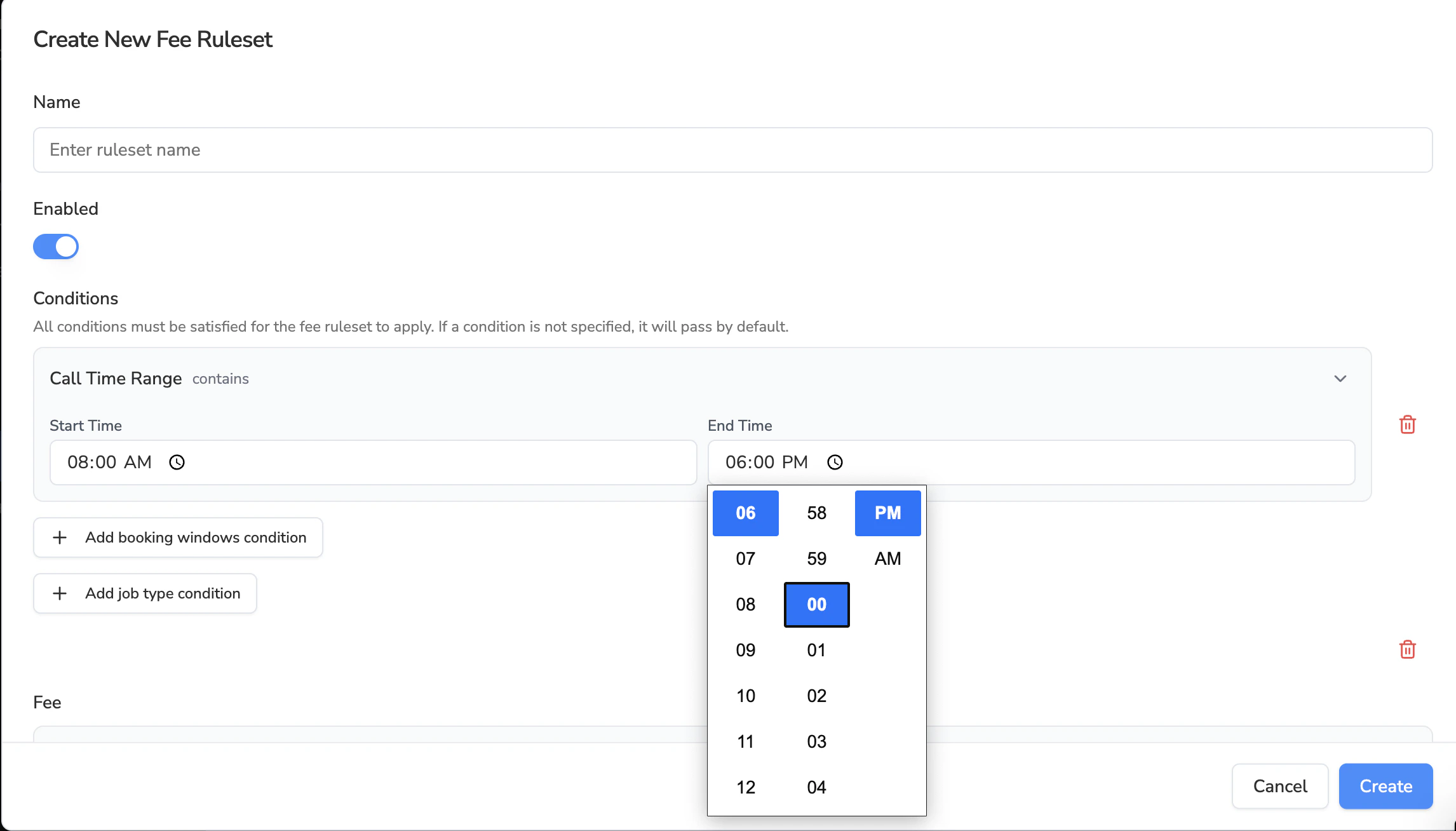
**Call Time**
* Apply fees based on when the customer calls
* Useful for same-day booking surcharges
* Example: If customer calls after 2 PM, charge an expedited fee
 **Job Type**
* Apply fees to specific job types only
* Useful for specialized services like callbacks, maintenance, estimates
* Example: Different fee for "Callback" vs "Repair"
Click **Save**
## Step 3: Verifying Your Setup
After creating fees and rulesets, verify everything is configured correctly:
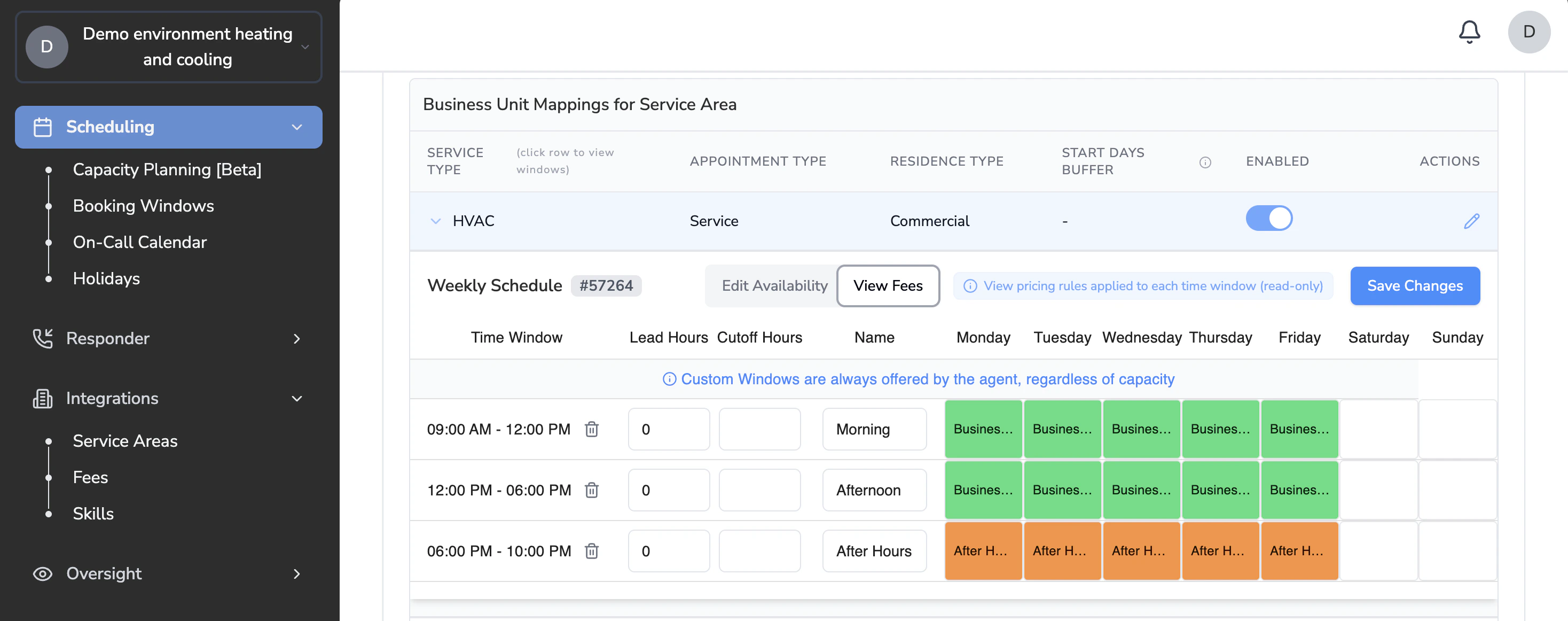
Go to **Scheduling > Booking Windows**
Click the **View Fees** tab
You should see fees attached to all your booking windows
**Job Type**
* Apply fees to specific job types only
* Useful for specialized services like callbacks, maintenance, estimates
* Example: Different fee for "Callback" vs "Repair"
Click **Save**
## Step 3: Verifying Your Setup
After creating fees and rulesets, verify everything is configured correctly:
Go to **Scheduling > Booking Windows**
Click the **View Fees** tab
You should see fees attached to all your booking windows
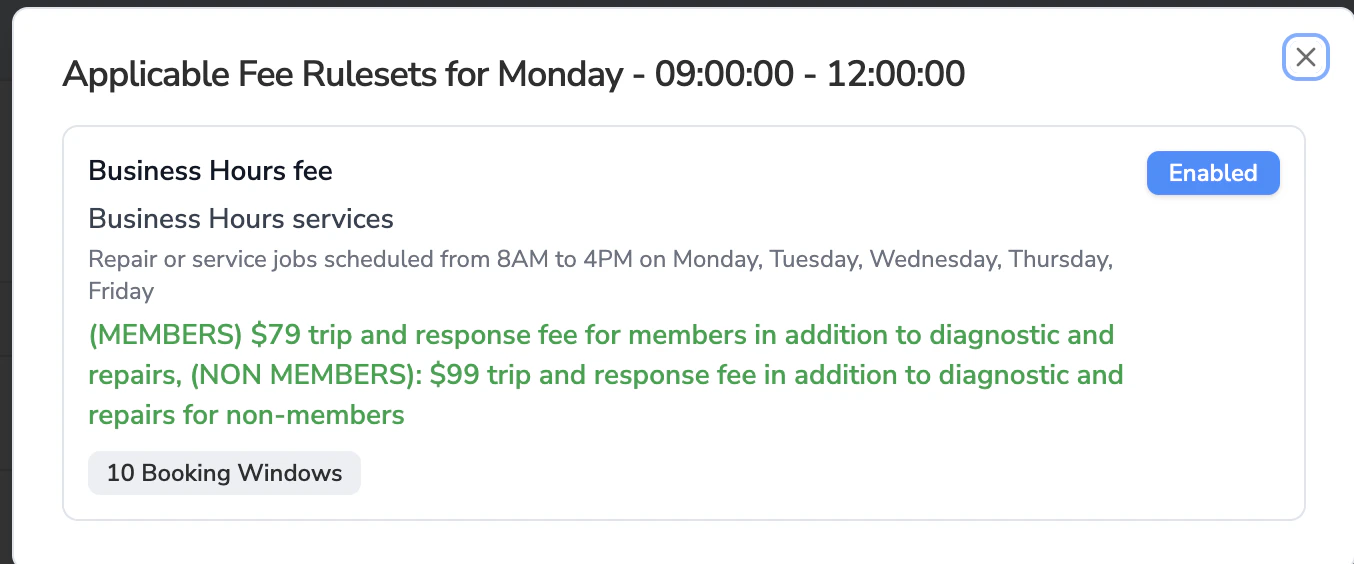
 **To see detailed fee information:**
* Click on any booking window
* Review all fees that apply to that window
* Confirm the bot will quote the correct fee based on your rulesets
**To see detailed fee information:**
* Click on any booking window
* Review all fees that apply to that window
* Confirm the bot will quote the correct fee based on your rulesets
 ## Common Scenarios & Solutions
### Scenario 1: Different Member vs Non-Member Pricing
**Problem:** You charge different rates for members and non-members
**Solution:** Create ONE fee with both prices in the Fee Amount field
* Example: "\$89 for non-members, \$49 for members"
* Create one ruleset that applies this fee to the relevant booking windows
* The bot will automatically reference the customer's membership status from ServiceTitan
### Scenario 2: Most Job Types Have One Fee, But Exceptions Exist
**Problem:** You have a standard service fee for all job types except callbacks
**Solution:**
Create a "General Service Fee" with a ruleset that only specifies booking windows (no job type condition)
Create a "Callback Fee" with a ruleset that specifies both the same booking windows AND the callback job type
When booking callbacks, the bot will use the more specific ruleset (Callback Fee)
### Scenario 3: After-Hours or Emergency Fees
**Problem:** You charge higher rates for after-hours calls
**Solution:**
Create separate fees for after-hours service
In the ruleset, use both the Booking Windows condition AND the Call Time condition
The bot will apply the after-hours fee when calls come in during those specified times
## Avoiding Common Issues
**Avoiding Fee Conflicts:** If multiple rulesets apply to the same booking window without any distinguishing conditions, the bot will use the most recently created ruleset. This can cause unexpected behavior.
**Best Practice:** Ensure each ruleset has enough specificity (using job type, call time, or clear fee amount descriptions) to avoid ties.
### Examples of What NOT to Do:
* ❌ Creating separate "Member HVAC Fee" and "Non-Member HVAC Fee" rulesets that both apply to the same booking windows
* ❌ Creating multiple generic rulesets without using job type or call time conditions to differentiate them
### Examples of What TO Do:
* ✅ Include both member and non-member pricing in one fee
* ✅ Use job type conditions to differentiate between callback fees and regular service fees
* ✅ Use call time conditions to differentiate between same-day and future appointments
## Need Help?
If you have questions about setting up fees and rulesets for your specific business needs, please contact your Customer Success Manager or submit a support ticket through the Avoca Dashboard.
## Common Scenarios & Solutions
### Scenario 1: Different Member vs Non-Member Pricing
**Problem:** You charge different rates for members and non-members
**Solution:** Create ONE fee with both prices in the Fee Amount field
* Example: "\$89 for non-members, \$49 for members"
* Create one ruleset that applies this fee to the relevant booking windows
* The bot will automatically reference the customer's membership status from ServiceTitan
### Scenario 2: Most Job Types Have One Fee, But Exceptions Exist
**Problem:** You have a standard service fee for all job types except callbacks
**Solution:**
Create a "General Service Fee" with a ruleset that only specifies booking windows (no job type condition)
Create a "Callback Fee" with a ruleset that specifies both the same booking windows AND the callback job type
When booking callbacks, the bot will use the more specific ruleset (Callback Fee)
### Scenario 3: After-Hours or Emergency Fees
**Problem:** You charge higher rates for after-hours calls
**Solution:**
Create separate fees for after-hours service
In the ruleset, use both the Booking Windows condition AND the Call Time condition
The bot will apply the after-hours fee when calls come in during those specified times
## Avoiding Common Issues
**Avoiding Fee Conflicts:** If multiple rulesets apply to the same booking window without any distinguishing conditions, the bot will use the most recently created ruleset. This can cause unexpected behavior.
**Best Practice:** Ensure each ruleset has enough specificity (using job type, call time, or clear fee amount descriptions) to avoid ties.
### Examples of What NOT to Do:
* ❌ Creating separate "Member HVAC Fee" and "Non-Member HVAC Fee" rulesets that both apply to the same booking windows
* ❌ Creating multiple generic rulesets without using job type or call time conditions to differentiate them
### Examples of What TO Do:
* ✅ Include both member and non-member pricing in one fee
* ✅ Use job type conditions to differentiate between callback fees and regular service fees
* ✅ Use call time conditions to differentiate between same-day and future appointments
## Need Help?
If you have questions about setting up fees and rulesets for your specific business needs, please contact your Customer Success Manager or submit a support ticket through the Avoca Dashboard.