> ## Documentation Index
> Fetch the complete documentation index at: https://help.avoca.ai/llms.txt
> Use this file to discover all available pages before exploring further.
# How to set up Call Reason Mapping
## Overview (Call Reasons V2)
Call Reasons V2 is the current call-reason system. It is **self-servable** and **definition-first**: Avoca classifies based on the customer’s call reason definitions first, and can optionally associate “related” Avoca reasons for consistency.[\[1\]](https://avoca-workspace.slack.com/archives/C084EKP1QKC/p1766466250114349)
This guide covers:
* Enabling Call Reasons V2
* Syncing ServiceTitan (ST) call reasons into Avoca
* Adding definitions
* Setting call type filters
* (Optional) mapping “related” Avoca call reasons
## Before you start
### Requirements
* ServiceTitan call reasons are created and active in **ServiceTitan → Settings → Operations → Call Reasons**.[\[2\]](/Call-Reclassification-1caf2b56d4d5808ea8c4ebf8794948a1)
### Best practice
If you are migrating from the legacy system, do this during **low call volume**. As soon as you save Call Reasons V2, Avoca switches off the old call reason mapping system. You will need to contact your Customer Success Manager to enable Call Reasons V2[\[1\]](https://avoca-workspace.slack.com/archives/C084EKP1QKC/p1766466250114349)
## Step 1: Ask your Customer Success Manager to enable Call Reasons V2
Call Reasons V2 must be enabled for your account by your Avoca Customer Success Manager.[\[1\]](https://avoca-workspace.slack.com/archives/C084EKP1QKC/p1766466250114349)
## Step 2: Open the Call Reasons V2 UI
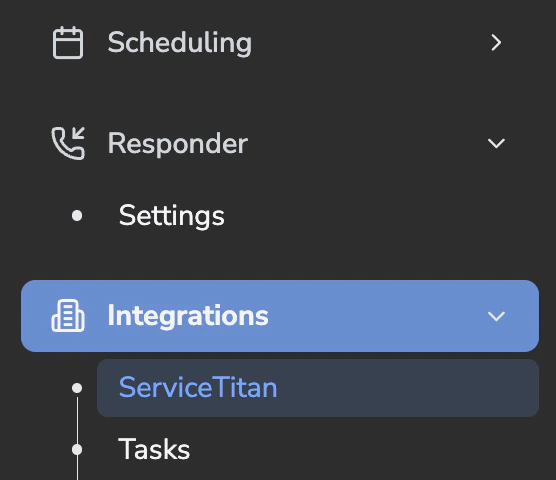
Once it is enabled, you will see the Call Reasons V2 UI in the dashboard under **Settings → Integrations → ServiceTitan → Call Reasons**.
 ## Step 3: Sync ServiceTitan call reasons into Avoca
 1. In the Call Reasons V2 UI, click **Sync / Get Unsynced Reasons from ServiceTitan** (wording may vary).
2. Confirm the imported reasons match what is active in ServiceTitan.
## Step 4: Add call reason definitions
1. In the Call Reasons V2 UI, click **Sync / Get Unsynced Reasons from ServiceTitan** (wording may vary).
2. Confirm the imported reasons match what is active in ServiceTitan.
## Step 4: Add call reason definitions
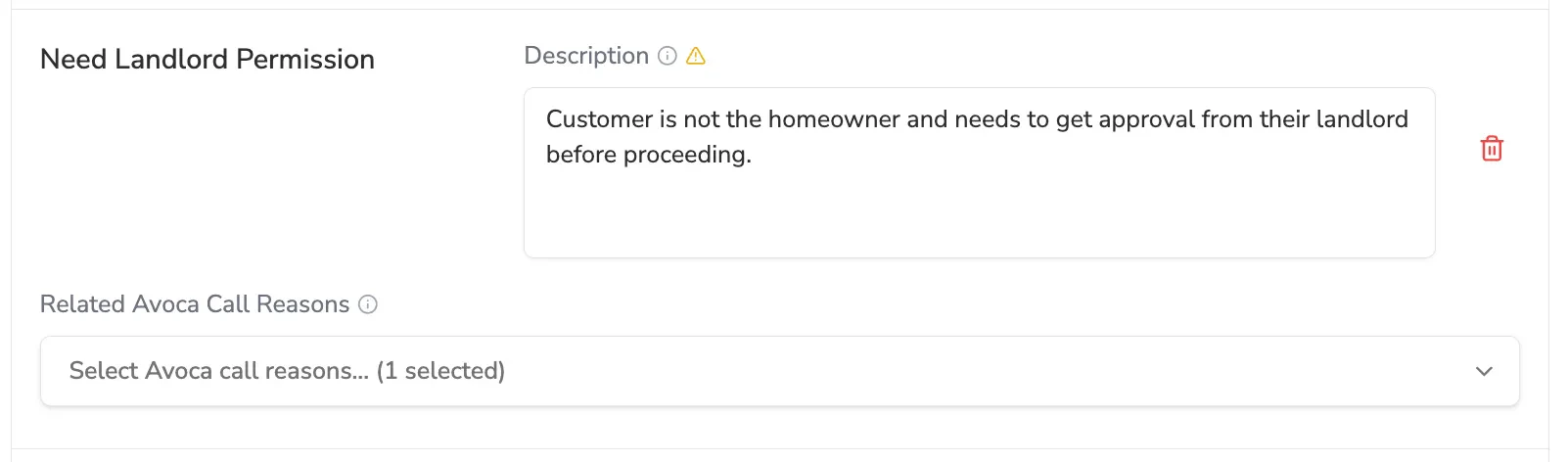 1. For each imported call reason, add a clear **definition/description**.
* Write these like you are training a new CSR.
* Include a simple example of when to use it.
**Why this matters**
Call Reasons V2 classifies based on the company’s definitions first.[\[1\]](https://avoca-workspace.slack.com/archives/C084EKP1QKC/p1766466250114349)
## Step 5: Configure key V2 settings
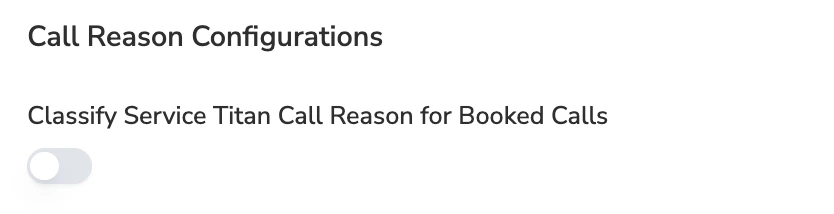
### A) Classify ServiceTitan Call Reason for “Booked” calls (usually OFF)
* There is a toggle to enable or disable classifying ST call reasons for **Booked** calls.
1. For each imported call reason, add a clear **definition/description**.
* Write these like you are training a new CSR.
* Include a simple example of when to use it.
**Why this matters**
Call Reasons V2 classifies based on the company’s definitions first.[\[1\]](https://avoca-workspace.slack.com/archives/C084EKP1QKC/p1766466250114349)
## Step 5: Configure key V2 settings
### A) Classify ServiceTitan Call Reason for “Booked” calls (usually OFF)
* There is a toggle to enable or disable classifying ST call reasons for **Booked** calls.
 ### B) Call Type Filters
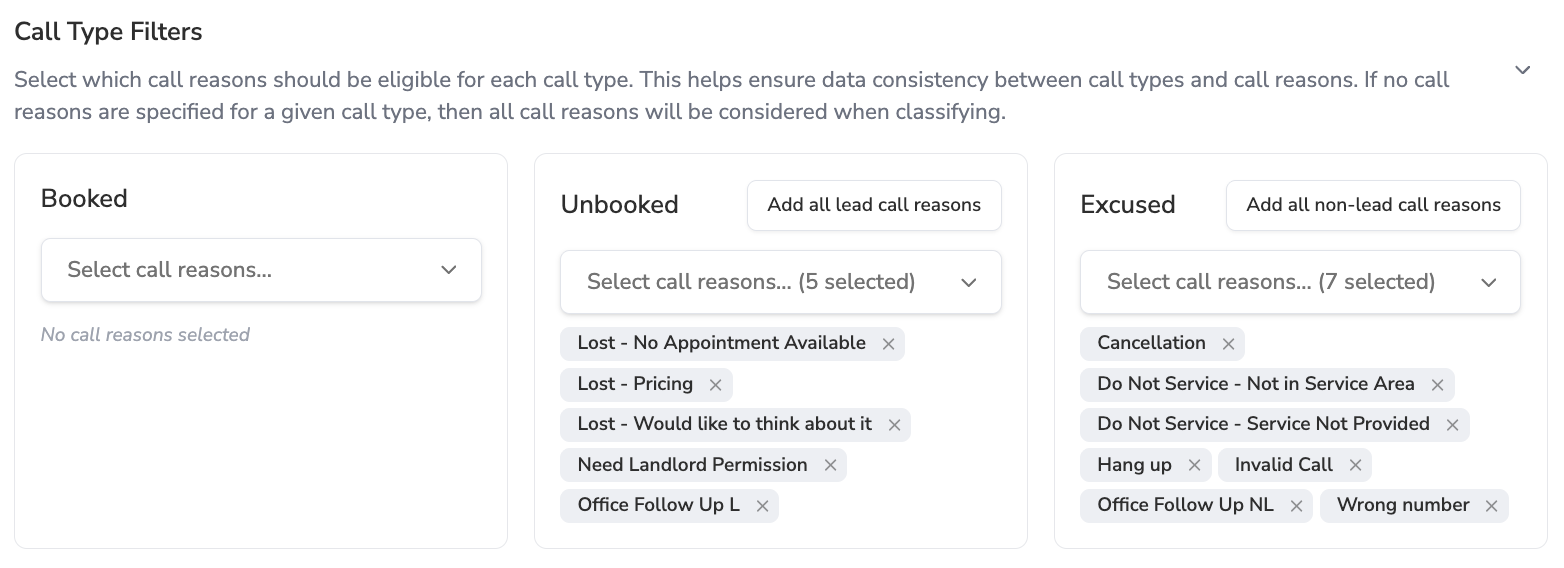
Use call type filters to prevent mismatches (for example, Unbooked calls ending up with “Excused” reasons).
Use the “Add All Call Reasons” buttons to quickly add:
* “Lead” call reasons to **Unbooked**
* “Non-lead” call reasons to **Excused**
### B) Call Type Filters
Use call type filters to prevent mismatches (for example, Unbooked calls ending up with “Excused” reasons).
Use the “Add All Call Reasons” buttons to quickly add:
* “Lead” call reasons to **Unbooked**
* “Non-lead” call reasons to **Excused**
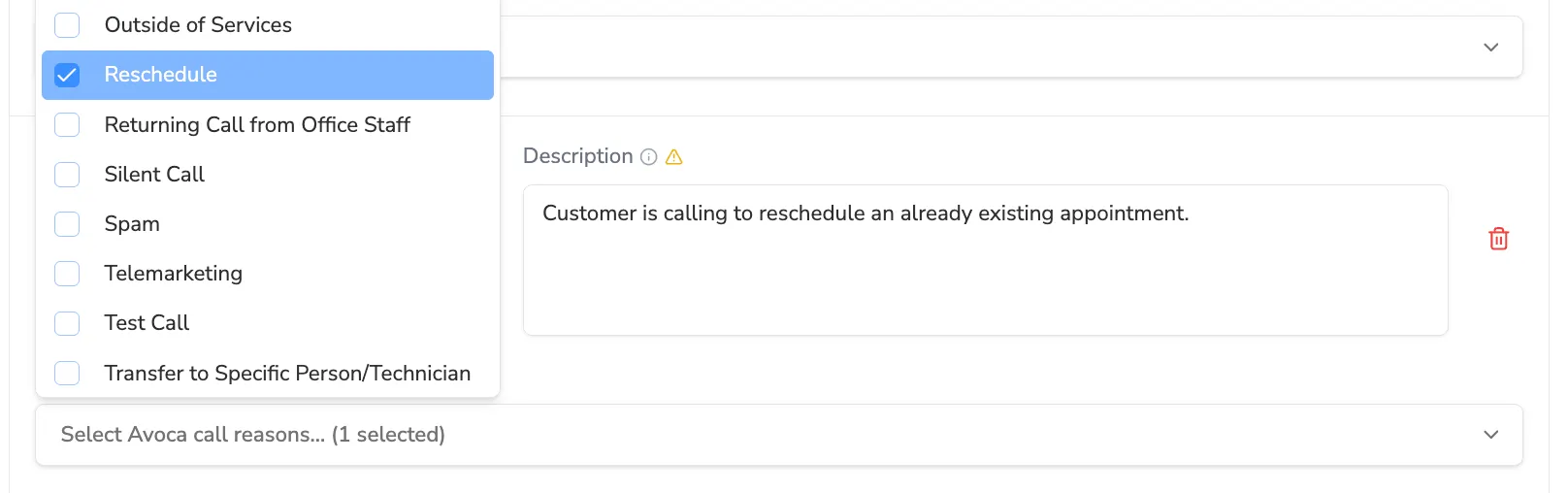
 ## Step 6: Associate “related” Avoca call reasons
This step is required for consistency across Avoca reporting and workflows.
In Call Reasons V2, you can associate “related” Avoca call reasons to each of the customer’s ServiceTitan call reasons. This preserves Avoca-side consistency without changing how the system selects the customer’s primary call reason.[\[1\]](slackMessage://avoca-workspace.slack.com/C084EKP1QKC/1766466250.114349/1766466250.114349)
## Step 6: Associate “related” Avoca call reasons
This step is required for consistency across Avoca reporting and workflows.
In Call Reasons V2, you can associate “related” Avoca call reasons to each of the customer’s ServiceTitan call reasons. This preserves Avoca-side consistency without changing how the system selects the customer’s primary call reason.[\[1\]](slackMessage://avoca-workspace.slack.com/C084EKP1QKC/1766466250.114349/1766466250.114349)
 ## Troubleshooting
### The synced call reasons look wrong or incomplete
* Confirm the call reasons are active in ServiceTitan first.[\[2\]](/Call-Reclassification-1caf2b56d4d5808ea8c4ebf8794948a1)
## Troubleshooting
### The synced call reasons look wrong or incomplete
* Confirm the call reasons are active in ServiceTitan first.[\[2\]](/Call-Reclassification-1caf2b56d4d5808ea8c4ebf8794948a1)