> ## Documentation Index
> Fetch the complete documentation index at: https://help.avoca.ai/llms.txt
> Use this file to discover all available pages before exploring further.
# How to set up Appointment/Service Type Guidance
Booking Windows guidance helps Avoca reliably choose the right *Service Type* and *Appointment Type* during a call so the correct availability (and downstream rules like fees) are used.
### When to use guidance
Add guidance any time you see:
* The AI selecting the wrong Service Type (e.g., choosing HVAC when the caller needs plumbing).
* The AI selecting the wrong Appointment Type (e.g., “Service” vs “Maintenance” vs “Sales/Estimate”).
* Wrong availability windows being offered because the wrong combination was classified.
### Before you start (recommended)
1. Confirm your **Service Types** and **Appointment Types** list reflects what you actually want Avoca to support.
2. Keep the list small. Fewer, clearer types makes classification more accurate.
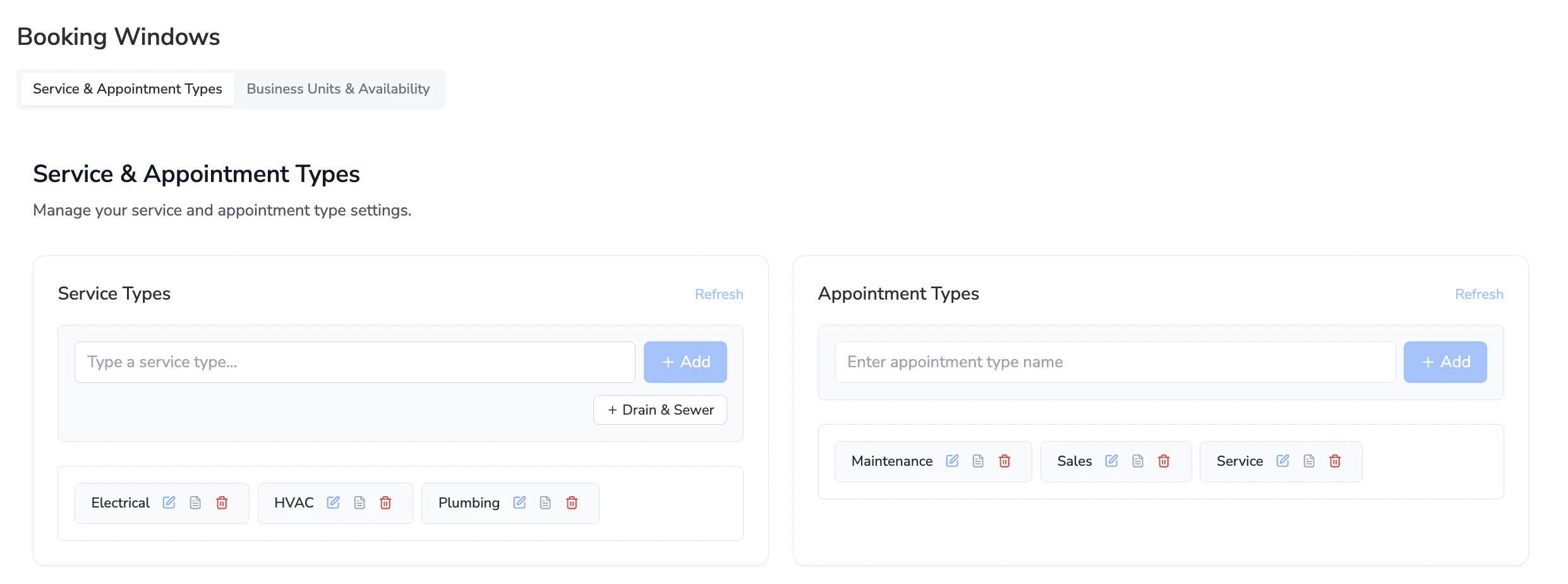
### Step 1: Open Booking Windows
Go to your Avoca dashboard.
Navigate to:
* `Team Settings` → `Booking Windows`
* Or open directly (replace `{TEAM_ID}`): [`https://www.avoca.ai/team/{TEAM_ID}/booking-windows`](https://www.avoca.ai/team/\{TEAM_ID}/booking-windows)
 ### Step 2: Add guidance for a Service Type
In **Service Types**, find the service trade you want (examples: HVAC, Plumbing, Electrical).
### Step 2: Add guidance for a Service Type
In **Service Types**, find the service trade you want (examples: HVAC, Plumbing, Electrical).
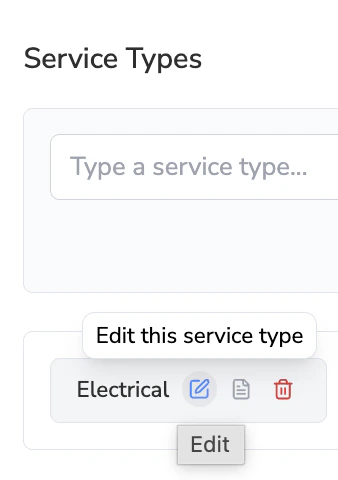 Click the **document icon** next to that Service Type.
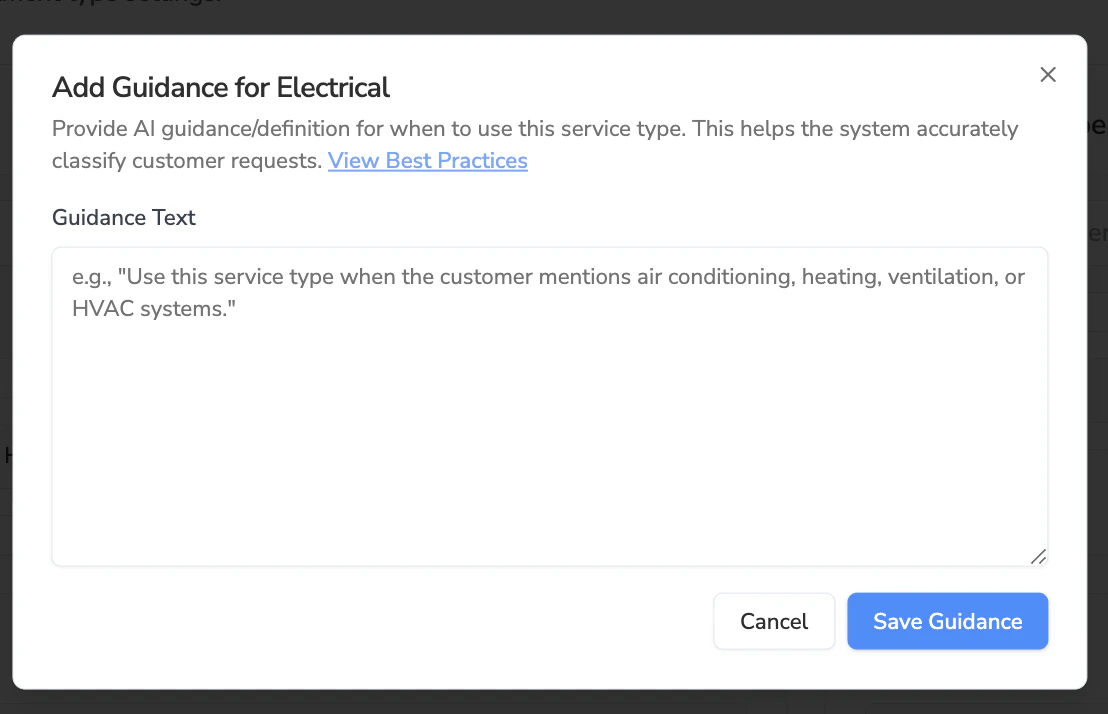 Add **Guidance** that describes when to use this Service Type.
**What to write**
* Use clear criteria the AI can check for.
* Prefer specific symptoms, keywords, and caller intent.
* If two service types are commonly confused, include a line clarifying the boundary.
**Example (Service Type: Plumbing)**
* Use Plumbing when the caller mentions leaks, clogged drains, sewer backup, water heater issues, or faucet/toilet problems.
* Do not use Plumbing for no-heat/no-cooling issues unless the caller explicitly mentions a plumbing fixture.
### Step 3: Add guidance for an Appointment Type
In **Appointment Types**, find the appointment category you want (examples: Service, Maintenance, Sales/Estimate).
Add **Guidance** that describes when to use this Service Type.
**What to write**
* Use clear criteria the AI can check for.
* Prefer specific symptoms, keywords, and caller intent.
* If two service types are commonly confused, include a line clarifying the boundary.
**Example (Service Type: Plumbing)**
* Use Plumbing when the caller mentions leaks, clogged drains, sewer backup, water heater issues, or faucet/toilet problems.
* Do not use Plumbing for no-heat/no-cooling issues unless the caller explicitly mentions a plumbing fixture.
### Step 3: Add guidance for an Appointment Type
In **Appointment Types**, find the appointment category you want (examples: Service, Maintenance, Sales/Estimate).
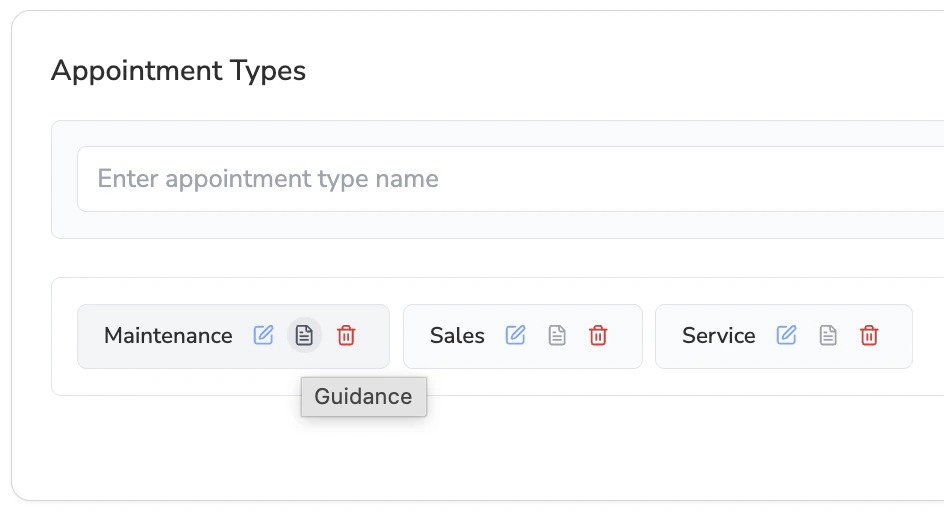 Click the **document icon** next to that Appointment Type.
Add **Guidance** that describes when to use this Appointment Type.
Click the **document icon** next to that Appointment Type.
Add **Guidance** that describes when to use this Appointment Type.
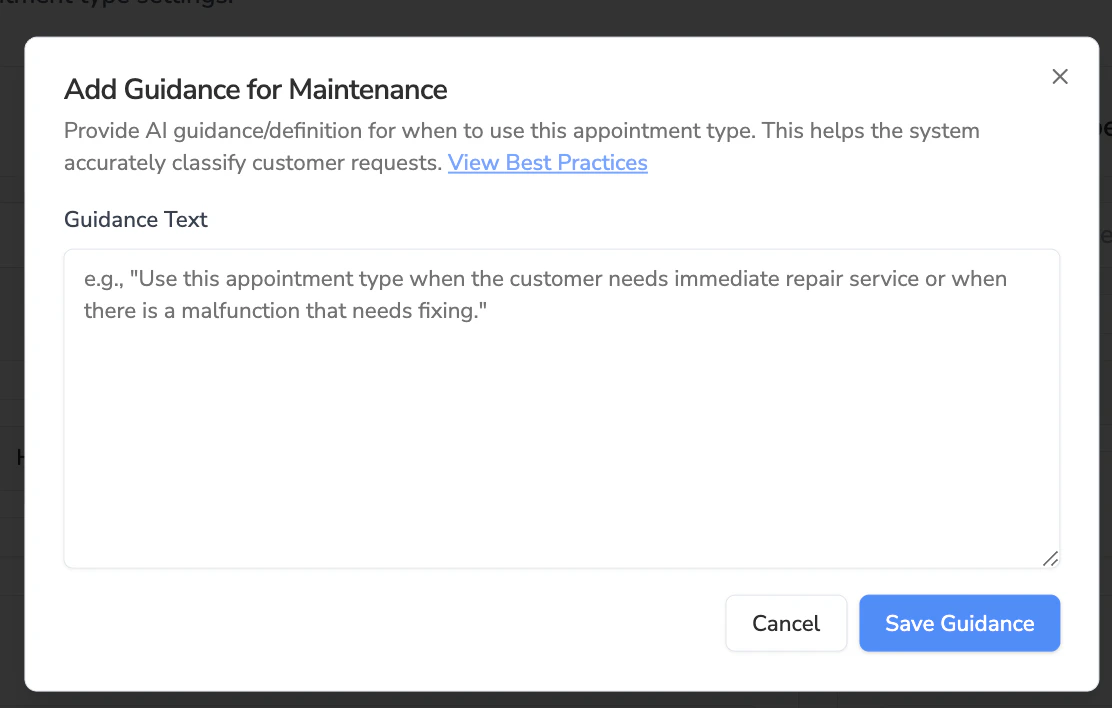 **Example (Appointment Type: Maintenance)**
* Use Maintenance when the caller is scheduling a tune-up, annual inspection, or a membership maintenance visit.
* Do not use Maintenance when something is broken or the customer needs a repair.
**Example (Appointment Type: Service)**
* Use Service when the customer reports a problem that requires diagnosis or repair (not routine maintenance).
**Example (Appointment Type: Sales/Estimate)**
* Use Sales/Estimate when the caller wants a quote, replacement, or new install consultation.
### Guidance best practices
* **Be explicit.** Write rules like you are training a new scheduler.
* **Use “Use X when …” and “Do not use X when …”.** This helps prevent overlap.
* **Avoid internal jargon.** Prefer customer language (what callers actually say).
* **Keep it short.** A few strong bullets beats a long paragraph.
* **Update after changes.** If you add new Service Types or Appointment Types, add guidance right away.
### After you add guidance: validate it
1. Make a few test calls covering the most common scenarios.
2. Confirm Avoca selects the expected Service Type and Appointment Type.
3. If the AI misclassifies:
* Tighten the guidance to reduce overlap.
* Add 1–3 additional boundary bullets for the confusing cases.
### Troubleshooting
**The AI still chooses the wrong type**
* Check for overlap between your guidance definitions.
* Simplify the taxonomy (merge types where possible).
* Ensure the caller provides enough details (prompting may need to ask one extra clarifying question).
**Availability looks wrong even with correct guidance**
* Confirm the Booking Windows schedule is configured for the correct combination (Service Type × Appointment Type × Residence Type × Service Area).
* For ServiceTitan ACP customers, re-import arrival windows if ServiceTitan windows changed.
**Example (Appointment Type: Maintenance)**
* Use Maintenance when the caller is scheduling a tune-up, annual inspection, or a membership maintenance visit.
* Do not use Maintenance when something is broken or the customer needs a repair.
**Example (Appointment Type: Service)**
* Use Service when the customer reports a problem that requires diagnosis or repair (not routine maintenance).
**Example (Appointment Type: Sales/Estimate)**
* Use Sales/Estimate when the caller wants a quote, replacement, or new install consultation.
### Guidance best practices
* **Be explicit.** Write rules like you are training a new scheduler.
* **Use “Use X when …” and “Do not use X when …”.** This helps prevent overlap.
* **Avoid internal jargon.** Prefer customer language (what callers actually say).
* **Keep it short.** A few strong bullets beats a long paragraph.
* **Update after changes.** If you add new Service Types or Appointment Types, add guidance right away.
### After you add guidance: validate it
1. Make a few test calls covering the most common scenarios.
2. Confirm Avoca selects the expected Service Type and Appointment Type.
3. If the AI misclassifies:
* Tighten the guidance to reduce overlap.
* Add 1–3 additional boundary bullets for the confusing cases.
### Troubleshooting
**The AI still chooses the wrong type**
* Check for overlap between your guidance definitions.
* Simplify the taxonomy (merge types where possible).
* Ensure the caller provides enough details (prompting may need to ask one extra clarifying question).
**Availability looks wrong even with correct guidance**
* Confirm the Booking Windows schedule is configured for the correct combination (Service Type × Appointment Type × Residence Type × Service Area).
* For ServiceTitan ACP customers, re-import arrival windows if ServiceTitan windows changed.