> ## Documentation Index
> Fetch the complete documentation index at: https://help.avoca.ai/llms.txt
> Use this file to discover all available pages before exploring further.
# How to review calls in the Avoca Dashboard
> **Goal:** Help you quickly find a call, review what happened, and take action (listen, read the transcript, share, or report an issue).
### Before you start
* You need access to your company’s Avoca Dashboard.
* If you are accessing the dashboard for the first time, you may see a pop-up asking you to **Join** your organization.
### 1) Open the Call Logs
Log in to the Avoca Dashboard.
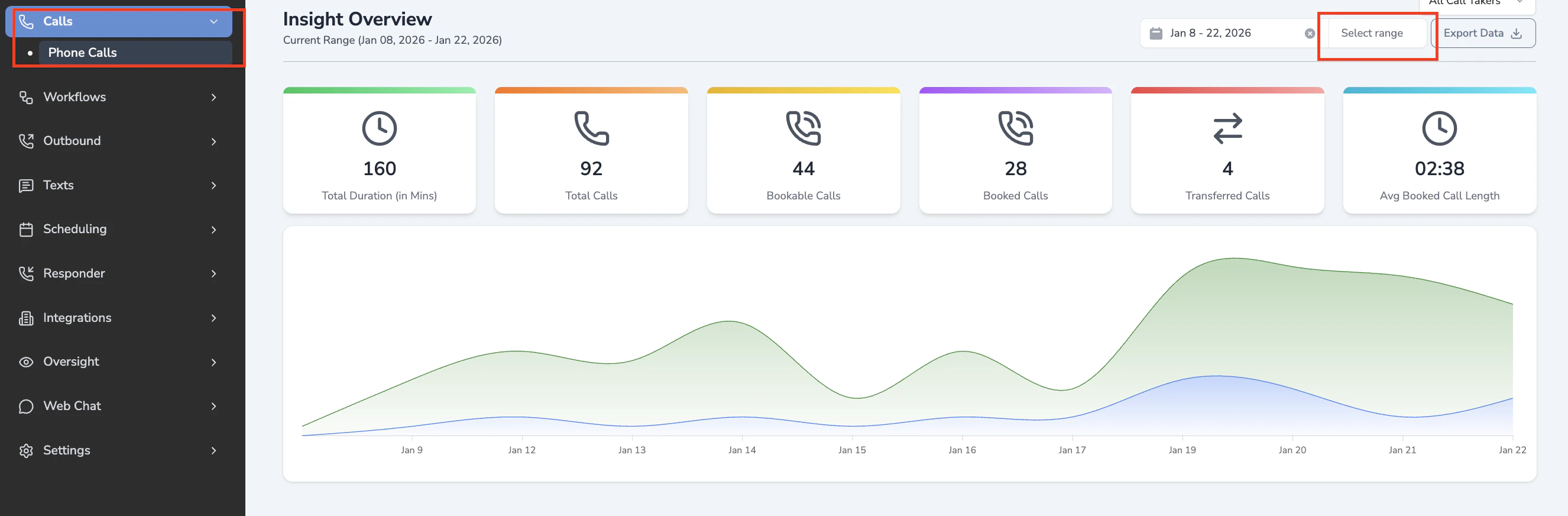
In the left navigation, go to **Calls → Phone Calls**
Use the **Date range** filter at the top to select the time period you want to review.
 ### 2) Find the call you want to review
You can locate a call in a few different ways:
* **Search by caller phone number**
* **Search by customer name** (if available)
* **Scroll the call list** and click the row for the call you want
**Tip:**
If you are troubleshooting a specific interaction, searching by the customer’s phone number is usually the fastest approach.
### 2) Find the call you want to review
You can locate a call in a few different ways:
* **Search by caller phone number**
* **Search by customer name** (if available)
* **Scroll the call list** and click the row for the call you want
**Tip:**
If you are troubleshooting a specific interaction, searching by the customer’s phone number is usually the fastest approach.
 ### 3) Open Call Details
1. Click the call in the list.
2. The Call Details page will open and you can review:
* Call recording
* Transcript
* Summary
* Call metadata like time, duration, and outcomes
* Job Link (Service Titan customers only)
### 4) Listen to the recording
1. Press **Play** on the recording player.
2. You can click a line in the transcript to jump to that moment in the audio.
### 5) Read the transcript (and connect it to the audio)
1. Scroll through the transcript to see the conversation.
2. Use the transcript to quickly confirm:
* What the customer asked for
* What information was collected (name, address, issue)
* Whether the outcome matches what your team expects
### 6) Share or save a link to a specific call
* Copy the URL from your browser’s address bar while you are on the Call Details page.
* Paste it into Slack, email, or an issue tracker to reference the exact call.
### 7) Report an issue with a call
If something looks incorrect (missing audio, incorrect transcript, wrong outcome, or a bug):
On the Call Details page, scroll to **Report an Issue with this Call**.
Fill out the form with details about what you expected vs. what happened.
Submit. This will send the call to our support team for a fast response.
### Troubleshooting
**I can’t find a call I know happened**
* Confirm your **date range** includes the time of the call.
* Try searching by **phone number** instead of name.
* If the dashboard is missing calls that appear in your CRM, report an issue with the closest call you can find and include the CRM call ID or timestamp.
**I’m seeing a “Join” pop-up**
* This is expected the first time you access a dashboard organization. Click **Join** to proceed.
**The dashboard seems slow or hard to navigate**
* Narrow the date range.
* Use search (phone number) instead of scrolling.
### Best practices for call reviews
* Review a small set of calls per week and tag or note common patterns.
* When escalating to Avoca Support or your internal team, include:
* The **call link**
* The **date/time**
* What you expected to happen vs. what happened
### 3) Open Call Details
1. Click the call in the list.
2. The Call Details page will open and you can review:
* Call recording
* Transcript
* Summary
* Call metadata like time, duration, and outcomes
* Job Link (Service Titan customers only)
### 4) Listen to the recording
1. Press **Play** on the recording player.
2. You can click a line in the transcript to jump to that moment in the audio.
### 5) Read the transcript (and connect it to the audio)
1. Scroll through the transcript to see the conversation.
2. Use the transcript to quickly confirm:
* What the customer asked for
* What information was collected (name, address, issue)
* Whether the outcome matches what your team expects
### 6) Share or save a link to a specific call
* Copy the URL from your browser’s address bar while you are on the Call Details page.
* Paste it into Slack, email, or an issue tracker to reference the exact call.
### 7) Report an issue with a call
If something looks incorrect (missing audio, incorrect transcript, wrong outcome, or a bug):
On the Call Details page, scroll to **Report an Issue with this Call**.
Fill out the form with details about what you expected vs. what happened.
Submit. This will send the call to our support team for a fast response.
### Troubleshooting
**I can’t find a call I know happened**
* Confirm your **date range** includes the time of the call.
* Try searching by **phone number** instead of name.
* If the dashboard is missing calls that appear in your CRM, report an issue with the closest call you can find and include the CRM call ID or timestamp.
**I’m seeing a “Join” pop-up**
* This is expected the first time you access a dashboard organization. Click **Join** to proceed.
**The dashboard seems slow or hard to navigate**
* Narrow the date range.
* Use search (phone number) instead of scrolling.
### Best practices for call reviews
* Review a small set of calls per week and tag or note common patterns.
* When escalating to Avoca Support or your internal team, include:
* The **call link**
* The **date/time**
* What you expected to happen vs. what happened