> ## Documentation Index
> Fetch the complete documentation index at: https://help.avoca.ai/llms.txt
> Use this file to discover all available pages before exploring further.
# How to manually reclassify calls?
### Overview
Avoca's AI compares its own call classification with what's recorded in ServiceTitan. When they don't match, the call is flagged as **Misclassified** so you can review it. There are two ways to fix misclassified calls:
* **From the calls table** — quickest way, supports bulk action across many calls.
* **From the call details page** — best when you want to review a single call closely or change fields the AI didn't suggest (CSR, tags, linked job, notes).
Whichever way you choose, the changes sync back into ServiceTitan.
### Before you start
* You need to give Avoca ServiceTitan permissions to reclassify calls.
***
### Method 1: Reclassify from the calls table
Best when you have several misclassified calls and want to act on them at once.
Go to **Coach — Calls** and set your **Date Range** and any filters.
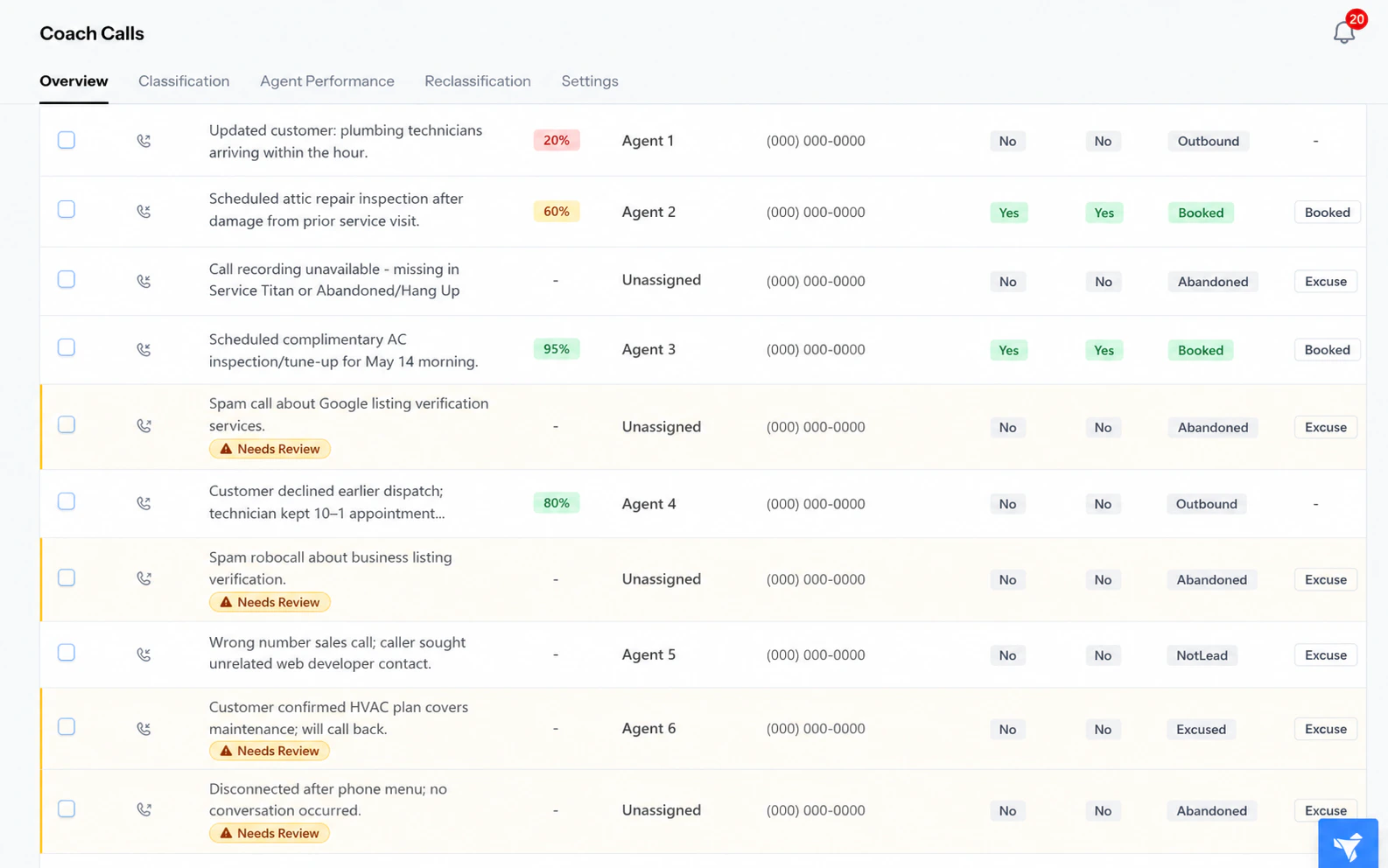
Misclassified calls have an amber row highlight and a **"Needs Review"** tag. The **Suggested Call Type** and **Suggested Call Reason** columns show what the AI thinks the call should be — they're highlighted in amber wherever the AI disagrees with ServiceTitan.
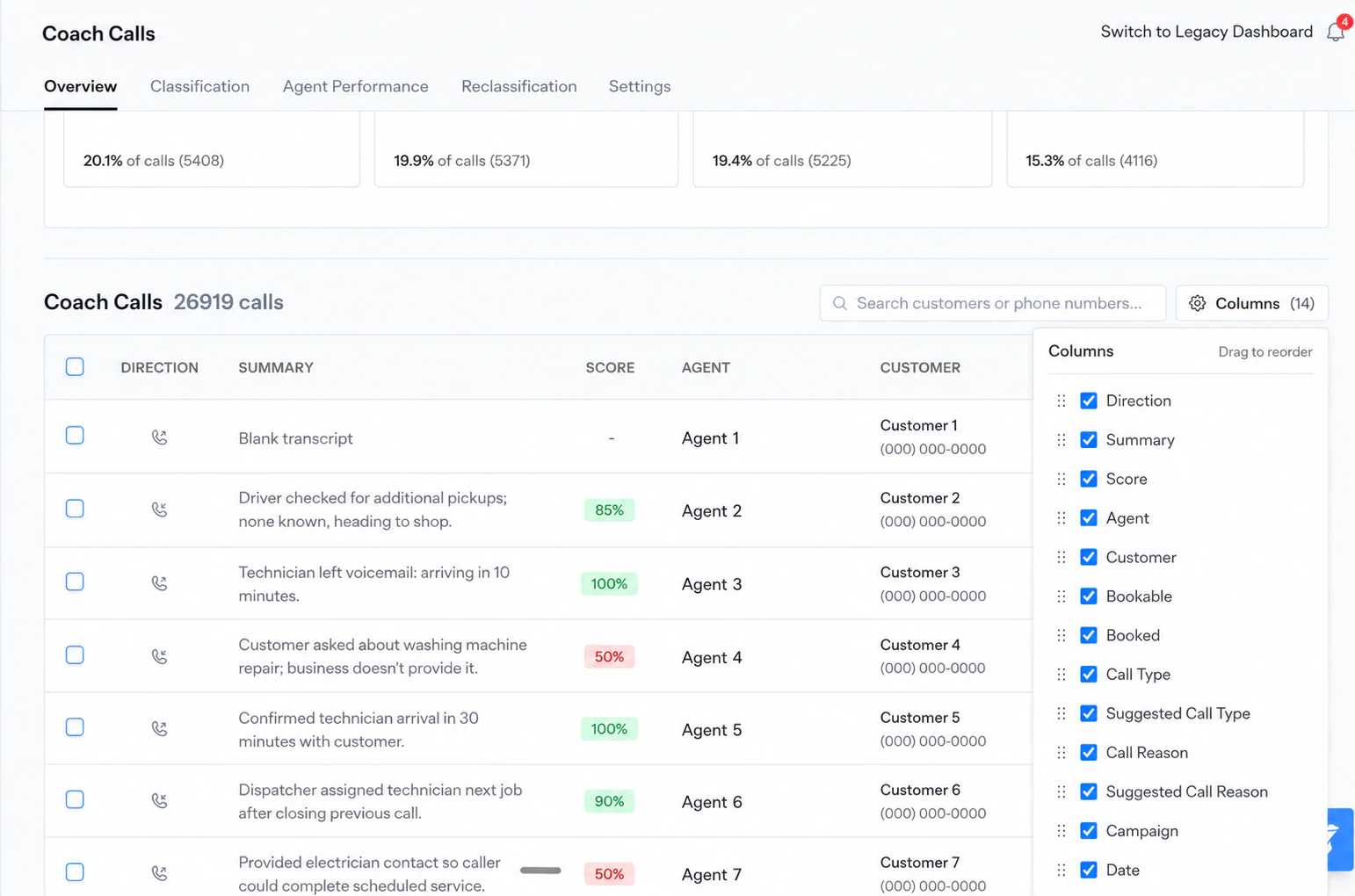
 Click **Columns** at the top right of the table to show, hide, or reorder columns. Your choices are saved.
 Use the checkboxes to select the calls you want to act on. Use the header checkbox to select every call on the page.
A blue action bar appears at the top of the table. When your selection includes misclassified calls, two extra buttons appear:
* **Accept AI Suggestions and Reclassify** — applies the AI's suggested call type and reason to ServiceTitan.
* **Decline AI Suggestions** — keeps the existing ServiceTitan classification and removes the "Needs Review" tag.
The number next to each button tells you how many of your selected calls are misclassified.
Use the checkboxes to select the calls you want to act on. Use the header checkbox to select every call on the page.
A blue action bar appears at the top of the table. When your selection includes misclassified calls, two extra buttons appear:
* **Accept AI Suggestions and Reclassify** — applies the AI's suggested call type and reason to ServiceTitan.
* **Decline AI Suggestions** — keeps the existing ServiceTitan classification and removes the "Needs Review" tag.
The number next to each button tells you how many of your selected calls are misclassified.
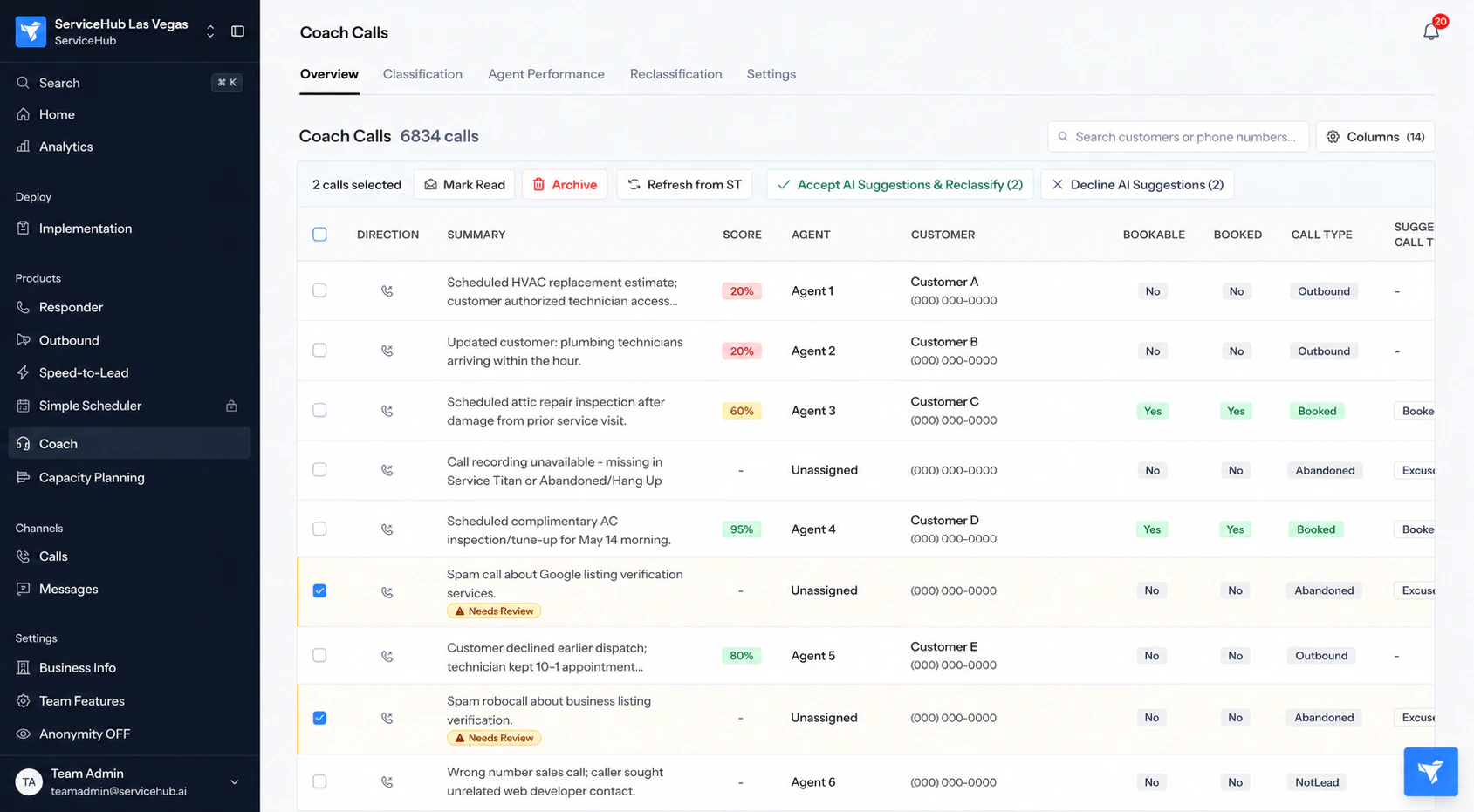 Click whichever action you want. Once done, the affected rows lose their amber highlight.
If some calls fail to update, the successful ones are saved and the failed ones stay selected so you can simply click again to retry.
### Method 2: Reclassify from the call details page
Best when you want to review a single call carefully, or change fields the AI didn't suggest (CSR, qualification, tags, linked job, notes).
* On the **Coach Calls** page, click any call row to open the call details.
* Click **Edit Call** at the top right.
Click whichever action you want. Once done, the affected rows lose their amber highlight.
If some calls fail to update, the successful ones are saved and the failed ones stay selected so you can simply click again to retry.
### Method 2: Reclassify from the call details page
Best when you want to review a single call carefully, or change fields the AI didn't suggest (CSR, qualification, tags, linked job, notes).
* On the **Coach Calls** page, click any call row to open the call details.
* Click **Edit Call** at the top right.
 If the AI has suggestions, you'll see an amber **"AI suggestions available"** banner showing what's currently in ServiceTitan vs. what the AI recommends.
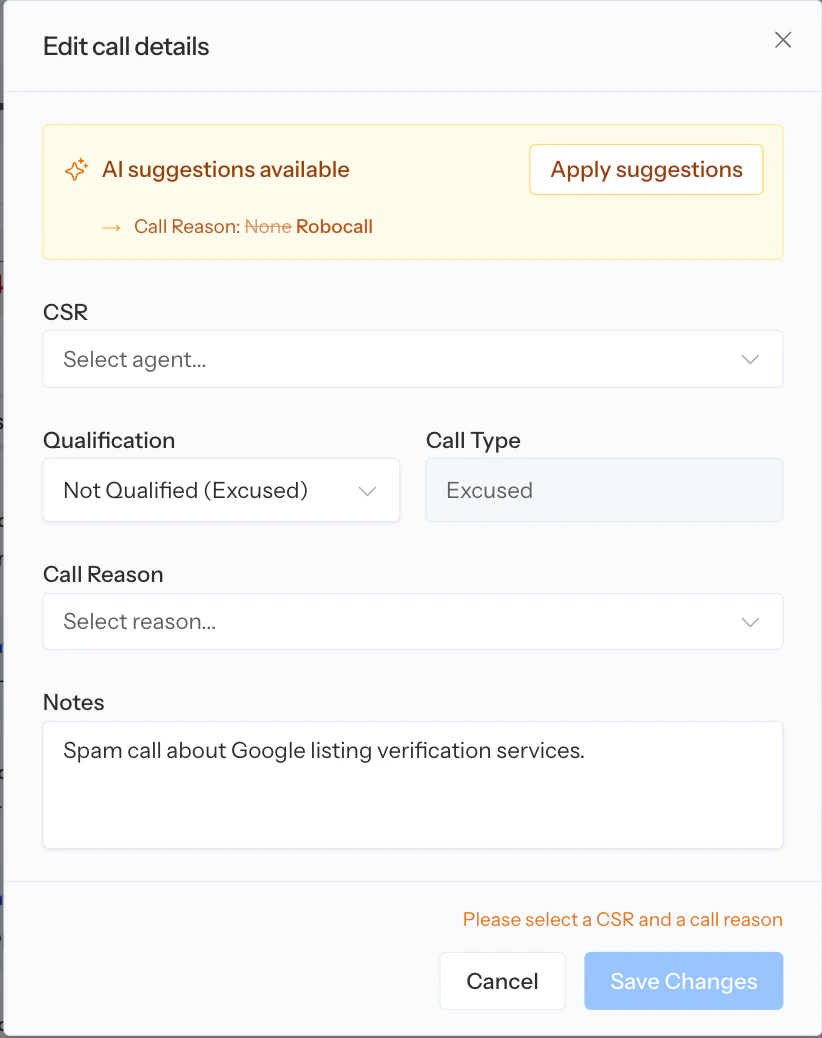 * Click **Apply suggestions** to fill in all the AI's recommended values at once, or
* Edit any field manually: **CSR**, **Qualification**, **Booking status**, **Call Type**, **Call Reason**, **Tags**, **Linked Job**, or **Notes**.
* Click **Update Call**. All changes sync to ServiceTitan and the **"Needs Review"** tag is removed from the call.
***
### Best practices
* Start with a small batch when using bulk **Accept**, to confirm the AI's recommendations match what you'd do yourself.
* For patterns you keep correcting, share a few example call links with your Avoca contact so the AI definitions can be tuned.
* Once you trust the AI for a category, consider enabling Auto-Reclassification at **Coach — Settings — Reclassification — Auto Reclassification**.
***
### Troubleshooting
* **The Accept / Decline buttons don't appear**: They only show when at least one of your selected calls is misclassified (an amber row).
* **A call I expected to be flagged isn't**: Some classifications are treated as equivalent — ServiceTitan `NotLead` and `Abandoned` are considered the same as the AI's `Excused`.
* Open the call and use **Edit Call** to fix it manually — the error usually points to a ServiceTitan permission issue or a locked job.
* **Call reasons in the AI column look wrong or empty**: Sync them at **Coach — Settings — Reclassification — Call Reasons**, click **Get Unsynced Reasons from ServiceTitan**, update descriptions, and save.
***
* Click **Apply suggestions** to fill in all the AI's recommended values at once, or
* Edit any field manually: **CSR**, **Qualification**, **Booking status**, **Call Type**, **Call Reason**, **Tags**, **Linked Job**, or **Notes**.
* Click **Update Call**. All changes sync to ServiceTitan and the **"Needs Review"** tag is removed from the call.
***
### Best practices
* Start with a small batch when using bulk **Accept**, to confirm the AI's recommendations match what you'd do yourself.
* For patterns you keep correcting, share a few example call links with your Avoca contact so the AI definitions can be tuned.
* Once you trust the AI for a category, consider enabling Auto-Reclassification at **Coach — Settings — Reclassification — Auto Reclassification**.
***
### Troubleshooting
* **The Accept / Decline buttons don't appear**: They only show when at least one of your selected calls is misclassified (an amber row).
* **A call I expected to be flagged isn't**: Some classifications are treated as equivalent — ServiceTitan `NotLead` and `Abandoned` are considered the same as the AI's `Excused`.
* Open the call and use **Edit Call** to fix it manually — the error usually points to a ServiceTitan permission issue or a locked job.
* **Call reasons in the AI column look wrong or empty**: Sync them at **Coach — Settings — Reclassification — Call Reasons**, click **Get Unsynced Reasons from ServiceTitan**, update descriptions, and save.
***