> ## Documentation Index
> Fetch the complete documentation index at: https://help.avoca.ai/llms.txt
> Use this file to discover all available pages before exploring further.
# How to enter postal codes in Services AreasTo enter postal codes (zip codes) in Service Areas in Avoca, you typically have two options:
### Option A: Sync from ServiceTitan
Go to [`https://app.avoca.ai/team/TEAM_ID/service-areas`](https://app.avoca.ai/team/TEAM_ID/service-areas)
Click **Get Zones from ServiceTitan** to import areas + zip codes from ServiceTitan
On each zone, click **Add all postal codes to** and select the Service Area you would like to add the postal code to
**NOTE:** If you have the same booking logic for all zones in ServiceTitan, you can click **New Service Area** on the first zone and create an **All Service Areas** zone in Avoca. Then on additional zones, add all postal codes to this new combined zone. This will ease the maintenance requirement of keeping up multiple Service Areas and booking windows later on.
Once done, click **Save Changes**
Check your sync settings with ServiceTitan - select **Sync periodically** or **Allow sync to delete zips** to make sure that your Avoca is always in line with your ServiceTitan
 If you need to add postal codes that are not in your ServiceTitan, click the **Import from CSV** or **Add Postal Codes** buttons at the bottom of your zone to add zones manually
 ### Option B: Add Postal Codes Manually
Click **New Service Area**
### Option B: Add Postal Codes Manually
Click **New Service Area**
 Set the name of your zone, then click **Done**
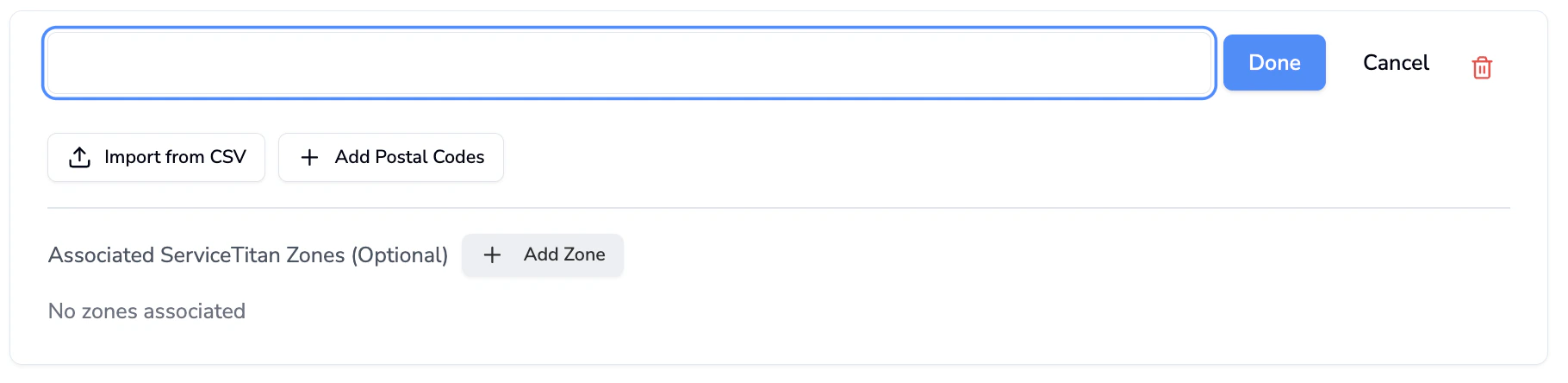 Click **Import from CSV** or **Add Postal Codes** to add postal codes manually to Avoca (both expect comma-separated postal codes)
Click **Save Changes** when done
Click **Import from CSV** or **Add Postal Codes** to add postal codes manually to Avoca (both expect comma-separated postal codes)
Click **Save Changes** when done
 If the service area zip list is blank (an empty list like `[]`) or an asterisk (\*), Avoca treats it as a wildcard and **accept all zips**