> ## Documentation Index
> Fetch the complete documentation index at: https://help.avoca.ai/llms.txt
> Use this file to discover all available pages before exploring further.
# How to change/delete user access?
> **Goal:** To guide clients on how to change or delete user access
**Read Time:** 8 mins
**Where to find in Avoca:** (*Far Left of Screen)* **Settings - Members - User List**
## Go To Settings
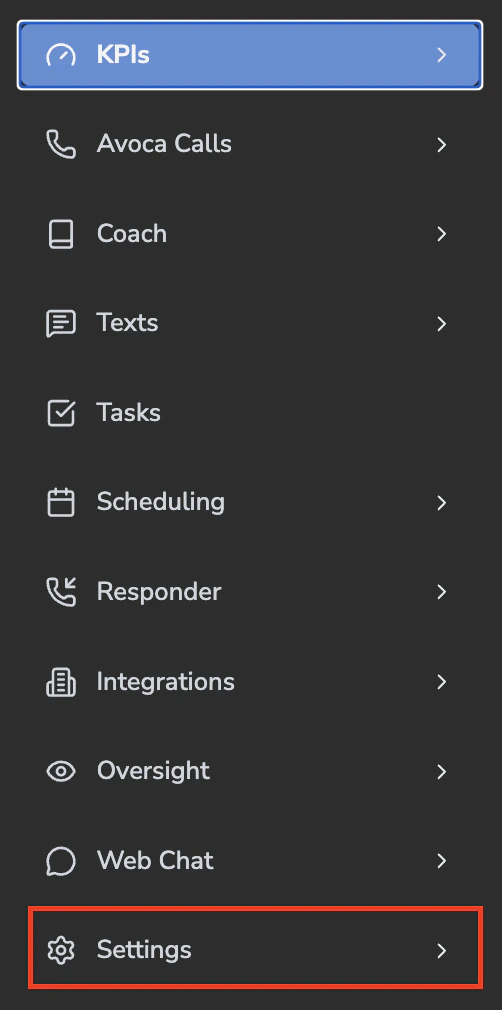
* To get started open “Settings” located on your left hand side. Click the “>” and locate “Members”.
 * If you successfully followed the first step the members screen will show you the full list of all users on your platform. Located to the right of the user you will notice 3 boxes.
 * Follow the next steps to change the user.
## Change/Edit Access
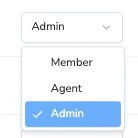
* Click the first box that should show the users current access. If you click the dropdown you can change the access here.
* Follow the next steps to change the user.
## Change/Edit Access
* Click the first box that should show the users current access. If you click the dropdown you can change the access here.
 * Once you change the status the screen will auto save and refresh with the users updated role.
## Remove Access
* To remove a user, simply click the “…” next to the “Edit Permissions” button. A “Remove user” button will appear.
* Once you change the status the screen will auto save and refresh with the users updated role.
## Remove Access
* To remove a user, simply click the “…” next to the “Edit Permissions” button. A “Remove user” button will appear.
 * Once the button is clicked the screen will auto save and refresh and the user will be removed.
## Edit Permissions
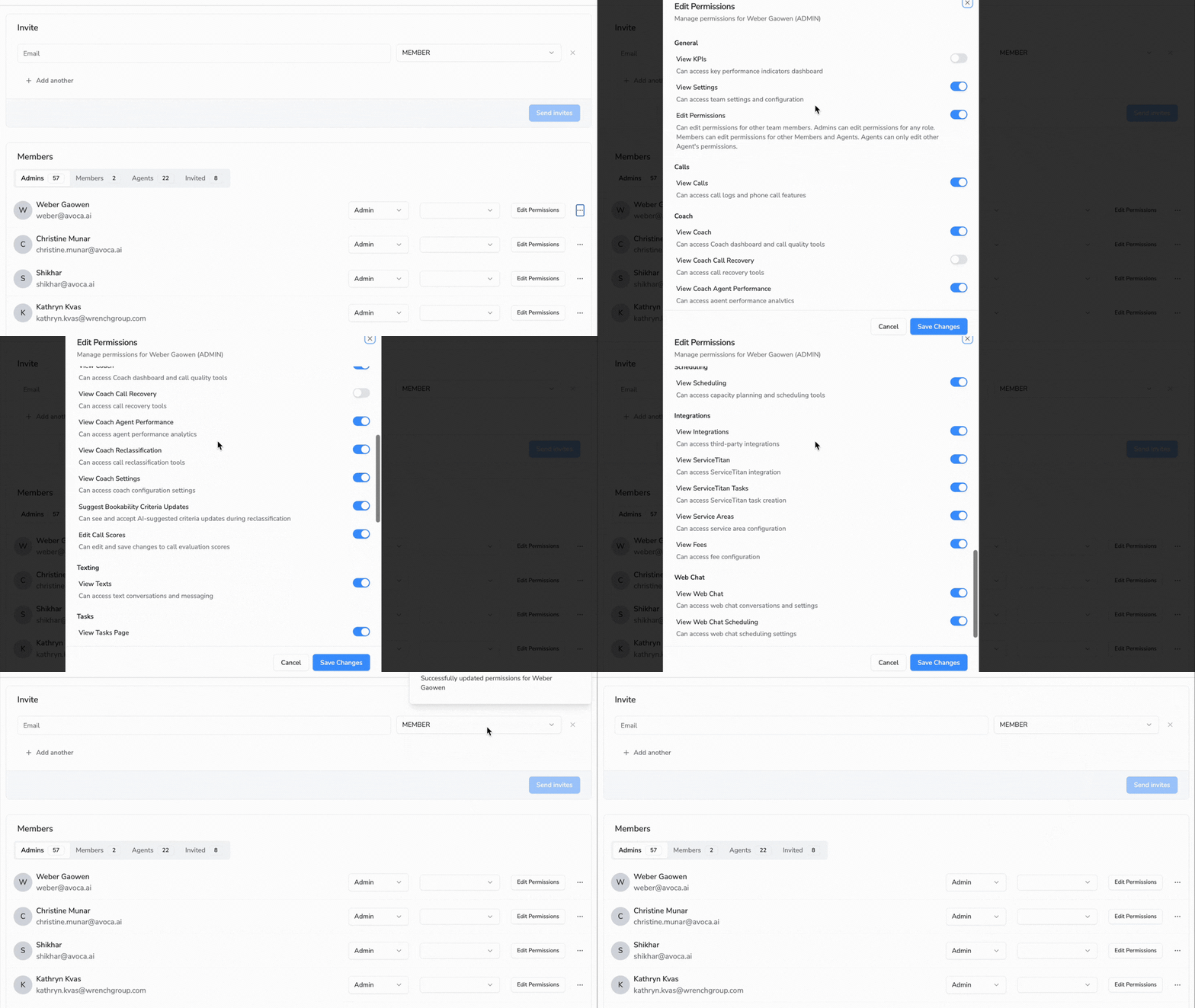
* If you don’t want to delete a user but get granular with their access. You can click “Edit Permissions” button and that will open a pop up screen that shows what the user can access.
* Once the button is clicked the screen will auto save and refresh and the user will be removed.
## Edit Permissions
* If you don’t want to delete a user but get granular with their access. You can click “Edit Permissions” button and that will open a pop up screen that shows what the user can access.