> ## Documentation Index
> Fetch the complete documentation index at: https://help.avoca.ai/llms.txt
> Use this file to discover all available pages before exploring further.
# How to Set Up Holidays and Holiday Fees in the Avoca Dashboard
## Overview
Set up your holidays to ensure that your Avoca bot does not overbook your team on these days.
**Important:**
The Holidays feature requires **Booking Windows** to be enabled. To verify you're using Booking Windows, navigate to **Scheduling > Booking Windows** and check if you have Service and Appointment Types configured. If you don't see this, please contact your Customer Success Manager.
**For ServiceTitan customers using ACP/AdCap:** If you've already marked holiday dates with 0 capacity in ServiceTitan, Avoca won't book any jobs. The Holidays feature provides an additional guardrail and gives you more control over booking behavior.
## How to Access the Holidays Feature
Log in to your Avoca Dashboard
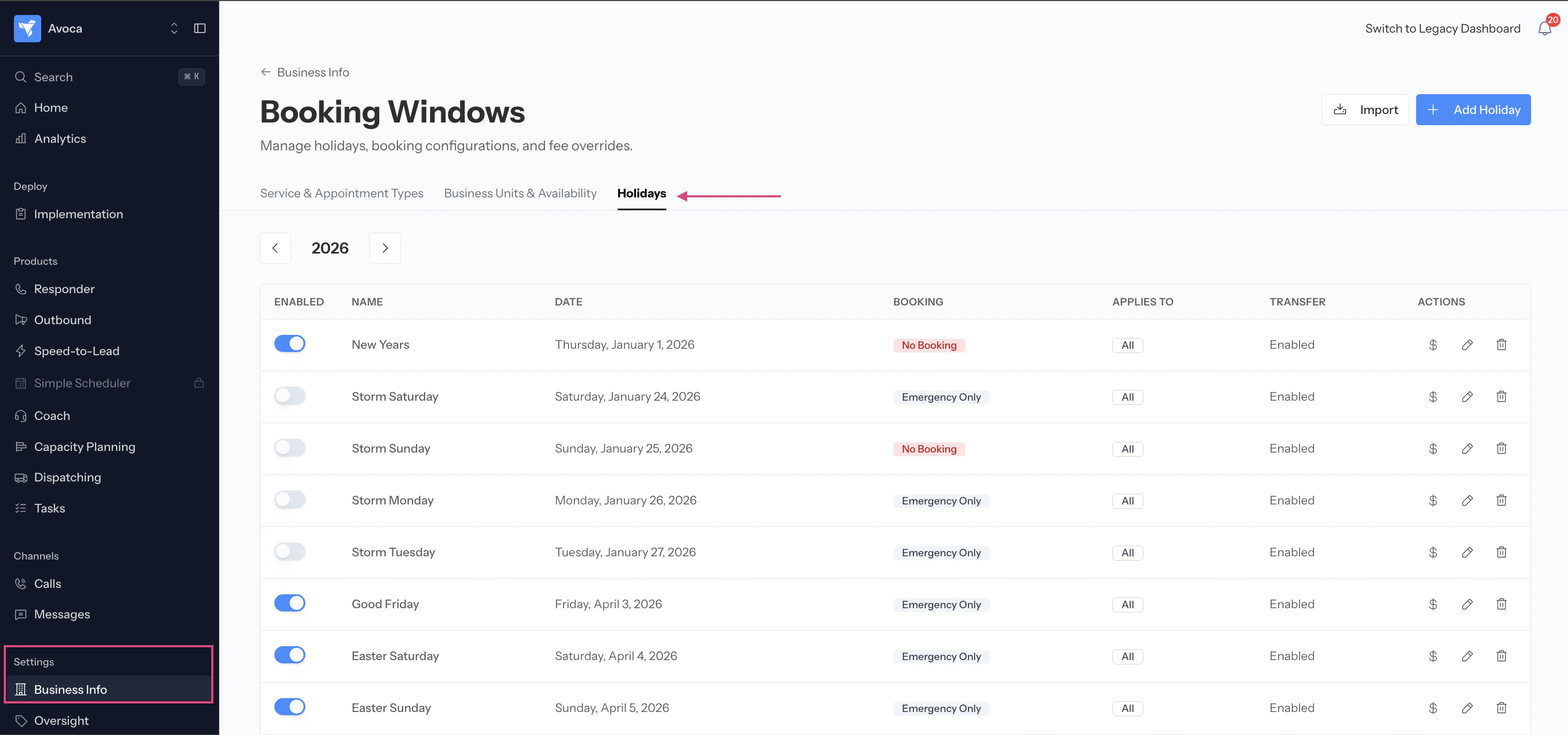
Navigate to **Settings > Business Into > Booking Windows > Holidays**
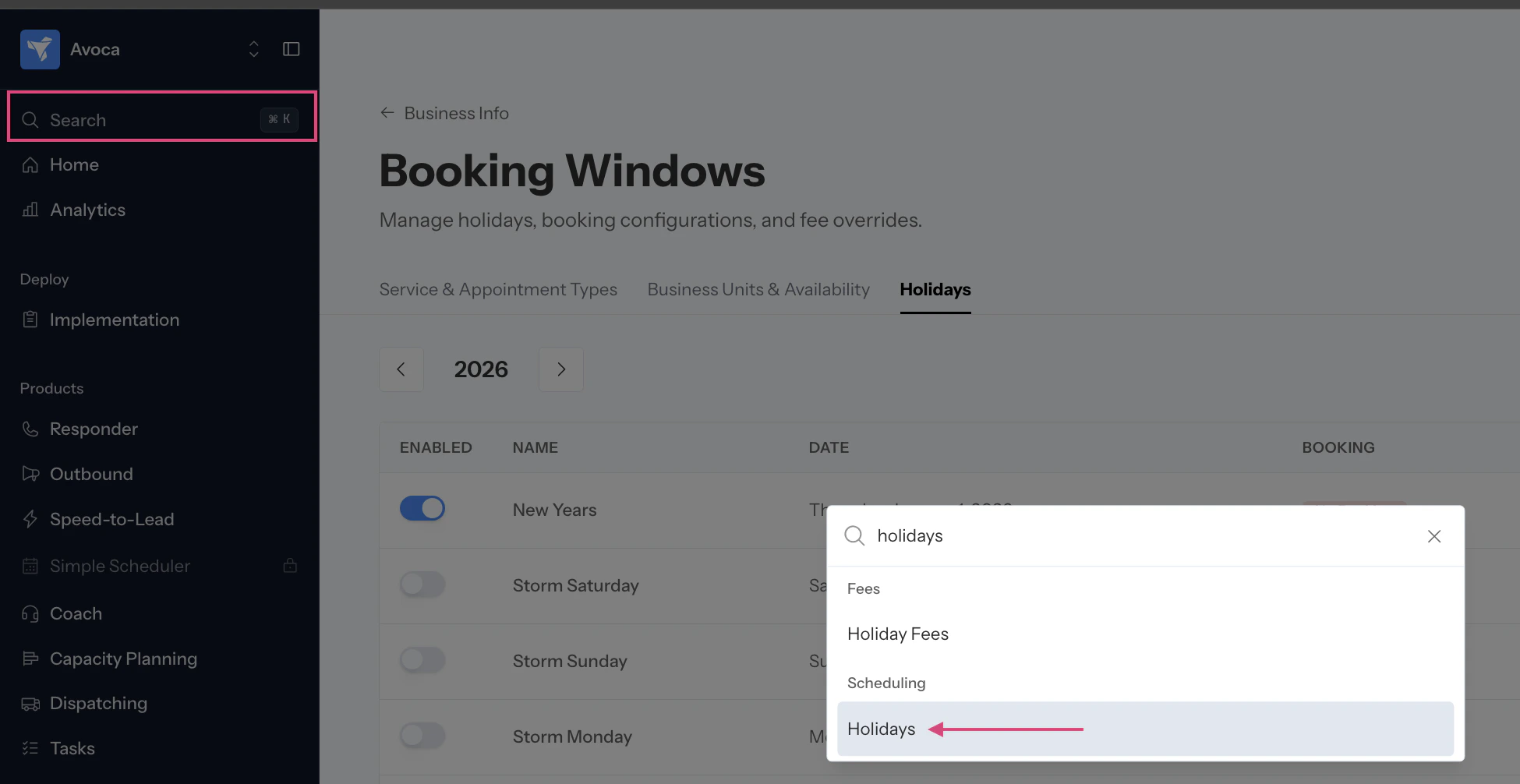
 Alternatively use the search function to find the Holidays page
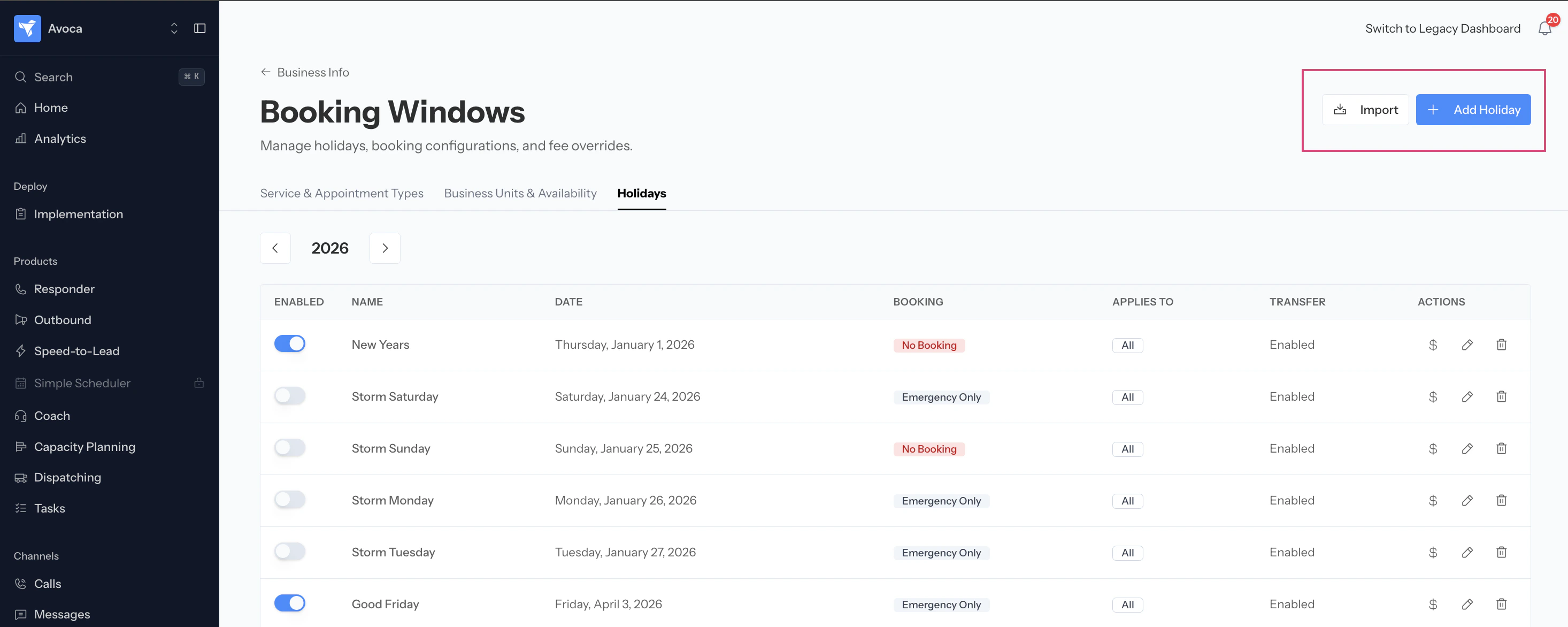
 You'll see two options:
* **Add Holiday** – This will allow you to manually add a specific holiday
* **Import Holidays** – This will pull a list of the current year's public holidays
You'll see two options:
* **Add Holiday** – This will allow you to manually add a specific holiday
* **Import Holidays** – This will pull a list of the current year's public holidays
 ## Adding a Holiday Manually
Use this option when you want to add company-specific holidays or custom closure dates.
Click **Add Holiday**
## Adding a Holiday Manually
Use this option when you want to add company-specific holidays or custom closure dates.
Click **Add Holiday**
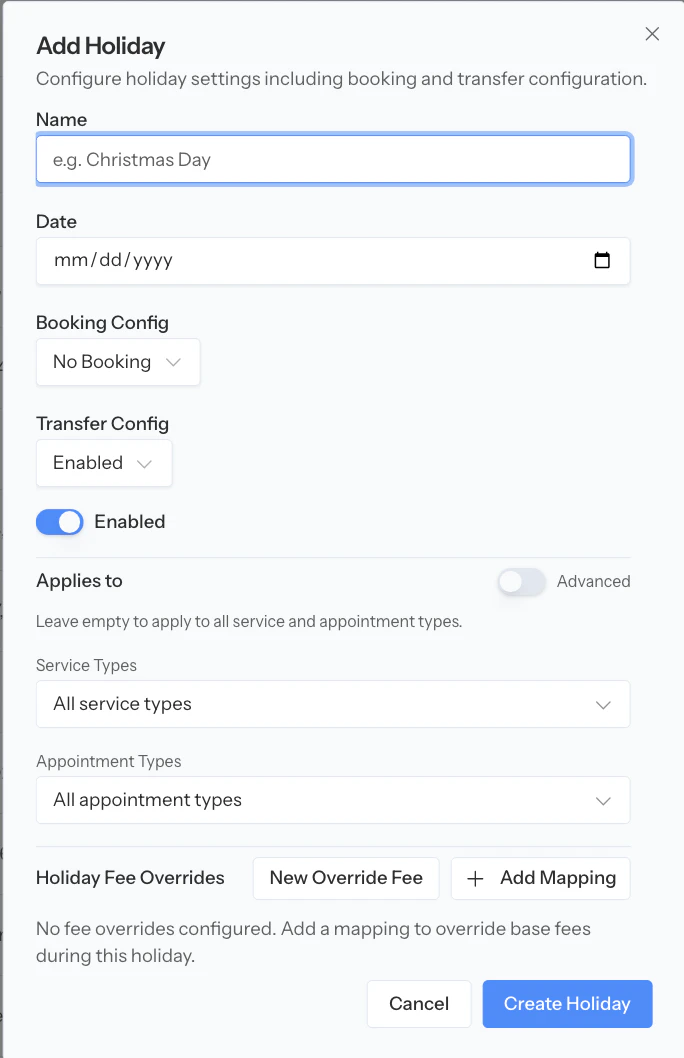 **Select the date:** Currently, you can only select single days. If you have multiple consecutive holiday days, create a separate entry for each day.
**Name the holiday:** Enter a descriptive name (e.g., "Christmas Day," "Company Anniversary")
**Choose booking behavior**
* **Not book at all:** Avoca will not schedule any appointments on this day
* **Book all jobs:** Avoca will book appointments normally
* **Only book emergencies:** Avoca will only book jobs marked as emergencies
**Configure transfer behavior** *(This only matters if Avoca is transferring calls back to your team.)*
* **Enable transfers:** Avoca will transfer calls as usual based on your transfer settings
* **Disable transfers:** Avoca will not transfer calls to your office on this holiday
**Set up Advanced Rules** (optional)
* The basic mode only lets you set up **one** combination of service and appointment types.
* Enable the "Advanced" toggle
* Each rule has two filters:
1. **Service Types** — what kind of work the customer is calling about (Plumbing, HVAC, Pest Control, etc.)
2. **Appointment Types** — what kind of visit they want (Estimate, Emergency, Tune-up, etc.)
**Select the date:** Currently, you can only select single days. If you have multiple consecutive holiday days, create a separate entry for each day.
**Name the holiday:** Enter a descriptive name (e.g., "Christmas Day," "Company Anniversary")
**Choose booking behavior**
* **Not book at all:** Avoca will not schedule any appointments on this day
* **Book all jobs:** Avoca will book appointments normally
* **Only book emergencies:** Avoca will only book jobs marked as emergencies
**Configure transfer behavior** *(This only matters if Avoca is transferring calls back to your team.)*
* **Enable transfers:** Avoca will transfer calls as usual based on your transfer settings
* **Disable transfers:** Avoca will not transfer calls to your office on this holiday
**Set up Advanced Rules** (optional)
* The basic mode only lets you set up **one** combination of service and appointment types.
* Enable the "Advanced" toggle
* Each rule has two filters:
1. **Service Types** — what kind of work the customer is calling about (Plumbing, HVAC, Pest Control, etc.)
2. **Appointment Types** — what kind of visit they want (Estimate, Emergency, Tune-up, etc.)
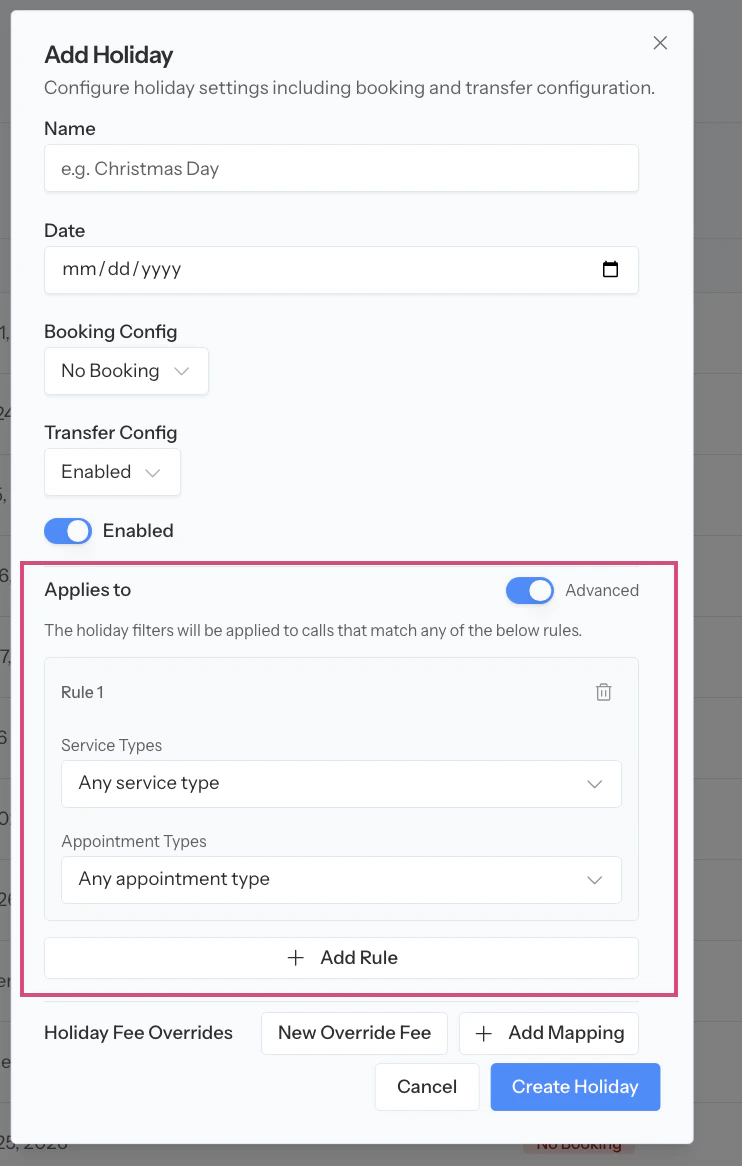 * Create the rule based on what Service or Appointment type you want to apply for the Holiday
* In the example below, we are specifically blocking Plumbing Repairs from getting booked
* Create the rule based on what Service or Appointment type you want to apply for the Holiday
* In the example below, we are specifically blocking Plumbing Repairs from getting booked
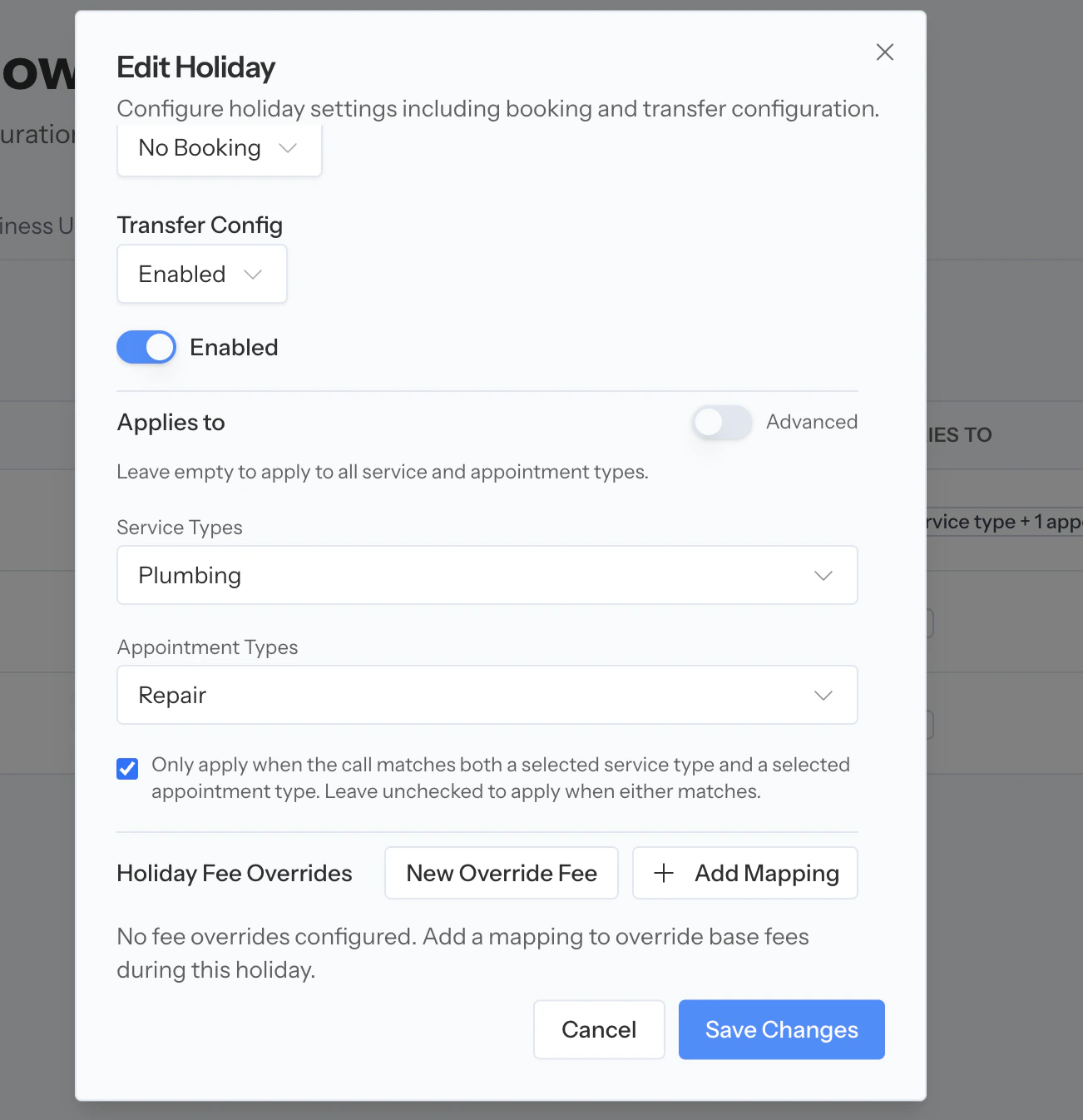 **Configure holiday fees** (optional) – If you charge different fees on holidays:
* By default, holidays will use your standard base fees
* To set a special holiday fee, select it from the dropdown menu
* If you select "No Holiday Fee," your base fees will apply
* Note: The holiday fee will **replace** (not add to) your base fee for that day
Click **Save**
## Importing Public Holidays
Use this option to quickly add standard federal or public holidays for the year.
**Steps:**
Click **Import Holidays**
Click **Fetch Holidays**
**Select the year** you want to import (e.g., 2025, 2026). This will pull up a list of all the holidays for the year you've selected.
**Select the holidays** you want to add from the list
a. The name of the holiday will automatically be added. You can still edit the name if you have a company-specific internal name for the holiday.
b. **Choose booking behavior**
* **Not book at all:** Avoca will not schedule any appointments on this day
* **Book all jobs:** Avoca will book appointments normally
* **Only book emergencies:** Avoca will only book jobs marked as emergencies
c. **Configure transfer behavior** *(This only matters if Avoca is transferring calls back to your team.)*
* **Enable transfers:** Avoca will transfer calls as usual based on your transfer settings
* **Disable transfers:** Avoca will not transfer calls to your office on this holiday
d. **Set up advances rules** (optional)
f. **Configure holiday fees** (optional) – Select a holiday fee if you charge different rates on holidays. Leave as "No Holiday Fee" to use your standard base fees.
e. Verify the number of holidays and then click **Import Holidays** to save
## Configuring Holiday Fees
If your business charges different fees on holidays (e.g., emergency rates, premium rates, or holiday surcharges), you can configure these fees to apply automatically when Avoca books appointments on those days.
### How Holiday Fees Work
* When you assign a holiday fee to a specific holiday, that fee replaces your standard base fee for that day (it is not added on top of the base fee)
* If you don't assign a holiday fee, Avoca will use your standard base fees
* The holiday fee applies to all appointments booked on that holiday, based on the fee rules you've configured
### Setting Up Holiday Fees
**Before you can assign holiday fees to specific holidays, you need to create the fees first:**
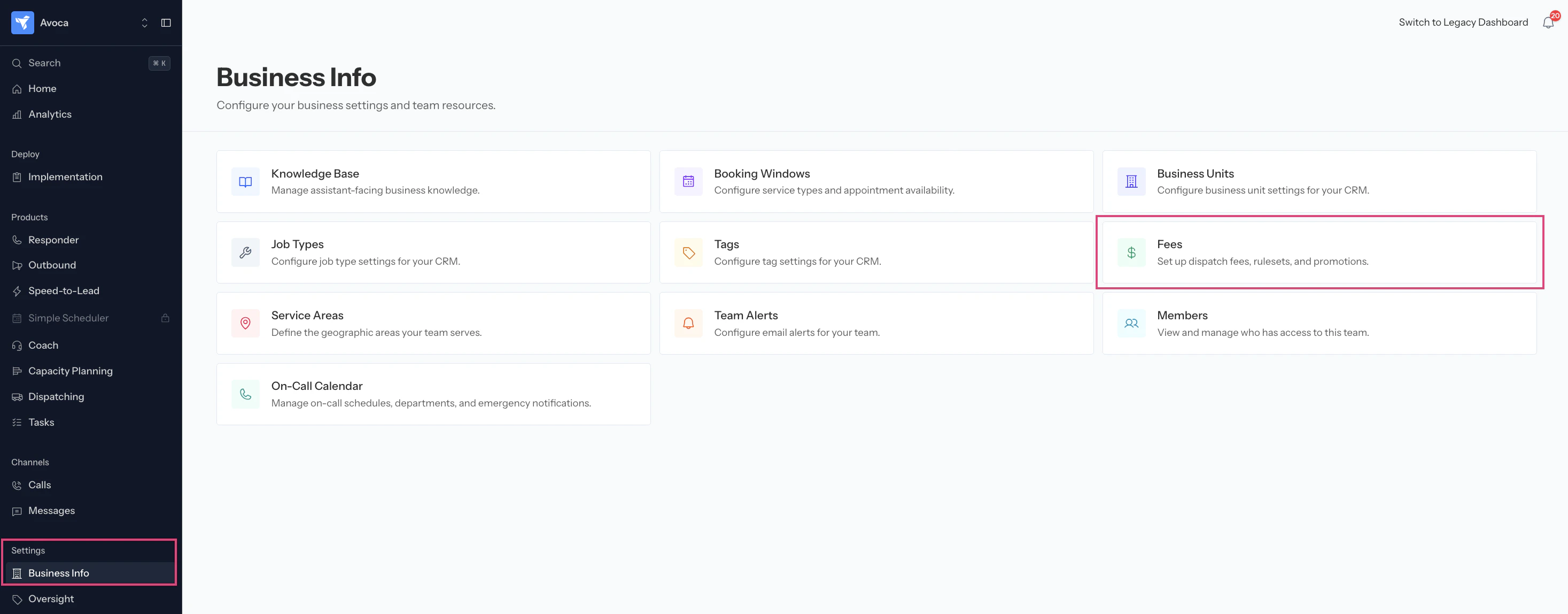
Navigate to **Settings > Business Info> Fees > Holiday Fees** in your Avoca Dashboard
**Configure holiday fees** (optional) – If you charge different fees on holidays:
* By default, holidays will use your standard base fees
* To set a special holiday fee, select it from the dropdown menu
* If you select "No Holiday Fee," your base fees will apply
* Note: The holiday fee will **replace** (not add to) your base fee for that day
Click **Save**
## Importing Public Holidays
Use this option to quickly add standard federal or public holidays for the year.
**Steps:**
Click **Import Holidays**
Click **Fetch Holidays**
**Select the year** you want to import (e.g., 2025, 2026). This will pull up a list of all the holidays for the year you've selected.
**Select the holidays** you want to add from the list
a. The name of the holiday will automatically be added. You can still edit the name if you have a company-specific internal name for the holiday.
b. **Choose booking behavior**
* **Not book at all:** Avoca will not schedule any appointments on this day
* **Book all jobs:** Avoca will book appointments normally
* **Only book emergencies:** Avoca will only book jobs marked as emergencies
c. **Configure transfer behavior** *(This only matters if Avoca is transferring calls back to your team.)*
* **Enable transfers:** Avoca will transfer calls as usual based on your transfer settings
* **Disable transfers:** Avoca will not transfer calls to your office on this holiday
d. **Set up advances rules** (optional)
f. **Configure holiday fees** (optional) – Select a holiday fee if you charge different rates on holidays. Leave as "No Holiday Fee" to use your standard base fees.
e. Verify the number of holidays and then click **Import Holidays** to save
## Configuring Holiday Fees
If your business charges different fees on holidays (e.g., emergency rates, premium rates, or holiday surcharges), you can configure these fees to apply automatically when Avoca books appointments on those days.
### How Holiday Fees Work
* When you assign a holiday fee to a specific holiday, that fee replaces your standard base fee for that day (it is not added on top of the base fee)
* If you don't assign a holiday fee, Avoca will use your standard base fees
* The holiday fee applies to all appointments booked on that holiday, based on the fee rules you've configured
### Setting Up Holiday Fees
**Before you can assign holiday fees to specific holidays, you need to create the fees first:**
Navigate to **Settings > Business Info> Fees > Holiday Fees** in your Avoca Dashboard
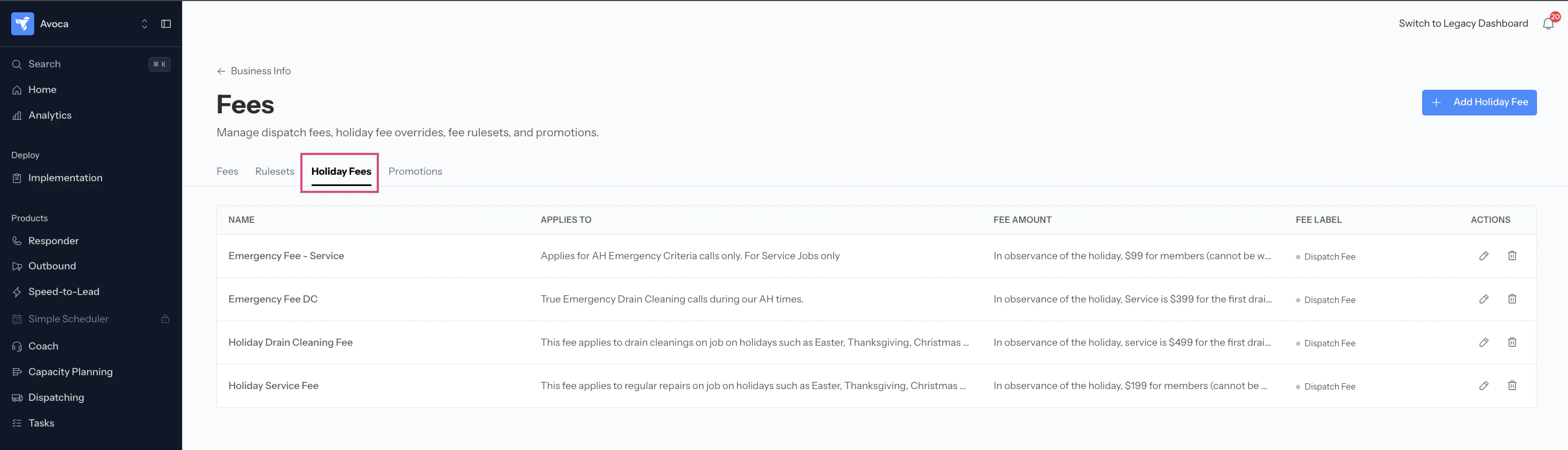 Create your holiday fees (e.g., "Holiday Emergency Fee - `$300`," "Holiday After Hours - `$250`")
a. **Multiple fee structures**: If you have different fees for different scenarios (e.g., regular hours vs. after hours), you can create separate holiday fees for each and Avoca will apply the correct one based on your fee rules
1. Give the fee a name
2. Amount
3. Describe when this fee applies
4. Avoca should call the fee when referencing the fee
Create your holiday fees (e.g., "Holiday Emergency Fee - `$300`," "Holiday After Hours - `$250`")
a. **Multiple fee structures**: If you have different fees for different scenarios (e.g., regular hours vs. after hours), you can create separate holiday fees for each and Avoca will apply the correct one based on your fee rules
1. Give the fee a name
2. Amount
3. Describe when this fee applies
4. Avoca should call the fee when referencing the fee
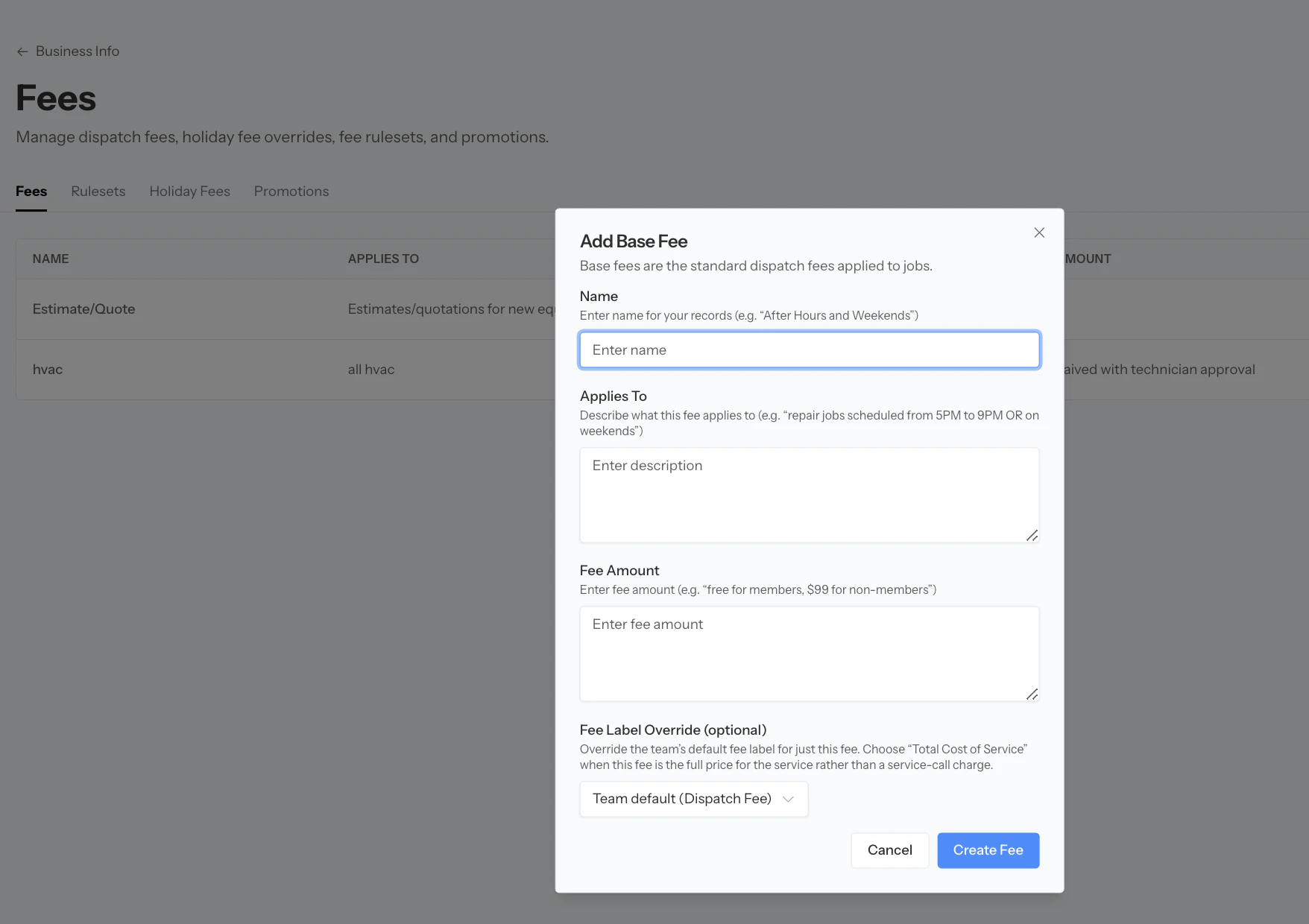 Click 'Create Fee'
**Once your holiday fees are created, you can assign them to holidays:**
Go back to your **Holidays**
Edit the Holiday you want to add a fee for, and select whether you want to allow Emergency Bookings or Regular bookings.
* If you select No Bookings, it won’t allow you to add any fees.
You’ll see a list of all the existing [Base Fees](/How-to-set-up-Fees-and-Rulesets-2cef2b56d4d580d0965ccc9461c3a949)
* Select the standard base see that would apply to this job
Click 'Create Fee'
**Once your holiday fees are created, you can assign them to holidays:**
Go back to your **Holidays**
Edit the Holiday you want to add a fee for, and select whether you want to allow Emergency Bookings or Regular bookings.
* If you select No Bookings, it won’t allow you to add any fees.
You’ll see a list of all the existing [Base Fees](/How-to-set-up-Fees-and-Rulesets-2cef2b56d4d580d0965ccc9461c3a949)
* Select the standard base see that would apply to this job
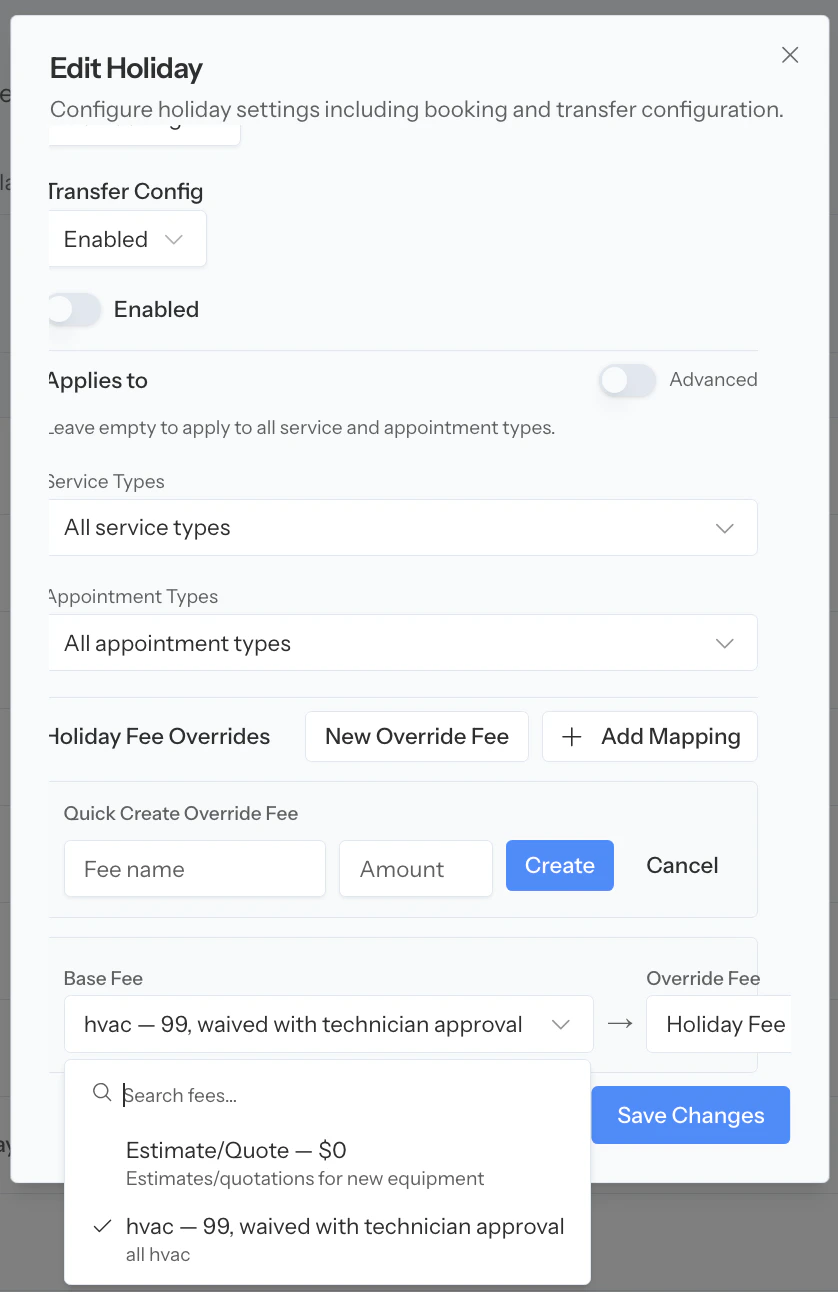 Select the appropriate Holiday Fee that will override the Base Fee during the holiday
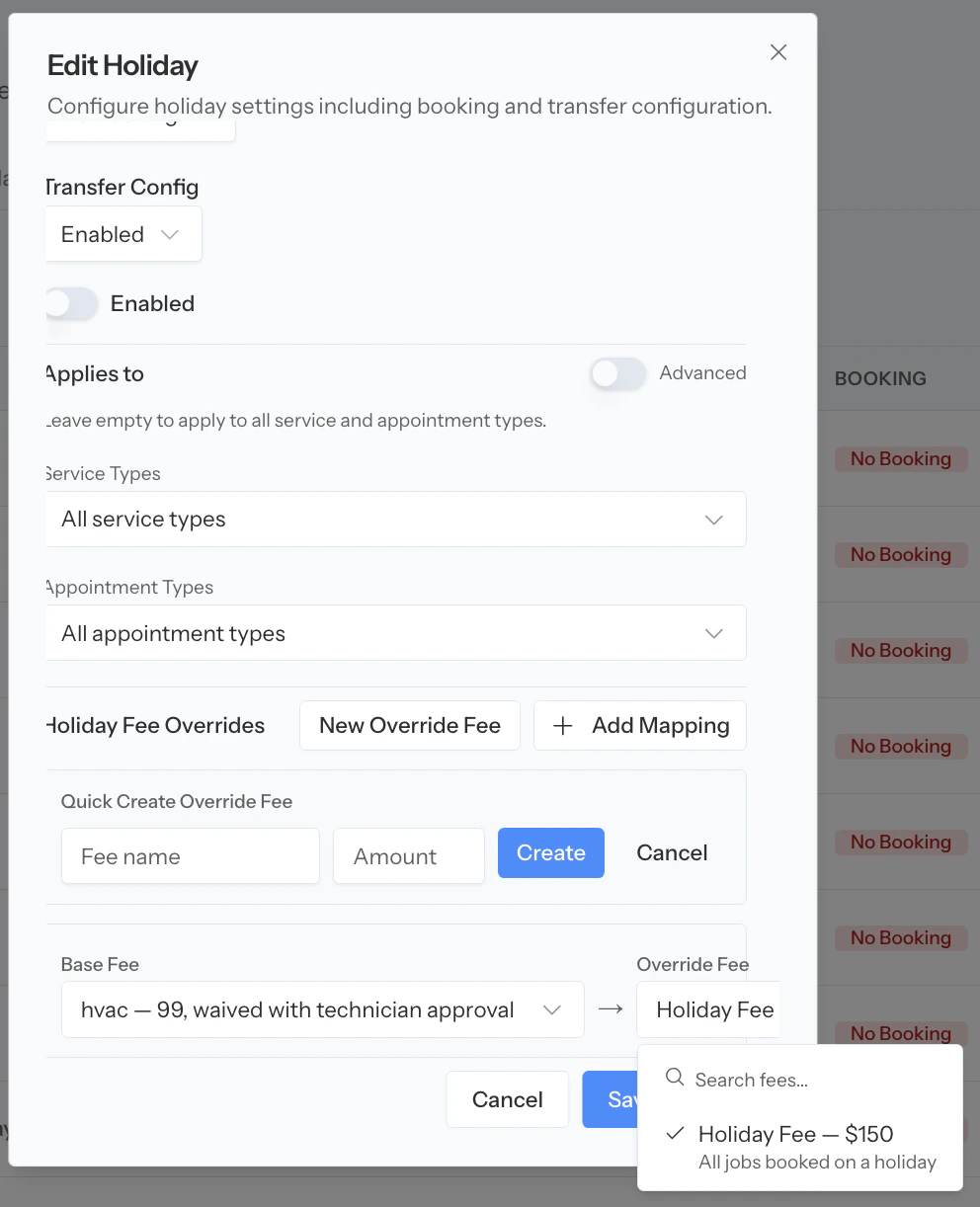 Save the holiday
**Tip:**
Most companies only need one or two holiday fees (e.g., "Holiday Rate" and "Holiday Emergency Rate") rather than mapping every single base fee to a holiday equivalent. Keep it simple!
### Examples
* Booking behavior: "Not book at all"
* Holiday fee: Not needed (no bookings will be made)
* Booking behavior: "Only book emergencies"
* Holiday fee: "Holiday Emergency Fee - \$300" (or your premium rate)
* Result: Only emergencies are booked, and customers are quoted the holiday emergency rate
* Booking behavior: "Book all jobs"
* Holiday fee: "No Holiday Fee" (uses standard base fees)
* Result: All jobs can be booked with normal pricing
* Booking behavior: "Book all jobs"
* Holiday fee: "Holiday Service Fee - \$200"
* Result: All jobs can be booked, and the holiday fee replaces the base fee
## Managing Your Holidays
Once you've added holidays, they'll appear in a dashboard where you can view and manage all your configured holidays.
Save the holiday
**Tip:**
Most companies only need one or two holiday fees (e.g., "Holiday Rate" and "Holiday Emergency Rate") rather than mapping every single base fee to a holiday equivalent. Keep it simple!
### Examples
* Booking behavior: "Not book at all"
* Holiday fee: Not needed (no bookings will be made)
* Booking behavior: "Only book emergencies"
* Holiday fee: "Holiday Emergency Fee - \$300" (or your premium rate)
* Result: Only emergencies are booked, and customers are quoted the holiday emergency rate
* Booking behavior: "Book all jobs"
* Holiday fee: "No Holiday Fee" (uses standard base fees)
* Result: All jobs can be booked with normal pricing
* Booking behavior: "Book all jobs"
* Holiday fee: "Holiday Service Fee - \$200"
* Result: All jobs can be booked, and the holiday fee replaces the base fee
## Managing Your Holidays
Once you've added holidays, they'll appear in a dashboard where you can view and manage all your configured holidays.
 ### Enabling and Disabling Holidays
* **Enabled holidays** (default) – When a holiday is enabled, your Avoca bot will respect the booking configurations you've set up
* **Disabled holidays** – When disabled, Avoca will ignore the holiday and book appointments normally
To toggle a holiday on or off, use the enable/disable switch next to each holiday entry.
### Editing Holidays
Click the **pencil icon** (✏️) next to the holiday you want to edit
Update the date, name, booking behavior, or transfer behavior as needed
Click **Save**
### Deleting Holidays
Click the **trash can icon** (🗑️) next to the holiday you want to remove
Confirm the deletion
### Enabling and Disabling Holidays
* **Enabled holidays** (default) – When a holiday is enabled, your Avoca bot will respect the booking configurations you've set up
* **Disabled holidays** – When disabled, Avoca will ignore the holiday and book appointments normally
To toggle a holiday on or off, use the enable/disable switch next to each holiday entry.
### Editing Holidays
Click the **pencil icon** (✏️) next to the holiday you want to edit
Update the date, name, booking behavior, or transfer behavior as needed
Click **Save**
### Deleting Holidays
Click the **trash can icon** (🗑️) next to the holiday you want to remove
Confirm the deletion