> ## Documentation Index
> Fetch the complete documentation index at: https://help.avoca.ai/llms.txt
> Use this file to discover all available pages before exploring further.
# How to Grant Avoca Access to Google Local Services Ads (GLSA)
> This document covers the required steps for granting Avoca access to your Google Local Services Ads (GLSA) account. This access enables Avoca to receive and respond to leads from Google Local Services in real-time, improving your speed-to-lead and booking conversion rates.
**Note:**
The invitation process requires coordination between your team and Avoca. Make sure to complete all steps in order to ensure proper access configuration.
### Step-by-Step Instructions
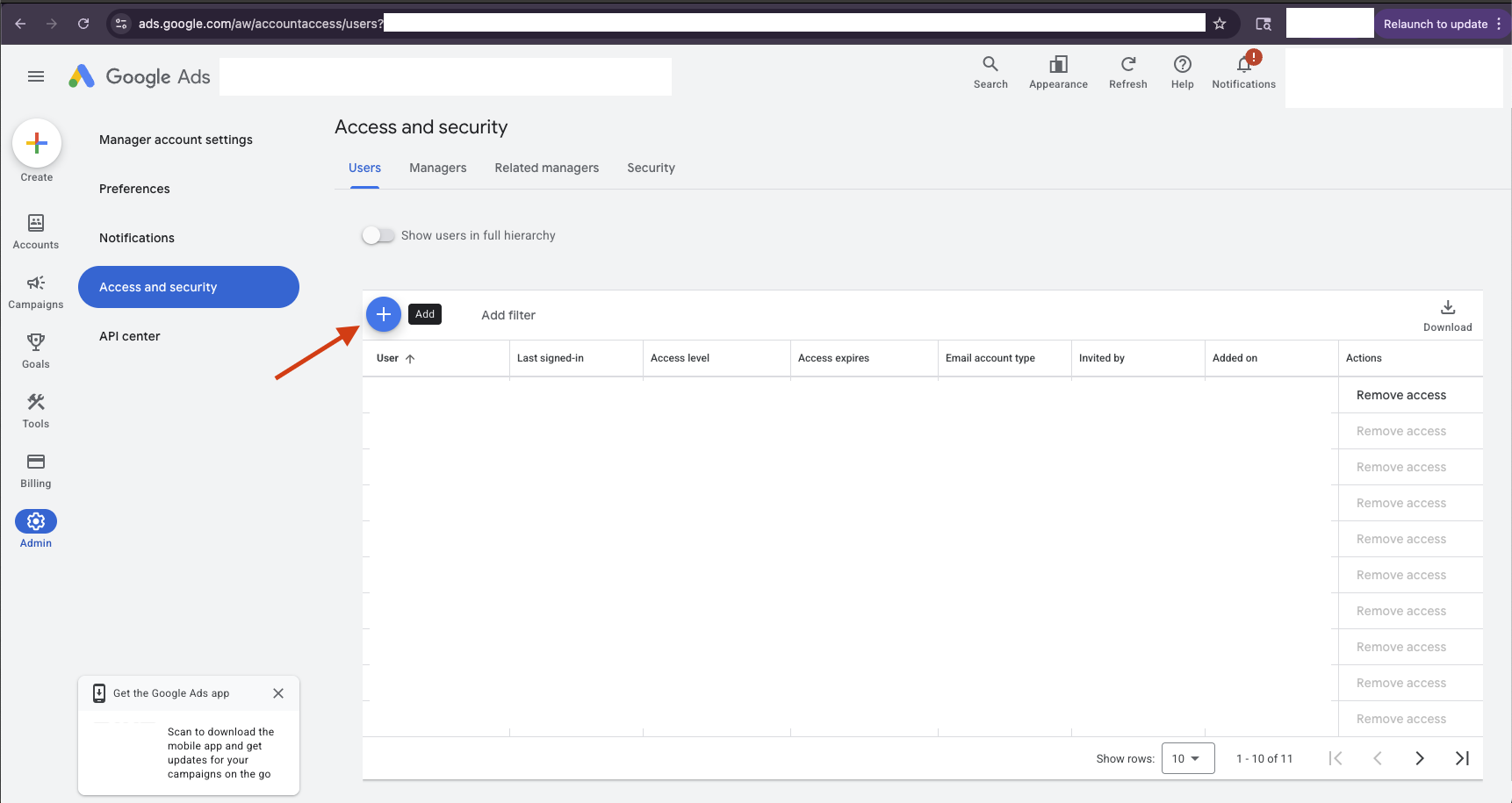
In your Google Ads dashboard (NOT Google Local Services Ads), navigate to **Admin** → **Access and Security**. In the **Users** tab, click the blue plus sign to send a new user invitation.
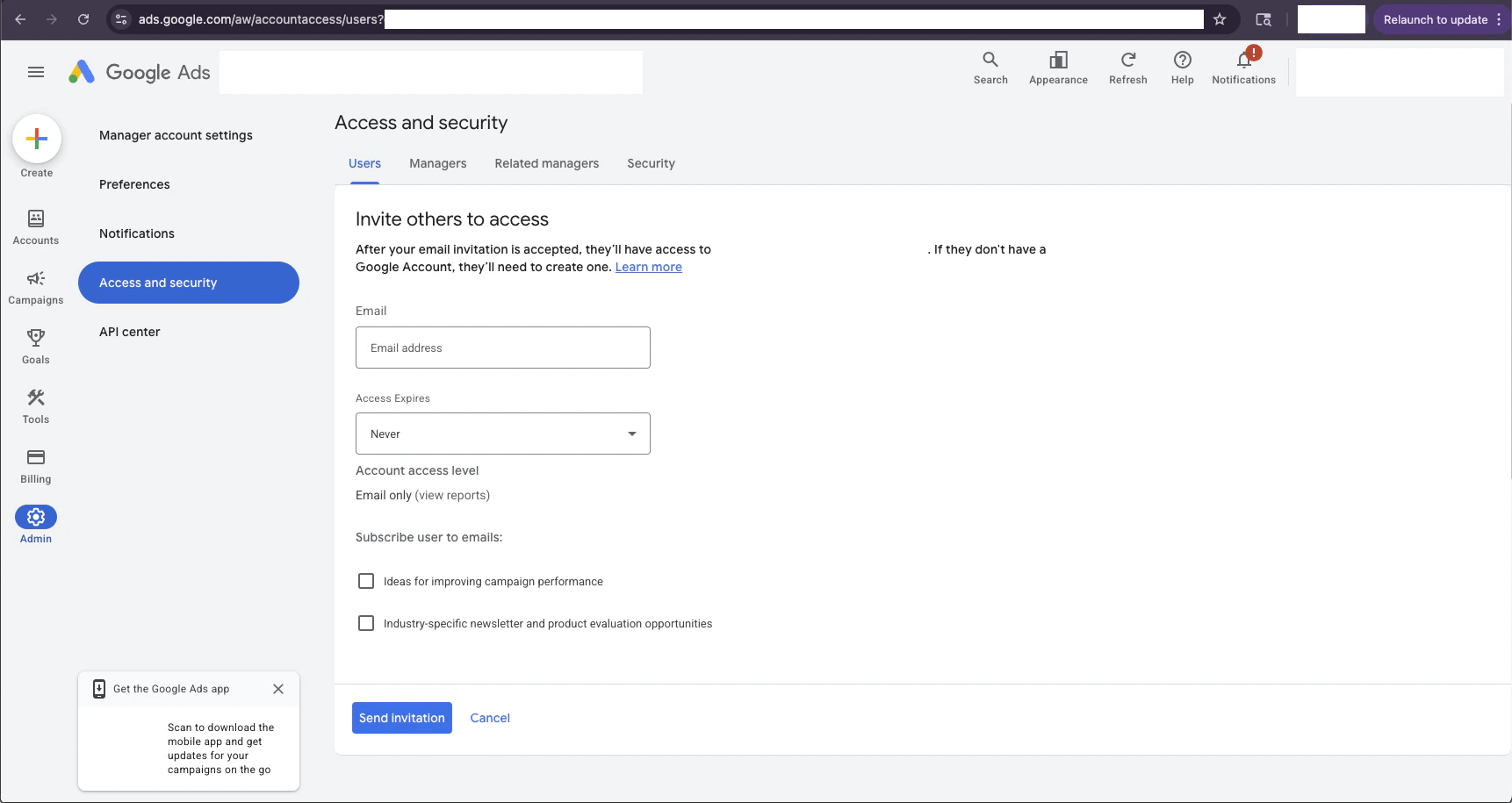
 Fill out the invitation form with the Avoca email address provided by your CSM/TAM (format: `customer-name@avoca.ai`). Initially, select **Read only** access level, then click **Send invitation**.
 Wait for Avoca to accept the invitation on our end. You will receive a notification in your account once the invitation is accepted.
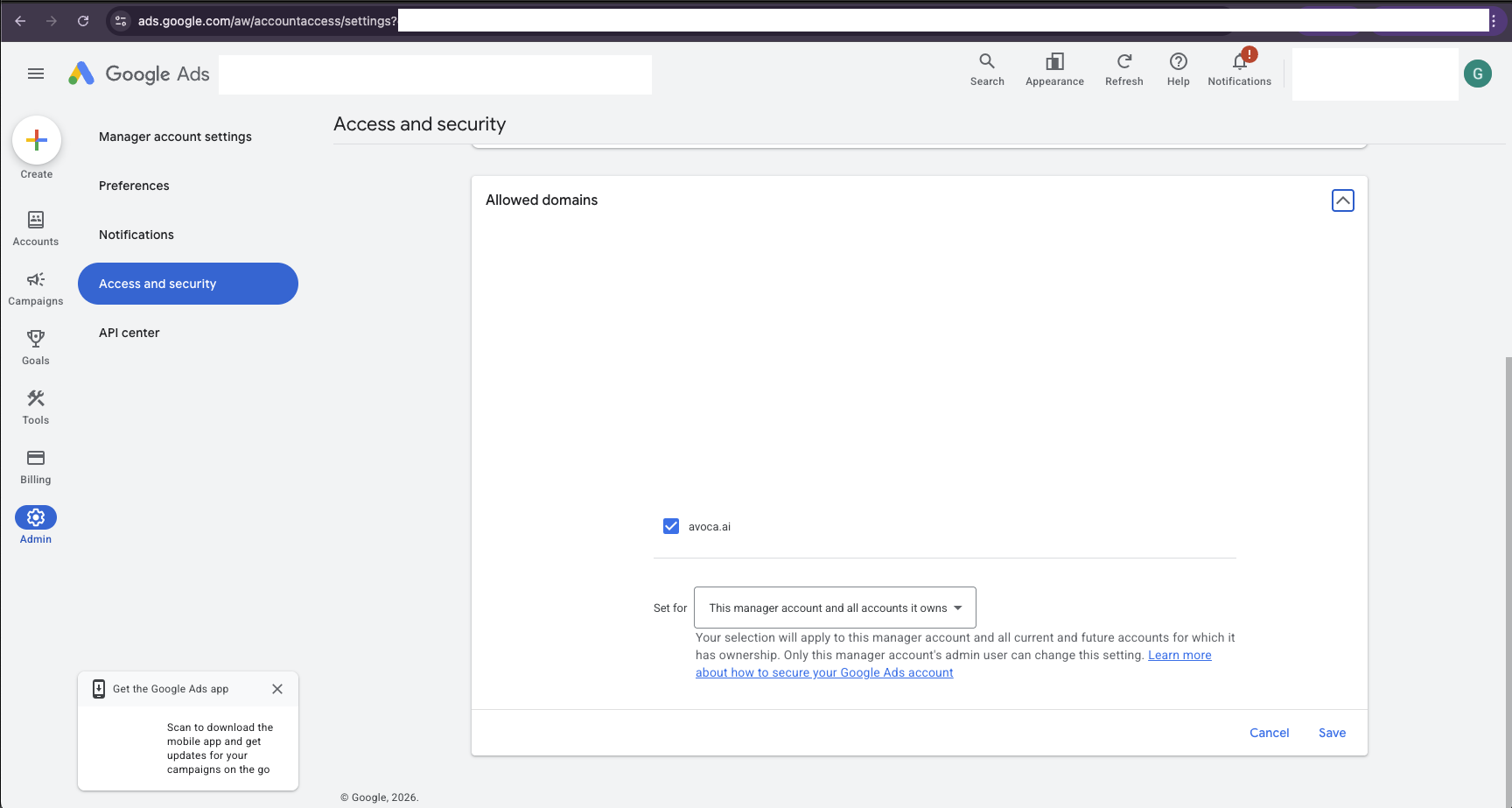
Navigate to the **Security** tab and scroll down to the **Allowed domains** section. Ensure that [**avoca.ai**](http://avoca.ai) is enabled in the allowed domains list.
Wait for Avoca to accept the invitation on our end. You will receive a notification in your account once the invitation is accepted.
Navigate to the **Security** tab and scroll down to the **Allowed domains** section. Ensure that [**avoca.ai**](http://avoca.ai) is enabled in the allowed domains list.
 Return to the **Users** tab and update the access level for the Avoca email (`customer-name@avoca.ai`) from **Read only** to **Standard** access.
**Important:**
Standard access is required for Avoca to properly respond to and manage GLSA leads. Read-only access will not enable full functionality.
## Need Help?
If you have questions about granting GLSA access or encounter issues during the invitation process, please reach out to your designated Avoca CSM/TAM for assistance.
**Additional Resources:**
Return to the **Users** tab and update the access level for the Avoca email (`customer-name@avoca.ai`) from **Read only** to **Standard** access.
**Important:**
Standard access is required for Avoca to properly respond to and manage GLSA leads. Read-only access will not enable full functionality.
## Need Help?
If you have questions about granting GLSA access or encounter issues during the invitation process, please reach out to your designated Avoca CSM/TAM for assistance.
**Additional Resources:**