> ## Documentation Index
> Fetch the complete documentation index at: https://help.avoca.ai/llms.txt
> Use this file to discover all available pages before exploring further.
# How to Complete Compliance Approvals for Outbound
> This document covers required steps for Brand Registration, CNAM, STIR/SHAKEN, Voice Integrity, and A2P/10DLC Campaign approvals. These approvals help ensure that your phone number does not get marked as spam when calling, as well as enable scaled outbound SMS campaigns.How to Complete Compliance Approvals for Outbound
Even though you may have approvals for some phone numbers already, A2P/10DLC campaign approvals cannot be carried over to Avoca. Each campaign submission is unique for each vendor.
**IMPORTANT:**
This entire approval process can take **several weeks**, so please ensure that the information submitted is accurate, thorough, and achieves the criteria outlined on the Compliance page. If the A2P/10DLC campaign submission gets rejected, the process will have to start over.
### Step-by-Step Instructions
Sign-in to your team
Go to **Settings > Compliance** on the left navigation menu
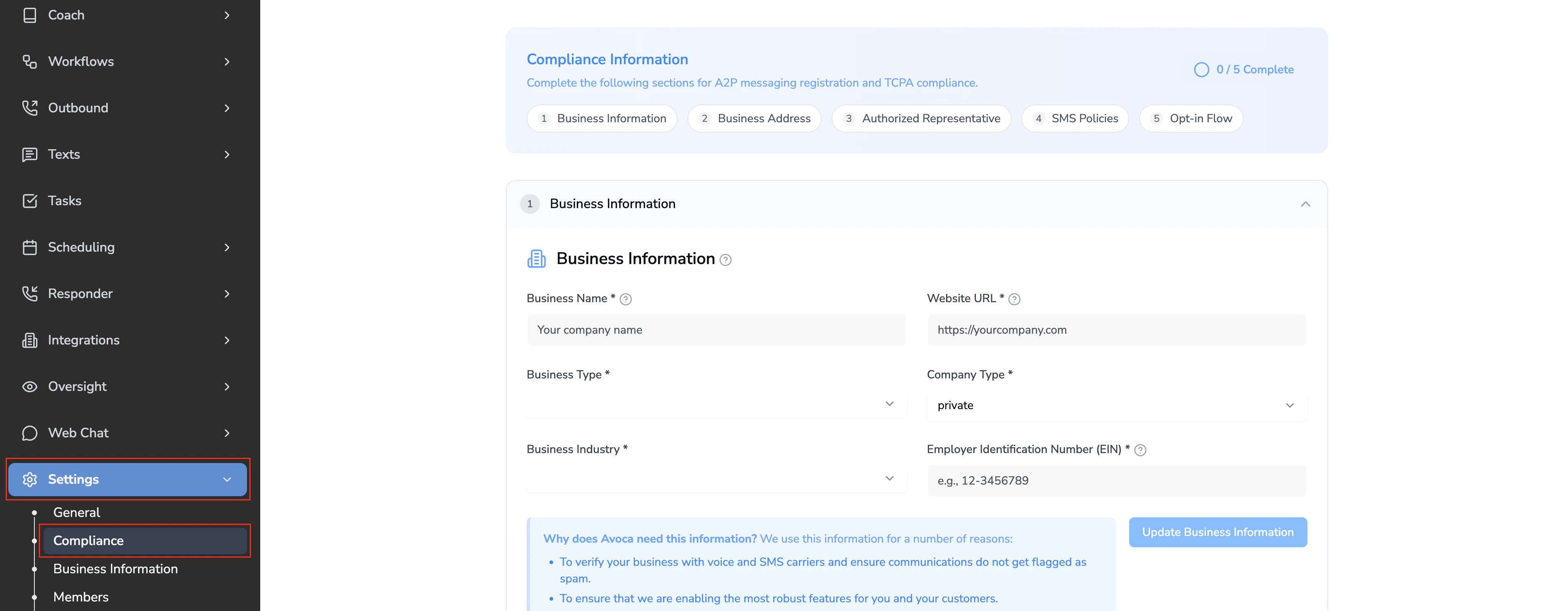 Fill out the **Business Information** section. The information submitted should match the latest official legal/financial documents of the company.
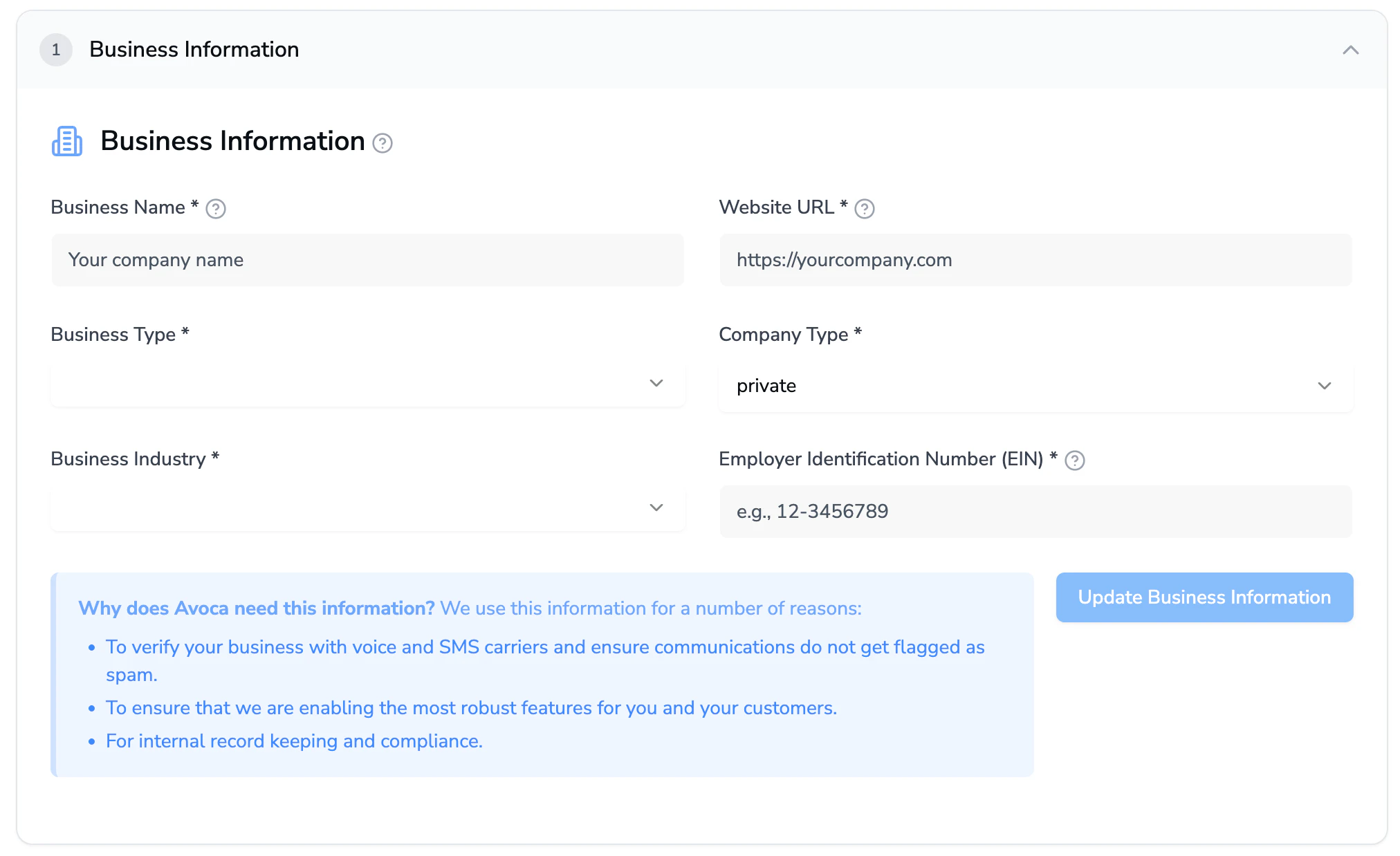 Fill out the **Business Address** section. The information submitted should match the latest official legal/financial documents of the company.
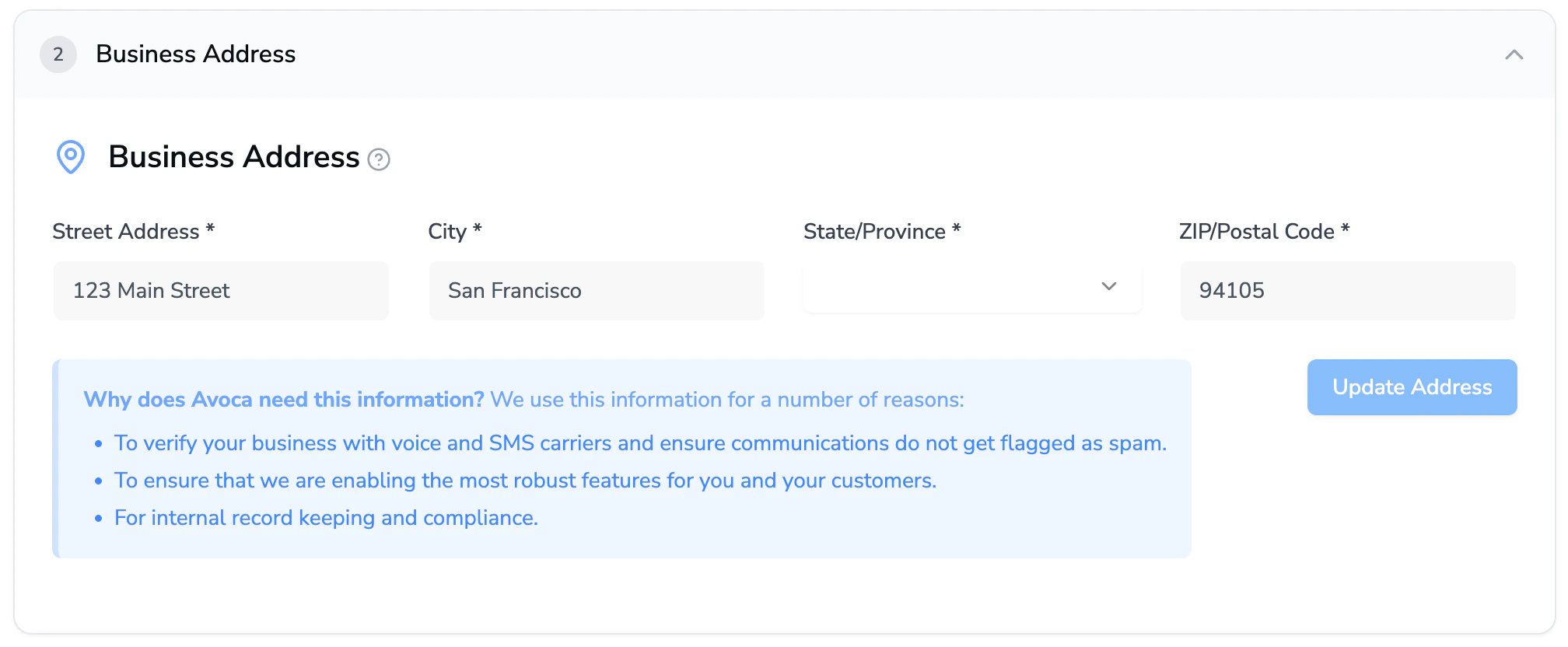 Fill out the **Authorized Representative** section. The person identified as the authorized representative should be reachable by the phone number and email address provided.
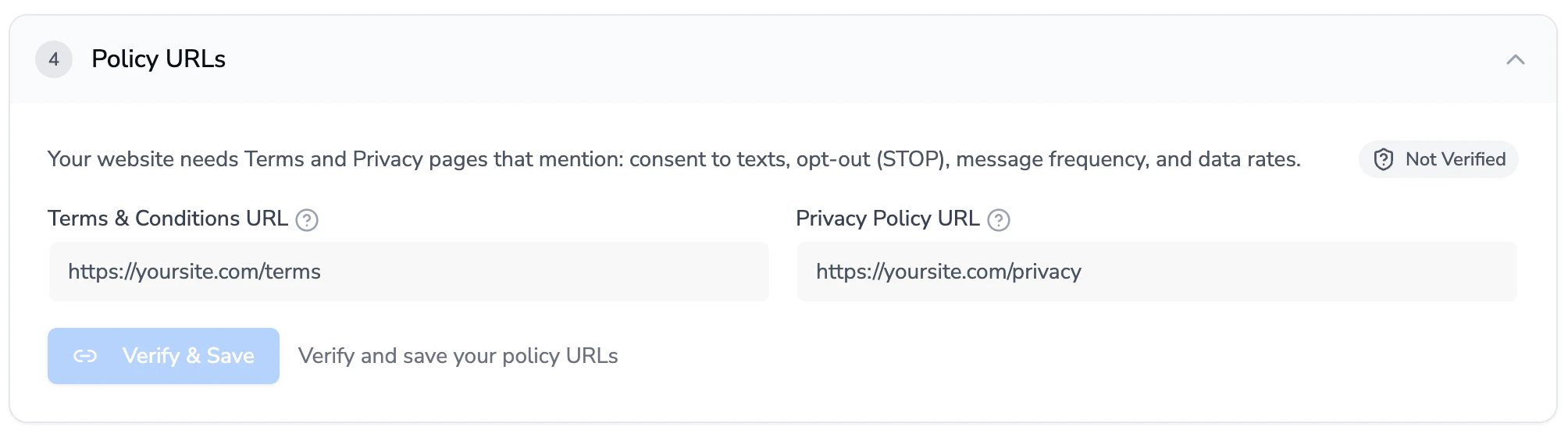
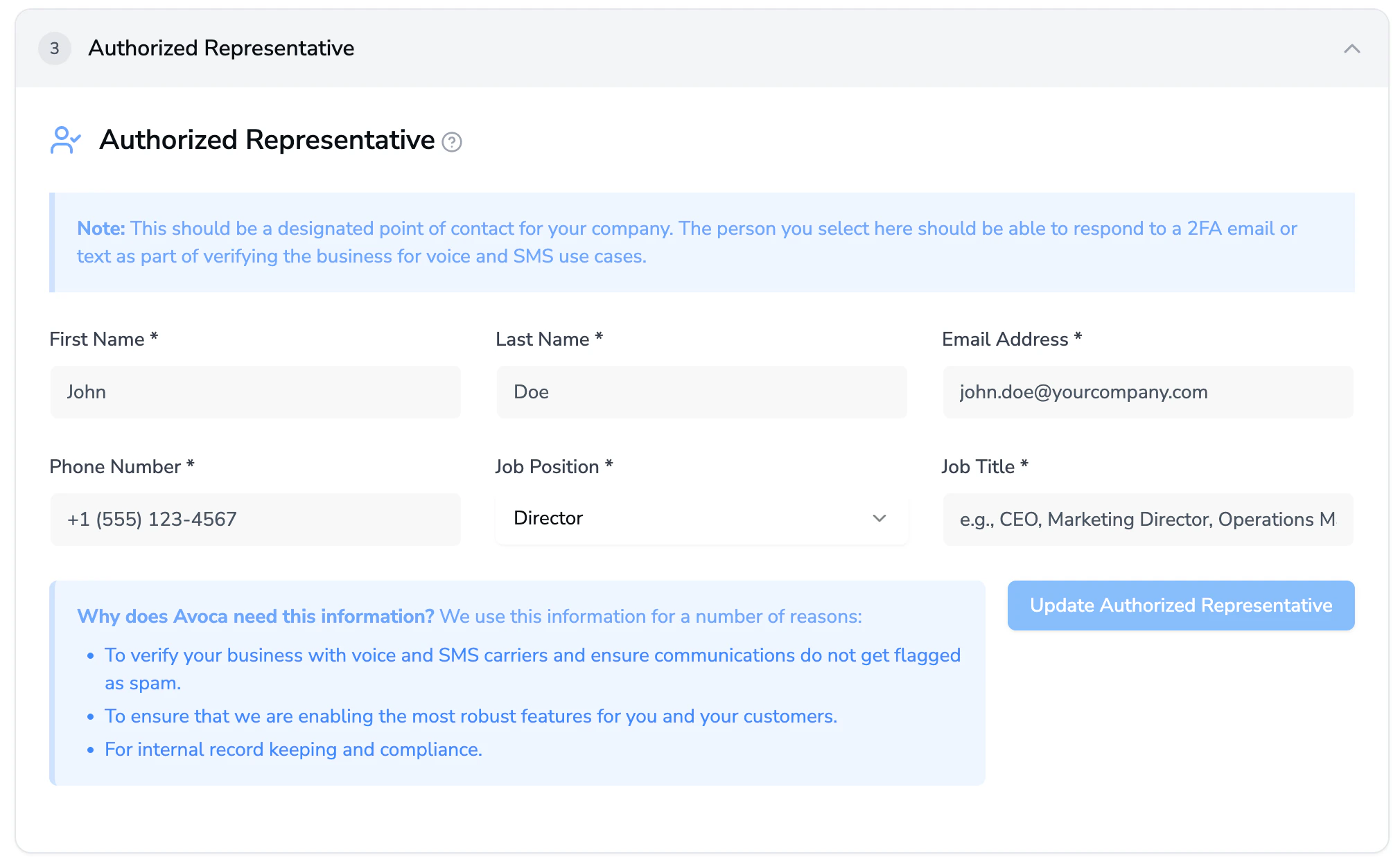 In the **Policy URL** section, copy and paste the terms & conditions and privacy policy URL's into the fields. If you are missing either, you can submit the same URL's for both. Then, click *Verify & Save* to see if all the criteria are met.
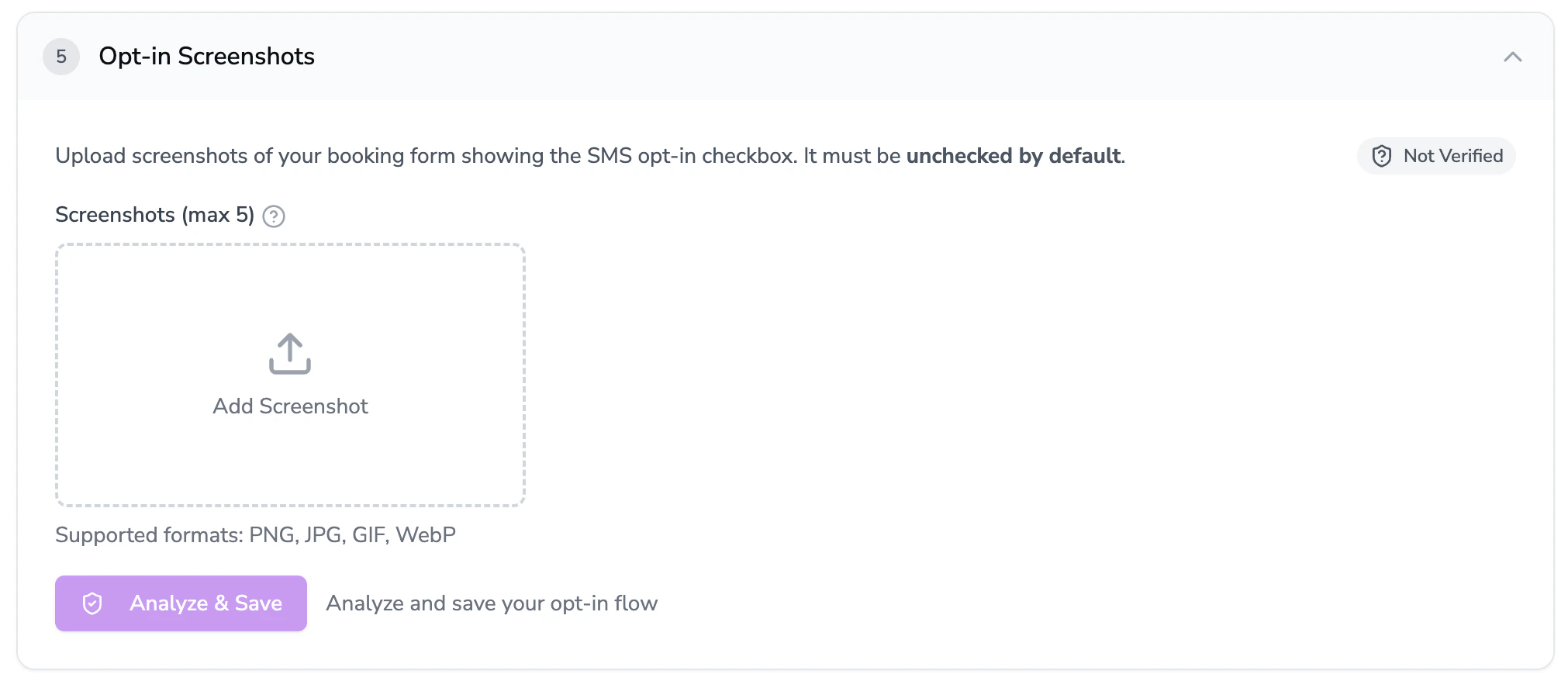
 In the **Opt-in Screenshots** section, take screenshots of your online scheduler, webchat, web form, or any pages that collect opt-in consent. The page you screenshot should include the *consent language* and *unchecked opt-in checkbox*.
 Review your compliance criteria
* If **every criteria is green** ✅: You have successfully completed the pre-requisites for A2P campaign submission.
* If **any criteria is red** ❌: Click the toggle below for next steps.
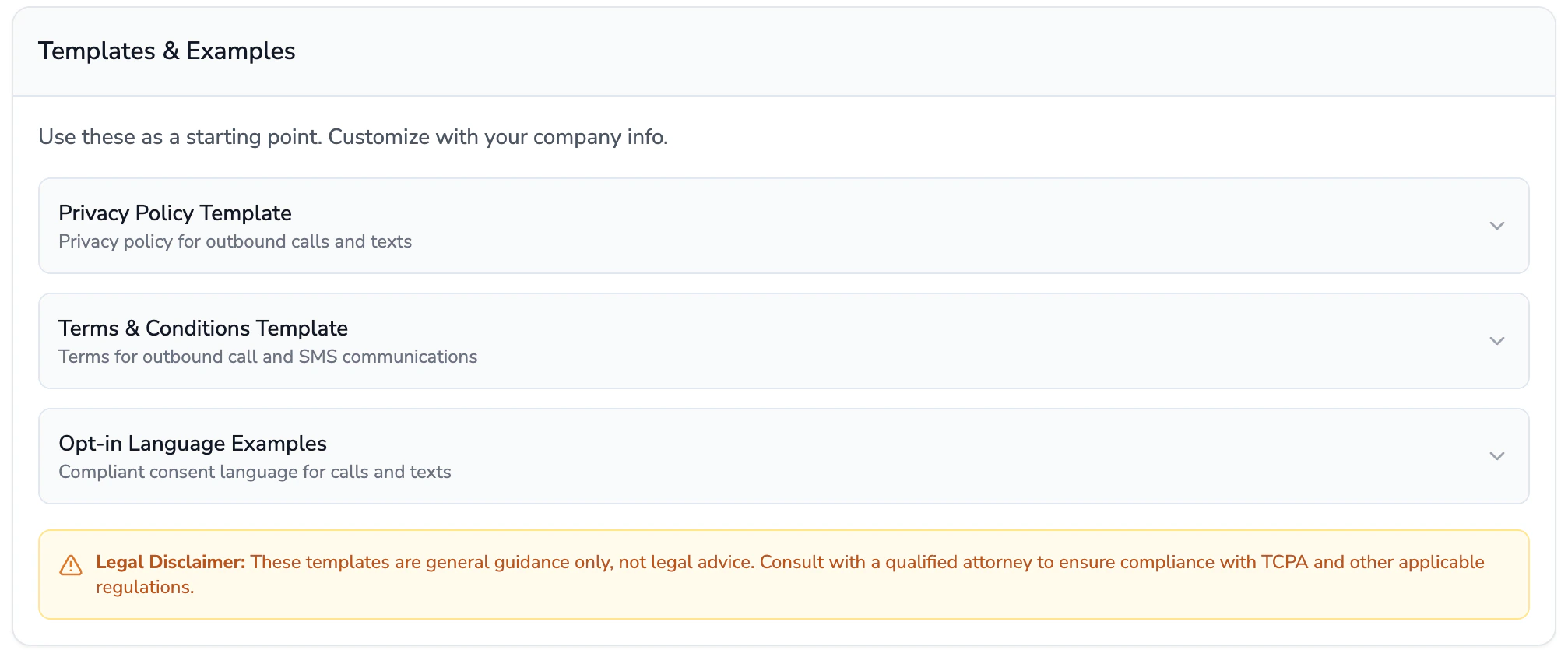
Review the **Templates & Examples** section, which provides guidance for successfully achieving the criteria.
Review your compliance criteria
* If **every criteria is green** ✅: You have successfully completed the pre-requisites for A2P campaign submission.
* If **any criteria is red** ❌: Click the toggle below for next steps.
Review the **Templates & Examples** section, which provides guidance for successfully achieving the criteria.
 Consult your legal team for approved language.
Apply the necessary changes on your website.
Resubmit the URL's in step 6 and screenshots in step 7, and check if any further steps are required.
**Note:**
This is general guidance, so completing these items do not guarantee that your A2P campaign submission will be approved. Ultimately, A2P campaign submission approval relies on a compliant website and policy pages.
## Need Help?
If you have questions about approvals or filling out the Compliance page, please reach out to your designated Avoca CSM/TAM for assistance.
**Related Guides:**
Consult your legal team for approved language.
Apply the necessary changes on your website.
Resubmit the URL's in step 6 and screenshots in step 7, and check if any further steps are required.
**Note:**
This is general guidance, so completing these items do not guarantee that your A2P campaign submission will be approved. Ultimately, A2P campaign submission approval relies on a compliant website and policy pages.
## Need Help?
If you have questions about approvals or filling out the Compliance page, please reach out to your designated Avoca CSM/TAM for assistance.
**Related Guides:**